
About MiniMax MCP JS
MiniMax MCP JS is the official JavaScript and TypeScript implementation of MiniMax MCP, exposing image generation, video generation, text-to-speech and voice cloning as MCP tools. It suits developers who want MCP clients to call MiniMax media APIs. It supports stdio, REST and SSE transports and per-request configuration for multi-tenant hosting.
Key features
- 01Text-to-speech tool with subtitle option
- 02Image and video generation tools
- 03Voice cloning and voice design
- 04Three transport modes: stdio, REST, SSE
- 05Configuration via environment, CLI or request
Use cases
- 01Generating voiceover audio from an MCP client
- 02Producing images or short videos from prompts
- 03Hosting a media generation service over REST or SSE
MCP support
This is an MCP server that exposes tools such as text_to_audio, text_to_image, generate_video, voice_clone and voice_design to MCP clients, which connect via npx or stdio.
Configuration
Local server config is the same for every client. Copy it into your client’s MCP config file.
Tools
Local servers expose tools only once running on your machine, and the maintainer has not provided a tool list.
Details
From the project README
MiniMax MCP JS
JavaScript/TypeScript implementation of MiniMax MCP, providing image generation, video generation, text-to-speech, and more.








Documentation
- 中文文档
- Python Version - Official Python implementation of MiniMax MCP
Release Notes
July 22, 2025
🔧 Fixes & Improvements
- TTS Tool Fixes: Fixed parameter handling for
languageBoostandsubtitleEnablein thetext_to_audiotool - API Response Enhancement: TTS API can return both audio file and subtitle file, providing a more complete speech-to-text experience
July 7, 2025
🆕 What's New
- Voice Design: New
voice_designtool - create custom voices from descriptive prompts with preview audio - Video Enhancement: Added
MiniMax-Hailuo-02model with ultra-clear quality and duration/resolution controls
📈 Enhanced Tools
voice_design- Generate personalized voices from text descriptionsgenerate_video- Now supports MiniMax-Hailuo-02 with 6s/10s duration and 768P/1080P resolution options
Features
- Text-to-Speech (TTS)
- Image Generation
- Video Generation
- Voice Cloning
- Voice Design
- Dynamic configuration (supports both environment variables and request parameters)
- Compatible with MCP platform hosting (ModelScope and other MCP platforms)
Installation
Installing via Smithery
To install MiniMax MCP JS for Claude Desktop automatically via Smithery:
npx -y @smithery/cli install @MiniMax-AI/MiniMax-MCP-JS --client claude
Installing manually
# Install with pnpm (recommended)
pnpm add minimax-mcp-js
Quick Start
MiniMax MCP JS implements the Model Context Protocol (MCP) specification and can be used as a server to interact with MCP-compatible clients (such as Claude AI).
Quickstart with MCP Client
- Get your API key from MiniMax International Platform.
- Make sure that you already installed Node.js and npm
- Important: API HOST&KEY are different in different region, they must match, otherwise you will receive an
Invalid API keyerror.
| Region | Global | Mainland |
|---|---|---|
| MINIMAX_API_KEY | go get from MiniMax Global | go get from MiniMax |
| MINIMAX_API_HOST | https://api.minimaxi.chat (note the extra "i") | https://api.minimax.chat |
Using with MCP Clients (Recommended)
Configure your MCP client:
Claude Desktop
Go to Claude > Settings > Developer > Edit Config > claude_desktop_config.json to include:
{
  "mcpServers": {
    "minimax-mcp-js": {
      "command": "npx",
      "args": [
        "-y",
        "minimax-mcp-js"
      ],
      "env": {
        "MINIMAX_API_HOST": "<https://api.minimaxi.chat|https://api.minimax.chat>",
        "MINIMAX_API_KEY": "<your-api-key-here>",
        "MINIMAX_MCP_BASE_PATH": "<local-output-dir-path, such as /User/xxx/Desktop>",
        "MINIMAX_RESOURCE_MODE": "<optional, [url|local], url is default, audio/image/video are downloaded locally or provided in URL format>"
      }
    }
  }
}
Cursor
Go to Cursor → Preferences → Cursor Settings → MCP → Add new global MCP Server to add the above config.
⚠️ Note: If you encounter a "No tools found" error when using MiniMax MCP JS with Cursor, please update your Cursor to the latest version. For more information, see this discussion thread.
That's it. Your MCP client can now interact with MiniMax through these tools.
For local development:
When developing locally, you can use npm link to test your changes:
# In your project directory
npm link
Then configure Claude Desktop or Cursor to use npx as shown above. This will automatically use your linked version.
⚠️ Note: The API key needs to match the host address. Different hosts are used for global and mainland China versions:
- Global Host:
https://api.minimaxi.chat(note the extra "i") - Mainland China Host:
https://api.minimaxi.chat
Transport Modes
MiniMax MCP JS supports three transport modes:
| Feature | stdio (default) | REST | SSE |
|---|---|---|---|
| Environment | Local only | Local or cloud deployment | Local or cloud deployment |
| Communication | Via standard I/O | Via HTTP requests | Via server-sent events |
| Use Cases | Local MCP client integration | API services, cross-language calls | Applications requiring server push |
| Input Restrictions | Supports local files or URL resources | When deployed in cloud, URL input recommended | When deployed in cloud, URL input recommended |
Configuration
MiniMax-MCP-JS provides multiple flexible configuration methods to adapt to different use cases. The configuration priority from highest to lowest is as follows:
1. Request Parameter Configuration (Highest Priority)
In platform hosting environments (like ModelScope or other MCP platforms), you can provide an independent configuration for each request via the meta.auth object in the request parameters:
{
  "params": {
    "meta": {
      "auth": {
        "api_key": "your_api_key_here",
        "api_host": "<https://api.minimaxi.chat|https://api.minimaxi.chat>",
        "base_path": "/path/to/output",
        "resource_mode": "url"
      }
    }
  }
}
This method enables multi-tenant usage, where each request can use different API keys and configurations.
2. API Configuration
When used as a module in other projects, you can pass configuration through the startMiniMaxMCP function:
import { startMiniMaxMCP } from 'minimax-mcp-js';

await startMiniMaxMCP({
  apiKey: 'your_api_key_here',
  apiHost: 'https://api.minimaxi.chat', // Global Host - https://api.minimaxi.chat, Mainland Host - https://api.minimax.chat
  basePath: '/path/to/output',
  resourceMode: 'url'
});
3. Command Line Arguments
- Install the CLI tool globally:
# Install globally
pnpm install -g minimax-mcp-js
- When used as a CLI tool, you can provide configuration via command line arguments:
minimax-mcp-js --api-key your_api_key_here --api-host https://api.minimaxi.chat --base-path /path/to/output --resource-mode url
4. Environment Variables (Lowest Priority)
The most basic configuration method is through environment variables:
# MiniMax API Key (required)
MINIMAX_API_KEY=your_api_key_here

# Base path for output files (optional, defaults to user's desktop)
MINIMAX_MCP_BASE_PATH=~/Desktop

# MiniMax API Host (optional, defaults to https://api.minimaxi.chat, Global Host - https://api.minimaxi.chat, Mainland Host - https://api.minimax.chat)
MINIMAX_API_HOST=https://api.minimaxi.chat

# Resource mode (optional, defaults to 'url')
# Options: 'url' (return URLs), 'local' (save files locally)
MINIMAX_RESOURCE_MODE=url
Configuration Priority
When multiple configuration methods are used, the following priority order applies (from highest to lowest):
- Request-level configuration (via
meta.authin each API request) - Command line arguments
- Environment variables
- Configuration file
- Default values
This prioritization ensures flexibility across different deployment scenarios while maintaining per-request configuration capabilities for multi-tenant environments.
Configuration Parameters
| Parameter | Description | Default Value |
|---|---|---|
| apiKey | MiniMax API Key | None (Required) |
| apiHost | MiniMax API Host | Global Host - https://api.minimaxi.chat, Mainland Host - https://api.minimax.chat |
| basePath | Base path for output files | User's desktop |
| resourceMode | Resource handling mode, 'url' or 'local' | url |
⚠️ Note: The API key needs to match the host address. Different hosts are used for global and mainland China versions:
- Global Host:
https://api.minimaxi.chat(note the extra "i") - Mainland China Host:
https://api.minimax.chat
Example usage
⚠️ Warning: Using these tools may incur costs.
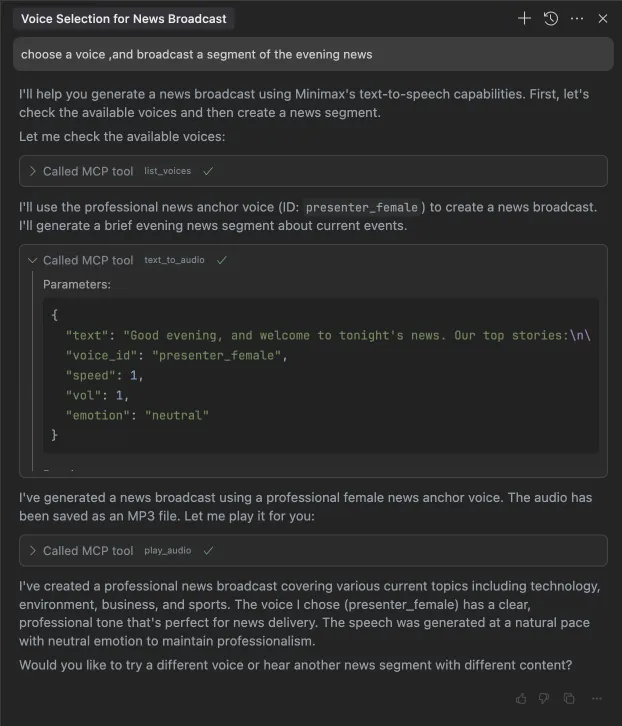
1. broadcast a segment of the evening news
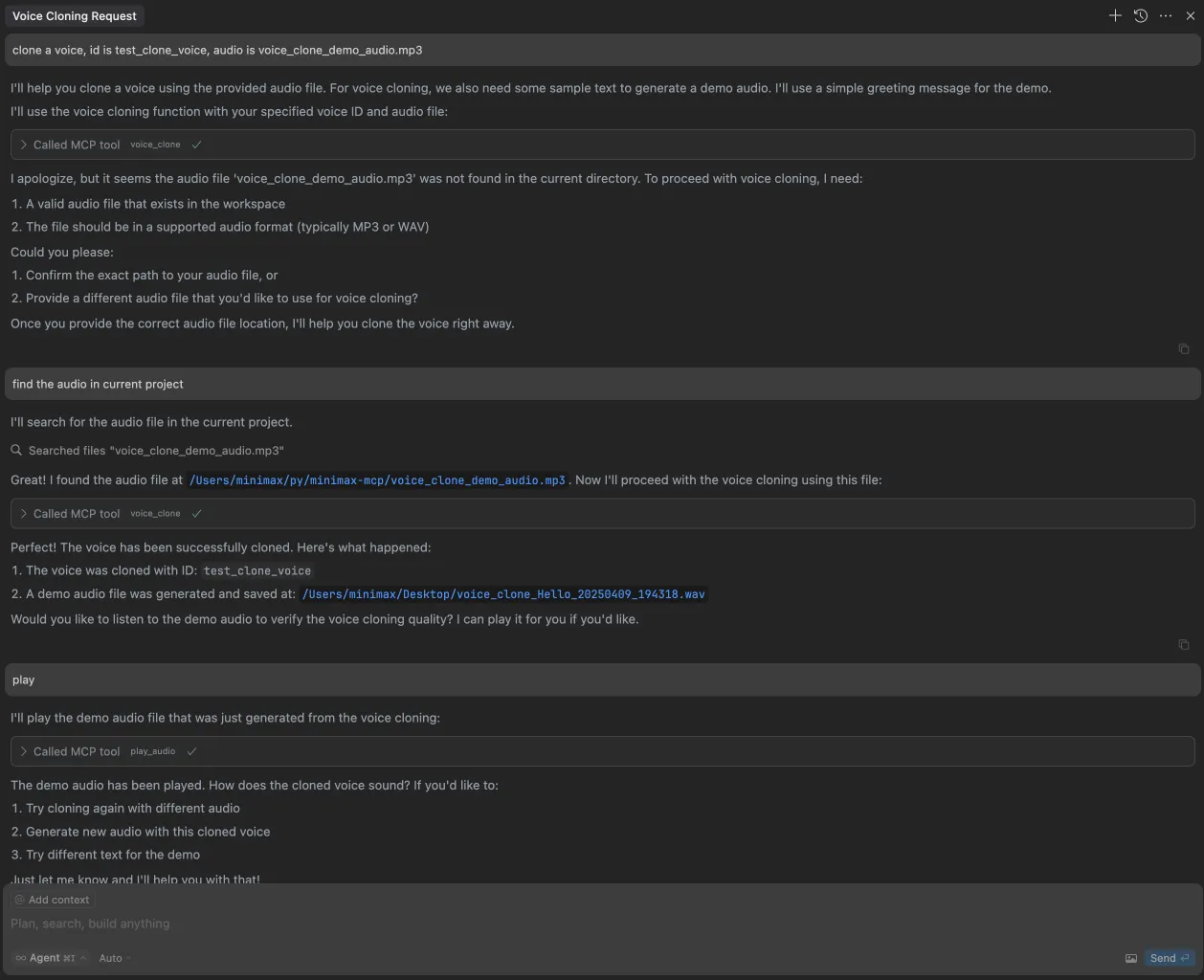
2. clone a voice
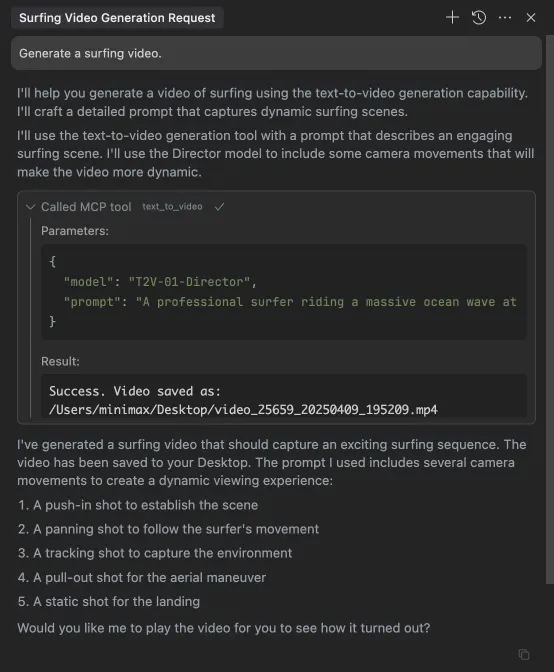
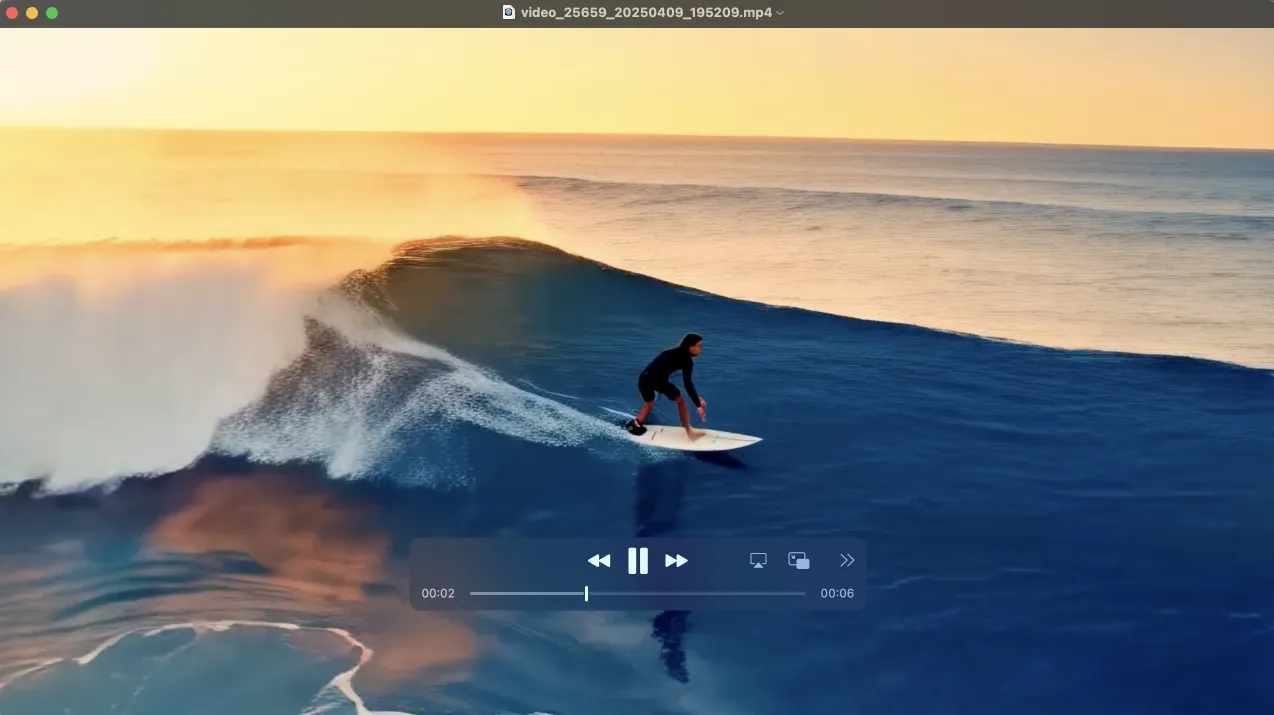
3. generate a video
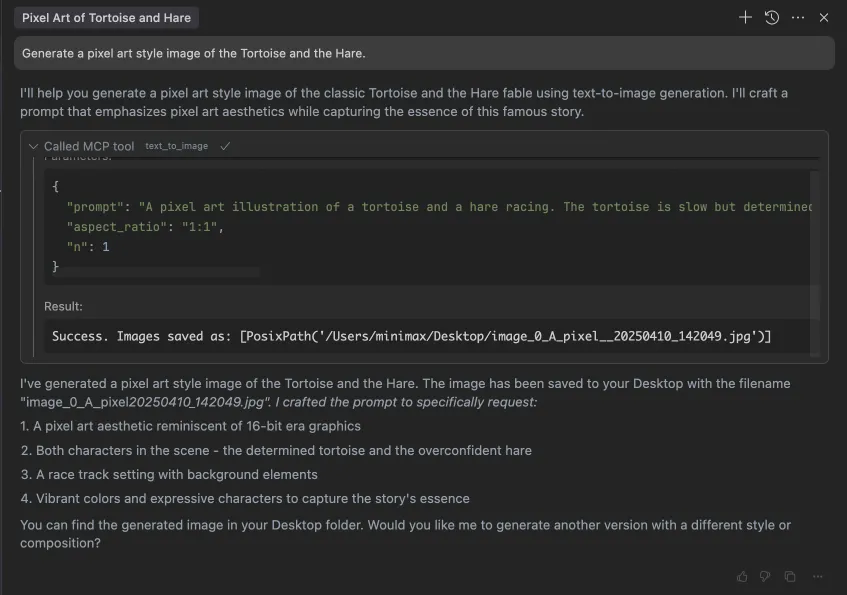
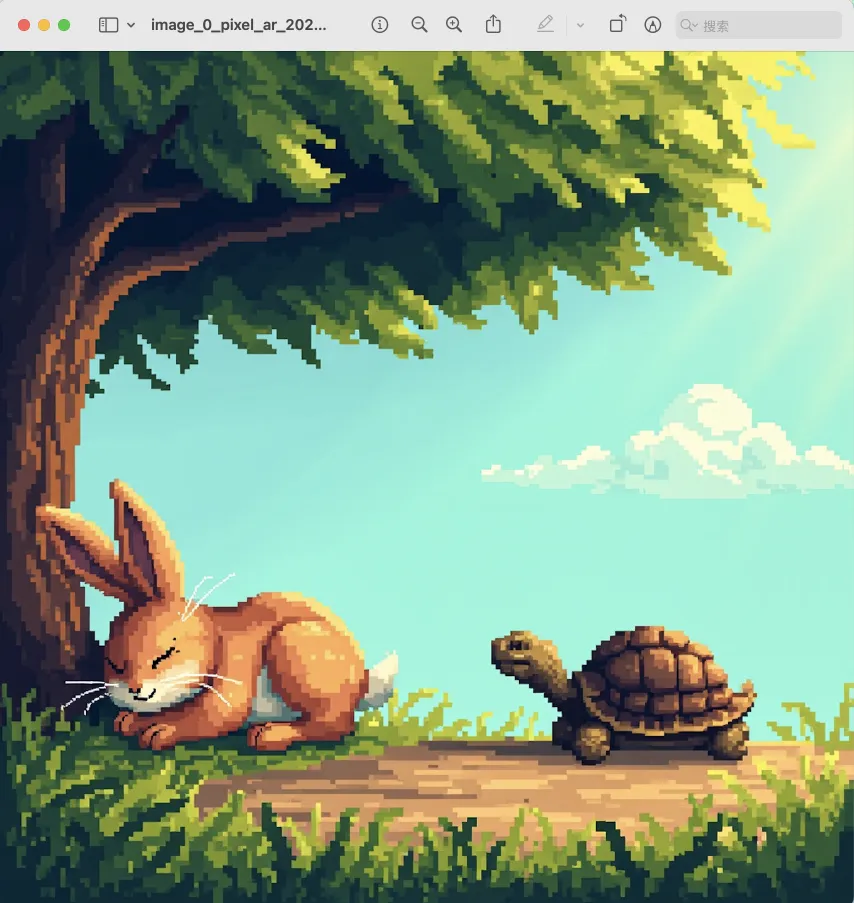
4. generate images
5. voice design
Available Tools
Text to Audio
Convert text to speech audio file.
Tool Name: text_to_audio
Parameters:
text: Text to convert (required)model: Model version, options are 'speech-02-hd', 'speech-02-turbo', 'speech-01-hd', 'speech-01-turbo', 'speech-01-240228', 'speech-01-turbo-240228', default is 'speech-02-hd'voiceId: Voice ID, default is 'male-qn-qingse'speed: Speech speed, range 0.5-2.0, default is 1.0vol: Volume, range 0.1-10.0, default is 1.0pitch: Pitch, range -12 to 12, default is 0emotion: Emotion, options are 'happy', 'sad', 'angry', 'fearful', 'disgusted', 'surprised', 'neutral', default is 'happy'. Note: This parameter only works with 'speech-02-hd', 'speech-02-turbo', 'speech-01-turbo', 'speech-01-hd' modelsformat: Audio format, options are 'mp3', 'pcm', 'flac', 'wav', default is 'mp3'sampleRate: Sample rate (Hz), options are 8000, 16000, 22050, 24000, 32000, 44100, default is 32000bitrate: Bitrate (bps), options are 64000, 96000, 128000, 160000, 192000, 224000, 256000, 320000, default is 128000channel: Audio channels, options are 1 or 2, default is 1languageBoost: Enhance the ability to recognize specified languages and dialects. Supported values include: 'Chinese', 'Chinese,Yue', 'English', 'Arabic', 'Russian', 'Spanish', 'French', 'Portuguese', 'German', 'Turkish', 'Dutch', 'Ukrainian', 'Vietnamese', 'Indonesian', 'Japanese', 'Italian', 'Korean', 'Thai', 'Polish', 'Romanian', 'Greek', 'Czech', 'Finnish', 'Hindi', 'auto', default is 'auto'stream: Enable streaming outputsubtitleEnable: The parameter controls whether the subtitle service is enabled. The model must be 'speech-01-turbo' or 'speech-01-hd'. If this parameter is not provided, the default value is falseoutputDirectory: Directory to save the output file.outputDirectoryis relative toMINIMAX_MCP_BASE_PATH(orbasePathin config). The final save path is${basePath}/${outputDirectory}. For example, ifMINIMAX_MCP_BASE_PATH=~/DesktopandoutputDirectory=workspace, the output will be saved to~/Desktop/workspace/. (optional)outputFile: Path to save the output file (optional, auto-generated if not provided)
Play Audio
Play an audio file. Supports WAV and MP3 formats. Does not support video.
Tool Name: play_audio
Parameters:
inputFilePath: Path to the audio file to play (required)isUrl: Whether the audio file is a URL, default is false
Voice Clone
Clone a voice from an audio file.
Tool Name: voice_clone
Parameters:
audioFile: Path to audio file (required)voiceId: Voice ID (required)text: Text for demo audio (optional)outputDirectory: Directory to save the output file.outputDirectoryis relative toMINIMAX_MCP_BASE_PATH(orbasePathin config). The final save path is${basePath}/${outputDirectory}. For example, ifMINIMAX_MCP_BASE_PATH=~/DesktopandoutputDirectory=workspace, the output will be saved to~/Desktop/workspace/. (optional)
Text to Image
Generate images based on text prompts.
Tool Name: text_to_image
Parameters:
prompt: Image description (required)model: Model version, default is 'image-01'aspectRatio: Aspect ratio, default is '1:1', options are '1:1', '16:9','4:3', '3:2', '2:3', '3:4', '9:16', '21:9'n: Number of images to generate, range 1-9, default is 1promptOptimizer: Whether to optimize the prompt, default is truesubjectReference: Path to local image file or public URL for character reference (optional)outputDirectory: Directory to save the output file.outputDirectoryis relative toMINIMAX_MCP_BASE_PATH(orbasePathin config). The final save path is${basePath}/${outputDirectory}. For example, ifMINIMAX_MCP_BASE_PATH=~/DesktopandoutputDirectory=workspace, the output will be saved to~/Desktop/workspace/. (optional)outputFile: Path to save the output file (optional, auto-generated if not provided)asyncMode: Whether to use async mode. Defaults to False. If True, the video generation task will be submitted asynchronously and the response will return a task_id. Should usequery_video_generationtool to check the status of the task and get the result. (optional)
Generate Video
Generate videos based on text prompts.
Tool Name: generate_video
Parameters:
prompt: Video description (required)model: Model version, options are 'T2V-01', 'T2V-01-Director', 'I2V-01', 'I2V-01-Director', 'I2V-01-live', 'S2V-01', 'MiniMax-Hailuo-02', default is 'MiniMax-Hailuo-02'firstFrameImage: Path to first frame image (optional)duration: The duration of the video. The model must be "MiniMax-Hailuo-02". Values can be 6 and 10. (optional)resolution: The resolution of the video. The model must be "MiniMax-Hailuo-02". Values range ["768P", "1080P"]. (optional)outputDirectory: Directory to save the output file.outputDirectoryis relative toMINIMAX_MCP_BASE_PATH(orbasePathin config). The final save path is${basePath}/${outputDirectory}. For example, ifMINIMAX_MCP_BASE_PATH=~/DesktopandoutputDirectory=workspace, the output will be saved to~/Desktop/workspace/. (optional)outputFile: Path to save the output file (optional, auto-generated if not provided)asyncMode: Whether to use async mode. Defaults to False. If True, the video generation task will be submitted asynchronously and the response will return a task_id. Should usequery_video_generationtool to check the status of the task and get the result. (optional)
Query Video Generation Status
Query the status of a video generation task.
Tool Name: query_video_generation
Parameters:
taskId: The Task ID to query. Should be the task_id returned bygenerate_videotool ifasync_modeis True. (required)outputDirectory: Directory to save the output file.outputDirectoryis relative toMINIMAX_MCP_BASE_PATH(orbasePathin config). The final save path is${basePath}/${outputDirectory}. For example, ifMINIMAX_MCP_BASE_PATH=~/DesktopandoutputDirectory=workspace, the output will be saved to~/Desktop/workspace/. (optional)
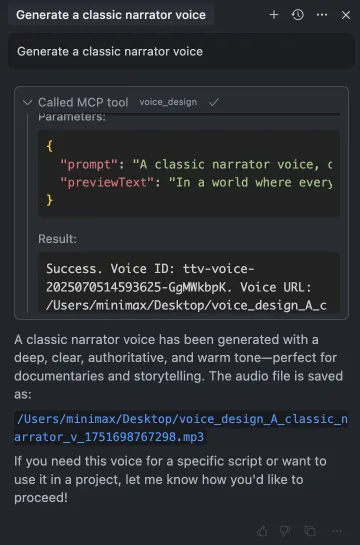
Voice Design
Generate a voice based on description prompts.
Tool Name: voice_design
Parameters:
prompt: The prompt to generate the voice from. (required)previewText: The text to preview the voice. (required)voiceId: The id of the voice to use. For example, "male-qn-qingse"/"audiobook_female_1"/"cute_boy"/"Charming_Lady"... (optional)outputDirectory: The directory to save the output file.outputDirectoryis relative toMINIMAX_MCP_BASE_PATH(orbasePathin config). The final save path is${basePath}/${outputDirectory}. For example, ifMINIMAX_MCP_BASE_PATH=~/DesktopandoutputDirectory=workspace, the output will be saved to~/Desktop/workspace/. (optional)
FAQ
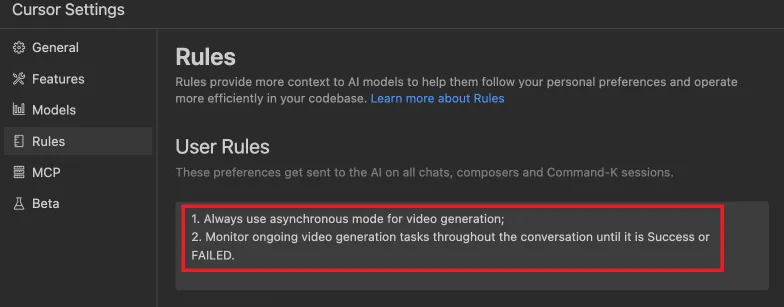
1. How to use generate_video in async-mode
Define completion rules before starting:
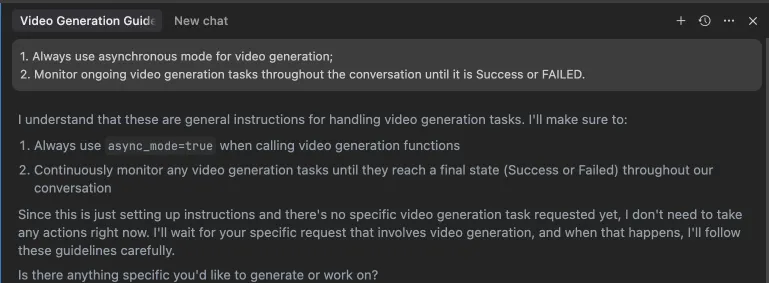 Alternatively, these rules can be configured in your IDE settings (e.g., Cursor):
Development
Setup
# Clone the repository
git clone https://github.com/MiniMax-AI/MiniMax-MCP-JS.git
cd minimax-mcp-js

# Install dependencies
pnpm install
Build
# Build the project
pnpm run build
Run
# Run the MCP server
pnpm start
License
MIT
Comments
New to MCP?
From what the protocol is to installing your first server, these answers cover most first questions.
An open protocol that defines how AI applications connect to external tools and data in a uniform way. Clients talk to the model; MCP servers provide tools, resources and prompt templates. They exchange standard messages, so one server can be reused by many clients.