About Electron Viewer
Electron Viewer is a live browser viewer and MCP server for Electron app developers and coding agents. It uses CDP to stream windows, send input, inspect accessibility and logs, and evaluate JavaScript in the renderer or main process without adding code to the app.
Key features
- 01Live Electron window streaming
- 02Mouse and keyboard input
- 03Launch or attach to app windows
- 04Renderer and main-process JavaScript
- 05Accessibility tree and console logs
- 06Native frame screenshots
Use cases
- 01Watch an agent interact with an Electron app
- 02Test app interfaces with mouse and keyboard input
- 03Inspect renderer and main-process behavior
- 04Capture native menus and dialogs in screenshots
MCP support
The MCP server exposes tools to list, launch, and attach to Electron apps, control windows, take screenshots, inspect accessibility and logs, and evaluate JavaScript in renderer and main processes.
Configuration
Local server config is the same for every client. Copy it into your client’s MCP config file.
npx -y @acertijosapps/electron-viewerELECTRON_VIEWER_URLViewer to show actions live (default http://localhost:8094); without it, CDP is used directlyELECTRON_VIEWER_PROJECTElectron project folder that launch_app starts with `electron .` (default: the current folder)Local servers need a runtime on your machine (e.g. Node.js 18+). Config file locations differ by client; see your client’s docs.
Tools
20Saved tool list · updated 6d ago
This tool takes no parameters.
Details
From the project README@acertijosapps/electron-viewer
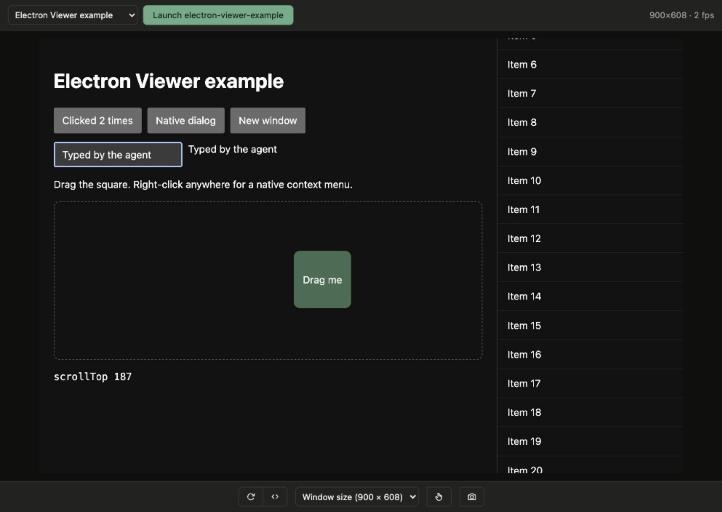
Live viewer for Electron apps in the browser, plus an MCP server so an AI agent can drive them. Built for the browser pane of AI coding tools (such as Claude Code): you and the agent watch and control the same app window, in real time.
- Live video:
Page.startScreencastfrom the Chrome DevTools Protocol (CDP) over WebSocket. It keeps streaming while the app window is covered or minimized. - Real input: mouse move and hover, click, double click, right click, drag, wheel and full keyboard passthrough (including ⌘C/⌘V/⌘A on macOS, IME and dictation).
- Every app and window: launch your project with
electron .from the viewer, or attach to any app started with--remote-debugging-port. Apps on ports 9222–9231 are found automatically. - Main process too: launched apps also expose their main process (Node inspector), so the agent can run code there, resize the real window, open DevTools and capture the native frame.
- Native frame capture: title bar, context menus and dialogs on top of the window.
- MCP server: the same actions as tools, plus JavaScript in the renderer and main process, the accessibility tree with click-ready coordinates, and console logs.
- Nothing to add to your app: no preload, no dependency, no code changes.
Requirements
- Node.js 18 or later.
- An Electron app. To launch it from the viewer, the project must have
electronin itsnode_modules(npm install --save-dev electron); if its binary hasn't been downloaded yet, the viewer downloads it on the first launch. - Works on macOS, Linux and Windows.
Quick start
From your Electron project folder:
npx @acertijosapps/electron-viewer
Open http://localhost:8094 and click Launch. The viewer runs electron . on free debugging
ports (CDP from 9222, Node inspector from 9229). Deep link to a window: ?window=<target id>.
If your app is started by another tool (Electron Forge, electron-vite, a custom script), pass the flags yourself and the viewer finds it:
electron --remote-debugging-port=9222 --inspect=9229 .
--inspect is optional; without it you get everything except the main-process features
(evaluate_main, frame capture, real window resizing and in-app DevTools). To attach on another
port, use the form in the viewer or --attach.
electron-viewer [options]        Start the viewer
electron-viewer mcp [options]    Start the MCP server on stdio

      --project <dir>      Project to launch with "electron ." (default: current folder)
  -p, --port <port>        Viewer port (default 8094, env PORT)
      --host <host>        Interface to bind (default 127.0.0.1, env HOST)
      --attach <port>      Attach at startup to an app on this CDP port
      --inspect <port>     With --attach: the app's main process inspector port
      --viewer-url <url>   Viewer the MCP talks to (default http://localhost:8094)
Other environment variables: MAX_DIM (longest side of the streamed frames, default 1920), QUALITY
(JPEG quality, default 80), SCREENSHOT_MAX (longest side of MCP screenshots, default 1024),
CDP_PORT / INSPECT_PORT (first ports to scan and launch on, default 9222 / 9229) and
ELECTRON_VIEWER_STATE_DIR (where launched and attached apps are remembered, default
~/.cache/electron-viewer).
Use it with an AI agent (MCP)
Claude Code:
claude mcp add electron-viewer -- npx -y @acertijosapps/electron-viewer mcp
Any other MCP client:
{
  "mcpServers": {
    "electron-viewer": {
      "command": "npx",
      "args": ["-y", "@acertijosapps/electron-viewer", "mcp"]
    }
  }
}
Also listed in the official MCP Registry as
io.github.acertijosapps/electron-viewer.
Keep the viewer running (npx @acertijosapps/electron-viewer) to watch what the agent does. Without
it, the MCP drives the app over CDP directly. Apps launched by either one are visible to the other.
| Tool | What it does |
|---|---|
list_windows | Running apps (with main when the main process is reachable) and their windows |
launch_app | Run electron . in the project on free debugging ports and wait for the first window |
attach | Attach to an app on a CDP port, optionally with its inspector port |
screenshot | PNG of the window content, longest side ≤ 1024 px; frame: true adds the native frame, menus and dialogs |
click | Left, right or middle click; count: 2 for a double click; optional modifiers |
drag | Press, move in steps and release: a real drag |
hover | Move the mouse without clicking |
scroll | Mouse wheel at a point, deltas in CSS px |
type_text | Insert text into the focused element (any Unicode) |
press_key | Enter, Tab, Escape, arrows, F1–F12… or any character, with modifiers |
resize_window | Resize the content area (the real window with the main process, emulated without it) |
reload | Reload the window's page |
evaluate | Run JavaScript in the window's page and return the value |
evaluate_main | Run JavaScript in the main process, with require('electron') available |
get_accessibility_tree | Roles, names, values and states; interactive elements carry their normalized center |
get_console_logs | Console messages and exceptions from renderer windows and the main process, or the raw stdout |
Coordinates are normalized to 0–1 over the content screenshot (x = pixel_x / image_width), so they
hold at any window size. window is optional when only one window is open; it takes the target id
from list_windows or part of the window title.
In the Claude Code browser pane
Add the viewer to .claude/launch.json and open it with preview_start electron-viewer:
{
  "version": "0.0.1",
  "configurations": [
    {
      "name": "electron-viewer",
      "runtimeExecutable": "npx",
      "runtimeArgs": ["-y", "@acertijosapps/electron-viewer"],
      "port": 8094,
      "autoPort": false
    }
  ]
}
Native frame capture
The frame button (and screenshot with frame: true) captures the screen area of the window from
the main process with desktopCapturer: the title bar, native context menus and dialogs on top of the
window show up, at a few frames per second. Anything else covering the window shows up too, and the
macOS menu bar at the top of the screen is not included. In frame mode, clicks on the content still
work; the title bar and native menus can't be clicked from the viewer.
On macOS the app needs the Screen Recording permission (System Settings › Privacy & Security ›
Screen & System Audio Recording). For an app run with electron ., that is the Electron.app inside
the project's node_modules/electron/dist; the error message gives the exact path. Restart the app
after allowing it.
HTTP API
The MCP uses the viewer's API; you can call it too. window (target id or part of the title) goes in
the query string or the body and is optional with a single window. The server only listens on
127.0.0.1, only accepts a local Host and origin, and POST requests require
content-type: application/json, so other websites can't drive your apps.
| Endpoint | |
|---|---|
GET /api/windows | [{ id, name, cdpPort, inspectPort, main, windows: [{ id, title, url }] }] |
GET /api/project | The project the viewer launches and whether it has Electron installed |
GET /api/screenshot?max=<px>&frame=1 | PNG; viewport size in X-Viewport-Width / X-Viewport-Height |
GET /api/ax-tree?interactiveOnly=true | { tree } |
GET /api/logs?level=&source=&limit= | { logs } or { stdout } |
POST /api/launch | { project? } |
POST /api/attach | { port, inspectPort? } |
POST /api/click | { x, y, button?, count?, modifiers? } |
POST /api/drag | { x1, y1, x2, y2, ms? } |
POST /api/hover | { x, y } |
POST /api/scroll | { x, y, dx, dy } |
POST /api/text | { text } |
POST /api/key | { key, modifiers? } |
POST /api/resize | { width, height } (0 × 0 restores the window size) |
POST /api/reload | { ignoreCache? } |
POST /api/evaluate | { expression } |
POST /api/evaluate-main | { expression, app? } |
POST /api/devtools | Toggles DevTools; without the main process returns the DevTools url |
How it works
- Everything goes through CDP with
ws: no Playwright, no Puppeteer, nothing injected into the app. The renderer is reached through--remote-debugging-port(onepagetarget per window) and the main process through the Node inspector (--inspect), where the console API providesrequire. - One screencast session per window, shared by every viewer tab and stopped when the last one closes. The last frame is kept for late joiners. Focus and page lifecycle are emulated while someone is watching, so a covered or minimized window keeps painting.
- Viewer input is queued in order and mouse moves are coalesced to one per animation frame. A hidden
textarea holds the focus: keys are sent with
Input.dispatchKeyEvent, and text that arrives without key events (IME, dictation) withInput.insertText. On macOS, ⌘A, ⌘C, ⌘V, ⌘X and ⌘Z are sent as editing commands, because the native menu that normally handles them never sees CDP events. - Each process keeps one connection per window and per main process, which also collects console messages and exceptions (the last 1000 per app).
- Launched and attached apps are remembered in
~/.cache/electron-viewer, so the viewer and the MCP see the same apps. Launched apps write their output to a log file there and keep running if the viewer or MCP exits.
Limitations
- CDP only sees web content. Native UI (title bar, menus, dialogs, tray, notifications) is visible only
in frame mode and can't be clicked; use
evaluate_mainto drive it from the main process. - Synchronous dialogs (
dialog.showMessageBoxSync) block the main process:evaluate_mainand frame capture wait until the dialog is closed. - Each
WebContentsViewis a separate CDP target, so it is listed as its own window.<webview>tags are not listed. - No audio.
- Frame mode runs at a few frames per second and, on macOS, needs the Screen Recording permission.
- Apps that build before starting (Forge, electron-vite) can't be launched from the viewer; start them with the debugging flags and they are picked up.
Contributing
Branching model (main · beta), Conventional Commits and releases are described in
CONTRIBUTING.md; changes are listed in CHANGELOG.md. The
example app in example/ is there to try changes.
Author
Made by AcertijosApps. See the rest of our libraries at acertijosapps.com/librerias.
Questions or proposals: [email protected] or open an issue.
License
MIT
Comments
New to MCP?
From what the protocol is to installing your first server, these answers cover most first questions.
An open protocol that defines how AI applications connect to external tools and data in a uniform way. Clients talk to the model; MCP servers provide tools, resources and prompt templates. They exchange standard messages, so one server can be reused by many clients.