
About SVG Lab
SVG Lab MCP lets AI clients create app screens, icons, illustrations, and charts in an SVG Lab project. Designs appear live in the editor and are saved as SVG for export.
Key features
- 01Create app screens, icons, illustrations, and charts
- 02Design within an SVG Lab project
- 03Watch drawing progress live
- 04Save finished work as clean SVG
- 05Export designs as SVG, PNG, or PDF
Use cases
- 01Create a screen concept for an app
- 02Generate icons or illustrations for a project
- 03Build charts as editable SVG designs
MCP support
SVG Lab runs a remote Streamable HTTP MCP server at https://svglab.app/mcp, with OAuth sign-in. It exposes design tools to MCP clients, which can create designs in a project and open them in the editor.
Configuration
Remote servers need no local install. Pick your client, then copy the config or install in one click.
https://svglab.app/mcp/agentsclaude mcp add --transport http app-svglab-svglab https://svglab.app/mcp/agents{"mcpServers":{"app-svglab-svglab":{"type":"http","url":"https://svglab.app/mcp/agents"}}}Open in Cursor{"servers":{"app-svglab-svglab":{"type":"http","url":"https://svglab.app/mcp/agents"}}}Open in VS Code{"mcpServers":{"app-svglab-svglab":{"type":"http","url":"https://svglab.app/mcp/agents"}}}{"mcpServers":{"app-svglab-svglab":{"serverUrl":"https://svglab.app/mcp/agents"}}}Run commands in a terminal; paste JSON into the client’s MCP config and restart. Servers that need sign-in will prompt on first connect.
Tools
Details
From the project READMESVG Lab MCP




Add to Claude opens Claude's Add custom connector dialog with SVG Lab already filled in; press Add, then Connect. The Cursor and VS Code buttons open SVG Lab's install step for that app, which hands over to the app (GitHub cannot link to an app directly).
Listed on Smithery and Glama. Facts, offer and setup: https://svglab.app/mcp-server
SVG Lab MCP lets your AI design inside SVG Lab (svglab.app), and you watch it live. Connect Claude, ChatGPT, Codex, Cursor or any other MCP client and ask for app screens, icons, illustrations or charts: your AI designs them in your SVG Lab project with SVG Lab's Design Engine (layout, spacing, type, colour and drawing, checked before anything is finished). claude.ai, ChatGPT and Codex show a live card in the chat with the screen being drawn; in any app the AI can open the project in the SVG Lab editor so you watch the work on SVG Lab's canvas. The finished designs are saved to your SVG Lab projects as clean SVG, ready to export as SVG, PNG or PDF.
The AI brings the idea (content, palette, direction); SVG Lab guarantees the structure (spacing, alignment, sizing, type, valid vector geometry). It runs on SVG Lab's servers, so there is nothing to install and no browser tab needs to stay open.
https://svglab.app/mcp
Streamable HTTP, OAuth sign-in, no key needed.
This repository holds documentation, ready-made client configs and an agent skill. It contains no server code. The full, always current setup guide is at svglab.app/mcp-setup.
Contents
- For AI agents
- Before you start
- Quick setup: Claude · Claude Code · ChatGPT · Codex · Cursor · VS Code · OpenCode · Windsurf · Gemini CLI · Any MCP client
- Check it works
- Examples
- Access
- FAQ
- Links
- Files in this repository
For AI agents
You are probably setting this up for a user. Facts:
name:              svglab
server_url:        https://svglab.app/mcp
transport:         streamable HTTP (remote). Not SSE, not stdio. Nothing to install.
auth:              OAuth 2.1, authorization code with PKCE (S256), dynamic client registration
resource_metadata: https://svglab.app/.well-known/oauth-protected-resource/mcp
auth_server_meta:  https://svglab.app/.well-known/oauth-authorization-server
registration:      https://svglab.app/oauth/register
scope:             mcp
client_id:         not needed; leave client ID and client secret empty
no_credentials:    POST /mcp answers 401 with a WWW-Authenticate header pointing at resource_metadata
key_alternative:   header "Authorization: Bearer svl_KEY" (the user creates the key at svglab.app:
                   account menu, SVG Lab MCP, Generate key). Never invent a key.
access:            every account gets 100 free credits (up to 24 app screens) once to try it, no form; then a plan (Starter, Plus, Max, Ultra or Team) or a top-up: https://svglab.app/billing
cost:              credits: 1 a tool call, 2 a reference image search, failed calls free; 100 free credits (up to 24 app screens) once per account, then monthly plan credits or top-up credits (never expire)
usage:             https://svglab.app/usage (the signed in account's credits and its calls by tool, project and day)
browser_tab:       not needed; the server runs the Design Engine and saves to the user's My Projects
first_call:        can take 10 to 30 seconds while the Design Engine starts
sessions:          up to 2 AI sessions per SVG Lab account at once, each in its own artboard group
one_click_claude:  https://claude.ai/customize/connectors?modal=add-custom-connector&connectorName=SVG%20Lab&connectorUrl=https%3A%2F%2Fsvglab.app%2Fmcp
                   (opens Add custom connector with SVG Lab filled in; the user presses Add, then Connect)
one_click_cursor:  cursor://anysphere.cursor-deeplink/mcp/install?name=svglab&config=eyJ1cmwiOiJodHRwczovL3N2Z2xhYi5hcHAvbWNwIn0=
one_click_vscode:  vscode:mcp/install?%7B%22name%22%3A%22svglab%22%2C%22type%22%3A%22http%22%2C%22url%22%3A%22https%3A%2F%2Fsvglab.app%2Fmcp%22%7D
app_steps:         https://svglab.app/mcp-server?app=NAME opens one app's steps; NAME is claude, chatgpt, codex,
                   claude-code, cursor or vscode. Every app: https://svglab.app/mcp-server#connect
registry_name:     app.svglab/svglab
setup_markdown:    https://svglab.app/mcp-setup (send the header Accept: text/markdown)
agent_skill:       skills/svglab-mcp/SKILL.md in this repository (npx skills add ottoman9/svglab-mcp)
Procedure:
- Find the app. Work out which app the user is in (Claude Code, OpenCode, Codex, Cursor, VS Code, Gemini CLI, Windsurf, Claude, ChatGPT). If you cannot tell, ask once. If the user is not sure their account has access, ask them to open https://svglab.app/billing while signed in: it shows the current plan and the credits left (plan, free and top-up). Every account gets 100 free credits (up to 24 app screens); after that the SVG Lab MCP needs a plan (Starter, Plus, Max, Ultra or Team) or a top-up.
- Add the server. Use that app's block below exactly as written, with the name
svglab. Prefer the user level config (every project) unless the user asks for one project. When editing a config file, merge the entry into the existing file and keep every other server and setting. Never put a key in a project file that could be committed to git; use the environment variable form. - Start the sign-in. Run the app's sign-in step (for example
opencode mcp auth svglab, or/mcpin Claude Code). It opens the browser and waits until the user signs in to SVG Lab and presses Approve, so either run it and wait, or ask the user to run it in their own terminal. You cannot approve for them; tell them what to expect. - Reload. Restart the app or start a new session so it loads the SVG Lab tools. If you are running inside the app you are configuring, a restart ends your own session: finish the steps above first, then ask the user to restart and paste the test prompt from Check it works into a new session.
- Verify. In the new session, check your own tool list for tools from svglab. With access there are dozens of design tools. If there is only one tool, an account status tool, the connection works but the account cannot design yet (its 100 free credits are used up and it has no plan credits and no top-up credits, the account is suspended, or a key was replaced): call it and pass its message to the user. With sign-in, an account without access usually stops earlier: the SVG Lab sign-in page says the free credits are used up; the user can still approve, and the account status tool then says how to get credits.
- Test. Run the test prompt from Check it works and give the user the project link it returns. The first design step can take 10 to 30 seconds; that is not a failure.
- If access is not granted, tell the user: "SVG Lab is set up, but your SVG Lab account has no SVG Lab credits left: its 100 free credits are used up. Choose a plan, or buy a top-up, at https://svglab.app/billing with the same account, and then it works with no more setup."
Before you start
- An SVG Lab account. Sign in at https://svglab.app/ with Google or an email link.
- Nothing to buy to try it: every account gets 100 free credits (up to 24 app screens) once, with no form (a tool call costs 1 credit). After that, choose a plan (Starter, Plus, Max, Ultra or Team) or buy a top-up at https://svglab.app/billing : $10 for 5,000 credits (up to 1,200 app screens), $25 for 10,000 credits (up to 2,400 app screens) or $50 for 25,000 credits (up to 6,100 app screens). Top-up credits never expire; all purchases are final.
Sign in with the same account every time: when the AI app opens the SVG Lab sign-in page, use the same account, so its free credits, plan or top-ups apply. Designs are saved to that account's My Projects.
Every app signs in the same way: add the address, the app opens a "Sign in to SVG Lab" page, sign in, check which app is asking, press Approve.
Quick setup
Short versions below. Ready config files are in configs/. The full guide, with key-based setups and troubleshooting, is at https://svglab.app/mcp-setup .
Claude (claude.ai and Claude Desktop)
Custom connectors are available on the Free, Pro, Max, Team and Enterprise plans; a Free account can add one custom connector.
- One click: open Add SVG Lab to Claude. Claude opens Add custom connector with the name
SVG Laband the URLhttps://svglab.app/mcpalready filled in. Check them and leave Advanced settings (OAuth Client ID and Secret) empty. - Press Add, then Connect next to SVG Lab. Sign in to SVG Lab and press Approve.
- In a chat, press + at the lower left, open Connectors and make sure SVG Lab is switched on.
By hand instead: in Claude, open Customize, then Connectors (on the web: https://claude.ai/customize/connectors), press +, then Add custom connector. Name it SVG Lab, paste https://svglab.app/mcp as the remote MCP server URL, and continue from step 2.
Team or Enterprise: an owner adds the connector once under Organization settings, then Connectors; each person presses Connect and signs in with their own SVG Lab account.
Claude Code
claude mcp add --transport http --scope user svglab https://svglab.app/mcp
--scope user makes SVG Lab available in every project. Leave it out to add it to the current project only. Then start Claude Code, type /mcp, choose svglab and pick Authenticate. The browser opens the SVG Lab sign-in page; press Approve. /mcp should show svglab as connected.
ChatGPT
Needs developer mode, available on the web for ChatGPT Plus, Pro, Business, Enterprise and Education (in a Business, Enterprise or Education workspace an admin has to allow it first).
- Settings, then Security and login: turn on Developer mode.
- Open Plugins and press + to create a developer mode app.
- Name:
SVG Lab. Description:Design Engine for AI: app screens, icons, illustrations and charts as finished SVG. MCP server URL:https://svglab.app/mcp. Authentication: OAuth. - Create it. When ChatGPT asks you to sign in, sign in to SVG Lab and press Approve.
- In a chat, open the + menu, choose Developer mode and select SVG Lab.
ChatGPT renames these menus from time to time. If Plugins is missing, look for Apps or Connectors in Settings; the fields are the same.
Codex
Everything happens in the Codex app; no terminal needed. The app, the IDE extension and the CLI share ~/.codex/config.toml, so add SVG Lab once.
- In the Codex app, open Settings, then Plugins, then the MCPs tab.
- Press Add, then Connect to a custom MCP.
- Name it
SVG Lab, set the type to Streamable HTTP, and paste the URLhttps://svglab.app/mcp. Leave the bearer token and headers empty, then press Save. - In the Servers list, press Authenticate on the SVG Lab row (next to the gear icon, before the switch). The browser opens the SVG Lab sign-in page; press Approve. When the browser says the sign-in is complete, go back to Codex.
- Start a new Codex thread so it loads the SVG Lab tools.
From the terminal instead (developers):
codex mcp add svglab --url https://svglab.app/mcp
Or add to ~/.codex/config.toml by hand:
[mcp_servers.svglab]
url = "https://svglab.app/mcp"
Then sign in with the app's Authenticate button as in step 4.
Cursor
One click: open svglab.app/mcp-server?app=cursor, press Add to Cursor, then press Install in Cursor and sign in. Or by hand: add to ~/.cursor/mcp.json (every project) or .cursor/mcp.json (this project only), merging into an existing mcpServers:
{
  "mcpServers": {
    "svglab": {
      "url": "https://svglab.app/mcp"
    }
  }
}
Open Cursor Settings and find svglab in the MCP list. When Cursor asks you to sign in, press Approve on the SVG Lab sign-in page. Then use it from a chat in Agent mode.
VS Code (GitHub Copilot agent mode)
One click: open svglab.app/mcp-server?app=vscode, press Add to VS Code, then press Install in VS Code and sign in. Or by hand: create .vscode/mcp.json in the project (or run "MCP: Open User Configuration" for every project). The top key is servers, not mcpServers:
{
  "servers": {
    "svglab": {
      "type": "http",
      "url": "https://svglab.app/mcp"
    }
  }
}
Or run "MCP: Add Server", choose HTTP and paste https://svglab.app/mcp. Start the server; VS Code opens the browser for the SVG Lab sign-in on the first connection. Then open Copilot Chat in Agent mode.
OpenCode
Add the svglab entry inside mcp in ~/.config/opencode/opencode.json (every project; on Windows C:\Users\YOU\.config\opencode\opencode.json) or opencode.json in the project folder. It may be named opencode.jsonc; edit the one that exists.
{
  "$schema": "https://opencode.ai/config.json",
  "mcp": {
    "svglab": {
      "type": "remote",
      "url": "https://svglab.app/mcp",
      "enabled": true
    }
  }
}
Then sign in from a terminal and press Approve in the browser:
opencode mcp auth svglab
Restart OpenCode (or start a new session) and run opencode mcp list to see svglab connected.
Windsurf (Devin Desktop)
In the Cascade panel, open the ... menu and choose Open MCP config file (~/.config/devin/mcp_config.json on macOS and Linux, %APPDATA%\devin\mcp_config.json on Windows; older Windsurf versions use ~/.codeium/windsurf/mcp_config.json). Add:
{
  "mcpServers": {
    "svglab": {
      "serverUrl": "https://svglab.app/mcp"
    }
  }
}
Save, refresh the MCP list in Cascade, then sign in to SVG Lab and press Approve when asked.
Gemini CLI
gemini mcp add --transport http --scope user svglab https://svglab.app/mcp
Or add to ~/.gemini/settings.json. Use httpUrl, not url: in Gemini CLI, url means the older SSE transport.
{
  "mcpServers": {
    "svglab": {
      "httpUrl": "https://svglab.app/mcp"
    }
  }
}
Start Gemini CLI; it opens the browser for the sign-in. To start it yourself, type /mcp auth svglab. Type /mcp to check that svglab is connected.
Any other MCP client
- Server URL:
https://svglab.app/mcp - Transport: streamable HTTP (sometimes shown as "HTTP" or "remote"). Not SSE, and not a local command.
- Authentication: OAuth. SVG Lab supports automatic app registration and PKCE, so leave any client ID and secret fields empty.
- Or a header:
Authorization: Bearer svl_YOUR_KEYif the app has no sign-in support. Create the key in SVG Lab: account menu, SVG Lab MCP, Use a key instead of signing in, Generate key.
{
  "mcpServers": {
    "svglab": {
      "url": "https://svglab.app/mcp"
    }
  }
}
Check it works
Start a new chat in the AI app and paste this prompt:
Use the SVG Lab MCP server (svglab). First check my SVG Lab account status and tell me which account you are connected to and whether design access is on. Then create a new SVG Lab project called "Setup test", design a simple 64 by 64 paper plane icon in it, and give me the link to the project.
Expected: the assistant says it is connected to SVG Lab and names the account; it designs the icon (the first design step can take 10 to 30 seconds while SVG Lab starts the Design Engine; later steps are quick); it gives a link, and the new project is in My Projects, ready to edit or export as SVG, PNG or PDF.
Examples
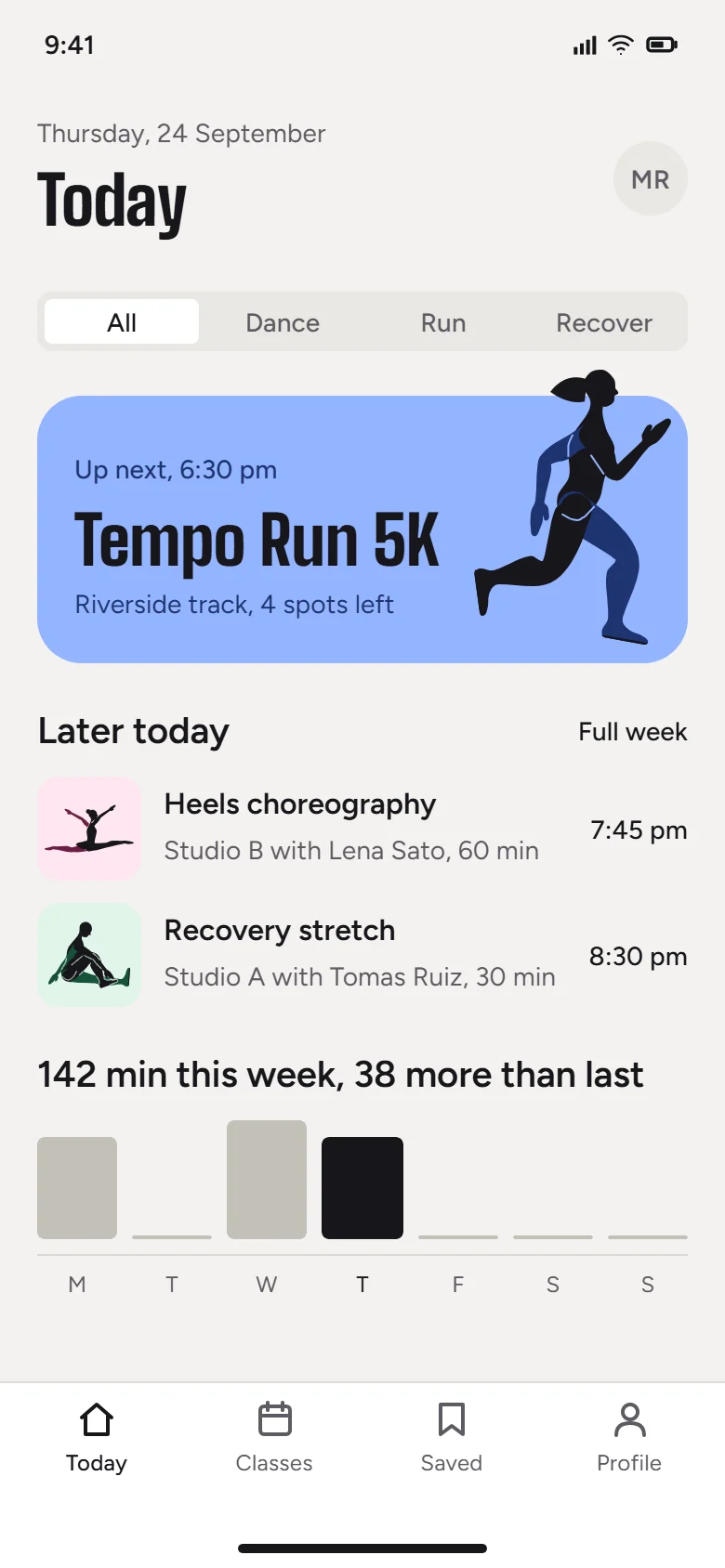
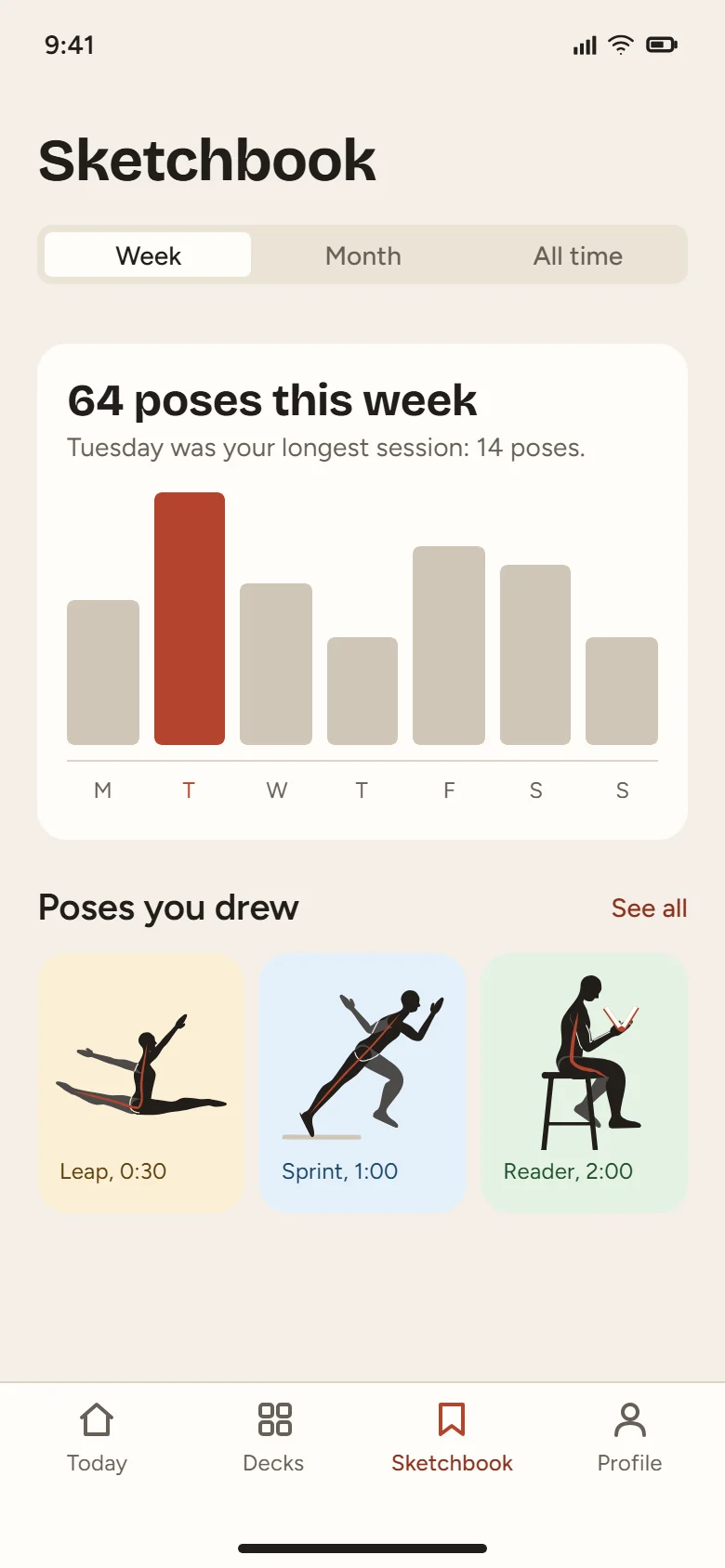
App screens made through the SVG Lab MCP, as shown on svglab.app/mcp-server.
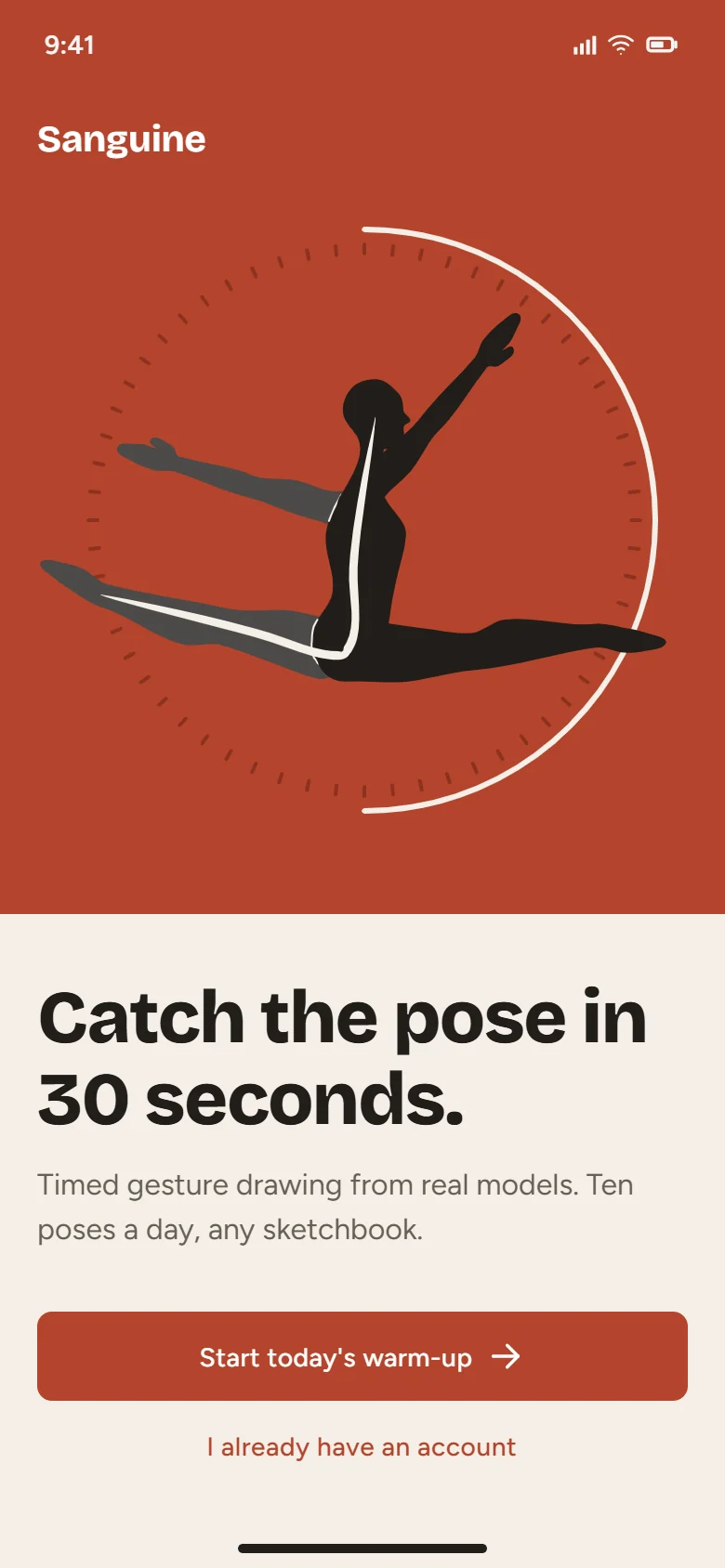 | 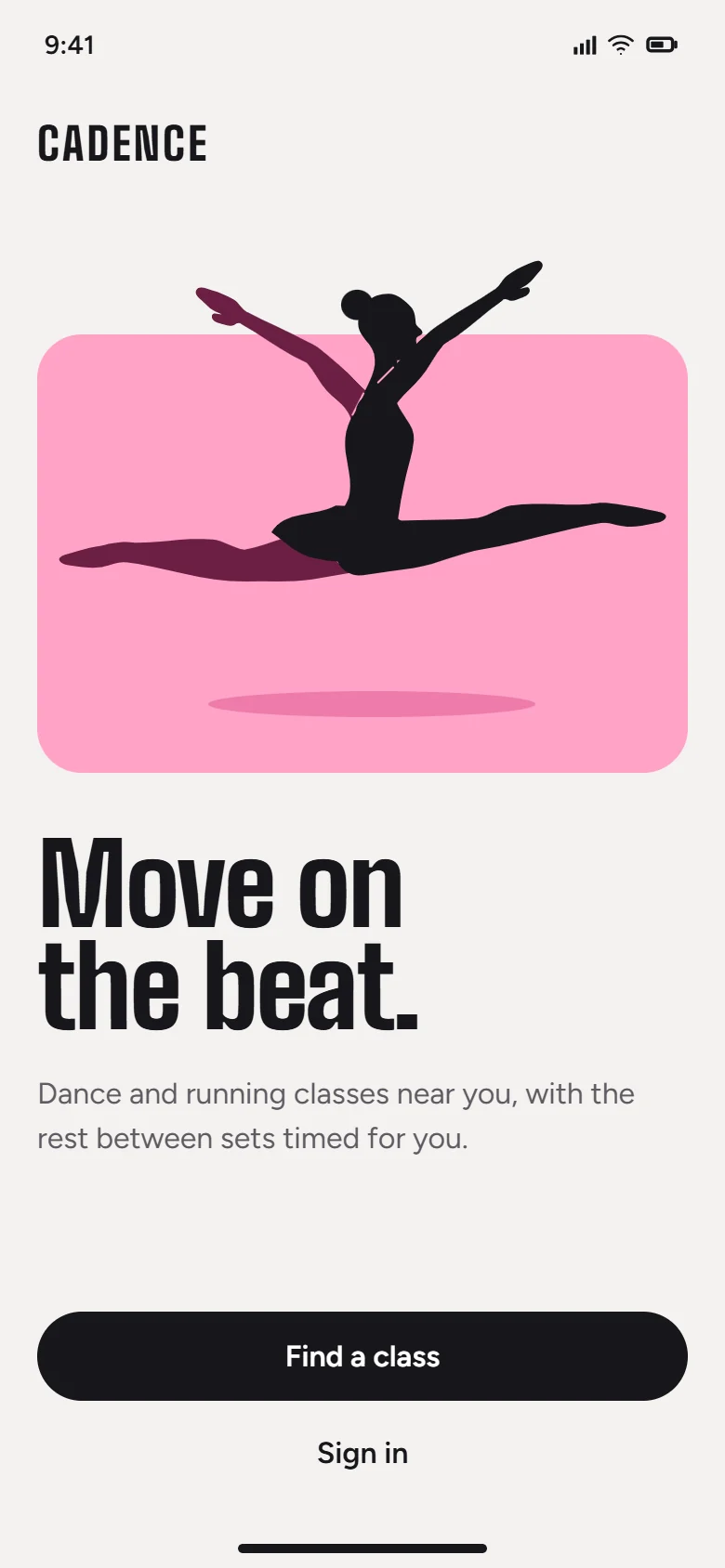 | 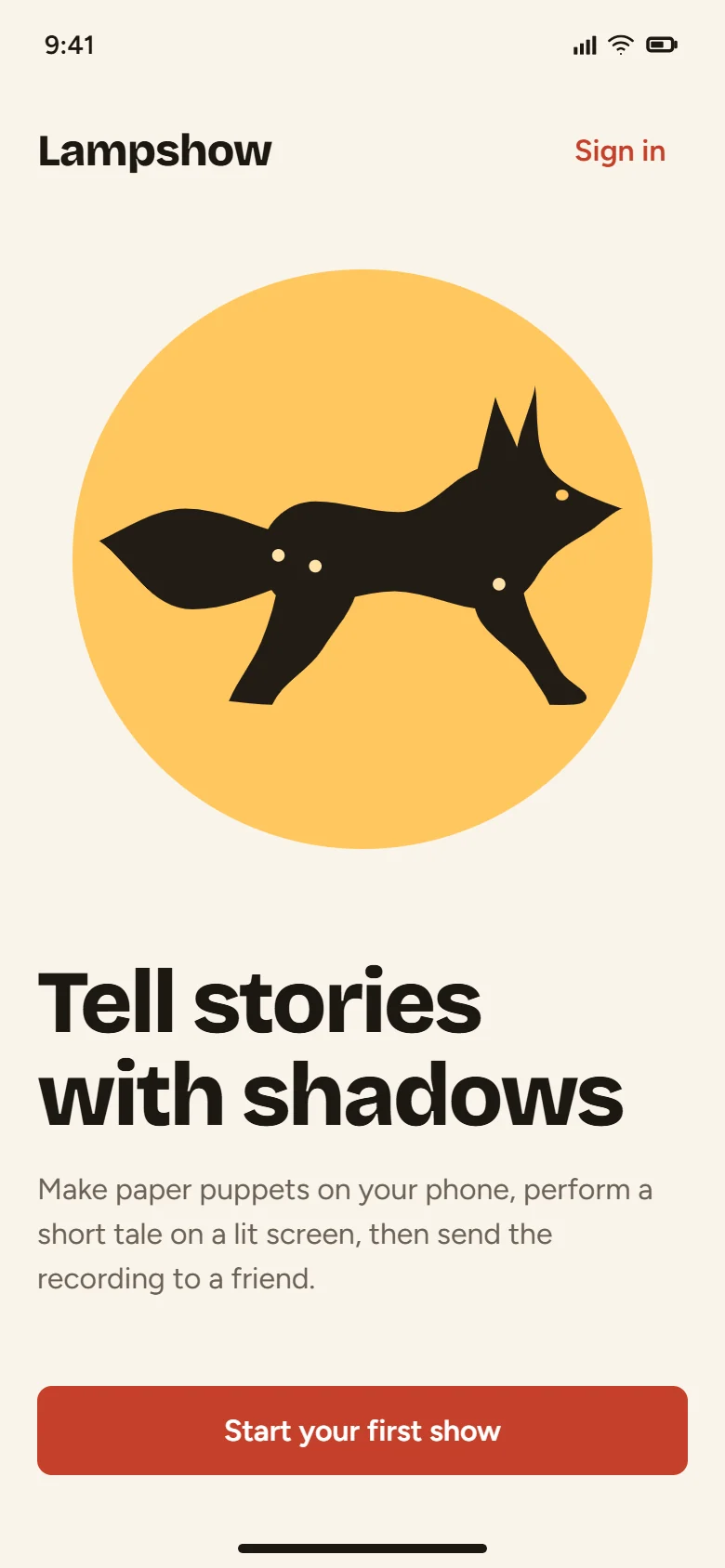 |
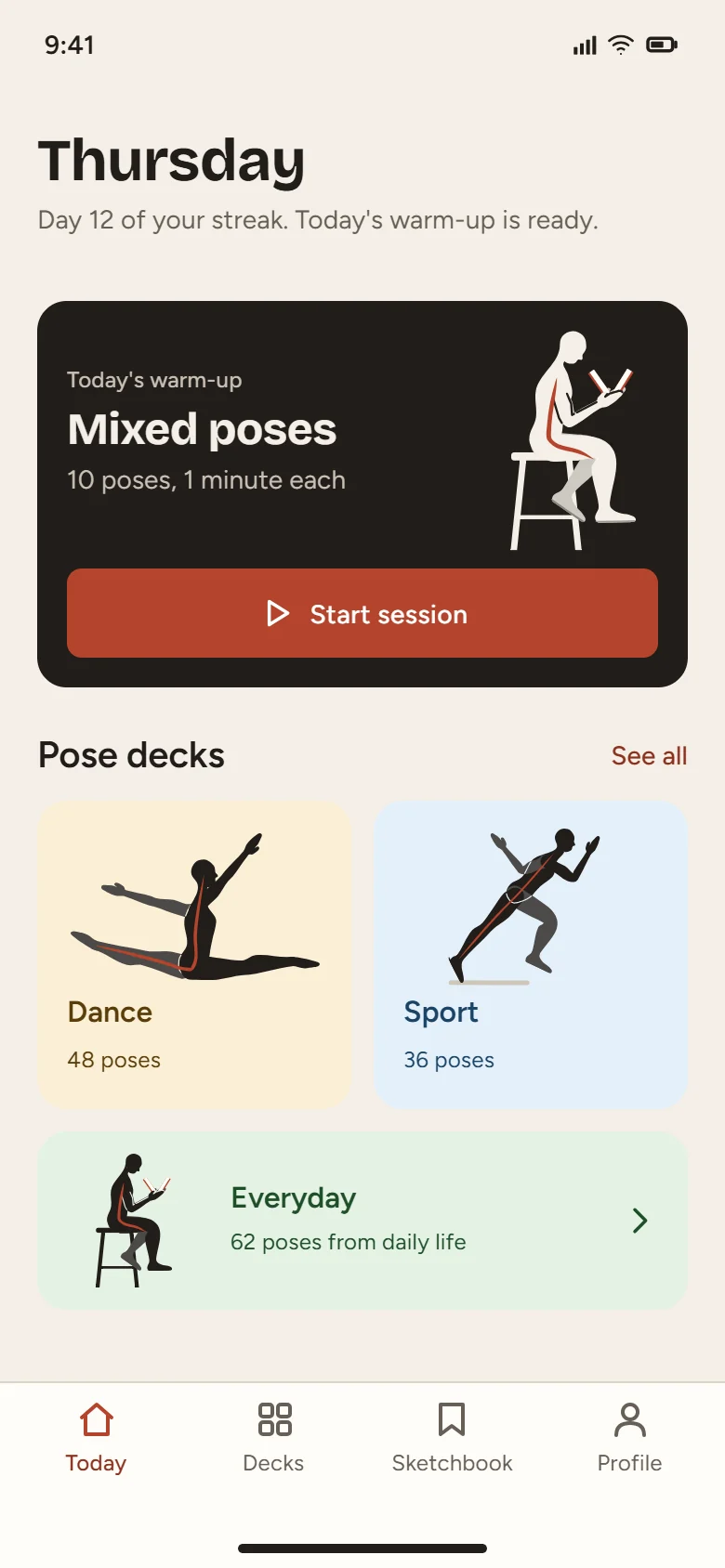 |  |  |
Access
SVG Lab counts in credits. Every SVG Lab account gets 100 free credits (up to 24 app screens) once to try it, with no form to fill in. A tool call costs 1 credit, a reference image search 2, and failed calls cost nothing. After that, a plan adds credits every month: Starter ($7 a month, 2,500 credits, up to 600 app screens), Plus ($20, 7,400 credits, up to 1,800 app screens), Max ($40, 15,000 credits, up to 3,700 app screens) or Ultra ($99, 37,400 credits, up to 9,200 app screens), and for a team Team ($10 per editor seat a month, at least 2 seats, each seat 2,500 credits, up to 600 app screens, viewers free); top-ups add credits that never expire, for any account: $10 for 5,000 credits (up to 1,200 app screens), $25 for 10,000 credits (up to 2,400 app screens) and $50 for 25,000 credits (up to 6,100 app screens).
Plans and top-ups: https://svglab.app/billing . Your credits and usage: https://svglab.app/usage .
FAQ
Do I need an API key? No. Every app above can sign in: it opens SVG Lab's sign-in page, you press Approve, and you are connected. A key is only an alternative for command line apps or machines with no browser.
Do I need to keep SVG Lab open in a tab? No. Nothing needs to be open in SVG Lab, and there is no code to type in. SVG Lab runs the Design Engine on its own servers, and everything your assistant makes is saved to My Projects, ready when you open SVG Lab.
What does it cost? SVG Lab counts in credits. Every SVG Lab account gets 100 free credits (up to 24 app screens) once to try it, with no form to fill in. A tool call costs 1 credit, a reference image search 2, and failed calls cost nothing. After that, a plan adds credits every month: Starter ($7 a month, 2,500 credits, up to 600 app screens), Plus ($20, 7,400 credits, up to 1,800 app screens), Max ($40, 15,000 credits, up to 3,700 app screens) or Ultra ($99, 37,400 credits, up to 9,200 app screens), and for a team Team ($10 per editor seat a month, at least 2 seats, each seat 2,500 credits, up to 600 app screens, viewers free); top-ups add credits that never expire, for any account: $10 for 5,000 credits (up to 1,200 app screens), $25 for 10,000 credits (up to 2,400 app screens) and $50 for 25,000 credits (up to 6,100 app screens). See the plans and top-ups at https://svglab.app/billing .
Which account does my work go to? The SVG Lab account you signed in with when you pressed Approve. Use the same account every time, so its free credits, plan or top-ups apply.
Can I connect more than one app? Yes. Connect as many apps as you like. Up to two AI sessions can design on one SVG Lab account at the same time, each in its own group of artboards, and you can keep working on the rest of the project while they do.
How do I disconnect an app? Open SVG Lab, open the account menu (your email, top right) and choose SVG Lab MCP. Under Connected apps, press Disconnect next to the app. It stops working straight away.
Is there a package to install or a separate MCP subdomain? No. There is nothing to install and no mcp.svglab.app. The one and only server address is https://svglab.app/mcp.
The first request is slow. Normal. The first design step starts the Design Engine and can take 10 to 30 seconds.
More answers and troubleshooting: https://svglab.app/mcp-setup . Still stuck? Email [email protected] with the app and the exact message.
Links
- Website: https://svglab.app/mcp-server
- Connect your AI app: https://svglab.app/mcp-server#connect
- Setup guide: https://svglab.app/mcp-setup
- Plans and top-ups: https://svglab.app/billing
- Your usage: https://svglab.app/usage
- llms.txt: https://svglab.app/llms.txt
- MCP server card: https://svglab.app/.well-known/mcp/server-card.json
- Official MCP Registry entry
app.svglab/svglab: https://registry.modelcontextprotocol.io/v0.1/servers?search=app.svglab
Files in this repository
| Path | What it is |
|---|---|
| configs/ | One ready config file per client |
| skills/svglab-mcp/SKILL.md | Agent skill: add, sign in to and verify the SVG Lab MCP. Install with npx skills add ottoman9/svglab-mcp |
| server.json | Copy of the official MCP Registry manifest, for reference |
| LICENSE | Creative Commons Attribution 4.0 International |
License
The documentation, configs and skill in this repository are licensed under CC BY 4.0. The example images are hosted on svglab.app and are not part of this repository. SVG Lab itself is a hosted service; no server code is published here.
Comments
New to MCP?
From what the protocol is to installing your first server, these answers cover most first questions.
An open protocol that defines how AI applications connect to external tools and data in a uniform way. Clients talk to the model; MCP servers provide tools, resources and prompt templates. They exchange standard messages, so one server can be reused by many clients.