
About Browser Control
BrowserControl is a local MCP server for agents that need to operate a Chromium browser through visual cues. It marks interactive elements in fresh screenshots and includes browser DevTools, persistent profiles, and session recording.
Key features
- 01Interact through numbered screenshot marks
- 02Navigate, scroll, and operate forms
- 03Inspect console, network, errors, and performance
- 04Keep cookies and logins in a persistent profile
- 05Record and review Playwright traces
- 06Read page content and run JavaScript
Use cases
- 01Automate browser tasks using visible controls
- 02Reuse logged-in sessions across restarts
- 03Investigate page errors and network activity
- 04Record browser sessions for later review
MCP support
Exposes browser navigation, interaction, content, DevTools, tab, and recording tools to MCP clients. Page actions return an annotated screenshot and an element map.
Configuration
Local server config is the same for every client. Copy it into your client’s MCP config file.
We haven’t collected a package or remote endpoint for this server. Follow the instructions in the project README.
Tools
Local servers expose tools only once running on your machine, and the maintainer has not provided a tool list.
Details
From the project README

BrowserControl
An MCP server that gives your agent a browser it can see.





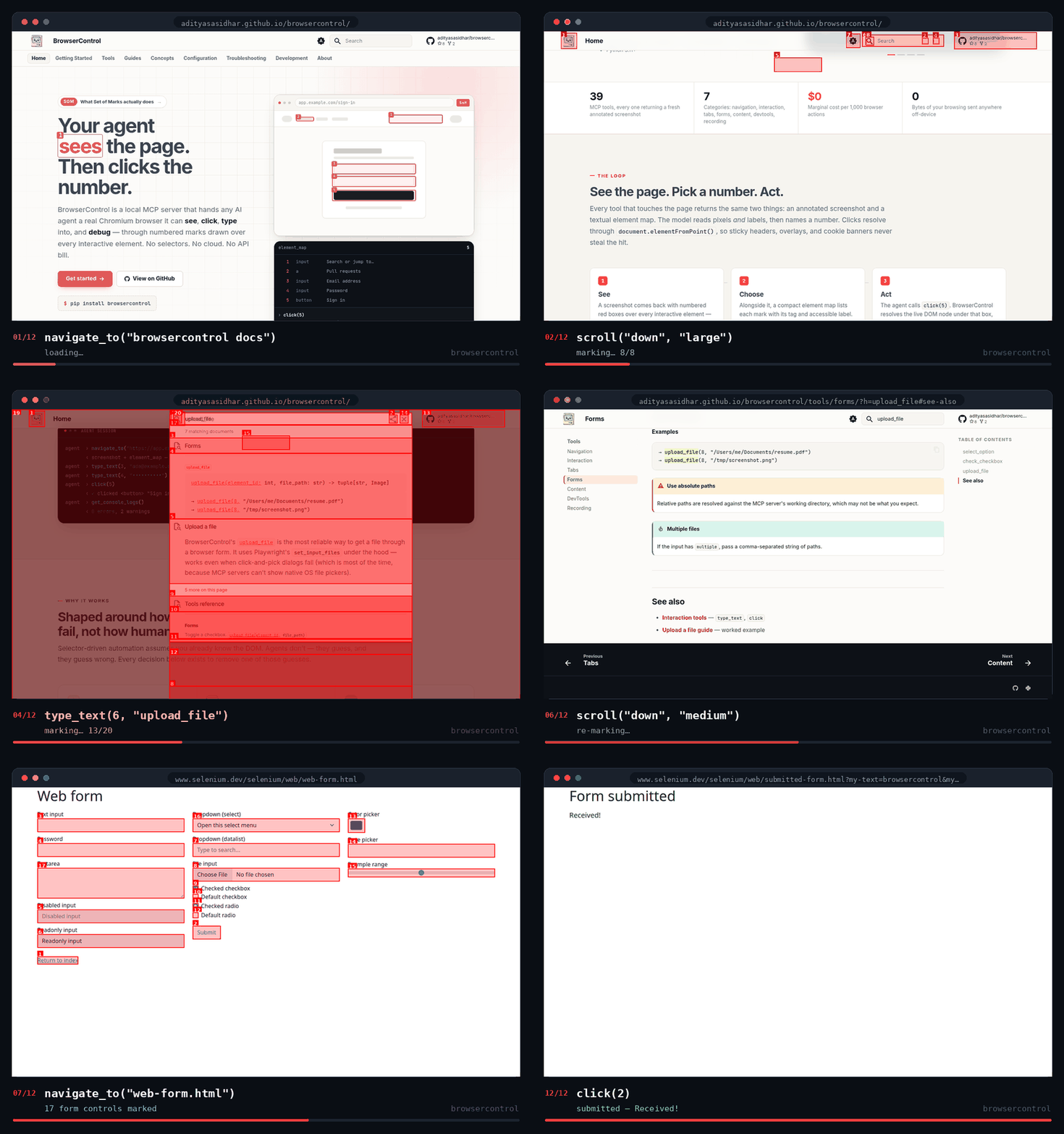
One real session, twelve actions, nothing staged — navigate, scroll, type, select, check, click. Watch the numbers: they are rebuilt from scratch after every action, which is why the agent re-reads them each time.
The idea
Most browser tools hand a model a DOM tree and hope it writes a working selector. BrowserControl hands it a picture.
Every action returns a fresh screenshot with numbered red boxes drawn over the interactive elements, plus the same list as text. The agent acts by number:
click(5)
type_text(3, "hello world")
upload_file(7, "/path/to/resume.pdf")
No selectors to guess, none to break on the next redesign. This is the Set of Marks pattern, used as the primary interface rather than a fallback.
Quick start
uv add browsercontrol # or: pip install browsercontrol
Chromium installs itself on first run. If that fails, run
python -m playwright install chromium once.
Point your client at the browsercontrol command:
{
  "mcpServers": {
    "browsercontrol": {
      "command": "browsercontrol"
    }
  }
}
Where that file lives, per client
| Client | Location |
|---|---|
| Claude Desktop | ~/Library/Application Support/Claude/claude_desktop_config.json (macOS) · ~/.config/Claude/claude_desktop_config.json (Linux) · %APPDATA%\Claude\claude_desktop_config.json (Windows) |
| Claude Code | claude mcp add browsercontrol -- browsercontrol |
| Cursor | Settings → Model Context Protocol |
| Cline | Settings → MCP Servers |
| Continue.dev | ~/.continue/config.json, under mcpServers |
| Zed | ~/.config/zed/settings.json, under context_servers as {"command": {"path": "browsercontrol"}} |
No install at all, if you prefer: "command": "uvx", "args": ["browsercontrol"].
Restart the client and ask it for something:
"Open Hacker News and tell me the top story."
Full walkthrough: Getting started.
The one rule
Element numbers expire after every action. The map is rebuilt from scratch on
every click, type, scroll, navigation, and screenshot — element 7 before a
click is rarely element 7 after it.
So an agent should never plan two clicks from one screenshot. It acts, reads the new screenshot, finds the target again, then acts again. Almost every failure worth debugging traces back to this.
Two corollaries:
- Only what's in the viewport gets marked. No number usually means "below the fold" — scroll, then look again.
- Cross-origin iframes are never marked. Open shadow roots and same-origin frames are traversed and numbered; third-party payment fields and embedded widgets can't be. That's a boundary of the browser, not a bug.
Tools
39 tools across seven categories. Everything that touches the page returns an annotated screenshot plus the element map.
| Category | Tools | |
|---|---|---|
| Navigation | 5 | navigate_to go_back go_forward refresh_page scroll |
| Interaction | 7 | click click_at type_text press_key hover scroll_to_element wait |
| Forms | 3 | select_option check_checkbox upload_file |
| Content | 5 | get_page_content get_text get_page_info run_javascript screenshot |
| Tabs | 4 | create_tab switch_tab close_tab list_tabs |
| DevTools | 11 | get_console_logs get_network_requests get_page_errors run_in_console inspect_element get_page_performance get_cookies set_cookie delete_cookie clear_cookies set_viewport |
| Recording | 4 | start_recording stop_recording take_snapshot list_recordings |
A few behaviours that aren't obvious from the names:
type_textuses Playwright'sfill()— it replaces the field, it doesn't append.clickresolves the topmost element at the mark's centre, so a cookie banner overlapping your target will eat the click. Dismiss overlays first.upload_filegoes throughset_input_files, which works on sites where driving the file picker doesn't.screenshot(annotate=True, full_page=True)returns a clean image — full-page captures can't be marked.get_page_contentreturns Markdown, capped at 30 KB.- Recordings are Playwright traces. Open one with
npx playwright show-trace ~/.browsercontrol/recordings/<name>.zip.
Teach your agent to use it well
Connecting the server tells an agent which tools exist. The bundled agent skill tells it how to use them well — that numbers expire, that a banner will swallow a click, that a missing number means scroll.
mkdir -p ~/.claude/skills/browsercontrol
curl -fsSL https://raw.githubusercontent.com/adityasasidhar/browsercontrol/main/skills/browsercontrol/SKILL.md \
  -o ~/.claude/skills/browsercontrol/SKILL.md
It loads only when a task actually involves a browser, so it costs one line of
context the rest of the time. Agents that would rather read the docs directly can
start at llms.txt.
Configuration
Environment variables, read once at startup.
| Variable | Default | |
|---|---|---|
BROWSER_HEADLESS | true | false to watch the browser work |
BROWSER_VIEWPORT_WIDTH | 1280 | |
BROWSER_VIEWPORT_HEIGHT | 720 | |
BROWSER_TIMEOUT | 30000 | Navigation timeout, ms |
BROWSER_USER_DATA_DIR | ~/.browsercontrol/user_data | Profile directory |
BROWSER_EXTENSION_PATH | — | Unpacked extension to load at launch |
BROWSER_EXECUTABLE_PATH | — | Chromium binary to drive, when Playwright ships no build for your platform |
BROWSER_RECORDINGS_DIR | next to the profile | Where traces are saved |
BROWSER_SNAPSHOTS_DIR | next to the profile | Where snapshots are saved |
LOG_LEVEL | INFO |
BROWSER_HEADLESS=false BROWSER_VIEWPORT_WIDTH=390 BROWSER_VIEWPORT_HEIGHT=844 browsercontrol
Why this one
The session is a real Chromium profile (launch_persistent_context), so cookies,
localStorage and logins survive restarts — log in once and your agent stays
logged in. DevTools are first-class: console, network timing, uncaught
exceptions, performance and computed styles are tools, not an afterthought. And
it runs entirely on your machine — no LLM API key, no cloud round-trip, no
per-action cost, nothing leaving the box.
Honest positioning: if you're happy driving the accessibility tree, Playwright MCP is excellent. If you want an LLM planning the interactions for you, look at Stagehand or Browser-Use. BrowserControl's niche is vision-first, fully local browser control with devtools built in. Longer comparison in the docs.
Development
git clone https://github.com/adityasasidhar/browsercontrol
cd browsercontrol
uv sync
uv run playwright install chromium --with-deps

uv run pytest                                  # tests (Playwright is mocked — no real browser)
uv run ruff check . && uv run ruff format .    # lint + format
uv run fastmcp dev browsercontrol/server.py    # dev server with the MCP inspector
browsercontrol/
├── server.py     # FastMCP instance, lifespan, tool registration
├── browser.py    # BrowserManager: Playwright lifecycle, element detection, SoM rendering
├── config.py     # env-var config
└── tools/        # one module per category, each exporting register_*_tools(mcp)
CI runs the suite on Ubuntu, Windows and macOS with ruff, mypy --strict,
bandit and pytest.
Contributing
Issues and PRs welcome — see CONTRIBUTING.md. New tools should
come with a test for the happy path and the error path; the existing
tests/test_*.py files show the pattern.
On the list, if you're looking for somewhere to start: Firefox and WebKit support, mobile device presets, network mocking, DOM diffing between snapshots, and accessibility auditing.
License
MIT. Built on FastMCP and Playwright.
Comments
New to MCP?
From what the protocol is to installing your first server, these answers cover most first questions.
An open protocol that defines how AI applications connect to external tools and data in a uniform way. Clients talk to the model; MCP servers provide tools, resources and prompt templates. They exchange standard messages, so one server can be reused by many clients.