
About Dicloak Local Api Mcp Bridge
Dicloak Local Api Mcp Bridge connects MCP clients to DICloak's Local API. It lets AI clients manage environments, groups, proxies, and members, and run supported social media automation.
Key features
- 01Create, update, delete, and list environments
- 02Query and manage groups
- 03Inspect and detect proxy information
- 04Manage members and permissions
- 05Automate supported social media actions
Use cases
- 01Check and open a DICloak environment
- 02Review proxy information
- 03Automate browsing or posting on social platforms
MCP support
Acts as an MCP bridge to DICloak's Local API. Configure it with the DICLOAK_API_KEY and DICLOAK_BASE_URL values for an MCP client.
Configuration
Local server config is the same for every client. Copy it into your client’s MCP config file.
npx -y dicloak-local-api-mcp-bridgeDICLOAK_API_KEYSecretDICLOAK_BASE_URLLocal servers need a runtime on your machine (e.g. Node.js 18+). Config file locations differ by client; see your client’s docs.
Tools
Local servers expose tools only once running on your machine, and the maintainer has not provided a tool list.
Details
From the project READMEDICloak MCP Server
Welcome to use Dicloak MCP Server! This tool enables you to directly invoke the powerful functions of Dicloak client's Local API through natural language in the GPT client.
What You Can Do
With DICloak MCP Server, you can:
- Manage your environment - Create, update, delete and list your environment information
- Manage your groups - Query, create, delete groups, or create your own groups
- Manage your proxy server - Query the list of proxies, and the most important thing is to detect new proxy information.
- Manage your members - Dynamic management of member permissions, creation of new members
- Social media automation - Rich automation of social media traffic, including TikTok, YouTube, Amazon, etc.
Example Use Cases
- "Check how many environments I have now?"
- "Open the environment named "my-env-1""
- "Help me check this proxy information: Some proxy information"
- "Use my TikTok environment to boost the activity of my account, and automatically help me browse the videos on the homepage and give them likes."
- "Go to YouTube and help me post a new update there, using my local video."
Setup for MCP Clients
Claude Desktop
How to connect DICloak MCP with Claude Desktop:
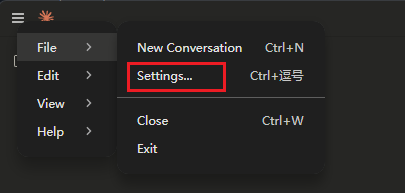
Step 1: Access Claude Desktop settings
Open your Claude Desktop application. In the top menu bar, click on 'Claude' and then select 'Settings...'.
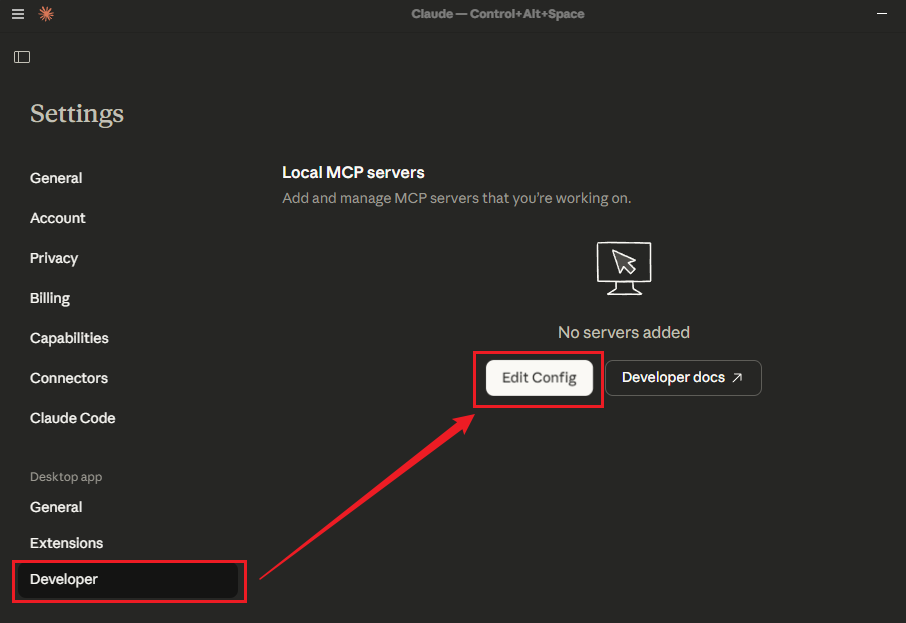
Step 2: Navigate to developer settings
In the Settings, click on Developer on the left side, and then click Edit Config to open the json configuration file.
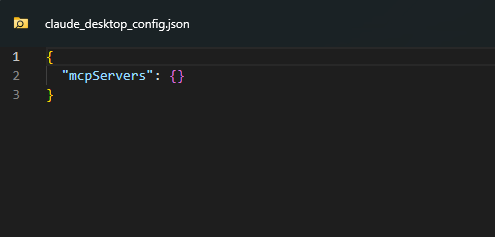
Step 3: Locate claude_desktop_config.json
You are configuring the MCP server in this file. Usually, the system will use the default text editor to open the "claude_desktop_config.json" file.
Step 4: Add DICloak MCP configuration
You need to add the DICloak MCP server configuration details within the mcpservers object. Carefully paste the following JSON snippet into your claude_desktop_config.json file. Important Note: Replace "DICLOAK_API_KEY" and "DICLOAK_BASE_URL" with your actual DICloak Local API token and request address.
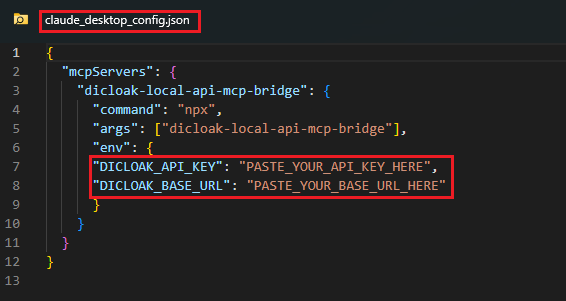
{
  "mcpServers": {
    "dicloak-local-api-mcp-bridge": {
      "command": "npx",
      "args": ["dicloak-local-api-mcp-bridge"],
      "env": {
      "DICLOAK_API_KEY": "PASTE_YOUR_API_KEY_HERE",
      "DICLOAK_BASE_URL": "PASTE_YOUR_BASE_URL_HERE"
      }
    }
  }
}
Step 5: Verify connection in connectors
After saving the claude_desktop_config.json file, it is recommended to restart Claude Desktop to ensure the new configuration is loaded. Once Claude restarts, navigate back to its 'Settings'. Under the 'Connectors' section (which might be under 'General' or 'Extensions' depending on your Claude version), you should now see 'dicloak-local-api-mcp-bridge LOCAL' listed as a connected service. This indicates a successful integration.


Congratulations! You have successfully connected DICloak MCP with Claude Desktop. Your AI assistant can now leverage DICloak profiles for various tasks.
Cursor
-
Configure in Cursor:
Add to your Cursor MCP configuration:
{
  "mcpServers": {
    "dicloak-local-api-mcp-bridge": {
      "command": "npx",
      "args": ["dicloak-local-api-mcp-bridge"],
      "env": {
         "DICLOAK_API_KEY": "PASTE_YOUR_API_KEY_HERE",
         "DICLOAK_BASE_URL": "PASTE_YOUR_BASE_URL_HERE"
      }
    }
  }
}
Other MCP Clients
For other MCP-compatible clients, use the same configuration pattern with the appropriate config file location for your client.
Getting Your API Token
- Log in to your DICloak account
- Go to OpenApi Setting
- Generate or copy your API token and API address
- Use this token in the configuration above
Important Note: Please append "/openapi" after the copied API address. This is mandatory.
Comments
New to MCP?
From what the protocol is to installing your first server, these answers cover most first questions.
An open protocol that defines how AI applications connect to external tools and data in a uniform way. Clients talk to the model; MCP servers provide tools, resources and prompt templates. They exchange standard messages, so one server can be reused by many clients.