
About mermaid-mcp-app
Mermaid MCP App renders Mermaid diagrams in an interactive viewer for MCP-App-compatible hosts such as Claude Desktop and VS Code. Its split-view editor supports direct source edits and sending changes back to the LLM.
Key features
- 01Render 13 Mermaid diagram types
- 02Pan and zoom diagrams
- 03Edit source in a split-view editor
- 04Send edited source back to the LLM
- 05Sync editor changes to LLM context
- 06Switch between dark and light themes
Use cases
- 01View a generated flowchart interactively
- 02Revise a sequence diagram and continue the conversation
- 03Inspect a project timeline or data model
MCP support
It is an MCP App that provides an interactive Mermaid diagram viewer to compatible MCP hosts. The editor can send revised diagram source to the LLM and sync changes to its context.
Configuration
Local server config is the same for every client. Copy it into your client’s MCP config file.
Tools
1Saved tool list · updated 2w ago
| Parameter | Type | Required | Description |
|---|---|---|---|
| code | string | Yes | The Mermaid diagram syntax to render |
| theme | enum | No | Mermaid theme to use. 'default' auto-detects dark/light mode. 'light' forces the light theme. 'dark', 'forest', 'neutral' are explicit choices.default | light | dark | forest | neutral |
| title | string | No | Optional title for the diagram |
Details
From the project READMEMermaid MCP App
English | 繁體中文
An MCP App that renders Mermaid diagrams in an interactive viewer with pan, zoom, and a built-in source editor. Edit diagrams directly in the split-view editor and send the updated source back to the LLM to continue the conversation with your changes. Works in Claude Desktop, VS Code, and any MCP-App-compatible host.
Usage
Once configured, ask the LLM to draw a diagram:
"Draw a flowchart showing user authentication flow"

"Create a sequence diagram for an API request lifecycle"

"Render this mermaid diagram: `graph TD; A-->B; B-->C`"
You can also specify a theme explicitly:
"Draw a class diagram with light theme"
Features
Interaction with AI
Edit the diagram source directly in the split-view editor, then send it back to the LLM to continue the conversation with your changes.
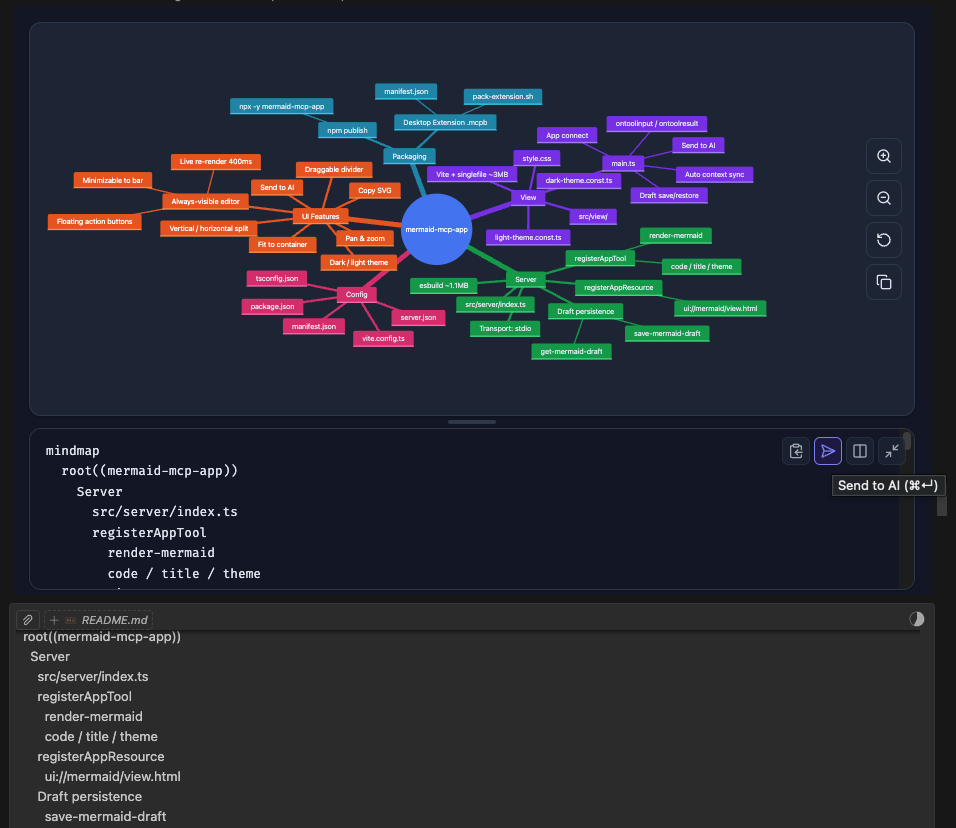
- Send to AI — sends the edited diagram source back to the LLM, triggering a response
- Auto context sync — LLM context is automatically updated as you type (debounced); the LLM always sees your latest source on the next message
Diagram Types (13 supported)
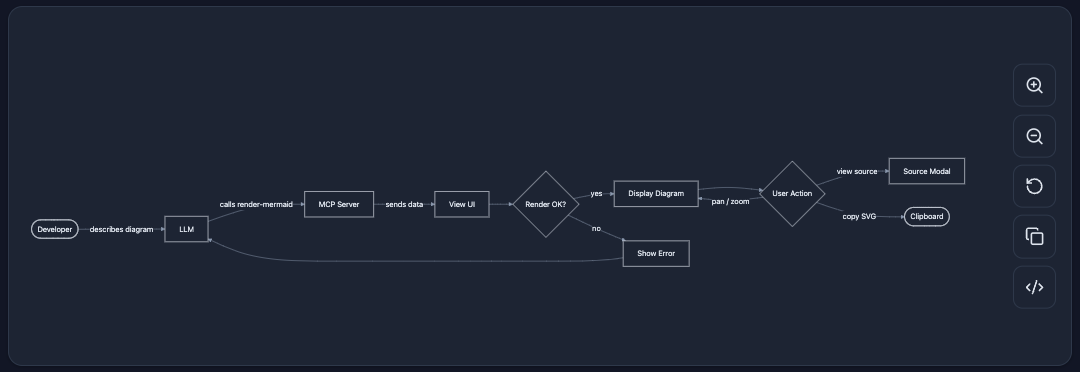
Flowchart
flowchart — General-purpose directed graphs. Supports top-down and left-right layouts, subgraphs, and various node shapes.
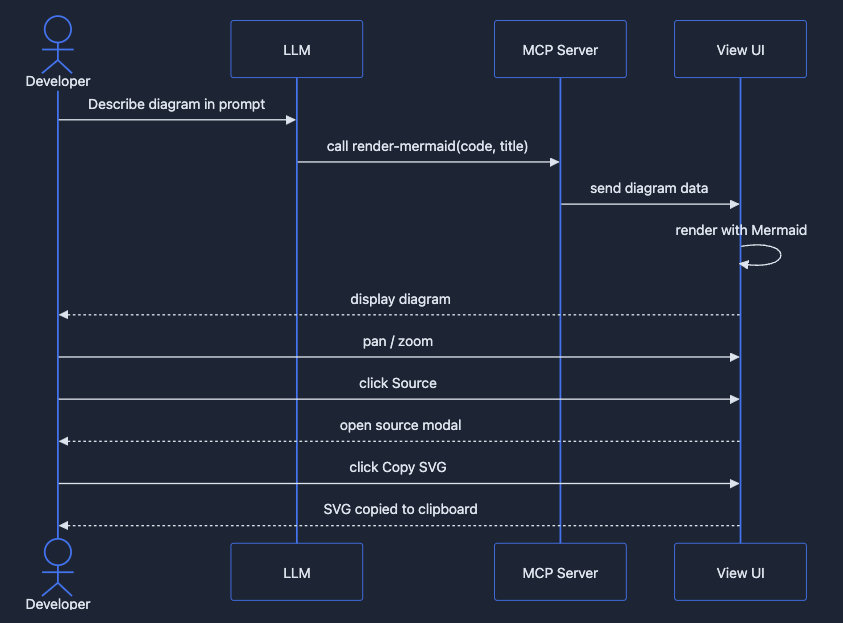
Sequence Diagram
sequenceDiagram — Interaction between participants over time. Shows messages, loops, and alternative flows.
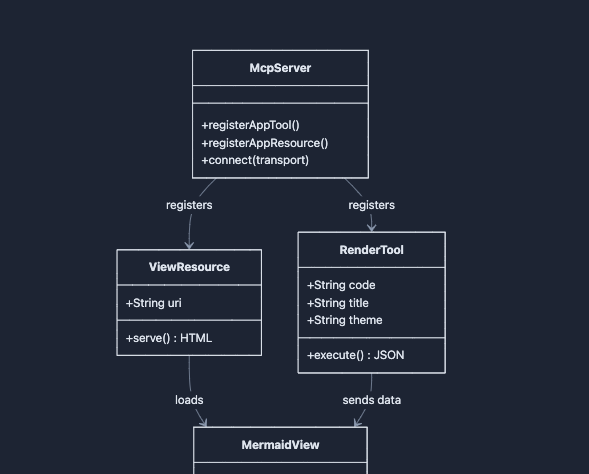
Class Diagram
classDiagram — Object-oriented class structure with attributes, methods, and relationships (inheritance, composition, etc.).
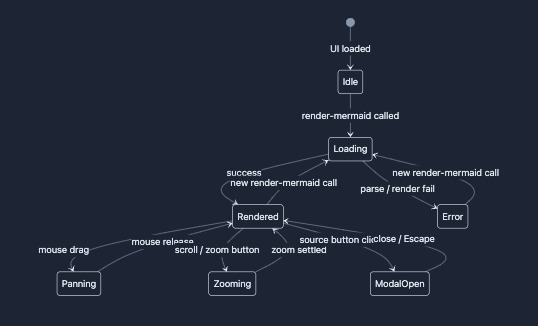
State Diagram
stateDiagram-v2 — Finite state machines with transitions, composite states, and concurrency.
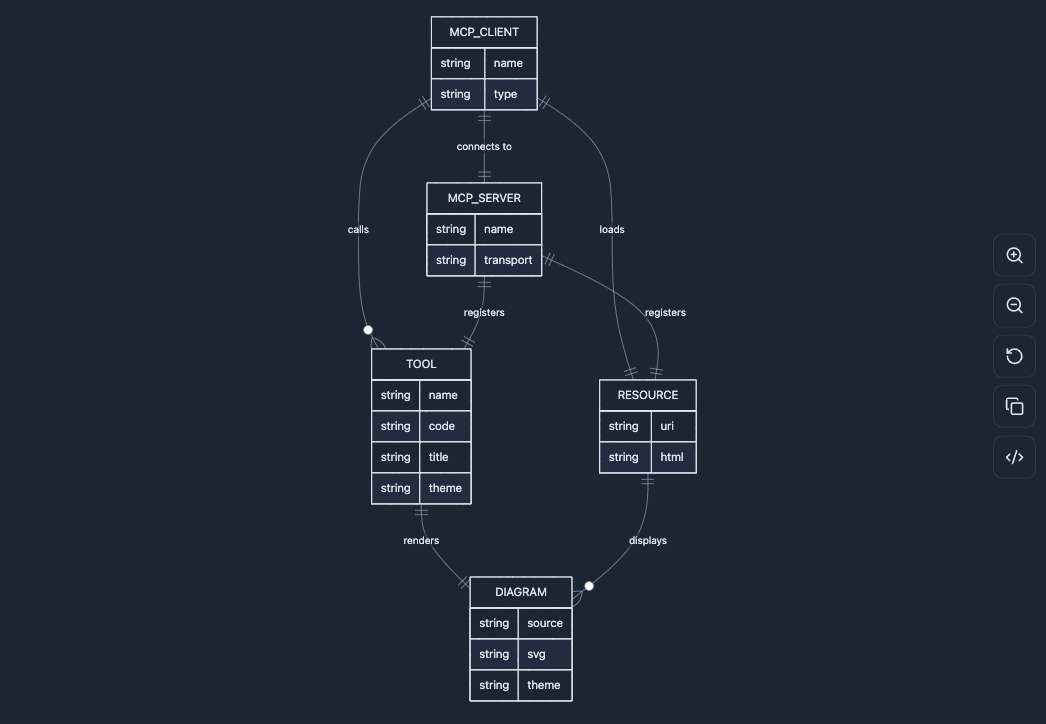
ER Diagram
erDiagram — Entity-relationship diagrams for data modeling with cardinality annotations.
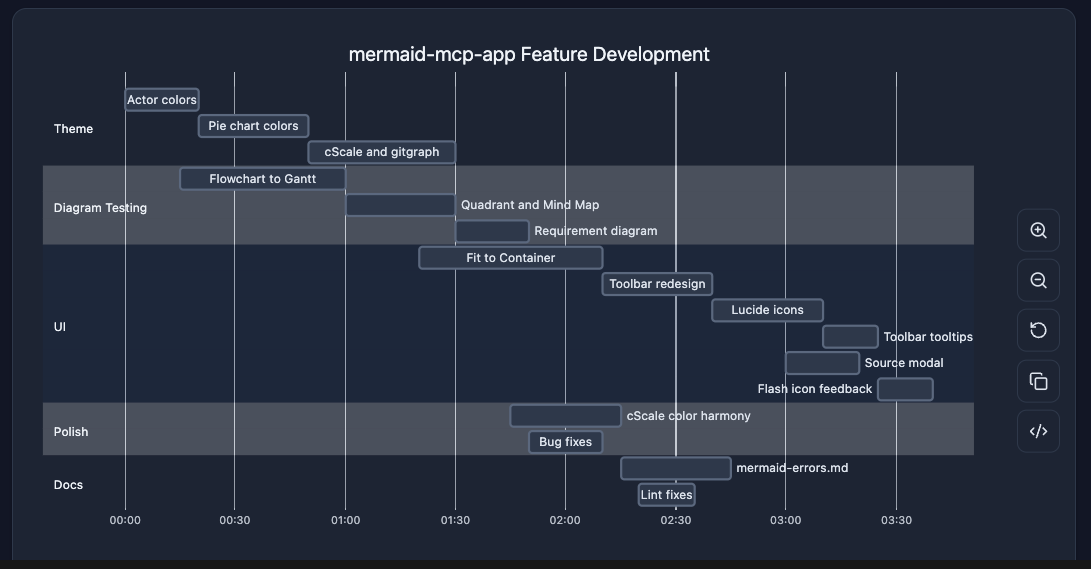
Gantt Chart
gantt — Project timelines with tasks, milestones, dependencies, and critical paths.
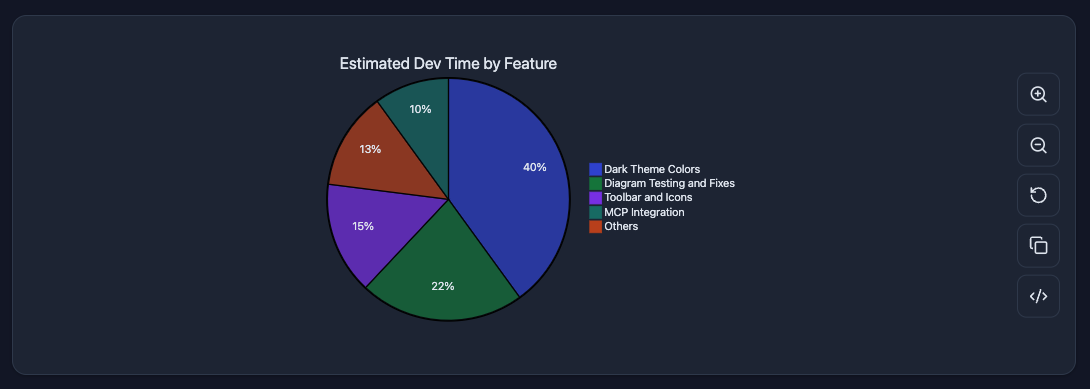
Pie Chart
pie — Proportional data as pie slices with percentage labels.
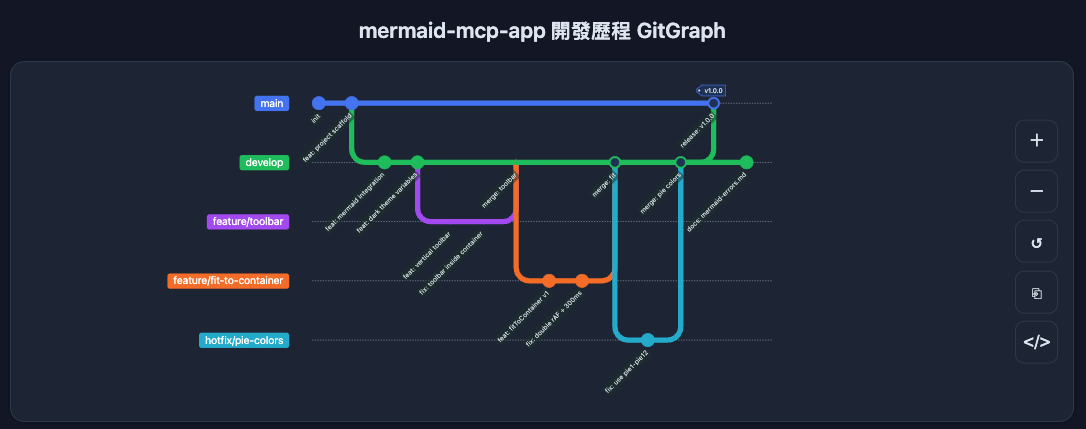
Git Graph
gitGraph — Git branch and commit history visualization with merge and cherry-pick flows.
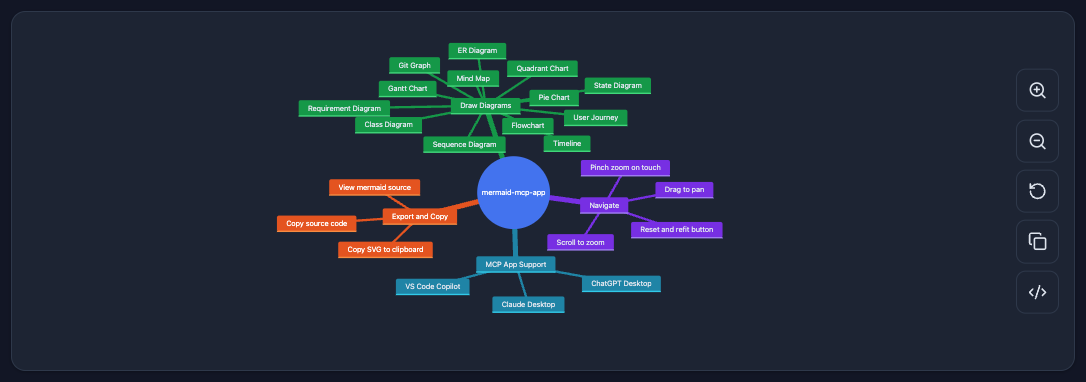
Mindmap
mindmap — Hierarchical tree of ideas radiating from a central root node.
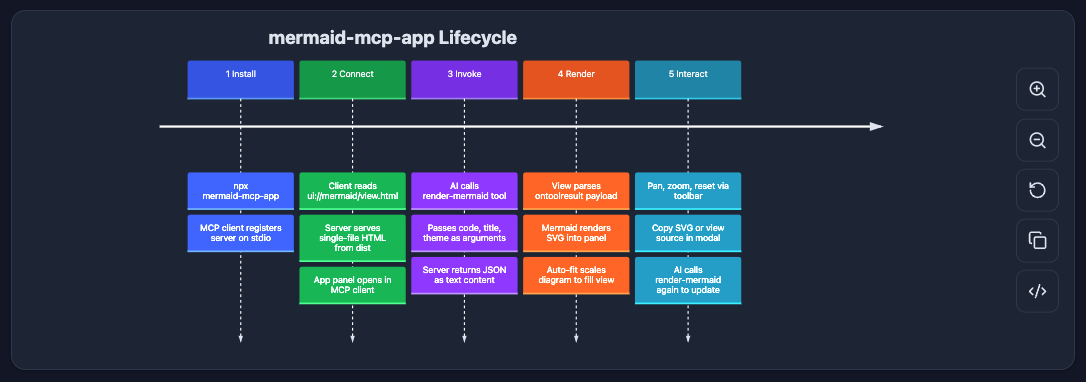
Timeline
timeline — Chronological events grouped by time period.
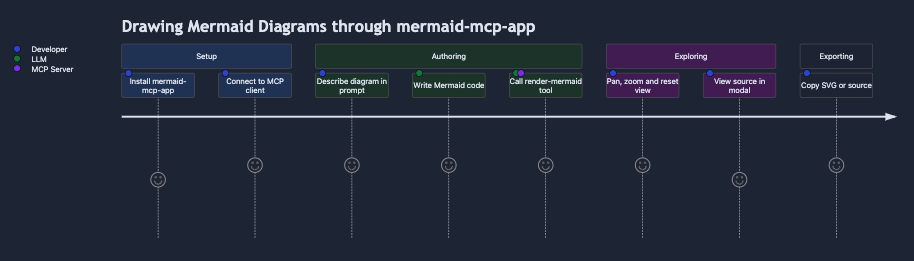
User Journey
journey — User experience flows scored by satisfaction level across sections and actors.
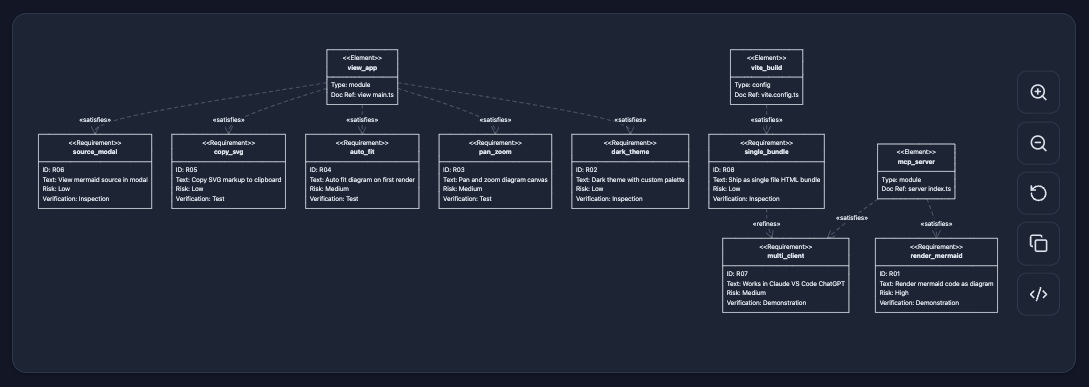
Requirement Diagram
requirementDiagram — System requirements with type, risk, and verification method, linked to design elements.
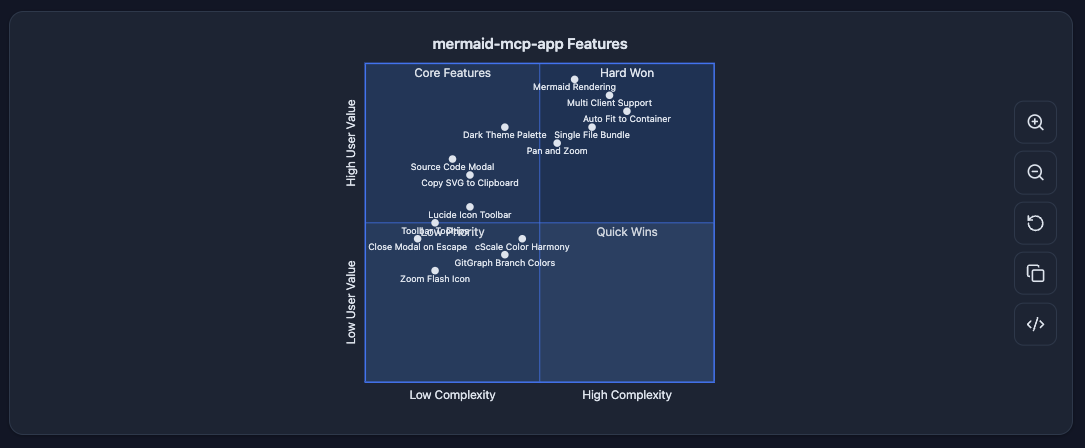
Quadrant Chart
quadrantChart — Four-quadrant scatter plot for prioritization and positioning analysis.
UI
- Pan & zoom — mouse drag to pan, scroll wheel to zoom, pinch-to-zoom on touch
- Fit to container — auto-fits diagram on render; reset button restores fit
- Copy SVG — copies the rendered SVG to clipboard
- Split-view source editor — always-visible editor panel with live re-render (400ms debounce)
- Minimizable editor — collapse to a compact bottom bar; expand with one click
- Vertical / horizontal layout toggle — source below (vertical) or to the right (horizontal); minimized state always snaps to the bottom
- Theme support —
dark(auto-detected from system preference) andlight
Installation
Claude Desktop — Extension (recommended)
Download the latest .mcpb from GitHub Releases and double-click to install. No terminal or configuration needed.
Claude Desktop — Manual
Add to ~/Library/Application Support/Claude/claude_desktop_config.json:
{
  "mcpServers": {
    "mermaid": {
      "command": "npx",
      "args": ["-y", "mermaid-mcp-app", "--stdio"]
    }
  }
}
VS Code
Add to .vscode/mcp.json or user settings:
{
  "mcpServers": {
    "mermaid": {
      "command": "npx",
      "args": ["-y", "mermaid-mcp-app", "--stdio"]
    }
  }
}
Development
# Install dependencies
npm install

# Build (view + server)
npm run build

# Watch mode (view only)
npm run dev

# Start server
npm start
Comments
New to MCP?
From what the protocol is to installing your first server, these answers cover most first questions.
An open protocol that defines how AI applications connect to external tools and data in a uniform way. Clients talk to the model; MCP servers provide tools, resources and prompt templates. They exchange standard messages, so one server can be reused by many clients.