
About chart-canvas
Chart Canvas is an MCP server that turns data and assistant conversations into interactive charts, diagrams, and tables in a browser dashboard. It queries local files and SQLite, keeping query data on the machine and sending only chart metadata to the LLM.
Key features
- 01Charts, tables, and Mermaid diagrams
- 02Interactive dashboard with live updates
- 03Queries SQLite, CSV, Parquet, JSON, and NDJSON
- 04Read-only SQL queries for visualizations
- 05Local processing keeps data off the LLM
Use cases
- 01Visualize sales data from a SQLite database
- 02Compare categories in CSV or Parquet files
- 03Create a flowchart or sequence diagram
- 04Inspect a SQLite schema before querying
MCP support
Exposes tools to create and manage dashboard visualizations, inspect SQLite schemas, and query data for charts to MCP clients.
Configuration
Local server config is the same for every client. Copy it into your client’s MCP config file.
Tools
7Saved tool list · updated 2w ago
| Parameter | Type | Required | Description |
|---|---|---|---|
| type | enum | Yes | Type of visualization to createline | bar | scatter | table | flowchart | pie |
| table | object | No | Table data (required for table type) |
| table.rows | array | Yes | Table rows, each row is an array of values |
| table.headers | array | Yes | Column headers for the table |
| title | string | No | Optional title for the chart |
| series | array | No | Array of data series to display (required for charts) |
| mermaid | string | No | Mermaid diagram syntax (required for flowchart type) |
| xLabels | array | No | Optional labels for the x-axis (e.g., dates). Should match the number of data points. |
| description | string | No | Optional description or explanation for the chart |
Details
From the project READMEChart Canvas MCP Server
Interactive visualization dashboard for AI assistants via Model Context Protocol
Create beautiful charts, diagrams, and tables directly from your AI conversations. Chart Canvas provides a real-time dashboard that displays visualizations as you work with LLMs like Claude.
Demo
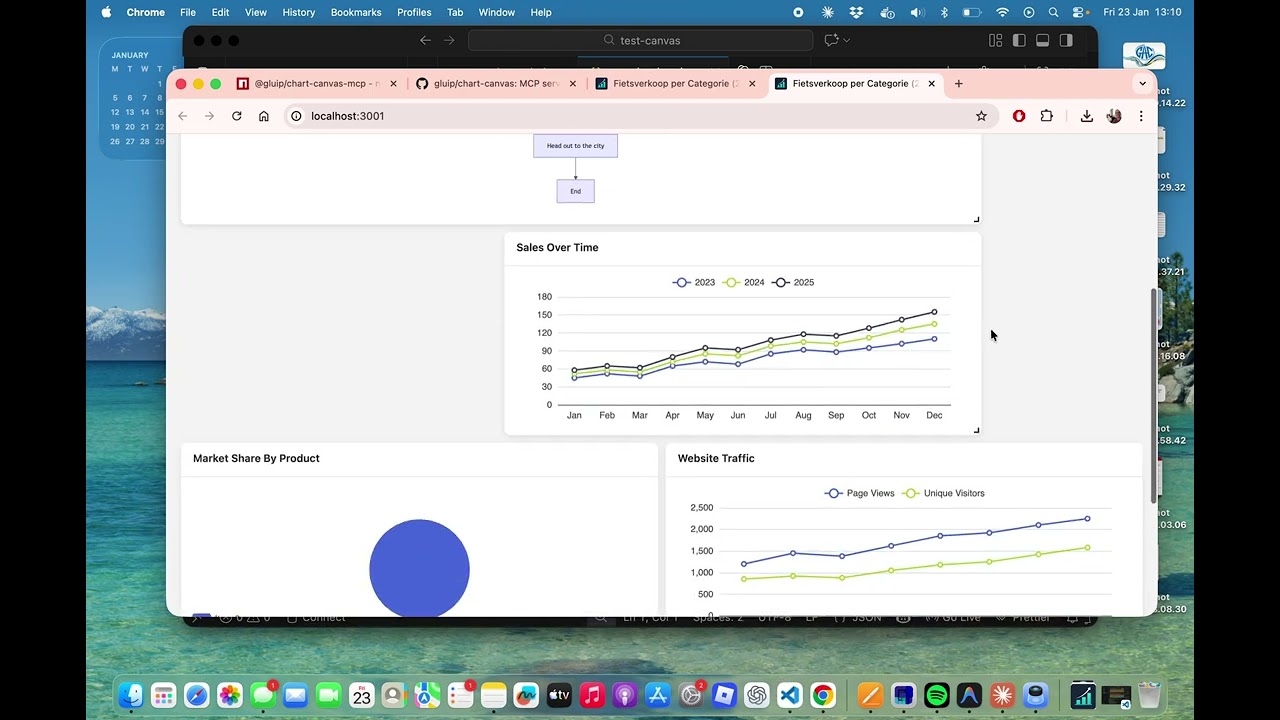
Watch the full demo on YouTube to see Chart Canvas in action!
Features
✨ Multiple Chart Types: Line, bar, scatter, pie charts, tables, and Mermaid diagrams
🎨 Interactive Dashboard: Drag-and-drop grid layout with real-time updates
🔄 Live Synchronization: Changes appear instantly in your browser
📊 Rich Visualizations: Powered by ECharts and Mermaid
💾 Universal Data Sources: Query SQLite, CSV, Parquet, JSON, and NDJSON files directly
⚡ Smart Data Flow: Execute queries server-side - data stays local, never sent to LLM
🔒 Privacy First: Your data never leaves your machine
🚀 Easy Setup: One command to get started
🌐 Production Ready: Built-in production mode with optimized builds
Supported Data Sources
Chart Canvas can query and visualize data from multiple file formats:
- SQLite (
.db,.sqlite,.sqlite3) - Relational databases - CSV (
.csv) - Comma-separated values - Parquet (
.parquet) - Columnar storage format - JSON (
.json) - JSON arrays of objects - NDJSON (
.jsonl,.ndjson) - Newline-delimited JSON
Privacy & Performance: All queries execute locally on your machine using DuckDB. Query results are transformed into visualizations server-side - only metadata (chart configuration) is sent to the LLM, never your actual data. This makes it fast, scalable, and private.
Quick Start
Installation
npm install -g @gluip/chart-canvas-mcp
Or use directly with npx (no installation needed):
npx @gluip/chart-canvas-mcp
Configuration
Add to your MCP client configuration (e.g., Claude Desktop):
macOS: ~/Library/Application Support/Claude/claude_desktop_config.json
Windows: %APPDATA%/Claude/claude_desktop_config.json
{
  "mcpServers": {
    "chart-canvas": {
      "command": "npx",
      "args": ["-y", "@gluip/chart-canvas-mcp"]
    }
  }
}
Usage
- Start your MCP client (e.g., Claude Desktop)
- The server will automatically start on port 3000
- Use the
showCanvastool to open the dashboard in your browser - Ask the AI to create visualizations!
Example Prompts
"Show me a line chart comparing sales data for 2023 and 2024"

"Create a pie chart showing market share by region"

"Draw a flowchart for the user authentication process"

"Make a table with team member information"

"Show me the database schema for my SQLite database"

"Query the athletes table and show the top 10 with most personal records"

"Create a chart showing sales trends from the database grouped by region"
MCP Tools
addVisualization
Create charts, diagrams, and tables on the canvas.
Supported Types:
line- Line charts with multiple seriesbar- Bar charts for comparisonsscatter- Scatter plots for data distributionpie- Pie charts with labelstable- Data tables with headersflowchart- Mermaid diagrams (flowcharts, sequence diagrams, Gantt charts, etc.)
Example:
{
  type: "line",
  title: "Monthly Sales",
  series: [
    { name: "2023", data: [[1, 120], [2, 132], [3, 101]] },
    { name: "2024", data: [[1, 220], [2, 182], [3, 191]] }
  ],
  xLabels: ["Jan", "Feb", "Mar"]
}
removeVisualization
Remove a specific visualization by ID.
clearCanvas
Remove all visualizations from the canvas.
showCanvas
Open the dashboard in your default browser.
getDatabaseSchema
Inspect the structure of a SQLite database to understand available tables and columns before writing queries.
Parameters:
databasePath- Path to SQLite database file (e.g.,./data/mydb.sqliteor absolute path)
Example:
{
  databasePath: "/path/to/database.db";
}
Returns: Formatted schema showing all tables, columns, data types, and constraints.
queryAndVisualize
Execute a SQL query on a SQLite database and create a visualization from the results. Queries are executed server-side and must be read-only (SELECT only). Maximum 10,000 rows.
Parameters:
databasePath- Path to SQLite database filequery- SQL SELECT query (read-only)visualizationType- Type of chart:line,bar,scatter,pie, ortablecolumnMapping(optional for table) - Mapping of columns to chart axes:xColumn- Column for X-axis (required for charts)yColumns- Array of columns for Y-axis (required for charts)seriesColumn- Column to group data into separate series (optional)groupByColumn- Alternative grouping column (optional)
title- Optional title for visualizationdescription- Optional descriptionuseColumnAsXLabel- If true, use X column values as labels instead of numbers
Example:
{
  databasePath: "./data/sales.db",
  query: "SELECT region, SUM(revenue) as total FROM sales GROUP BY region",
  visualizationType: "bar",
  columnMapping: {
    xColumn: "region",
    yColumns: ["total"]
  },
  title: "Revenue by Region",
  useColumnAsXLabel: true
}
Security: Only SELECT and WITH (CTE) queries are allowed. INSERT, UPDATE, DELETE, DROP, and other modifying operations are blocked.
Architecture
- Backend: Node.js + TypeScript + Express + MCP SDK
- Frontend: Vue 3 + ECharts + Mermaid + Grid Layout
- Communication: Real-time polling for instant updates
Development
Local Development
# Clone repository
git clone https://github.com/gluip/chart-canvas.git
cd chart-canvas

# Install backend dependencies
cd backend
npm install

# Install frontend dependencies
cd ../frontend
npm install

# Development mode (backend + frontend separate)
# Terminal 1 - Backend
cd backend
npm run dev

# Terminal 2 - Frontend
cd frontend
npm run dev

# Production mode (single server)
cd backend
npm run build:all
npm run start:prod
MCP Configuration for Local Development
{
  "mcpServers": {
    "chart-canvas": {
      "command": "/path/to/node",
      "args": [
        "/path/to/chart-canvas/backend/node_modules/.bin/tsx",
        "/path/to/chart-canvas/backend/src/index.ts"
      ]
    }
  }
}
License
MIT © 2026 Martijn
Links
Comments
New to MCP?
From what the protocol is to installing your first server, these answers cover most first questions.
An open protocol that defines how AI applications connect to external tools and data in a uniform way. Clients talk to the model; MCP servers provide tools, resources and prompt templates. They exchange standard messages, so one server can be reused by many clients.