About google-images
google-images is an Apify Actor that searches Google Images in batches and returns structured image and source metadata. It is intended for developers and data workflows that need localized results in a predictable JSON format.
Key features
- 01Search multiple queries in one run
- 02Set result counts per query
- 03Localize by country and language
- 04Automatic pagination and query labels
- 05Image URLs, dimensions, and thumbnails
- 06Source domains and hosting page links
Use cases
- 01Collect image results for several search terms
- 02Build image datasets with source metadata
- 03Feed image search results into data pipelines
- 04Retrieve localized image results for AI workflows
MCP support
The Actor is available as a tool through the hosted Apify MCP server. MCP clients can invoke it to retrieve Google Images results.
Configuration
Remote servers need no local install. Pick your client, then copy the config or install in one click.
https://mcp.apify.com/?tools=johnvc/google-images-apiclaude mcp add --transport http johnisanerd-google-images https://mcp.apify.com/?tools=johnvc/google-images-api{"mcpServers":{"johnisanerd-google-images":{"type":"http","url":"https://mcp.apify.com/?tools=johnvc/google-images-api"}}}Open in Cursor{"servers":{"johnisanerd-google-images":{"type":"http","url":"https://mcp.apify.com/?tools=johnvc/google-images-api"}}}Open in VS Code{"mcpServers":{"johnisanerd-google-images":{"type":"http","url":"https://mcp.apify.com/?tools=johnvc/google-images-api"}}}{"mcpServers":{"johnisanerd-google-images":{"serverUrl":"https://mcp.apify.com/?tools=johnvc/google-images-api"}}}Run commands in a terminal; paste JSON into the client’s MCP config and restart. Servers that need sign-in will prompt on first connect.
Tools
Details
From the project README🖼️ Google Images API: fast, low-cost bulk image search returning clean JSON
The most efficient, reliable, and developer-friendly way to use the Google Images API.
Actor page: apify.com/johnvc/google-images-api Input schema: apify.com/johnvc/google-images-api/input-schema
Search Google Images in bulk and get back clean, structured JSON for every result: the full-size image URL with its width and height, a thumbnail, the source site and domain, the page the image appears on, and a Google reference URL. Pass many queries at once, localize by country and language, and export thousands of images. You pay per image returned, from $0.10 per 1,000.
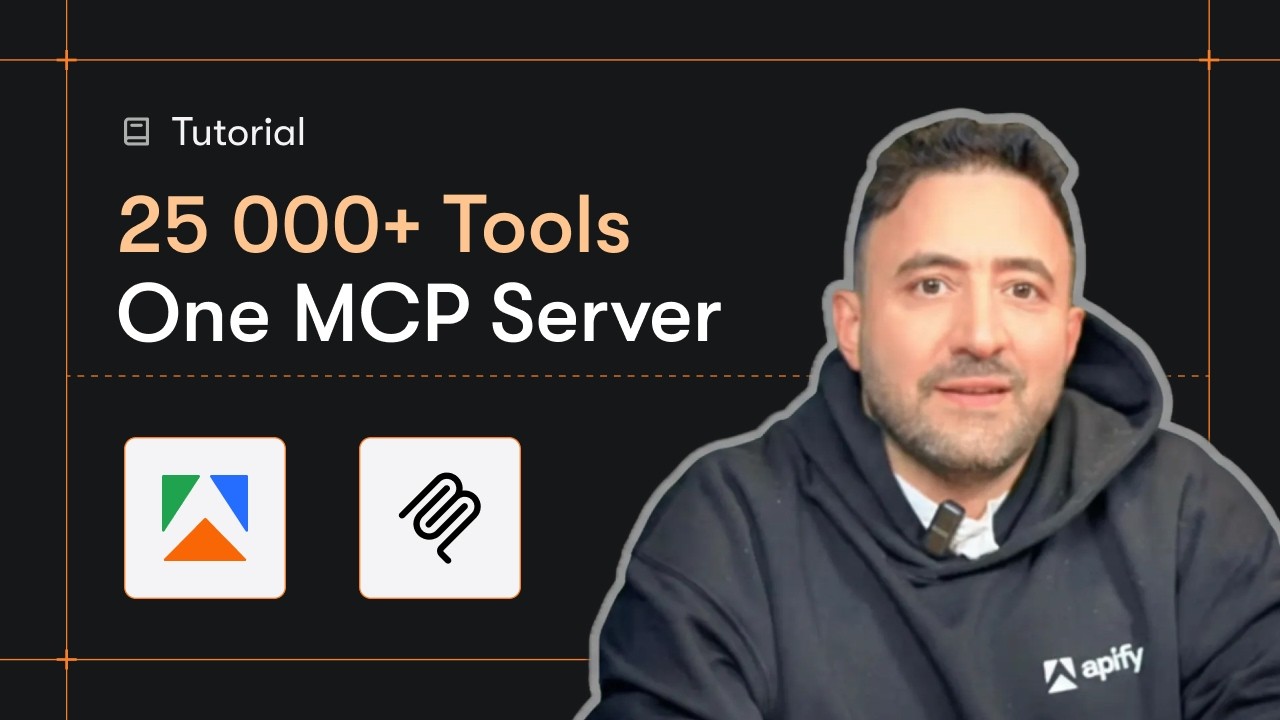
Video Walkthrough
Quick Start
Prerequisites
- Python 3.11 or higher
- An Apify account and API key (get a free key here)
-
Clone the repository
git clone https://github.com/johnisanerd/Google-Images-API.git cd Google-Images-API -
Install dependencies with UV
# Install UV if you do not have it: curl -LsSf https://astral.sh/uv/install.sh | sh # Install project dependencies: uv sync -
Configure your API key
cp .env.example .env # Edit .env and add your Apify API key # Get your free API key at: https://apify.com?fpr=9n7kx3 -
Run the example
uv run python google-images-api-example.py
Alternative: set the API key directly
export APIFY_API_TOKEN="your_api_key_here"
uv run python google-images-api-example.py
Why Use This Google Images API?
It is the lowest-cost path to Google Images data. You pay a flat $0.0001 per image, which is $0.10 per 1,000, with no setup fee and no per-run fee. That is roughly 10x below the cheapest mainstream alternative.
It returns clean, predictable JSON. Every result is one row with a stable set of fields, so you can load it straight into a dataframe, a database, or an AI pipeline without reshaping.
It is fast and reliable. The API talks to a structured data service instead of driving a slow, breakable headless browser, so runs finish quickly and consistently.
It is built for batch work. Pass a list of queries and a per-query result count, and the API paginates for you and tags every row with the query it came from.
It is MCP-ready. AI agents can discover and call it as a tool through the hosted Apify MCP server, so an assistant can fetch image results in one step.
Features
Core Capabilities
- Bulk search: pass one or many queries in a single run
- Control the number of images returned per query
- Localize results by country (
gl) and language (hl) - Pagination handled for you, with per-query result tagging
Data Quality
- Full-size
imageUrlplusimageWidthandimageHeight thumbnailUrlwith its own dimensions for fast previewssourcesite,domain, and thelinkto the hosting page- Stable, flat JSON shape: one row per image, easy to load anywhere
Usage Examples
Basic Example
{
  "queries": ["golden retriever puppy"],
  "maxResultsPerQuery": 10
}
Advanced Example
{
  "queries": ["golden retriever puppy", "eiffel tower at night"],
  "maxResultsPerQuery": 100,
  "gl": "us",
  "hl": "en"
}
Input Parameters
| Parameter | Type | Required | Default | Description |
|---|---|---|---|---|
queries | list[str] | YES | - | One or more image search queries. Each is searched independently and tagged in the output. |
maxResultsPerQuery | int | no | 100 | How many images to return per query (minimum 1, maximum 1000). |
gl | str | no | "us" | Two-letter country code for localization, e.g. us, gb, de. |
hl | str | no | "en" | Two-letter interface language code, e.g. en, es, de. |
Output Format
Each item in the dataset is a single image result:
{
  "query": "golden retriever puppy",
  "position": 1,
  "title": "Golden Retriever Puppy",
  "imageUrl": "https://images.example.com/products/57215/golden-retriever-puppy.jpg",
  "imageWidth": 1047,
  "imageHeight": 699,
  "thumbnailUrl": "https://encrypted-tbn0.gstatic.com/images?q=tbn:ANd9Gc...",
  "thumbnailWidth": 275,
  "thumbnailHeight": 183,
  "source": "Photowall",
  "domain": "www.photowall.com",
  "link": "https://www.photowall.com/us/golden-retriever-puppy-wallpaper",
  "googleUrl": "https://www.google.com/imgres?imgurl=..."
}
Install in Claude Cowork Desktop
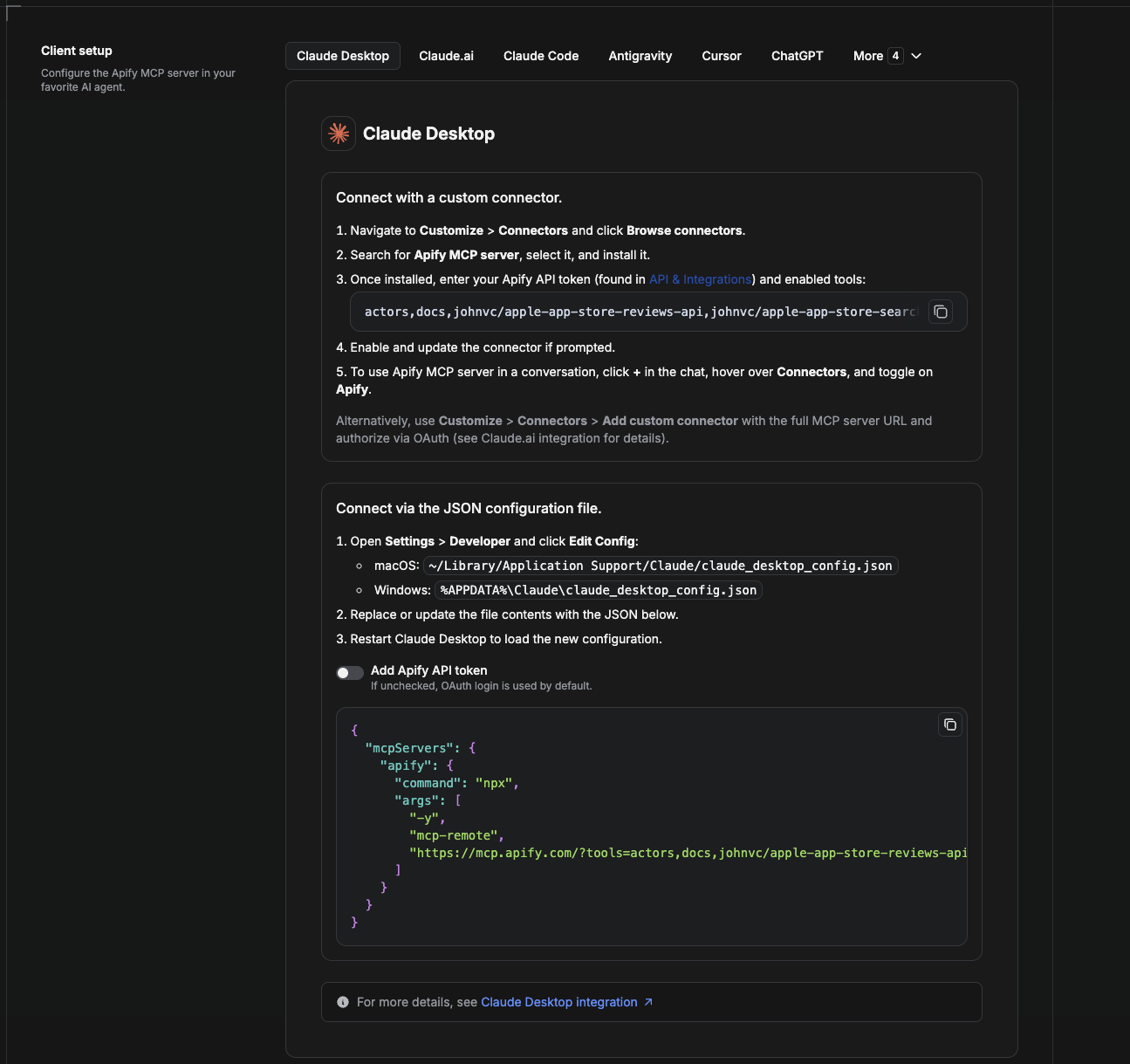
Cowork is the desktop app's automation mode. To give it the Google Images API as a tool, add the Apify MCP server as a connector.
- Open the Claude desktop app and go to Settings → Connectors (or Settings → Developer → Edit Config to edit
claude_desktop_config.jsondirectly).- macOS:
~/Library/Application Support/Claude/claude_desktop_config.json - Windows:
%APPDATA%\Claude\claude_desktop_config.json
- macOS:
- Add the Apify MCP server, preloaded with only this Actor:
{
  "mcpServers": {
    "apify": {
      "command": "npx",
      "args": [
        "-y",
        "mcp-remote",
        "https://mcp.apify.com/?tools=actors,docs,johnvc/google-images-api"
      ]
    }
  }
}
- Restart the app. When Cowork first calls the tool, complete the OAuth prompt in your browser, or add your Apify API token in the connector settings to skip OAuth.
- In a Cowork chat, confirm the tool is available and ask it to run the Google Images API.
Download the desktop app and start a free trial: https://claude.ai/referral/uIlpa7nPLg More help: https://docs.apify.com/platform/integrations/claude-desktop
Install in Claude Code
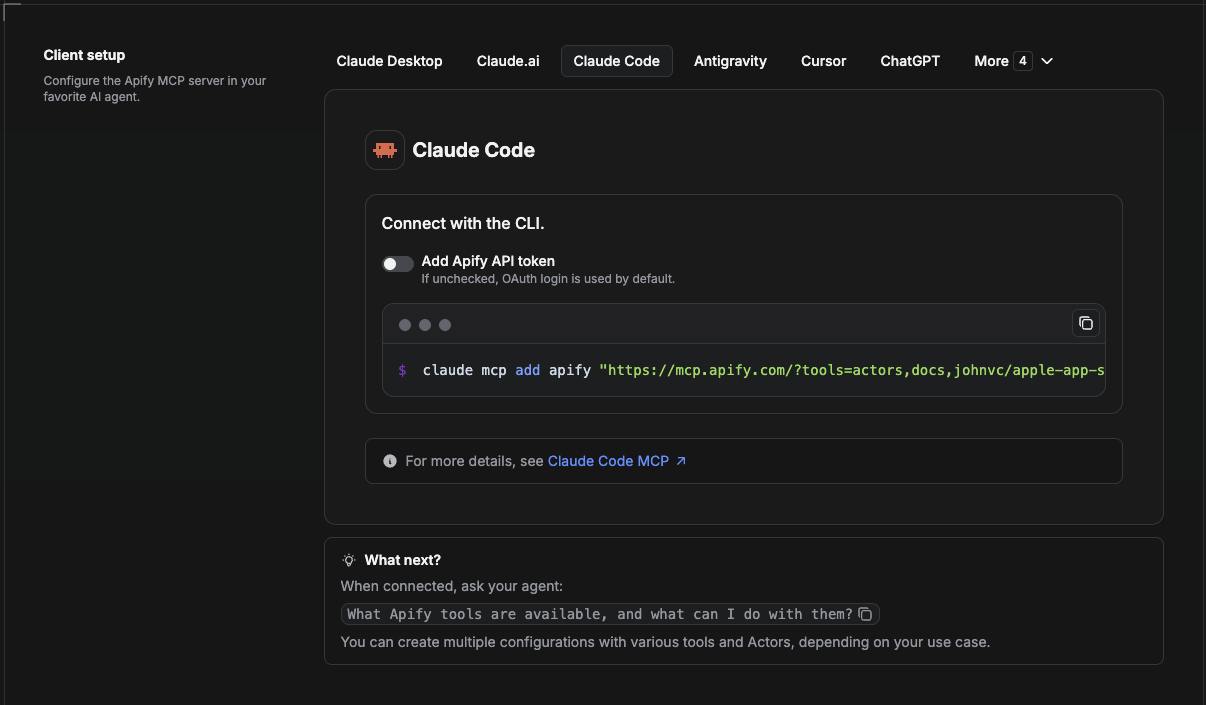
Claude Code is the command-line tool. Add the Actor's MCP server with one command:
claude mcp add --transport http apify \
  "https://mcp.apify.com/?tools=actors,docs,johnvc/google-images-api"
To use a token instead of browser OAuth:
claude mcp add --transport http apify \
  "https://mcp.apify.com/?tools=actors,docs,johnvc/google-images-api" \
  --header "Authorization: Bearer YOUR_APIFY_TOKEN"
Then verify with claude mcp list, or run /mcp inside a session. Ask Claude Code to call the Google Images API.
Try Claude Code free: https://claude.ai/referral/uIlpa7nPLg Claude Code MCP docs: https://code.claude.com/docs/en/mcp
Install in Claude (website)
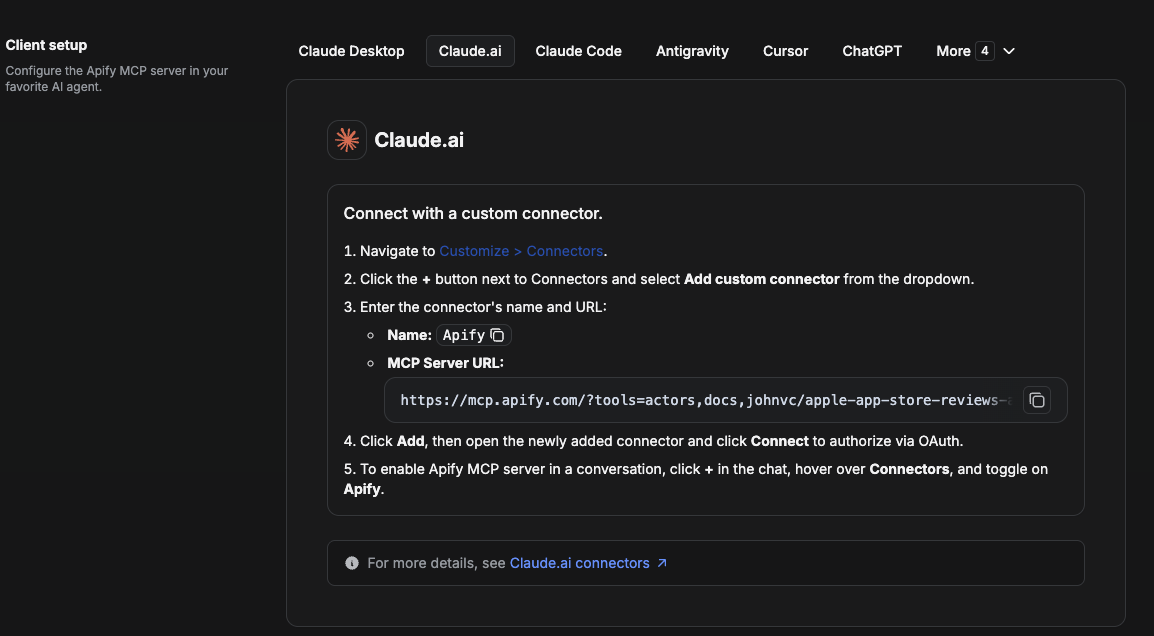
On claude.ai you add Apify as a connector, then enable just this Actor's tool.
- Go to Settings → Connectors → Browse connectors and search for Apify MCP server. Install it (enable or update if prompted).
- When connecting, authenticate with your Apify API token, and enable the tool
johnvc/google-images-api. - In any chat, open + → Connectors and turn on Apify.
- Alternatively, choose Add custom connector and paste the full MCP URL
https://mcp.apify.com/?tools=actors,docs,johnvc/google-images-api, using OAuth when prompted. - Ask Claude to run the Google Images API.
Open Claude on the web: https://claude.ai/referral/uIlpa7nPLg
Install in Cursor
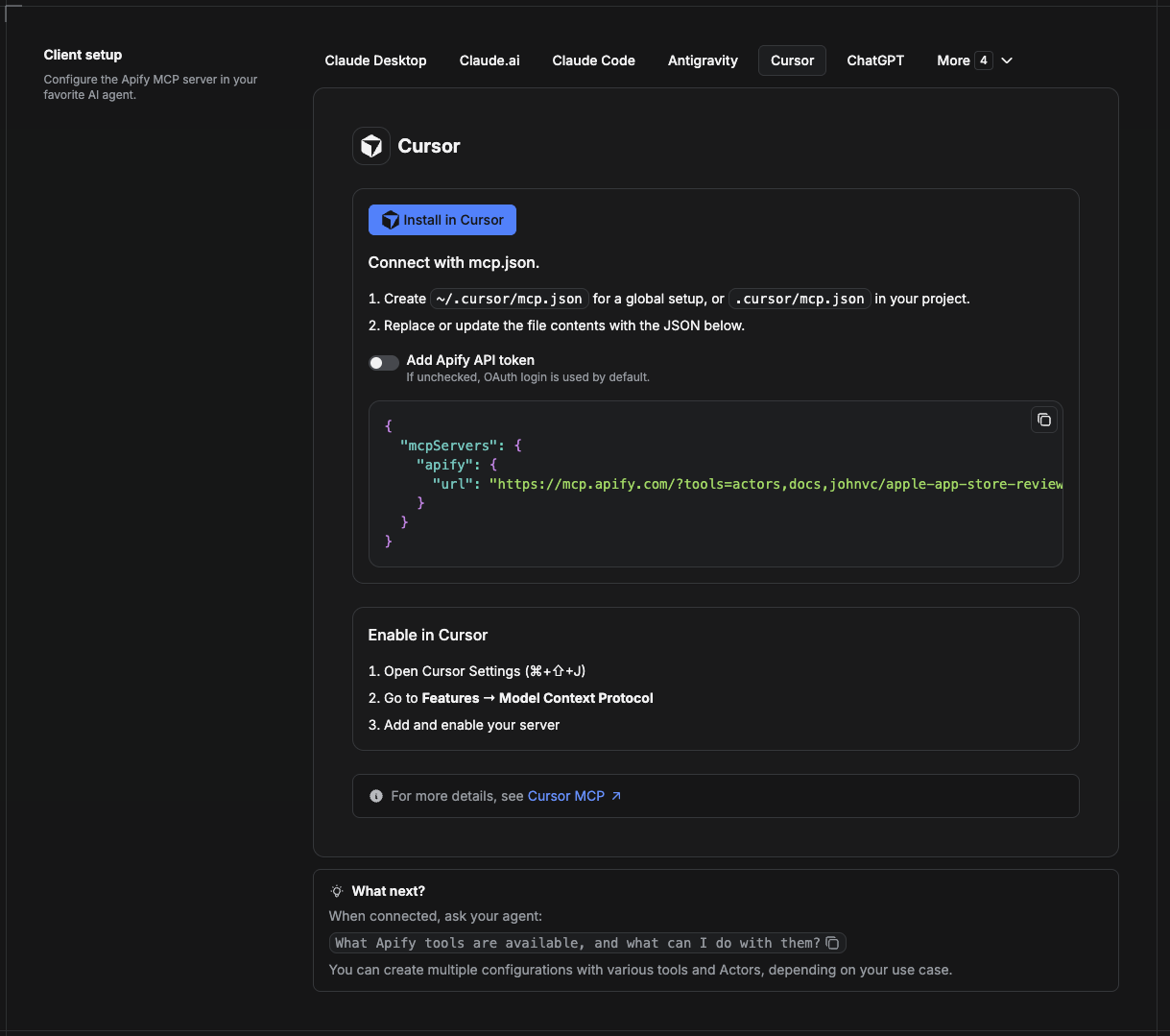
Cursor reads MCP servers from a project file at .cursor/mcp.json.
- In your project, create
.cursor/mcp.json:
{
  "mcpServers": {
    "apify": {
      "url": "https://mcp.apify.com/?tools=actors,docs,johnvc/google-images-api"
    }
  }
}
- If you prefer token auth over browser OAuth, add a header:
{
  "mcpServers": {
    "apify": {
      "url": "https://mcp.apify.com/?tools=actors,docs,johnvc/google-images-api",
      "headers": { "Authorization": "Bearer YOUR_APIFY_TOKEN" }
    }
  }
}
- Open Cursor → Settings → MCP and confirm the apify server is connected (green dot).
- In Composer or Chat, ask Cursor to call the Google Images API.
New to Cursor? Get it here: https://cursor.com/referral?code=XQP4VBLI3NNX
Install in ChatGPT
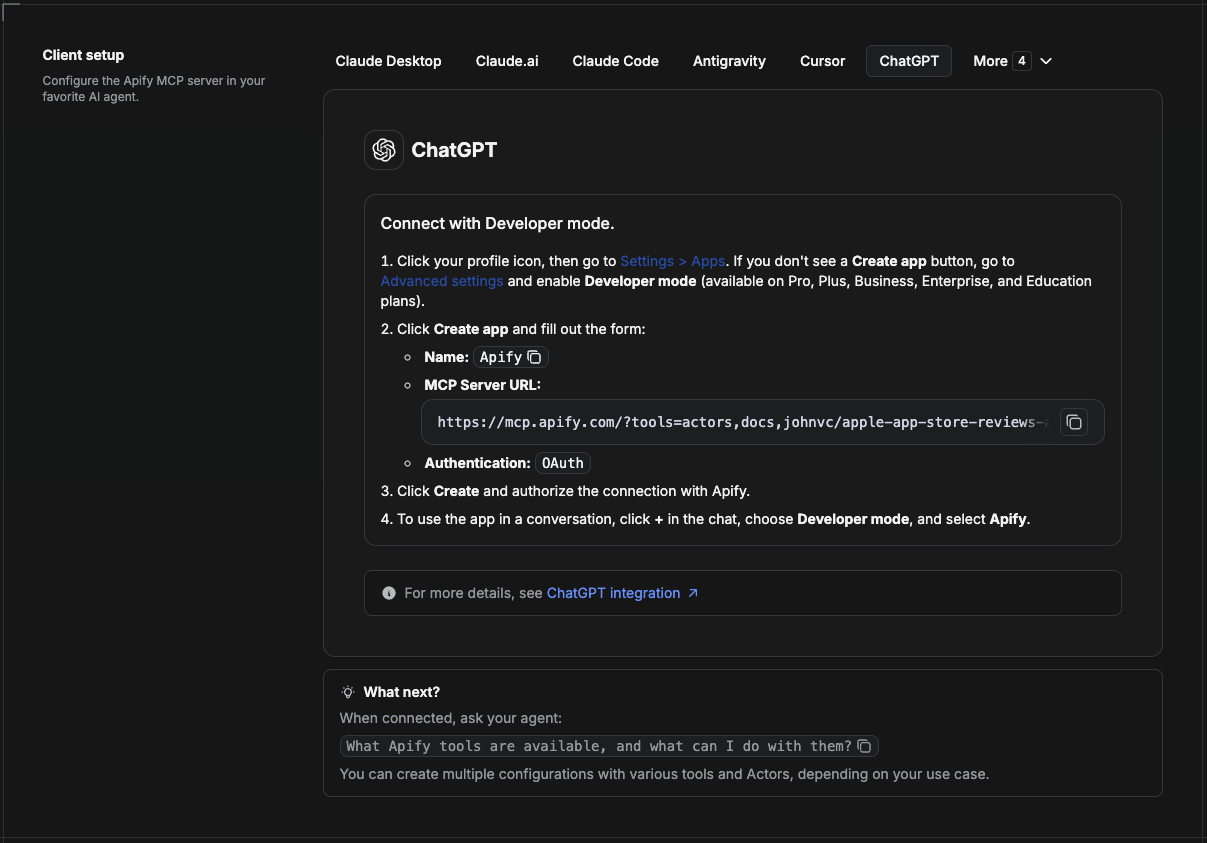
ChatGPT connects to the Apify MCP server through Developer mode (available on ChatGPT Pro, Plus, Business, Enterprise, and Education plans).
- Click your profile icon, then go to Settings > Apps. If you do not see a Create app button, open Advanced settings and enable Developer mode.
- Click Create app and fill out the form:
- Name: Apify
- MCP Server URL:
https://mcp.apify.com/?tools=actors,docs,johnvc/google-images-api - Authentication: OAuth
- Click Create and authorize the connection with Apify.
- To use the app in a conversation, click + in the chat, choose Developer mode, and select Apify.
More help: https://docs.apify.com/platform/integrations/mcp
Use the Google Images API to power your data workflows with reliable, structured results.
Featured Tasks
Ready-to-run examples on the Apify Store.
🤖 Ask an AI assistant about this Actor
Open a ready-to-send prompt about the Google Images API in the AI of your choice:
- 💬 ChatGPT
- 🧠 Claude
- 🔍 Perplexity
- 🅒 Copilot
Last Updated: 2026.10.27
Comments
New to MCP?
From what the protocol is to installing your first server, these answers cover most first questions.
An open protocol that defines how AI applications connect to external tools and data in a uniform way. Clients talk to the model; MCP servers provide tools, resources and prompt templates. They exchange standard messages, so one server can be reused by many clients.