About google-shopping
google-shopping is an Apify-backed search service for product listings on Google Shopping, aimed at developers and AI workflows. It returns structured product, merchant, price, rating, and delivery data with filters and localization options.
Key features
- 01Search Google Shopping product listings
- 02Filter by price, sale, and shipping
- 03Sort results by price
- 04Return merchant, price, rating, and delivery data
- 05Localize by location, country, and language
Use cases
- 01Compare prices across merchants
- 02Track discounted products
- 03Monitor competitor product listings
- 04Collect product data for AI workflows
MCP support
Exposes the Google Shopping Actor through Apify’s hosted MCP server, so MCP clients can search and retrieve product listings.
Configuration
Remote servers need no local install. Pick your client, then copy the config or install in one click.
https://mcp.apify.com/?tools=johnvc/google-shopping-api-google-shopping-products-prices-dealsclaude mcp add --transport http johnisanerd-google-shopping https://mcp.apify.com/?tools=johnvc/google-shopping-api-google-shopping-products-prices-deals{"mcpServers":{"johnisanerd-google-shopping":{"type":"http","url":"https://mcp.apify.com/?tools=johnvc/google-shopping-api-google-shopping-products-prices-deals"}}}Open in Cursor{"servers":{"johnisanerd-google-shopping":{"type":"http","url":"https://mcp.apify.com/?tools=johnvc/google-shopping-api-google-shopping-products-prices-deals"}}}Open in VS Code{"mcpServers":{"johnisanerd-google-shopping":{"type":"http","url":"https://mcp.apify.com/?tools=johnvc/google-shopping-api-google-shopping-products-prices-deals"}}}{"mcpServers":{"johnisanerd-google-shopping":{"serverUrl":"https://mcp.apify.com/?tools=johnvc/google-shopping-api-google-shopping-products-prices-deals"}}}Run commands in a terminal; paste JSON into the client’s MCP config and restart. Servers that need sign-in will prompt on first connect.
Tools
Details
From the project README🛍️ Google Shopping API: Products, Prices, and Deals in Clean JSON
The efficient, reliable, and developer-friendly way to use the Google Shopping API.
Actor page: apify.com/johnvc/google-shopping-api-google-shopping-products-prices-deals Input schema: apify.com/johnvc/google-shopping-api-google-shopping-products-prices-deals/input-schema
The Google Shopping API returns Google Shopping product listings for a query as clean, structured JSON: title, merchant source, current and original price, rating, review count, sale tag, delivery terms, and a product ID. Filter by price band, sort order, free shipping, and on-sale status, and localize by country, language, and Google domain. Built for price comparison, deal tracking, competitive monitoring, and AI agent workflows.
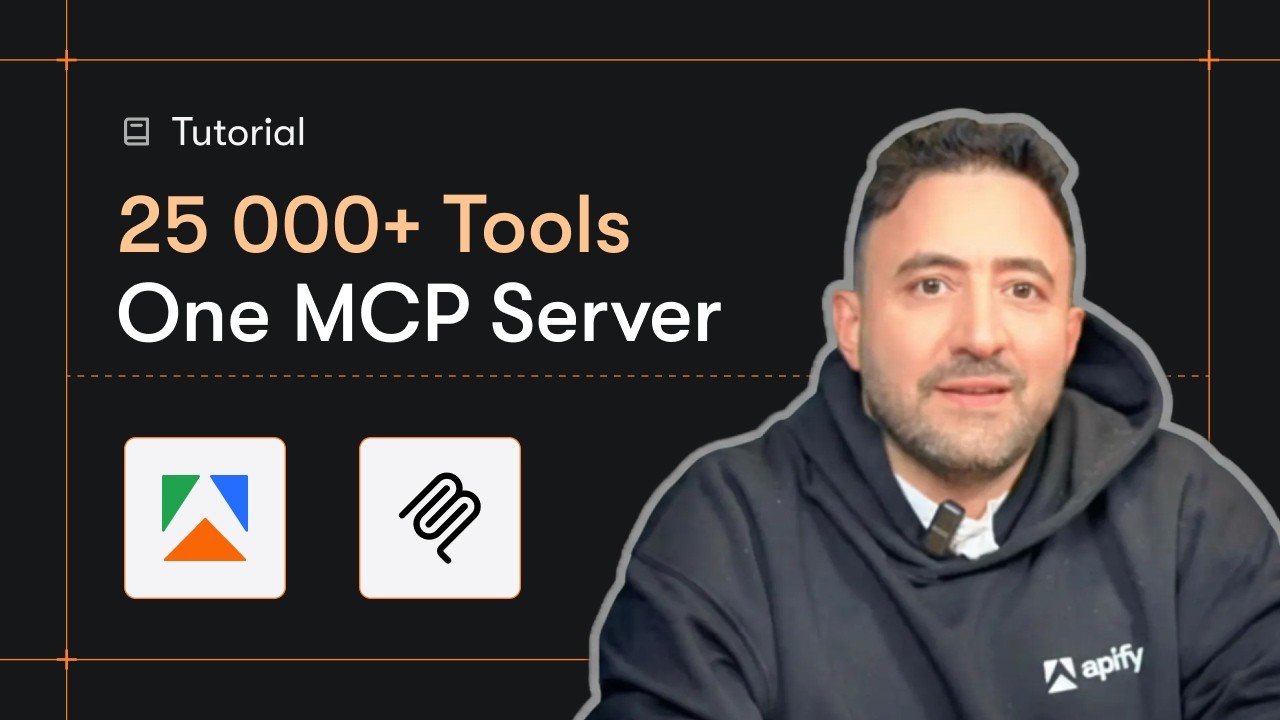
Video Walkthrough
Quick Start
Prerequisites
- Python 3.11 or higher
- An Apify account and API key (get a free key here)
-
Clone the repository
git clone https://github.com/johnisanerd/Apify-Google-Shopping-API.git cd Apify-Google-Shopping-API -
Install dependencies with UV
# Install UV if you do not have it: curl -LsSf https://astral.sh/uv/install.sh | sh # Install project dependencies: uv sync -
Configure your API key
cp .env.example .env # Edit .env and add your Apify API key # Get your free API key at: https://apify.com?fpr=9n7kx3 -
Run the example
uv run python google-shopping-api-example.py
Alternative: set the API key directly
export APIFY_API_TOKEN="your_api_key_here"
uv run python google-shopping-api-example.py
Why Use This Google Shopping API?
Prices across merchants. Get the products Google Shopping shows for a query, each with its merchant source, current price, and original price when discounted.
Built-in deal signals. Sale tags (for example 16% OFF), original prices, and an on-sale filter make deal tracking straightforward.
Ratings and delivery. Each listing carries a rating, review count, and delivery terms, so you can rank on more than price.
Flexible filtering. Narrow by min_price and max_price, sort by price, and restrict to free shipping or on-sale items.
Localized. Target by location, country (gl), language (hl), and Google domain, and emulate desktop, tablet, or mobile.
Predictable, pay-per-use pricing. Billing is per page processed (about 40 products each), with a small per-run fee.
Features
Core Capabilities
- Product search with price-band, sort, free-shipping, and on-sale filters
- Merchant source, current and original price, and sale tag per product
- Ratings, review counts, and delivery terms
- Localization by location, country, language, and Google domain
- Pagination with a configurable page cap
Data Quality
- One item per page, each with a
shopping_resultsarray - Formatted
priceplus numericextracted_price - Sale fields (
old_price,tag) when a product is discounted - The available refinement
filtersreturned per page
Usage Examples
Basic search
{
  "q": "wireless headphones",
  "max_pages": 1
}
Price band, on sale, sorted low to high
{
  "q": "4k monitor",
  "min_price": 200,
  "max_price": 500,
  "on_sale": true,
  "sort_by": 1
}
Input Parameters
| Parameter | Type | Required | Default | Description |
|---|---|---|---|---|
q | str | Yes | - | Product or keyword to search, e.g. wireless headphones. |
location | str | No | - | Geographic location, e.g. Austin, Texas, United States. |
gl | str | No | - | Country code, e.g. us, uk, de. |
hl | str | No | - | Language code, e.g. en, es. |
google_domain | str | No | google.com | Google domain, e.g. google.co.uk. |
device | str | No | desktop | desktop, tablet, or mobile. |
min_price | number | No | - | Only products above this price. |
max_price | number | No | - | Only products below this price. |
sort_by | int | No | - | 1 price low to high, 2 high to low; blank = relevance. |
free_shipping | bool | No | false | Only products with free shipping. |
on_sale | bool | No | false | Only products on sale or discounted. |
max_pages | int | No | 1 | Pages to fetch (~40 products each); 0 = unlimited. Each page is billed. |
Output Format
A real result for wireless headphones (one item per page; shopping_results is trimmed to a single product, and filters lists the available refinements).
{
  "search_parameters": { "q": "wireless headphones", "device": "desktop", "max_pages": 1 },
  "search_metadata": { "results_count": 40, "pages_processed": 1, "max_pages_set": 1, "pagination_limit_reached": true },
  "page_number": 1,
  "shopping_results": [
    {
      "position": 1,
      "title": "JLab Studio 2 Wireless Headphones",
      "product_id": "13340055750063076763",
      "source": "Target",
      "price": "$24.99",
      "extracted_price": 24.99,
      "old_price": "$30",
      "rating": 4.6,
      "reviews": 727,
      "tag": "16% OFF",
      "delivery": "Free delivery on $35+"
    }
  ],
  "filters": [ { "input_type": "link_with_icon", "options": [ "..." ] } ]
}
Each page item echoes the search_parameters, reports search_metadata (result count and pages processed), and lists every product in shopping_results with its position, title, merchant source, formatted and numeric price, optional sale fields (old_price, tag), rating, reviews, delivery terms, and product_id. The filters array returns the refinements Google offers for the query.
Use as an MCP tool
You can load the Google Shopping API as an MCP tool so assistants call it for you. The MCP server URL preloads just this one Actor:
https://mcp.apify.com/?tools=actors,docs,johnvc/google-shopping-api-google-shopping-products-prices-deals
Authenticate with OAuth in the browser when offered, or with your Apify API token (the same APIFY_API_TOKEN used by the Python example). Get a token at https://console.apify.com/settings/integrations and a free Apify account at https://apify.com?fpr=9n7kx3 .
Install in Claude Cowork Desktop
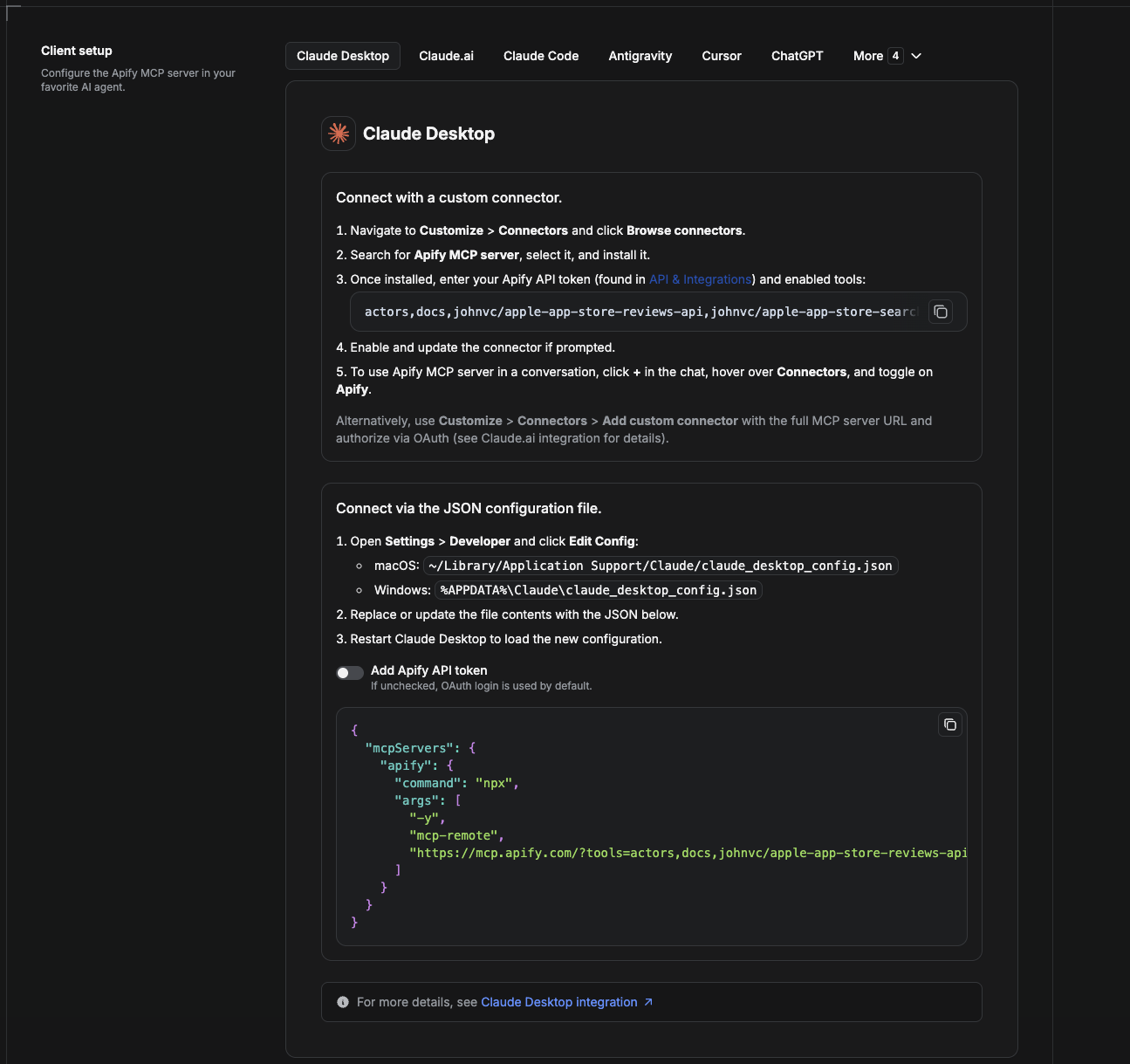
Cowork is the desktop app's automation mode. To give it the Google Shopping API as a tool, add the Apify MCP server as a connector.
- Open the Claude desktop app and go to Settings → Connectors (or Settings → Developer → Edit Config to edit
claude_desktop_config.jsondirectly).- macOS:
~/Library/Application Support/Claude/claude_desktop_config.json - Windows:
%APPDATA%\Claude\claude_desktop_config.json
- macOS:
- Add the Apify MCP server, preloaded with only this Actor:
{
  "mcpServers": {
    "apify": {
      "command": "npx",
      "args": [
        "-y",
        "mcp-remote",
        "https://mcp.apify.com/?tools=actors,docs,johnvc/google-shopping-api-google-shopping-products-prices-deals"
      ]
    }
  }
}
- Restart the app. When Cowork first calls the tool, complete the OAuth prompt in your browser, or add your Apify API token in the connector settings to skip OAuth.
- In a Cowork chat, confirm the tool is available and ask it to run the Google Shopping API.
Download the desktop app and start a free trial: https://claude.ai/referral/uIlpa7nPLg More help: https://docs.apify.com/platform/integrations/claude-desktop
Install in Claude Code
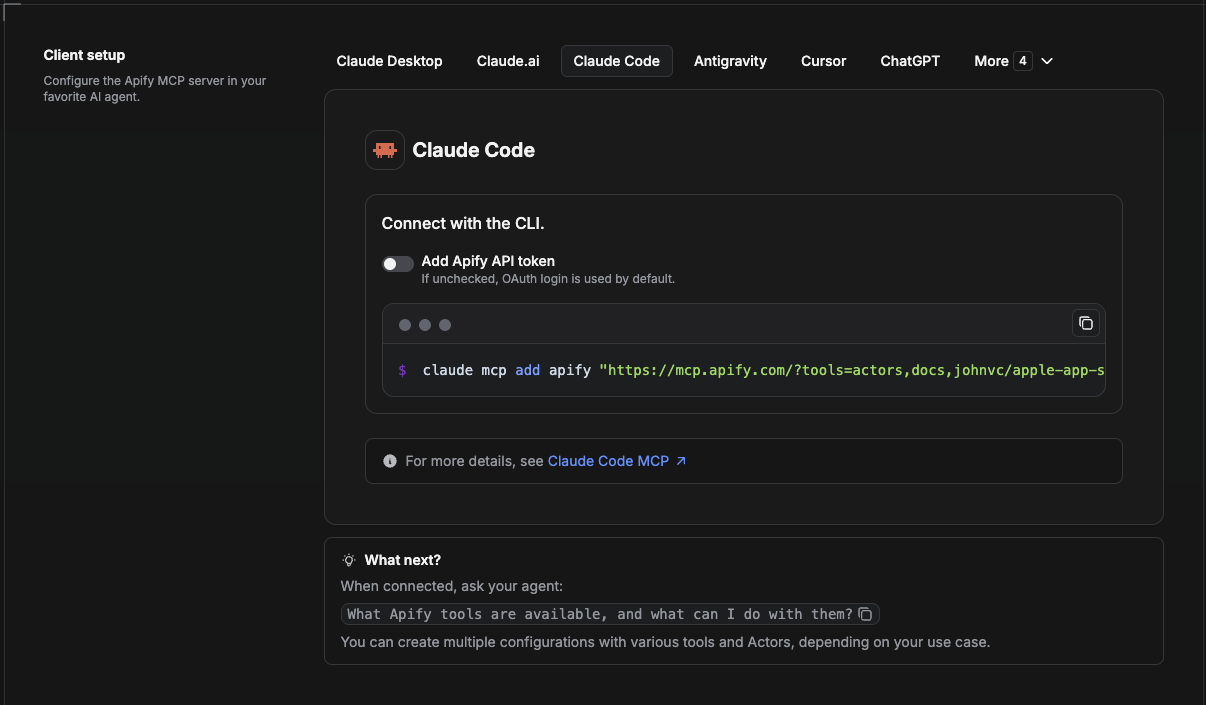
Claude Code is the command-line tool. Add the Actor's MCP server with one command:
claude mcp add --transport http apify \
  "https://mcp.apify.com/?tools=actors,docs,johnvc/google-shopping-api-google-shopping-products-prices-deals"
To use a token instead of browser OAuth:
claude mcp add --transport http apify \
  "https://mcp.apify.com/?tools=actors,docs,johnvc/google-shopping-api-google-shopping-products-prices-deals" \
  --header "Authorization: Bearer YOUR_APIFY_TOKEN"
Then verify with claude mcp list, or run /mcp inside a session. Ask Claude Code to call the Google Shopping API.
Try Claude Code free: https://claude.ai/referral/uIlpa7nPLg Claude Code MCP docs: https://code.claude.com/docs/en/mcp
Install in Claude (website)
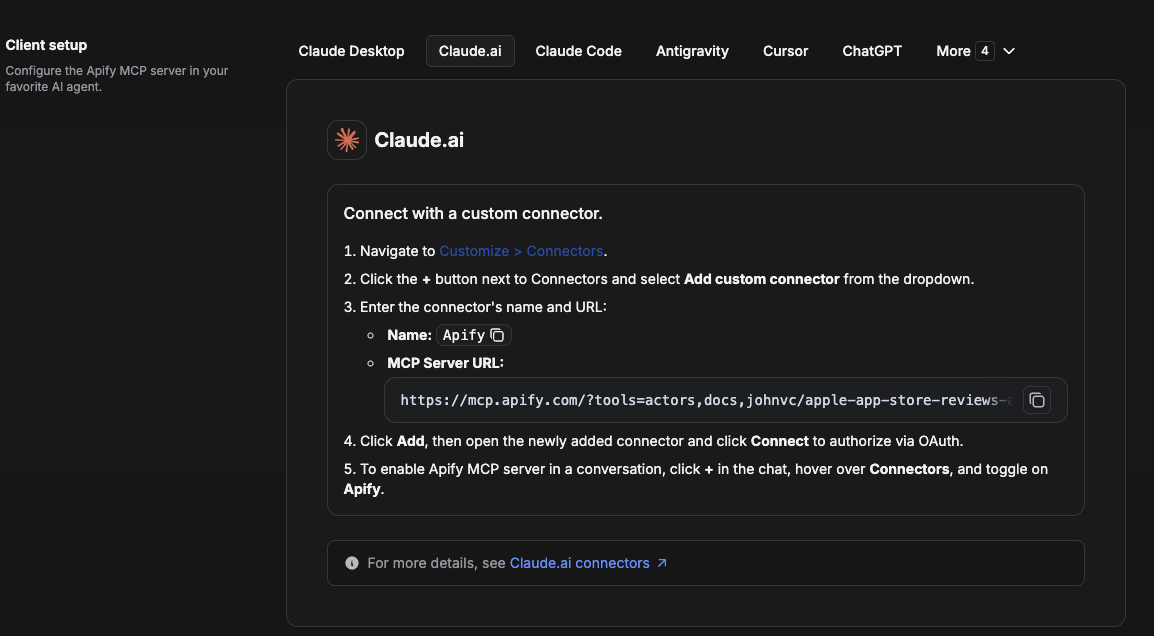
On claude.ai you add Apify as a connector, then enable just this Actor's tool.
- Go to Settings → Connectors → Browse connectors and search for Apify MCP server. Install it (enable or update if prompted).
- When connecting, authenticate with your Apify API token, and enable the tool
johnvc/google-shopping-api-google-shopping-products-prices-deals. - In any chat, open + → Connectors and turn on Apify.
- Alternatively, choose Add custom connector and paste the full MCP URL
https://mcp.apify.com/?tools=actors,docs,johnvc/google-shopping-api-google-shopping-products-prices-deals, using OAuth when prompted. - Ask Claude to run the Google Shopping API.
Open Claude on the web: https://claude.ai/referral/uIlpa7nPLg
Install in Cursor
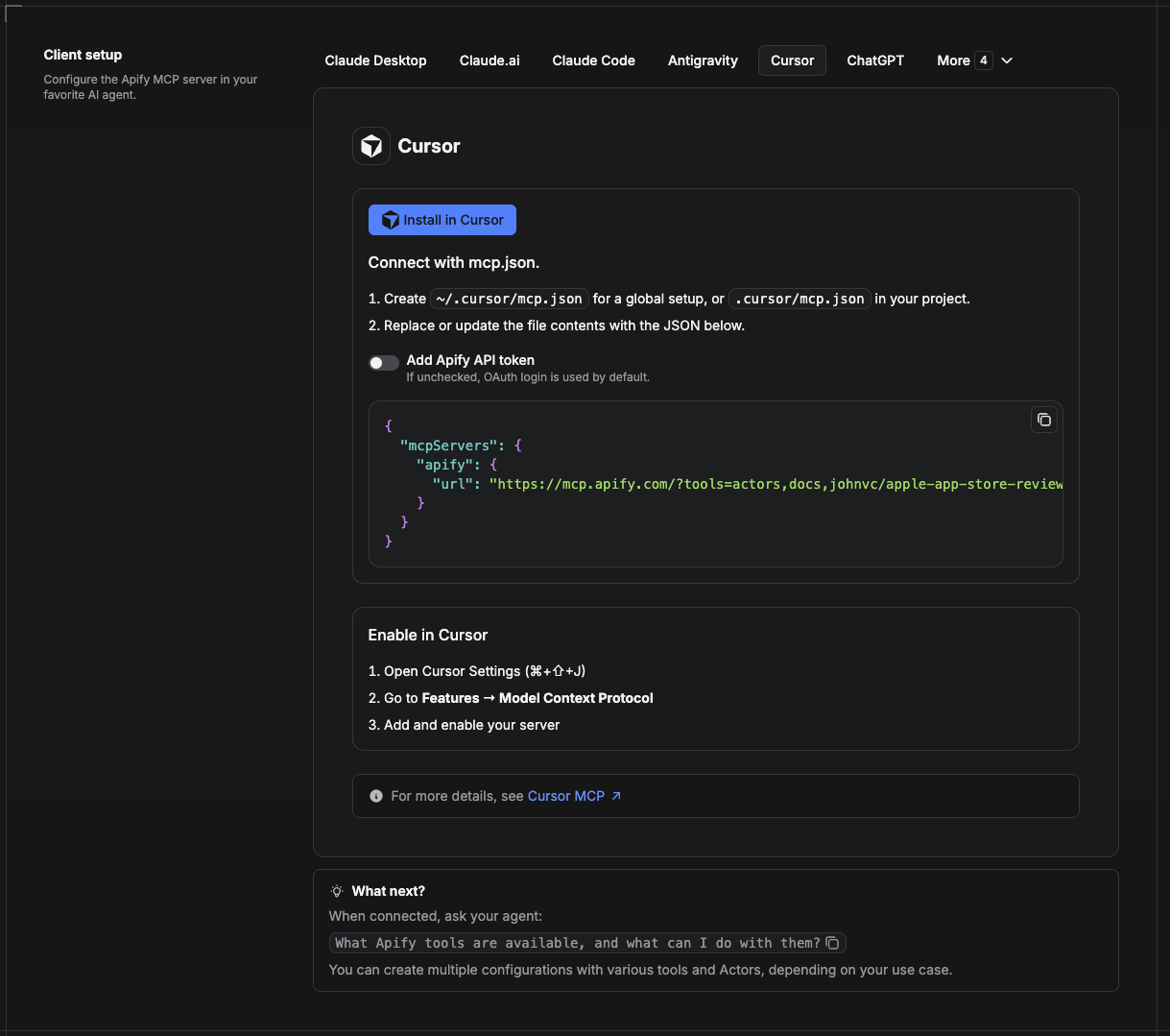
Cursor reads MCP servers from a project file at .cursor/mcp.json.
- In your project, create
.cursor/mcp.json:
{
  "mcpServers": {
    "apify": {
      "url": "https://mcp.apify.com/?tools=actors,docs,johnvc/google-shopping-api-google-shopping-products-prices-deals"
    }
  }
}
- If you prefer token auth over browser OAuth, add a header:
{
  "mcpServers": {
    "apify": {
      "url": "https://mcp.apify.com/?tools=actors,docs,johnvc/google-shopping-api-google-shopping-products-prices-deals",
      "headers": { "Authorization": "Bearer YOUR_APIFY_TOKEN" }
    }
  }
}
- Open Cursor → Settings → MCP and confirm the apify server is connected (green dot).
- In Composer or Chat, ask Cursor to call the Google Shopping API.
New to Cursor? Get it here: https://cursor.com/referral?code=XQP4VBLI3NNX
Install in ChatGPT
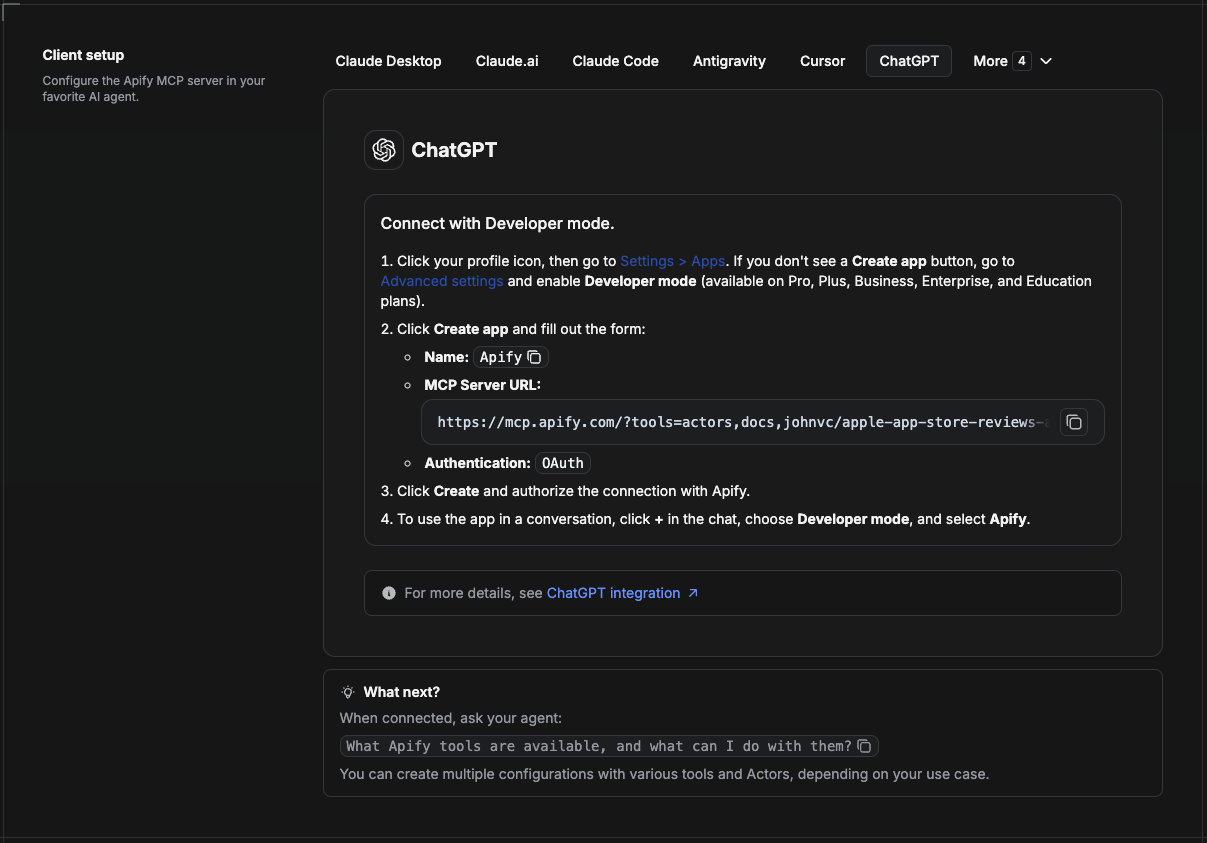
ChatGPT connects to the Apify MCP server through Developer mode (available on ChatGPT Pro, Plus, Business, Enterprise, and Education plans).
- Click your profile icon, then go to Settings > Apps. If you do not see a Create app button, open Advanced settings and enable Developer mode.
- Click Create app and fill out the form:
- Name: Apify
- MCP Server URL:
https://mcp.apify.com/?tools=actors,docs,johnvc/google-shopping-api-google-shopping-products-prices-deals - Authentication: OAuth
- Click Create and authorize the connection with Apify.
- To use the app in a conversation, click + in the chat, choose Developer mode, and select Apify.
More help: https://docs.apify.com/platform/integrations/mcp
Use the Google Shopping API to power price comparison, deal tracking, and competitive monitoring with reliable, structured results.
Featured Tasks
Ready-to-run examples on the Apify Store.
🤖 Ask an AI assistant about this Actor
Open a ready-to-send prompt about the Google Shopping API in the AI of your choice:
- 💬 ChatGPT
- 🧠 Claude
- 🔍 Perplexity
- 🅒 Copilot
Last Updated: 2026.10.27
Comments
New to MCP?
From what the protocol is to installing your first server, these answers cover most first questions.
An open protocol that defines how AI applications connect to external tools and data in a uniform way. Clients talk to the model; MCP servers provide tools, resources and prompt templates. They exchange standard messages, so one server can be reused by many clients.