
About Yeti
Yeti is an MCP server for product teams using Claude to take a project from problem discovery to a verified scope. It structures work into phases, tracks requirements and stories, scores priorities with RICE, and can send work to Jira.
Key features
- 01Guide projects through five design phases
- 02Track MoSCoW requirements and user stories
- 03Calculate and sort RICE scores
- 04Create Mermaid user-flow diagrams
- 05Export backlogs and sync with Jira
Use cases
- 01Turn a product problem into requirements and user stories
- 02Check that must-have requirements are covered before closing
- 03Prioritize ideas using entered RICE scores
- 04Send a backlog to Jira and sync completion status
MCP support
Yeti is an MCP server for Claude, exposing tools to manage projects, requirements, stories, prioritization, flows, exports, dashboards, and Jira operations.
Configuration
Local server config is the same for every client. Copy it into your client’s MCP config file.
npx -y yeti-mcpPRODUCT_DESIGN_DBAbsolute path of the SQLite database file. Set it to a folder you keep when running with npx.JIRA_SITEJira site, e.g. https://your-team.atlassian.net. Only needed for the Jira tools.JIRA_EMAILEmail of the Atlassian account. Only needed for the Jira tools.JIRA_API_TOKENSecretAtlassian API token. Only needed for the Jira tools.Local servers need a runtime on your machine (e.g. Node.js 18+). Config file locations differ by client; see your client’s docs.
Tools
31Saved tool list · updated 5d ago
| Parameter | Type | Required | Description |
|---|---|---|---|
| goal | string | Yes | What the user or business should achieve |
| mode | enum | No | strict | free |
| name | string | Yes | |
| users | string | Yes | Who it is for |
| problem | string | Yes | The problem it solves |
Details
From the project READMEYeti


An MCP server for product design with Claude. It takes a project from the problem to a verified scope: requirements, user stories, RICE priorities and flow diagrams. Then it sends the work to Jira.
Quick start
Add Yeti to Claude Desktop, in claude_desktop_config.json, then restart Claude Desktop:
{
  "mcpServers": {
    "yeti": {
      "command": "npx",
      "args": ["-y", "yeti-mcp"],
      "env": { "PRODUCT_DESIGN_DB": "/Users/you/yeti/yeti.sqlite" }
    }
  }
}
Set PRODUCT_DESIGN_DB to a file in a folder you keep. With npx the package lives in a cache that can be cleared, and a database stored there would go with it. Yeti needs Node.js 22.13 or later.
Then ask Claude:
Create a project "Quotes for craftsmen" with Yeti. Problem: writing quotes takes hours. Users: plumbers and painters. Goal: a quote in five minutes.
Open the Yeti dashboard.
How it works
A project goes through five phases, in order:
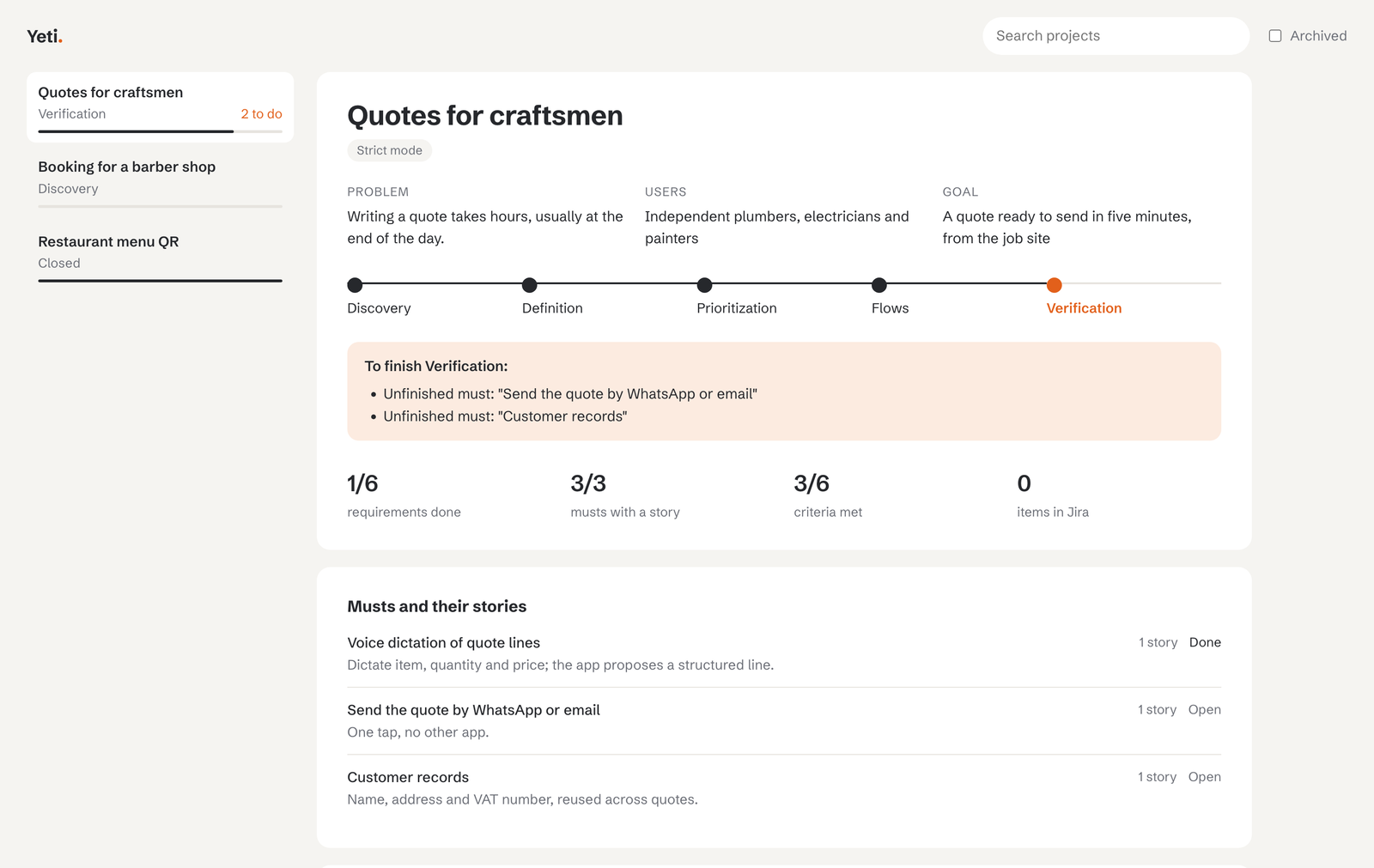
- discovery: problem, users and goal
- definition: requirements (MoSCoW) and user stories
- prioritization: RICE scoring of ideas
- flows: Mermaid flow diagrams
- verification: every
mustrequirement completed and covered by a user story, then the project closes
Projects have a mode, chosen at creation:
strict(default): a phase advances only when its requirements are met.advance_phasetells you what is missing.free: phases advance regardless, and the response lists what was skipped.
Tools
Projects
| Tool | What it does |
|---|---|
create_project | Start a project in the discovery phase, in strict or free mode |
list_projects | List projects with id, name, phase and mode; archived ones are hidden unless includeArchived is set |
get_project | Show phase, what is missing, and linked items |
project_summary | Progress overview: requirements by priority and status, musts covered by stories, criteria done, RICE leader, Jira links, and what is missing to close |
update_project | Change a project's name, problem, users or goal |
advance_phase | Move to the next phase, or list what is missing |
set_project_mode | Switch a project between strict and free |
duplicate_project | Copy a project's requirements and stories into a new project, as open items (a template) |
archive_project | Hide a project from list_projects without deleting it |
delete_project | Permanently delete a project and its items. Requires confirm: true; Jira issues are not touched |
Requirements and user stories
| Tool | What it does |
|---|---|
add_requirement | Add a requirement with a MoSCoW priority |
list_requirements | List requirements, filtered by priority, status or project |
update_requirement | Change a requirement's title, description or priority |
set_requirement_status | Mark a requirement open or done |
delete_requirement | Delete a requirement and unlink it from stories |
add_user_story | Create a user story with acceptance criteria, optionally linked to requirements (requirementIds) |
list_stories | List user stories with their ids, links, criteria state and Jira key |
update_user_story | Change a story's persona, goal, benefit, linked requirements or criteria. Changing criteria resets their done state |
set_criterion_status | Mark one acceptance criterion of a user story as done or not done |
delete_user_story | Delete a user story |
search_items | Search requirements and stories by text, optionally within one project |
Prioritization and flows
| Tool | What it does |
|---|---|
prioritize_rice | Compute and sort RICE scores |
map_user_flow | Generate a Mermaid flow diagram, with Yes/No branches, next and ends |
list_flows | List the flow diagrams saved in a project, with their index |
delete_flow | Delete one saved flow diagram, by the index shown by list_flows |
Import, export and dashboard
| Tool | What it does |
|---|---|
export_backlog | Export a project backlog as Markdown or CSV; with save, also writes it to data/exports/ |
import_requirements | Import requirements and user stories from CSV in the export_backlog format. Story-to-requirement links are not restored |
open_dashboard | Start the live, read-only dashboard and return its local address |
export_dashboard | Write a static HTML snapshot of the dashboard to data/exports/dashboard.html |
Jira
| Tool | What it does |
|---|---|
push_to_jira | Create Jira issues for a project (Task per requirement, Story per user story). Dry-run by default; limit sends a subset; update refreshes issues already linked; items already sent are skipped |
sync_from_jira | Mark requirements and stories done when their Jira issue is done, and reopen them when it goes back. Items closed by hand in Yeti are not reopened. Read-only on Jira |
Requirements, stories, RICE scores and flows accept an optional projectId to link them to a project.
Install from source
You need Node.js 22.13 or later (Yeti uses the built-in node:sqlite module).
git clone https://github.com/macorifice/yeti.git
cd yeti
npm install
npm run build
Then add it to claude_desktop_config.json, using the absolute path to dist/index.js on your machine:
{
  "mcpServers": {
    "yeti": {
      "command": "node",
      "args": ["/absolute/path/to/yeti/dist/index.js"]
    }
  }
}
Restart Claude Desktop after editing the file.
Usage
Once connected, you work with Yeti by talking to Claude. A typical project looks like this.
1. Create a project
Create a project "Quotes for craftsmen". Problem: writing quotes takes hours. Users: plumbers and painters. Goal: a quote in five minutes.
Yeti creates the project in the discovery phase.
2. Move through the phases
- definition: add at least one requirement and one user story linked to it.
- prioritization: score the ideas with RICE.
- flows: draw at least one flow diagram.
- verification: every
mustrequirement is done and covered by a user story.
In strict mode (the default), Yeti will not advance until the phase is complete, and it tells you what is missing. In free mode, it advances and lists what it skipped. You can switch with set_project_mode.
3. Work on the backlog
- Edit or delete requirements and stories.
- Mark acceptance criteria as done.
- Search across a project.
- Duplicate a project to reuse it as a template.
- Import requirements from a CSV file.
4. Export
Export the project backlog as Markdown and save it to a file.
With save: true, the file is written to data/exports/ next to the database.
Good to know
- Data is stored locally, in
data/yeti.sqlite. The content still passes through the chat, so do not put sensitive data in it. - RICE scores are the numbers you enter. Yeti sorts them; it does not estimate them.
Case study
A small project from requirements to Jira, using the Mastro example: creating the project, requirements and user stories, RICE prioritisation, a flow diagram, the verification gate, sending to Jira, and keeping the status in sync.

Dashboard
Yeti has a read-only dashboard for the design side of your projects: the phase each project is in, what is missing to move on, which musts are covered by user stories, acceptance criteria, RICE scores and flow diagrams. It does not show a task board: execution belongs in Jira.
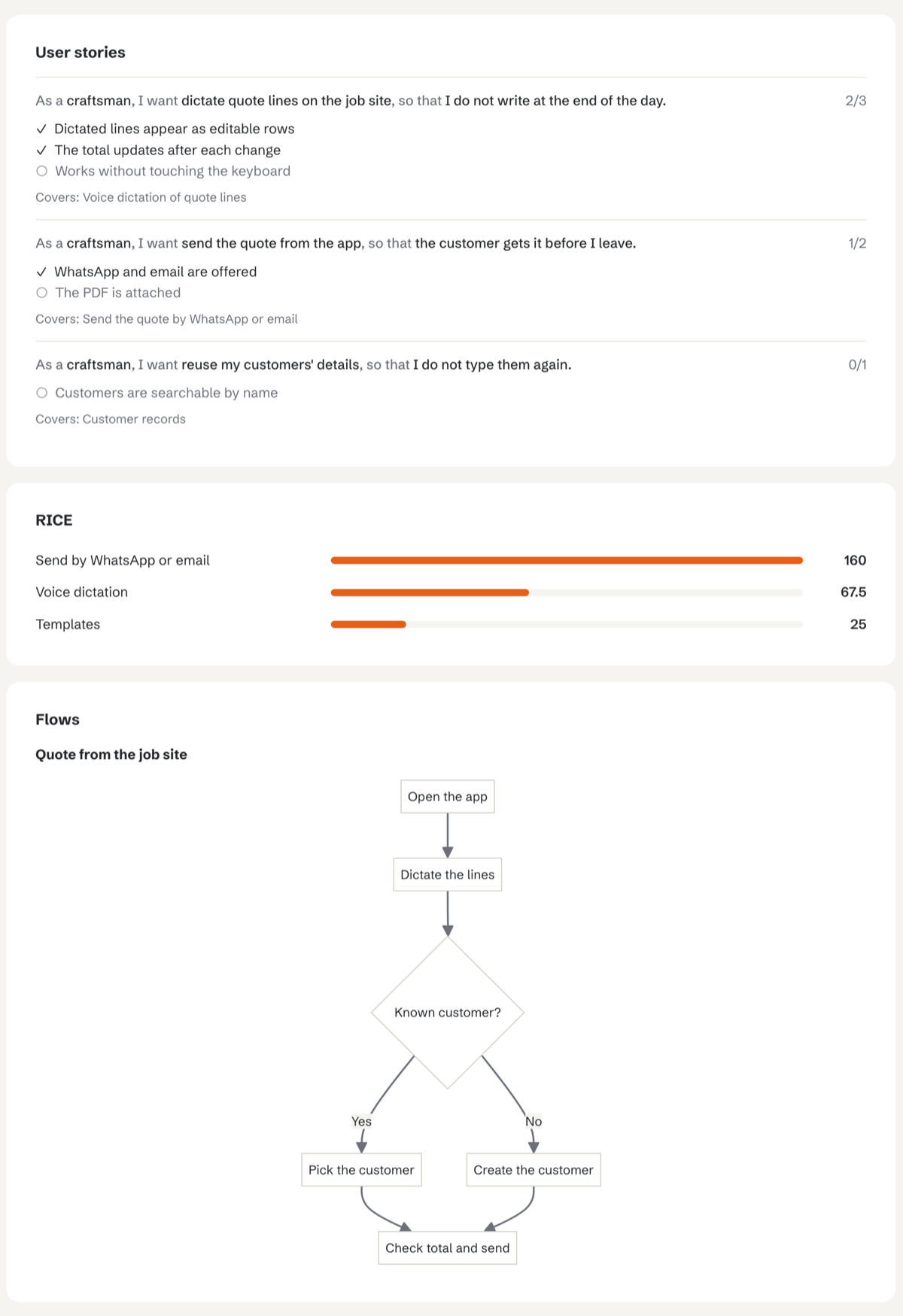
Open it from Claude:
Open the Yeti dashboard.
Claude calls open_dashboard and gives you an address such as http://127.0.0.1:4321. Or start it from a terminal:
npx yeti-mcp dashboard --port 4321
- It listens on
127.0.0.1only, so it is not reachable from other machines, and it refuses requests for other host names. - It reads the same database as the MCP server and refreshes every 10 seconds.
- Jira keys become links when
JIRA_SITEis set. - Diagrams are drawn with Mermaid, loaded from a CDN. Without a connection they are shown as text.
export_dashboard still writes a static snapshot to data/exports/dashboard.html, for sharing.
Credentials
Yeti works without any account. Only one tool talks to an external service:
- Everything else (projects, requirements, stories, RICE, flows, verification, export, search) runs locally and needs no credentials.
push_to_jiracreates issues in Jira. It needs three environment variables:
| Variable | Value |
|---|---|
JIRA_SITE | Your Jira site, e.g. https://your-team.atlassian.net |
JIRA_EMAIL | The email of your Atlassian account |
JIRA_API_TOKEN | An API token created at id.atlassian.com → Security → API tokens |
Set them in your shell profile, for example in ~/.zshrc:
export JIRA_SITE="https://your-team.atlassian.net"
export JIRA_EMAIL="[email protected]"
export JIRA_API_TOKEN="your-token-here"
Never put the token in the repository, in a config file you commit, or in a chat. If a token is exposed, revoke it in the same page and create a new one.
Without these variables, push_to_jira refuses to send and tells you which one is missing. Dry-run previews work without them as well.
Data
Data is stored in SQLite. From a source checkout the default is data/yeti.sqlite inside the project folder; with npx, set PRODUCT_DESIGN_DB as shown in the quick start. Earlier versions used data/db.json: it is imported automatically the first time the new version runs, and then left untouched. To use another location, set the PRODUCT_DESIGN_DB environment variable:
"env": { "PRODUCT_DESIGN_DB": "/absolute/path/to/yeti.sqlite" }
Test
npm test
The test starts the server on a temporary database and checks every tool and the phase flow.
Status
Stable since 1.0.0. The tools, their inputs and the data format are covered by semantic versioning: breaking changes will come with a new major version.
Sponsor
If Yeti is useful to you, you can support its development through GitHub Sponsors.
License
MIT. See LICENSE.
Comments
New to MCP?
From what the protocol is to installing your first server, these answers cover most first questions.
An open protocol that defines how AI applications connect to external tools and data in a uniform way. Clients talk to the model; MCP servers provide tools, resources and prompt templates. They exchange standard messages, so one server can be reused by many clients.