
About Md2docx
Md2docx is an MCP server that converts Markdown text into DOCX through an external conversion service. It supports custom templates, multiple languages, and download delivery for users of MCP clients or Python projects.
Key features
- 01Convert Markdown text to DOCX
- 02Use custom templates
- 03Support multiple languages
- 04List and manage templates
- 05Save files locally or return a temporary download link
Use cases
- 01Turn Markdown drafts into Word documents
- 02Apply a template to converted documents
- 03Choose templates by document language
- 04Retrieve converted files from a cloud-hosted server
MCP support
The MCP server exposes `convert_markdown_to_docx` and `list_templates` to MCP clients. It can save files locally or return a temporary download link when configured for remote use.
Configuration
Local server config is the same for every client. Copy it into your client’s MCP config file.
Tools
Local servers expose tools only once running on your machine, and the maintainer has not provided a tool list.
Details
From the project READMEmd2doc - Markdown to DOCX MCP Server


A Model Context Protocol (MCP) server that converts Markdown text to DOCX format using an external conversion service.
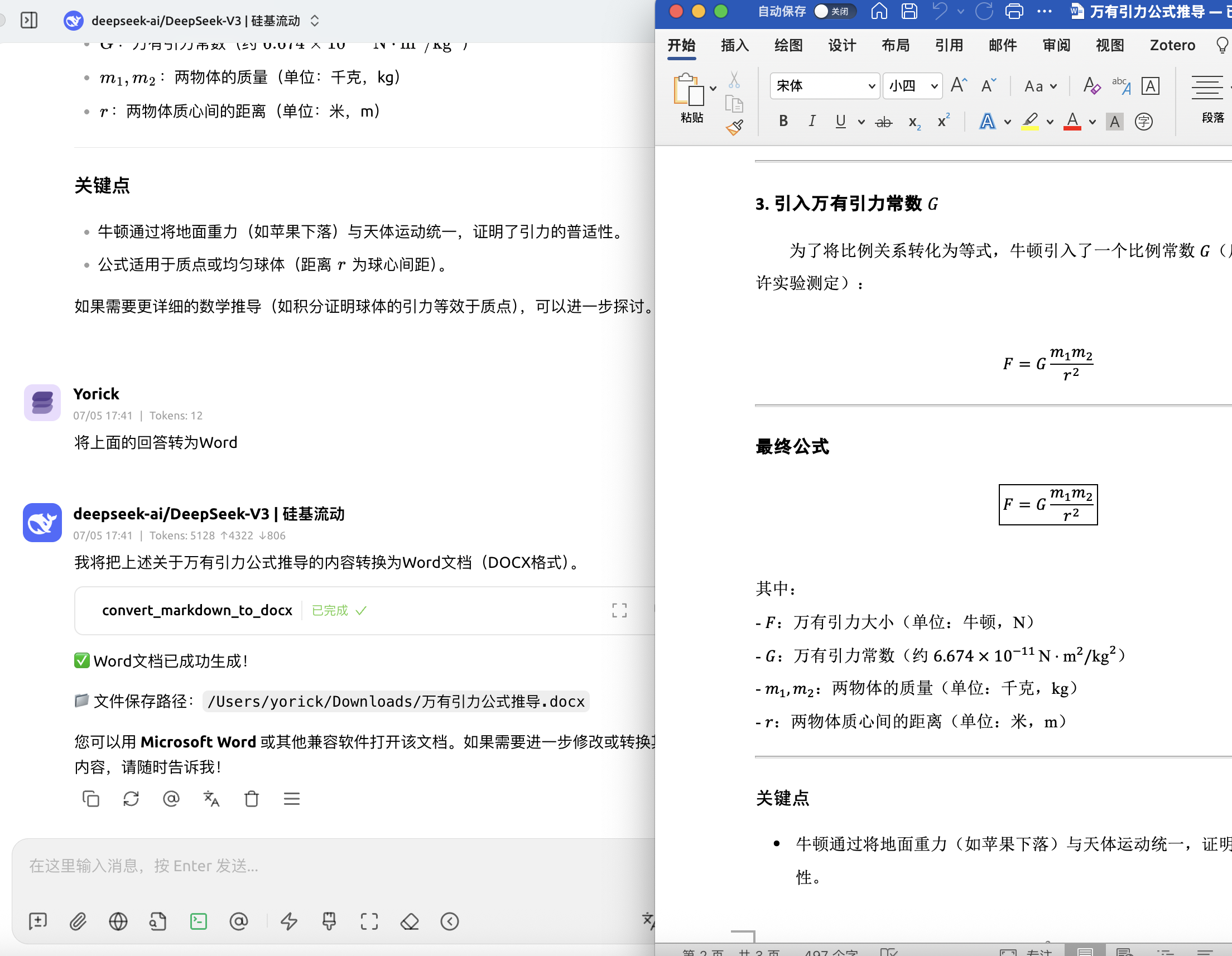
Features
- Convert Markdown text to DOCX format
- Support for custom templates
- Multi-language support (English, Chinese, etc.)
- Automatic file download to user's Downloads directory
- Template listing and management
Usage
Cherry Studio
- Open Cherry Studio
- Go to Settings → MCP
- Add the server configuration:
{
  "mcpServers": {
    "md2doc": {
      "command": "uvx",
      "args": ["md2doc"],
      "env": {
        "DEEP_SHARE_API_KEY": "your-api-key-here"
      }
    }
  }
}
Claude Desktop
-
Open your Claude Desktop configuration file:
- macOS:
~/Library/Application Support/Claude/claude_desktop_config.json - Windows:
%APPDATA%\Claude\claude_desktop_config.json
- macOS:
-
Add the md2doc server:
{ "mcpServers": { "md2doc": { "command": "uvx", "args": ["md2doc"], "env": { "DEEP_SHARE_API_KEY": "your-api-key-here" } } } } -
Restart Claude Desktop
Command Line (Quick Start)
For immediate use without any client setup:
# Install and run the server
uvx md2doc

# Or with environment variable
DEEP_SHARE_API_KEY="your-api-key-here" uvx md2doc
Python Integration
You can also use md2doc directly in your Python projects:
import asyncio
from md2doc.api_client import ConversionAPIClient
from md2doc.models import ConvertTextRequest

async def convert_markdown():
    client = ConversionAPIClient()

    request = ConvertTextRequest(
        content="# Hello World\n\nThis is **markdown** content.",
        filename="example",
        language="zh",
        template_name="templates",
        remove_hr=False,
        compat_mode=True
    )

    response = await client.convert_text(request)
    if response.success:
        print(f"File saved to: {response.file_path}")

# Run the conversion
asyncio.run(convert_markdown())
Other MCP Clients
The server works with any MCP-compatible client. Configure it to run:
uvx md2doc
With environment variables:
DEEP_SHARE_API_KEY="your-api-key-here" uvx md2doc
Cloud Deployment (Remote Server)
When deploying this MCP server on a cloud server (VPS/Docker), set MCP_SAVE_REMOTE=true to return a temporary download link instead of saving to a local directory:
# In your cloud environment
export DEEP_SHARE_API_KEY="your-api-key-here"
export MCP_SAVE_REMOTE=true

uvx md2doc
The server will provide a download link for the converted document.
API Key
Free Trial API Key
Use this key for testing:
f4e8fe6f-e39e-486f-b7e7-e037d2ec216f
Purchase API Key
Available Tools
convert_markdown_to_docx: Convert markdown text to DOCXlist_templates: Get available templates by language
License
MIT
Comments
New to MCP?
From what the protocol is to installing your first server, these answers cover most first questions.
An open protocol that defines how AI applications connect to external tools and data in a uniform way. Clients talk to the model; MCP servers provide tools, resources and prompt templates. They exchange standard messages, so one server can be reused by many clients.