
About Miro MCP Server
Miro MCP Server connects the Miro REST API to MCP, letting AI systems read board widgets and create sticky notes and connectors. It is intended for board collaboration, visual analysis, and diagram building.
Key features
- 01Read board widgets
- 02Create sticky notes
- 03Connect widgets with lines
- 04Operate on boards through the Miro REST API
Use cases
- 01Organize collaborative content on a board
- 02Analyze board widgets and layouts
- 03Build diagrams with notes and connectors
MCP support
It exposes Miro board reading and editing tools to AI systems through MCP, including retrieving widgets and creating sticky notes and connectors.
Configuration
Local server config is the same for every client. Copy it into your client’s MCP config file.
We haven’t collected a package or remote endpoint for this server. Follow the instructions in the project README.
Tools
Local servers expose tools only once running on your machine, and the maintainer has not provided a tool list.
Details
From the project READMEMiro MCP Server
Overview
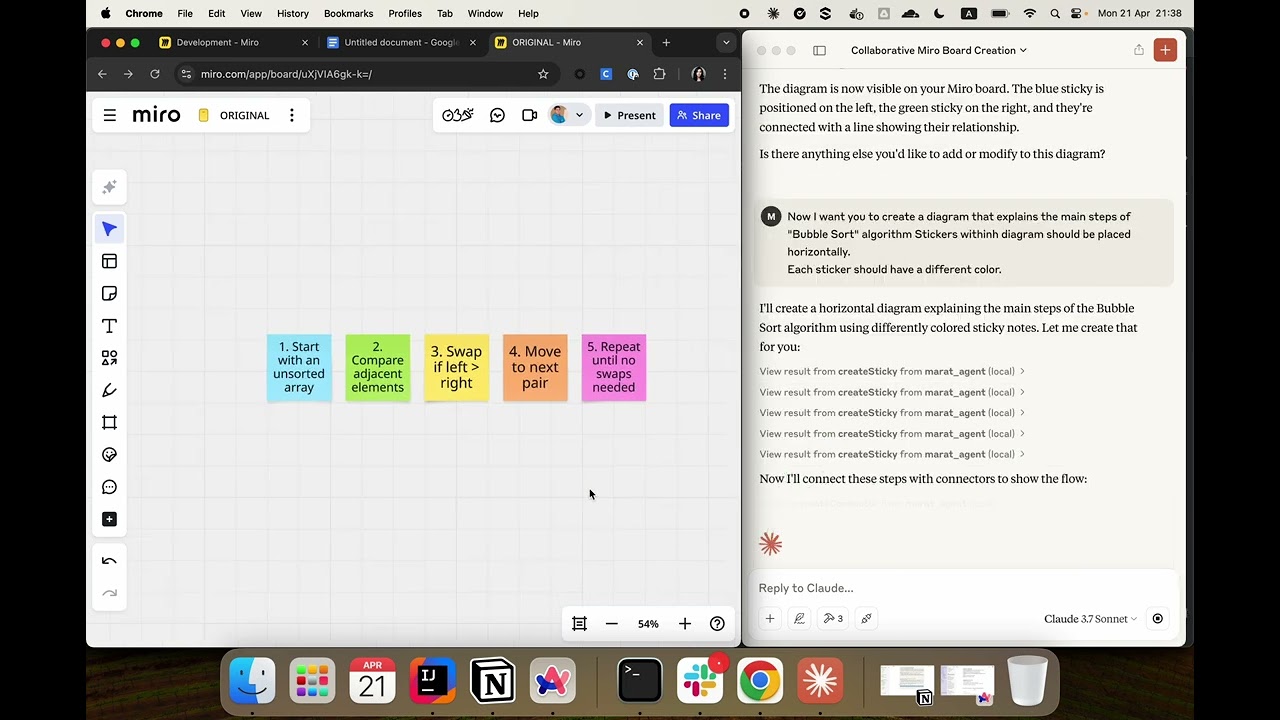
Miro MCP Server is an implementation of the Model Context Protocol (MCP) that integrates with Miro's REST API. It enables AI systems to collaborate with users directly on Miro boards by interacting with board widgets. This server provides tools that AI models can use to build visual diagrams and perform real-time collaboration.
Use Cases
- Board Collaboration: Automating collaboration on Miro boards.
- Data Analysis: Analyze the current state of a Miro board and extract useful information from visual layouts.
- AI-Powered Tools: Use large language models to assist with structured diagram creation, brainstorming, and visual task planning using the MCP protocol.
Installation
You can either download a precompiled JAR file from the Releases page or build the project yourself.
Option 0: Use public docker image
Add the following configuration to your file:
{
  "mcpServers": {
    "miro-mcp-server": {
      "command": "docker",
      "args": [
        "run",
        "-i",
        "--rm",
        "-e", "MIRO_TOKEN=your_miro_token_here",
        "maratmingazovr/miro-mcp-server:1.0"
      ]
    }
  }
}
Option 1: Use prebuilt JAR
- Download the latest release from the Releases page.
- Place the
.jarfile in a desired location.
Option 2: Build from source
git clone https://github.com/MaratMingazov/miro-mcp-server.git
cd miro-mcp-server
./gradlew build
The resulting .jar file will be located in build/libs/miro-mcp-server-1.0.jar.
Connecting the MCP Server
If you are using the Claude Desktop app with MacOS or Linux, you can find the configuration file at:
~/Library/Application\ Support/Claude/claude_desktop_config.json
Add the following configuration to your file:
{
  "mcpServers": {
    "miro-mcp-server": {
      "command": "java",
      "args": [
        "-jar",
        "/path/to/miro-mcp-server-1.0.jar",
        "--MIRO_TOKEN=miroToken"
      ]
    }
  }
}
Replace /path/to/miro-mcp-server-1.0.jar with the actual path to your .jar file and replace miroToken with your personal access token from Miro.
You can generate a personal access token by following this guide.
Tools
Items
- getWidgets - Get the widgets on a miro board
boardKey: Miro board key to get widgets
Sticky Notes
-
createSticky - Create a sticky note widget (sticker) on a miro board
boardKey: Miro board key to get widgetsstickyNoteText: The text to be displayed on the stickerx: Sticker position x coordinatey: Sticker position y coordinatewidth: Sticker widthfillColor: Sticker fill color
Connectors
-
createConnector - Create a connector (line) widget between 2 specified widgets
boardKey: Miro board key to get widgetsfirstWidgetId: First widget id for connectorsecondWidgetId: Second widget id for connectorconnectorText: The text to be displayed on connector
Example Usage
Here’s a sample prompt you can use to instruct Claude or another LLM agent to interact with Miro board:
I want you to create a simple diagram on a Miro board.
Please follow the next steps:
1 - Create a sticky note with some text.
2 - Create the second sticky with a different text.
3 - Now create a line between the two sticky notes using the id's of previously created stickers.
Feel free to contribute or report issues on the Issues page.
Comments
New to MCP?
From what the protocol is to installing your first server, these answers cover most first questions.
An open protocol that defines how AI applications connect to external tools and data in a uniform way. Clients talk to the model; MCP servers provide tools, resources and prompt templates. They exchange standard messages, so one server can be reused by many clients.