
About Mobile Development MCP
Mobile Development MCP is an MCP server for managing and interacting with mobile devices and simulators on iOS and Android. It lets AI assistants handle app installation, device management, log retrieval and UI automation. It is aimed at mobile developers working with ADB, Xcode and related tools.
Key features
- 01Boot, shut down and list devices and simulators
- 02Install, launch and manage applications
- 03Capture screenshots and record simulator video
- 04Push and pull files on connected devices
- 05Tap, swipe and text input automation
- 06Retrieve logcat and system logs
Use cases
- 01Asking an AI assistant to analyze device logs for errors
- 02Installing an APK and confirming the result through an assistant
- 03Automating UI steps and screenshot checks on simulators
MCP support
This project is an MCP server that exposes Android and iOS tools to MCP clients, covering devices, apps, files, UI automation and logs.
Configuration
Local server config is the same for every client. Copy it into your client’s MCP config file.
We haven’t collected a package or remote endpoint for this server. Follow the instructions in the project README.
Tools
Local servers expose tools only once running on your machine, and the maintainer has not provided a tool list.
Details
From the project READMEMobile Development MCP
Control mobile devices with AI through the Model Context Protocol!
This is a MCP designed to manage and interact with mobile devices and simulators. It provides utilities for tasks such as app installation, device management, and log retrieval for iOS and Android development environments.
Features
- Device Management: Boot, shutdown, or list connected devices and simulators.
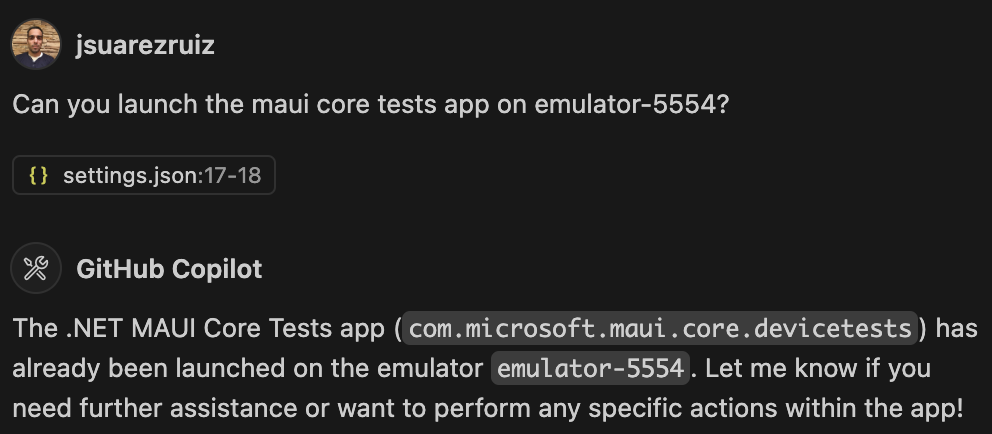
- Application Management: Install, launch, or manage applications on target devices.
- Visual Diagnostics: Take screenshots of the devices and simulators screen.
- File Management: Seamlessly push files to or pull files from connected devices.
- UI Automation: Interact with the device through taps, swipes, text input.
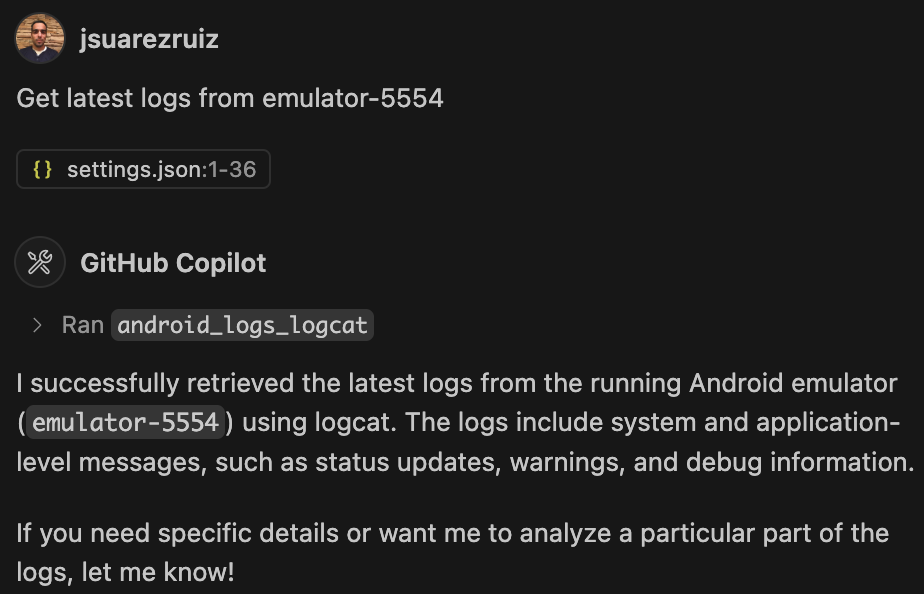
- Log Management: Retrieve log files and system information from connected devices.
- Cross-Platform Support: Supports both Android and iOS environments.
Prerequisites
To use this server, ensure the following tools are installed on your development machine:
- ADB (Android Debug Bridge) for Android device management.
- Xcode Command Line Tools for iOS simulator management (xcrun simctl).
- Facebook IDB tool (see install guide) (Only required for UI Automation on iOS).
- .NET SDK (e.g., .NET 9)
Setup
- Clone this repository
- Navigate to the project directory
- Build the project:
dotnet build - Configure with VS Code or other client:
"mcp-server-mobiledev": {
    "type": "stdio",
    "command": "dotnet",
    "args": [
        "run",
        "--project",
        "/Users/jsuarezruiz/GitHub/mobile-dev-mcp-server/src/MobileDevMcpServer.csproj"
    ]
}
Testing
The MCP Inspector is an interactive developer tool designed for testing and debugging MCP servers. Can start the inspector from our application folder using the nodejs command npx with the following command:
npx @modelcontextprotocol/inspector dotnet run
Tools
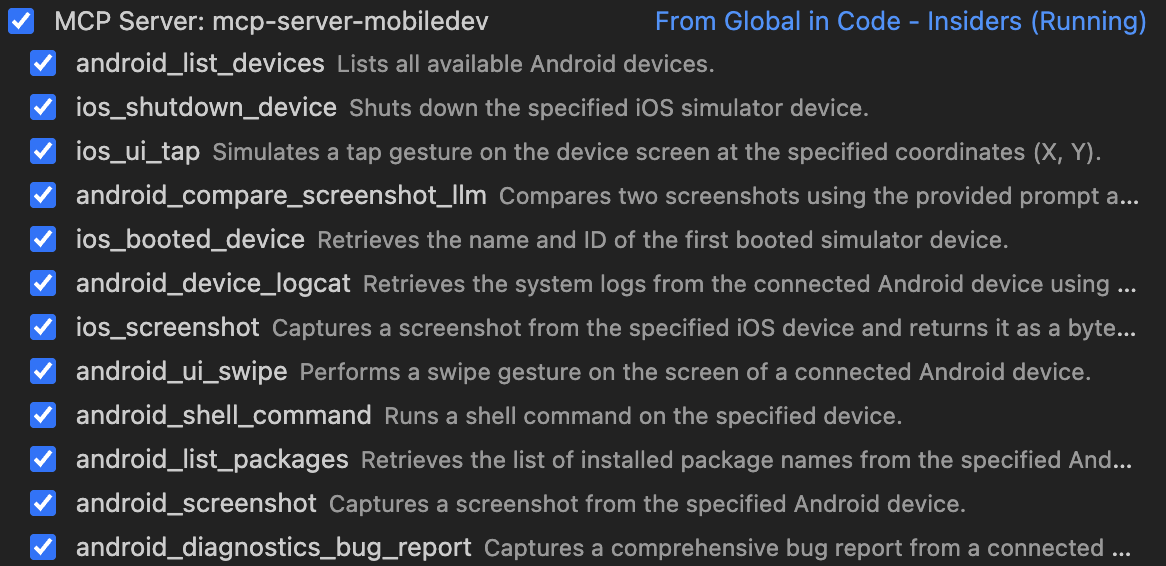
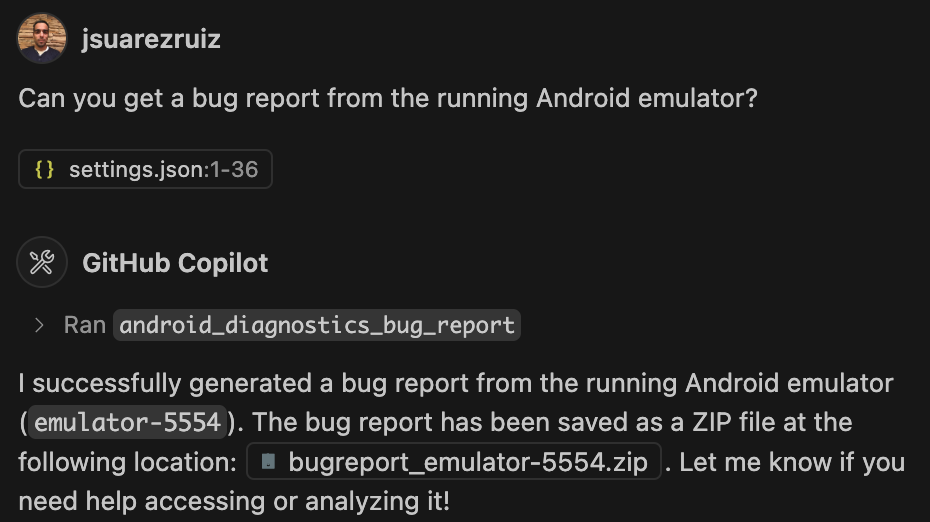
android_list_devices: Retrieves details of all connected Android devices.android_list_packages: Lists all installed applications on a specific Android device.android_install_app: Installs an application (APK) onto an Android device.android_launch_app: Launches a specific application on an Android device.android_diagnostics_bug_report: Captures a comprehensive bug report from an Android device.android_logs_logcat: Fetches system logs from an Android device using logcat.android_logs_logcat_log_level: Fetches system logs from an Android device using logcat by Log Level.android_files_push: Pushes a local file to an Android device.android_files_pull: Pulls a file from an Android device to the local machine.android_files_delete_file: This tool allows you to delete a specified file from a connected Android device.android_ui_tap: Simulates a tap action at specified screen coordinates on an Android device.android_ui_swipe: Simulates a swipe action between two points on an Android device's screen.android_ui_input_text: Simulates text input into a field on an Android device.android_ui_press_key: Simulates a key press on an Android device using its serial number and keycode.android_screenshot: Captures a screenshot from the specified Android device.android_compare_screenshot_llm: Compares two screenshots using the provided prompt and an interaction with the Large Language Model (LLM).android_shell_command: Runs a shell command on an Android device.ios_list_devices: Retrieves details of all connected iOS simulator devices.ios_booted_device: Retrieves the name and ID of the first booted simulator device.ios_boot_device: Boots up a specified iOS simulator device.ios_launch_app: Launches an application on a specified iOS simulator device.ios_shutdown_device: Shuts down a specified iOS simulator device.ios_ui_tap: Simulates a tap action at specified screen coordinates on an iOS device.ios_ui_swipe: Simulates a swipe action between two points on an iOS device's screen.ios_ui_input_text: Simulates text input into a field on an iOS device.ios_ui_press_key: Simulates pressing a specific key on an iOS device.ios_screenshot: Captures a screenshot from the specified iOS device.ios_video_start: Records a video of the iOS Simulator.ios_video_stop: Stops the simulator video recording.
Example AI Assistant Queries
Try these queries:
- "Display all Android devices currently connected and provide their details."
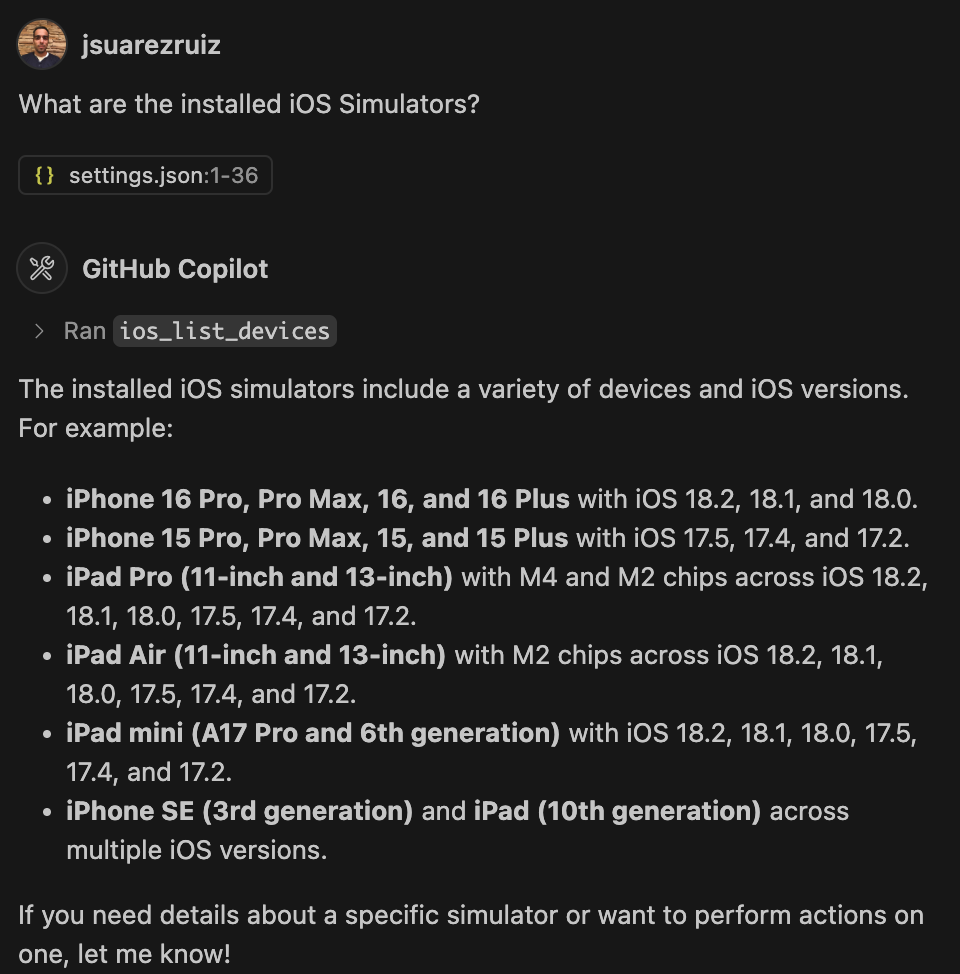
- "Show all connected iOS devices along with their specifications."
- "Analyze recent logs and identify if there are any error messages."
- "Install this APK on my device and confirm whether it was installed correctly."
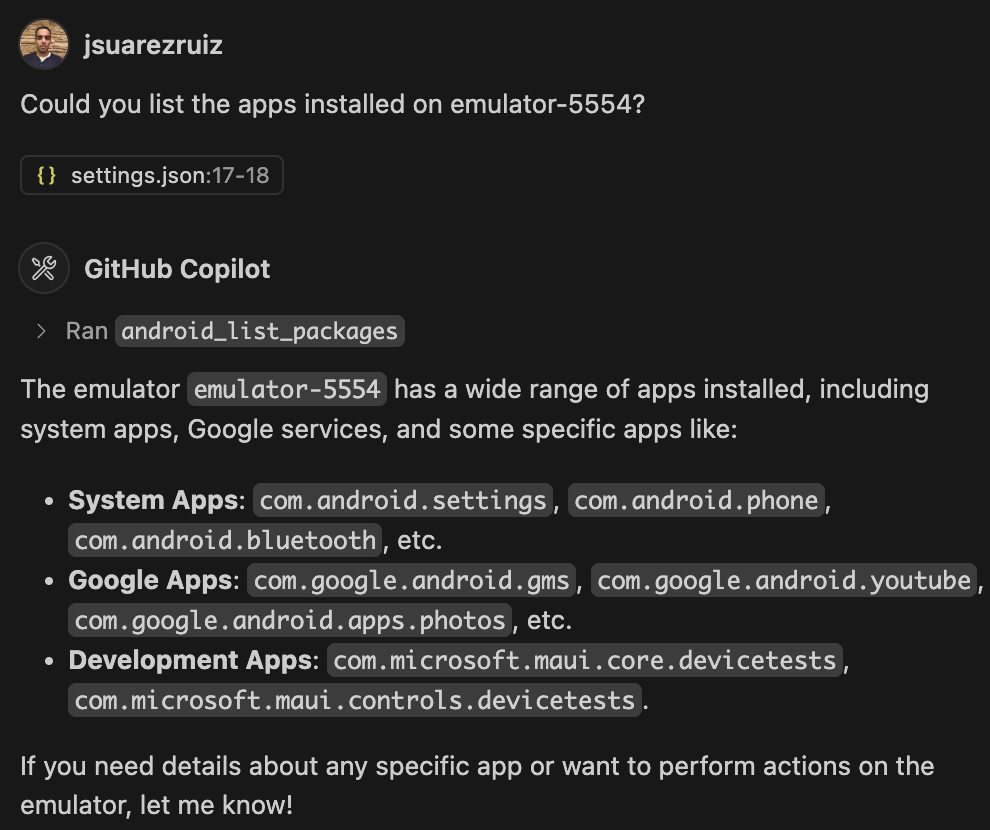
- "Provide a list of all applications installed on my phone."
- "Press the Home button located at the coordinates (100, 1000)."
Gallery
Contributing
I gladly welcome contributions to help improve this project! Whether you're fixing bugs, adding new features, or enhancing documentation, your support is greatly appreciated.
- Fork the repository
- Create your feature branch (git checkout -b feature/my-feature)
- Make your changes
- Commit your changes (git commit -m 'Add a new feature')
- Push to the branch (git push origin feature/my-feature)
- Open a Pull Request
License
This project is available under the MIT License.
Comments
New to MCP?
From what the protocol is to installing your first server, these answers cover most first questions.
An open protocol that defines how AI applications connect to external tools and data in a uniform way. Clients talk to the model; MCP servers provide tools, resources and prompt templates. They exchange standard messages, so one server can be reused by many clients.