
About Reelpen
Reelpen is a 3D scene editor for previsualizing AI video, intended for creators planning character motion and camera shots. Its authenticated remote MCP connection lets compatible assistants inspect and edit permitted scenes, which can be exported as reference video and frames.
Key features
- 01Arrange characters, props, and environments
- 02Plan character routes and actions
- 03Position cameras and preview movement
- 04Export reference video and PNG frames
- 05Manage saved projects and film boards
Use cases
- 01Create 3D references for AI video
- 02Plan a tracking camera shot
- 03Compare character blocking and camera angles
MCP support
An OAuth-authenticated remote MCP server lets compatible clients access an allowed live scene, with separately granted access to saved projects and film boards.
Configuration
Remote servers need no local install. Pick your client, then copy the config or install in one click.
https://beta.reelpen.ai/mcpclaude mcp add --transport http viscountsparrow-cloud-reelpen https://beta.reelpen.ai/mcp{"mcpServers":{"viscountsparrow-cloud-reelpen":{"type":"http","url":"https://beta.reelpen.ai/mcp"}}}Open in Cursor{"servers":{"viscountsparrow-cloud-reelpen":{"type":"http","url":"https://beta.reelpen.ai/mcp"}}}Open in VS Code{"mcpServers":{"viscountsparrow-cloud-reelpen":{"type":"http","url":"https://beta.reelpen.ai/mcp"}}}{"mcpServers":{"viscountsparrow-cloud-reelpen":{"serverUrl":"https://beta.reelpen.ai/mcp"}}}Run commands in a terminal; paste JSON into the client’s MCP config and restart. Servers that need sign-in will prompt on first connect.
Tools
Details
From the project READMEReelpen — 3D scene building for AI video, with MCP
Build an editable 3D scene, direct character and camera movement, then export references for your AI video workflow. Reelpen runs in a desktop browser and offers an authenticated remote MCP connection for compatible AI assistants.
Open Reelpen · Connect your AI · Watch the demo
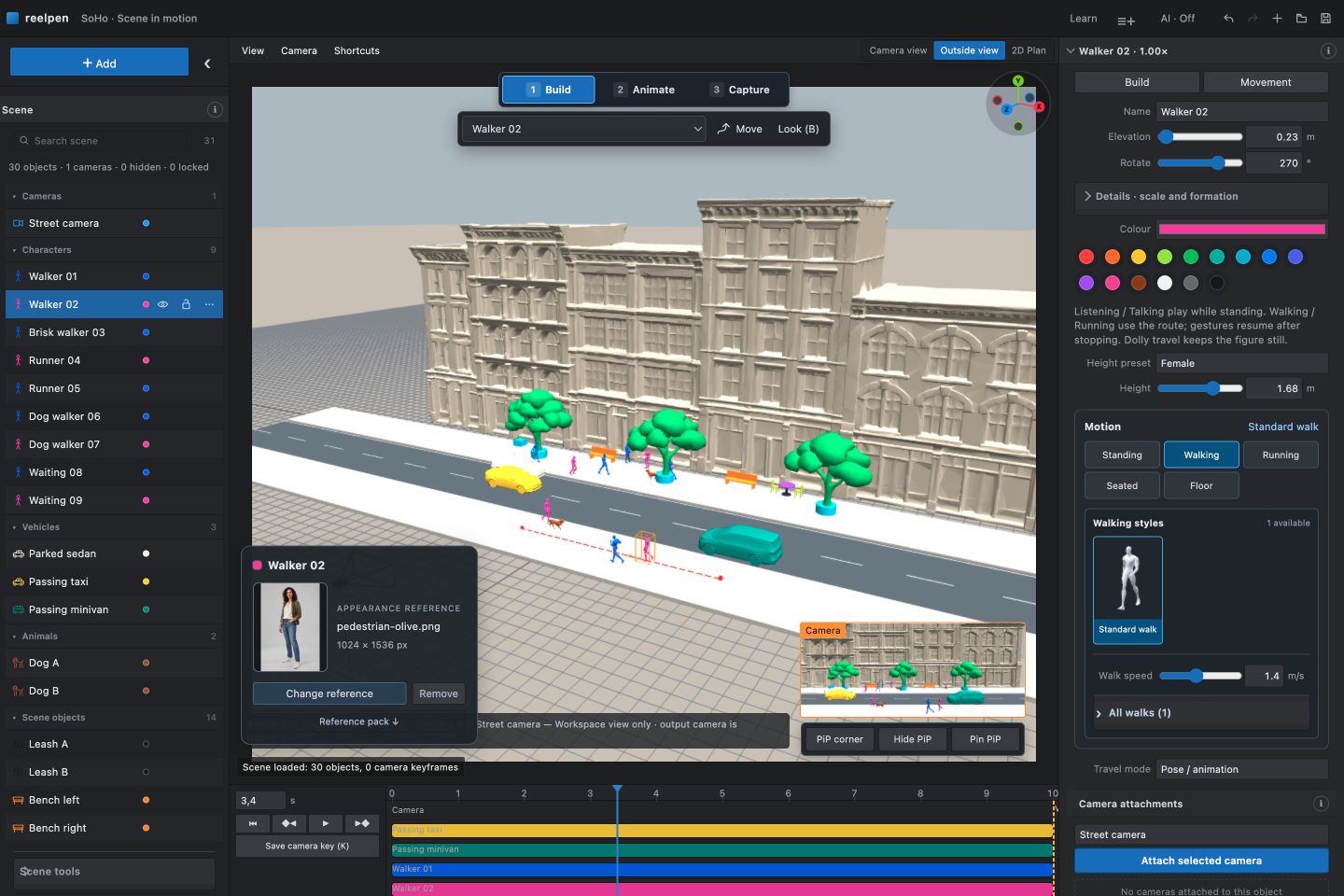
What Reelpen does
- Arrange characters, props and environments in an editable 3D scene.
- Plan walking/running routes, pauses and supported character action sequences.
- Position cameras, choose look targets and preview camera movement.
- Export reference video and PNG frames using supported browser formats.
- Connect a compatible AI assistant to inspect and edit an allowed live scene.
- Work with saved projects and film boards through separately granted account permissions.
Reelpen is in free beta; no payment card is required. Your AI assistant and external video-generation services have their own access rules and charges. Check current access information for changes.
Connect through MCP
| Setting | Value |
|---|---|
| Server name | Reelpen |
| Remote URL | https://beta.reelpen.ai/mcp |
| Transport | Streamable HTTP |
| Authentication | OAuth; sign in to Reelpen with Google |
| Live editing | Open the desired project and choose AI: allow in this tab |
Use an AI client that supports remote MCP and Reelpen's OAuth discovery and registration flow. Add the remote URL in the client's MCP/connector settings, complete sign-in and review the requested permissions. Then open the desired project in Reelpen using the same account and allow that editor tab.
Start with a read-only check:
Use Reelpen to read my allowed scene. Tell me the project name, the objects and cameras you can see, and whether the scene is live. Do not change anything.
Confirm that the reported project and objects match the open editor before making changes.
Try a small edit:
In my allowed Reelpen scene, keep existing objects. Add one Dolly character with a short walking route and a camera that follows it. Read the current capabilities first, make the change as one batch, then show me a camera preview.
Watch the result and play the entire shot. Wait for Saved before leaving.
Complete connection instructions and troubleshooting
Example prompts · Connection and product FAQ · Smithery tool listing
Workflows
| Task | Guide |
|---|---|
| Build your first moving scene | AI video scene builder |
| Plan a tracking shot | Camera motion reference |
| Block characters and compare angles | 3D storyboarding |
| Plan sit, wait, stand and other supported actions | Character motion reference |
| Choose moving versus still references | Reference video and keyframes |
Permissions and limits
Connecting an account and allowing a live editor are separate steps. Stop closes live access; it does not revoke separately granted saved-project or film-board access. Remove the connection in Connected apps to revoke it. Scene Undo covers editor history, not every saved account operation.
AI assistants should read the current capabilities before editing. Builder coverage is evolving; not every Builder control is promised through MCP. Motions are for previsualization. Inspect seat contact, turns, framing and the whole timeline before exporting.
Reelpen prepares references. Final generative video is produced by a separate service, and reference fidelity depends on that service. This repository does not claim that a video model will reproduce a shot exactly.
A local DWG experiment is not a released DWG importer, BIM system or construction-documentation feature.
About this repository
This is Reelpen's public product and connection documentation. It does not contain the application source, private projects, account data or credentials. The hosted connection guide is the current setup reference.
Product facts reviewed: 2026-09-28.
Comments
New to MCP?
From what the protocol is to installing your first server, these answers cover most first questions.
An open protocol that defines how AI applications connect to external tools and data in a uniform way. Clients talk to the model; MCP servers provide tools, resources and prompt templates. They exchange standard messages, so one server can be reused by many clients.