
About VLC MCP Server
VLC MCP Server lets MCP clients control video playback through VLC. It is intended for setups such as a computer connected to a projector, with Linux installation instructions for Ubuntu and Debian-based systems.
Key features
- 01Remote VLC video control
- 02MCP client integration
- 03Video folder configuration
- 04Linux setup guidance
Use cases
- 01Play a movie on a projector-connected computer
- 02Control VLC remotely through an MCP client
MCP support
The server lets MCP clients control VLC playback remotely. Clients connect by adding the server to their MCP configuration.
Configuration
Local server config is the same for every client. Copy it into your client’s MCP config file.
We haven’t collected a package or remote endpoint for this server. Follow the instructions in the project README.
Tools
Local servers expose tools only once running on your machine, and the maintainer has not provided a tool list.
Details
From the project READMEVLC MCP Server
An MCP (Model Context Protocol) Server to play and control movies using the VLC media player. Use any MCP client to control play videos remotely (e.g. awesome-mcp-clients)
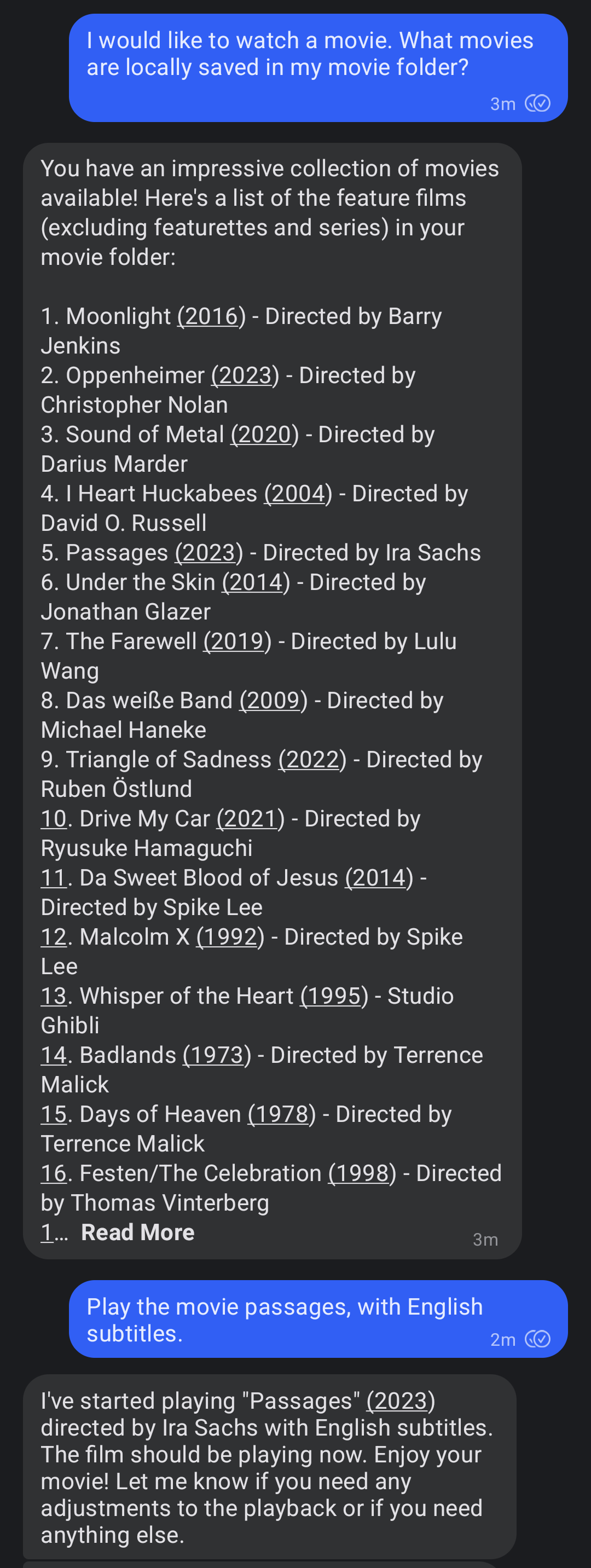
I use my signal-mcp-client running on an old laptop connected to my beamer. This way I can play a movie by sending a signal message. An example of how to use it is shown in the screenshot below.
Usage
This installation is for Linux systems running Ubuntu or a similar Debian-based system like Raspberry Pi OS. With a few modifications it should also work on other systems. Feel free to create a pull request if you get it working on another system.
-
Install VLC, mediainfo and uv.
sudo apt-get install vlc mediainfo curl -LsSf https://astral.sh/uv/install.sh | sh -
Start the VLC http server:
export DISPLAY=:0 # needed when running it remotely on a server vlc --extraintf=http --http-host=localhost --http-port=8081 --http-password=your_password -
Add the server to the MCP config file of your client (like signal-mcp-client or awesome-mcp-clients)
{
    "name": "vlc-mcp-server",
    "command": "uvx",
    "args": [
        "vlc-mcp-server"
    ],
    "env": {
        "ROOT_VIDEO_FOLDER": "path/to/your/video/folder",
        "VLC_HTTP_HOST": "localhost",
        "VLC_HTTP_PORT": "8081",
        "VLC_HTTP_PASSWORD": "your_password"
    }
}
or clone the repo and use
uvwith a directory:{ "name": "vlc-mcp-server", "command": "uv", "args": [ "--directory", "path/to/root/dir/", "run", "vlc_mcp_player/main.py" ], "env": { "the same as above" } }
Contributing
Contributions to this project are welcome. Feel free to report bugs, suggest ideas, or create merge requests.
Development
Clone repo and install dependencies:
git clone https://github.com/piebro/vlc-mcp-server.git
uv venv
uv sync --extra dev
uv run pre-commit install
Testing
Use mcp-client-for-testing to test the tools of the server using the json config using the local path.
uvx mcp-client-for-testing \
    --config '
    [
        "the json config from above"
    ]
    ' \
    --client_log_level "INFO" \
	--server_log_level "INFO" \
    --tool_call '{"name": "show_video", "arguments": {"video_title": "David Lynch - Dune", "subtitle_language_code": "en"}}'
Formatting and Linting
The code is formatted and linted with ruff:
uv run ruff format
uv run ruff check --fix
Building with uv
Build the package using uv:
uv build
Releasing a New Version
To release a new version of the package to PyPI, create and push a new Git tag:
-
Checkout the main branch and get the current version:
git checkout main git pull origin main git describe --tags -
Create and push a new Git tag:
git tag v0.2.0
git push origin v0.2.0
The GitHub Actions workflow will automatically build and publish the package to PyPI when a new tag is pushed. The python package version number will be derived directly from the Git tag.
Running as a Systemd Service
To ensure the VLC HTTP interface runs automatically on boot and restarts if it fails (on Linux systems), you can set it up as a systemd user service. User services run under your specific user account.
This setup assumes that you have completed the setup steps.
-
Enable User Lingering to keep your user session active after logging out.
sudo loginctl enable-linger $USER -
Create Systemd Service Directory
mkdir -p /home/$USER/.config/systemd/user/ -
Create Service File for VLC HTTP Server. Make sure vlc is installed using apt and not using snap or change the path to the vlc binary.
cat << EOF > "/home/$USER/.config/systemd/user/vlc-http.service" [Unit] Description=VLC Media Player with HTTP Interface After=network.target sound.target [Service] Restart=on-failure RestartSec=30 SyslogIdentifier=vlc-http Environment="DISPLAY=:0" ExecStart=/usr/bin/vlc --extraintf=http --http-host=localhost --http-port=8081 --http-password=your_password ExecStop=/usr/bin/pkill -f '/usr/bin/vlc --extraintf=http --http-host=localhost --http-port=8080' [Install] WantedBy=default.target EOF -
Enable and Start the Services
systemctl --user daemon-reload systemctl --user enable vlc-http.service systemctl --user start vlc-http.service -
Check Service Status and Logs
systemctl --user status vlc-http.service
journalctl --user -u vlc-http.service -f
License
This project is licensed under the MIT License. See the LICENSE file for details.
Comments
New to MCP?
From what the protocol is to installing your first server, these answers cover most first questions.
An open protocol that defines how AI applications connect to external tools and data in a uniform way. Clients talk to the model; MCP servers provide tools, resources and prompt templates. They exchange standard messages, so one server can be reused by many clients.