About Zapcap Mcp Server
An unofficial MCP server for using the ZapCap API to upload videos, configure processing tasks, and track task progress. It is for users who want to operate ZapCap through an MCP client.
Key features
- 01Upload video files or URLs
- 02List processing templates
- 03Create configurable processing tasks
- 04Monitor task progress
- 05Validate parameters with Pydantic
Use cases
- 01Upload a local video to ZapCap
- 02Create a subtitled video task with B-roll settings
- 03Check the progress of a video task
MCP support
The server exposes ZapCap video upload, template lookup, task creation, and monitoring tools to MCP clients. The API key is configured through the ZAPCAP_API_KEY environment variable.
Configuration
Local server config is the same for every client. Copy it into your client’s MCP config file.
docker run -i --rm -e ZAPCAP_API_KEY -e DOCKER_CLI_HINTS bogdan01m/zapcap-mcp-server:latestZAPCAP_API_KEYSecretDOCKER_CLI_HINTSLocal servers need a runtime on your machine (e.g. Node.js 18+). Config file locations differ by client; see your client’s docs.
Tools
Local servers expose tools only once running on your machine, and the maintainer has not provided a tool list.
Details
From the project READMEZapCap MCP Server



NOTE: This is an unofficial implementation of MCP Server for ZapCap.
An MCP (Model Context Protocol) server that provides tools for uploading videos, creating processing tasks, and monitoring their progress through the ZapCap API.
Requirements
- uv
- ZapCap API key
You can install uv from here: https://docs.astral.sh/uv/
You can get api key from ZapCap API after registation at https://zapcap.ai/ in their platform here: https://platform.zapcap.ai/dashboard/api-key
Installation in MCP-client
Add to your MCP client mcp.json configuration (e.g., Claude Desktop, Cursor and etc.):
{
  "mcpServers": {
    "zapcap": {
      "command": "uvx",
      "args": ["zapcap-mcp-server"],
      "env": {
        "ZAPCAP_API_KEY": "your_api_key_here"
      }
    }
  }
}
Alternative Installation
uv tool install zapcap-mcp-server
Docker Installation
You can also run the MCP server in a Docker container using the pre-built image from Docker Hub:
Using pre-built image from Docker Hub:
{
  "mcpServers": {
    "zapcap": {
      "command": "docker",
      "args": [
        "run",
        "--rm",
        "--init",
        "-i",
        "--net=host",
        "-v", "/home/$USER:/host/home/$USER",
        "-e", "ZAPCAP_API_KEY=your_api_key_here",
        "bogdan01m/zapcap-mcp-server:latest"
      ],
      "env": {
        "DOCKER_CLI_HINTS": "false"
      }
    }
  }
}
Configuration
Set your ZapCap API key as an environment variable:
export ZAPCAP_API_KEY="your_api_key_here"
Usage
Demo Videos
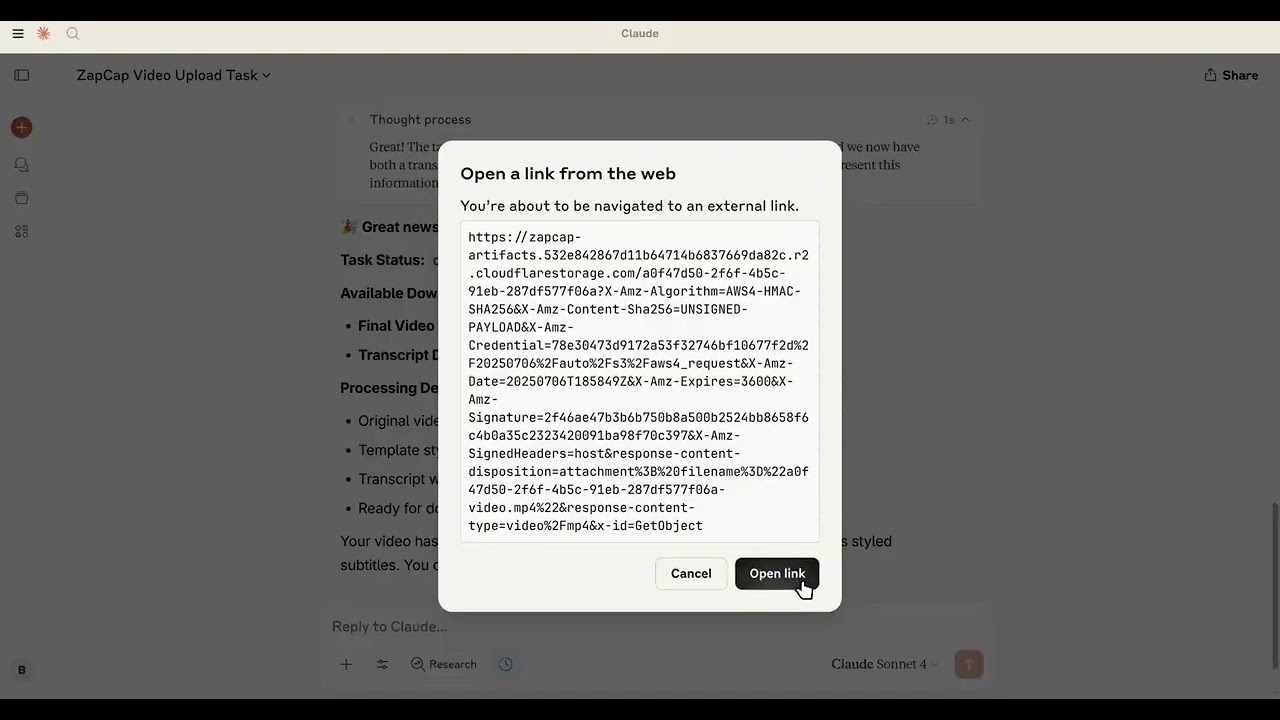
How to use:
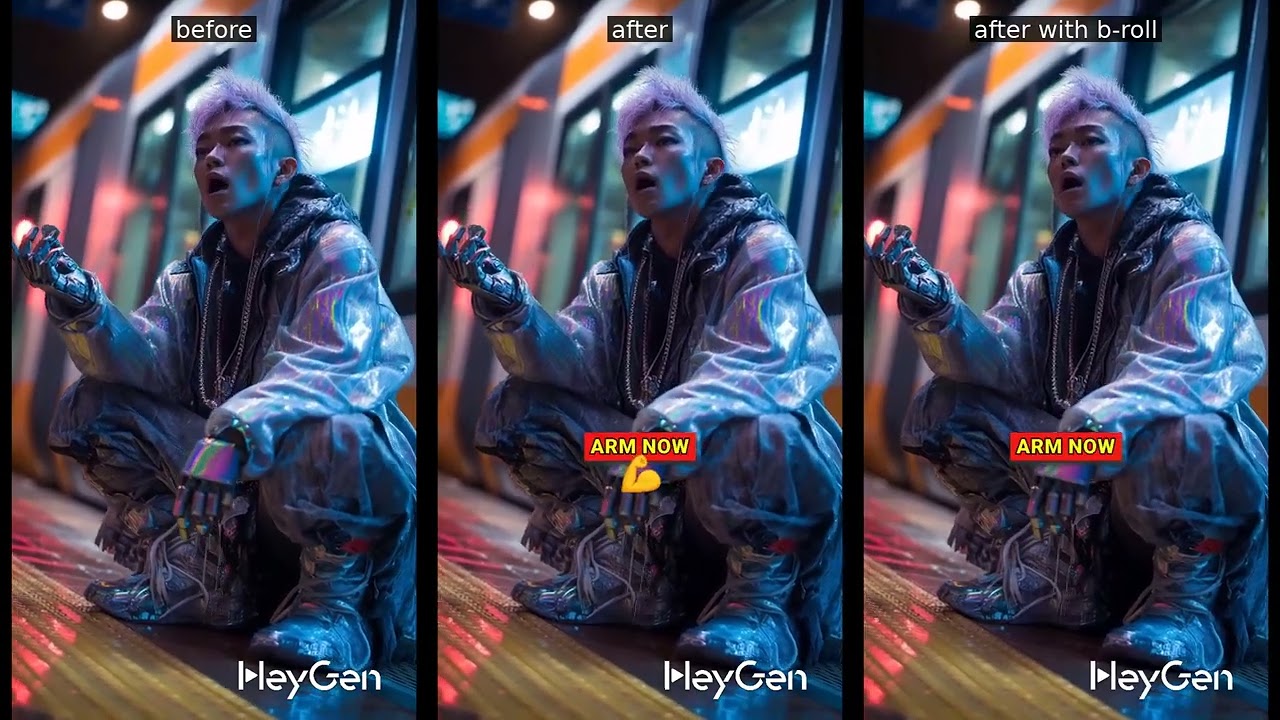
Results:
Available Tools
The server provides the following tools:
zapcap_mcp_upload_video
Upload a video file to ZapCap.
Parameters:
file_path: Path to the video file
zapcap_mcp_upload_video_by_url
Upload a video by URL to ZapCap.
Parameters:
url: URL to the video file
zapcap_mcp_get_templates
Get available processing templates from ZapCap.
zapcap_mcp_create_task
Create a video processing task with full customization options.
Parameters:
video_id: Video ID from uploadtemplate_id: Template IDauto_approve: Auto approve the task (default: true)language: Language code (default: "en")enable_broll: Enable B-roll (default: false)broll_percent: B-roll percentage 0-100 (default: 30)
Subtitle options:
emoji: Enable emoji in subtitles (default: true)emoji_animation: Enable emoji animation (default: true)emphasize_keywords: Emphasize keywords (default: true)animation: Enable subtitle animation (default: true)punctuation: Include punctuation (default: true)display_words: Number of words to display (default: 1)
Style options:
position_top: Subtitle position from top (default: 60)font_uppercase: Use uppercase font (default: true)font_size: Font size (default: 30)font_weight: Font weight (default: 900)font_color: Font color (default: "#ffffff")font_shadow: Font shadow s/m/l (default: "l")stroke: Stroke style (default: "s")stroke_color: Stroke color (default: "#000000")highlight_color_1: First highlight color (default: "#2bf82a")highlight_color_2: Second highlight color (default: "#fdfa14")highlight_color_3: Third highlight color (default: "#f01916")
zapcap_mcp_monitor_task
Monitor task progress.
Parameters:
video_id: Video IDtask_id: Task ID
Benefits Over Direct API Usage
Token Management
Unlike using curl or direct API calls where you need to manually include your API key in every request:
# Traditional curl approach - token needed every time
curl -X POST "https://api.zapcap.ai/upload" \
  -H "Authorization: Bearer your_token_here" \
  -F "[email protected]"
With this MCP server, your API key is configured once in the environment and automatically used for all operations:
{
  "env": {
    "ZAPCAP_API_KEY": "your_api_key_here"
  }
}
Natural Language Interface
Instead of constructing complex API requests with parameters, you can describe what you want:
Traditional API:
curl -X POST "https://api.zapcap.ai/tasks" \
  -H "Authorization: Bearer token" \
  -d '{
    "video_id": "abc123",
    "template_id": "viral",
    "font_size": 30,
    "highlight_color_1": "#00ff00",
    "enable_broll": true,
    "broll_percent": 40
  }'
MCP Server:
"Add green highlighted subtitles with 40% B-roll using viral template"
Type Safety & Validation
- Pydantic Integration: All parameters are validated automatically with type checking
Future Plans
Testing Integration
We're planning to add basic testing capabilities:
- API Integration Tests: Verify that ZapCap API calls work correctly
- MCP Tool Tests: Ensure all MCP tools respond properly to requests
Planned Features
- Named configurations: Save frequently used parameter combinations ("my_brand", "youtube_style")
- Template enhancement: Override template defaults with consistent brand colors/fonts
License
MIT licence
Comments
New to MCP?
From what the protocol is to installing your first server, these answers cover most first questions.
An open protocol that defines how AI applications connect to external tools and data in a uniform way. Clients talk to the model; MCP servers provide tools, resources and prompt templates. They exchange standard messages, so one server can be reused by many clients.