
how-to-build-a-flutter-app-on-xcode-cloud
About how-to-build-a-flutter-app-on-xcode-cloud
A guide for setting up Xcode Cloud to build Flutter apps for TestFlight and the App Store. It covers CI scripts and workflow configuration for iOS, with a separate note for macOS builds.
Key features
- 01Install Flutter and CocoaPods in CI scripts
- 02Configure an Xcode Cloud workflow
- 03Remove macOS as an iOS workflow target
- 04Set up a separate macOS build script
Use cases
- 01Prepare a Flutter app for TestFlight builds
- 02Configure an iOS App Store build in Xcode Cloud
Install
Copy the command and run it in a terminal.
npx skills add https:/After installing, type/how-to-build-a-flutter-app-on-xcode-cloudin Claude Code to confirm it loaded.
Details
From the project READMEHow to build a Flutter app on Xcode Cloud
In this article we are going to go over how to setup Xcode Cloud to build your Flutter application for TestFlight and the AppStore.
Step 1
Before we begin Flutter needs to be installed, and you can check by running the following:
flutter doctor -v
After it is installed we can run the following command to create and open our Flutter project (skip down to step 2 if adding to an existing app).
mkdir flutter_ci_example
cd flutter_ci_example
flutter create .
If you need more help with creating the first project you can check out my previous blog post here.
After the project is created open it in your favorite code editor.
code .
Step 2
The generated files should look like the following:
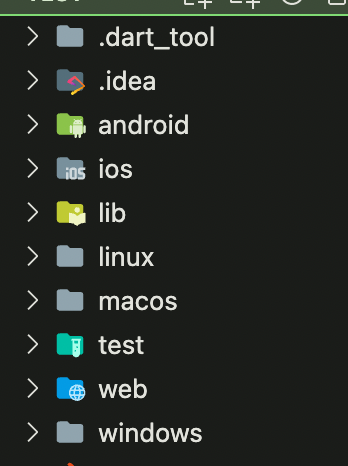
Create a new file at ios/ci_scripts/ci_post_install.sh and update it with the following:
#!/bin/sh

# Install CocoaPods using Homebrew.
brew install cocoapods

# Install Flutter
brew install --cask flutter

# Run Flutter doctor
flutter doctor

# Get packages
flutter packages get

# Update generated files
flutter pub run build_runner build

# Build ios app
flutter build ios --no-codesign
This is a file Xcode Cloud needs to run after the project is downloaded. We need to install cocoapods for any plugins we are using and Flutter to prebuild our application.
Then run the following command which will make the script executable:
chmod +x ios/ci_scripts/ci_post_clone.sh
Step 3
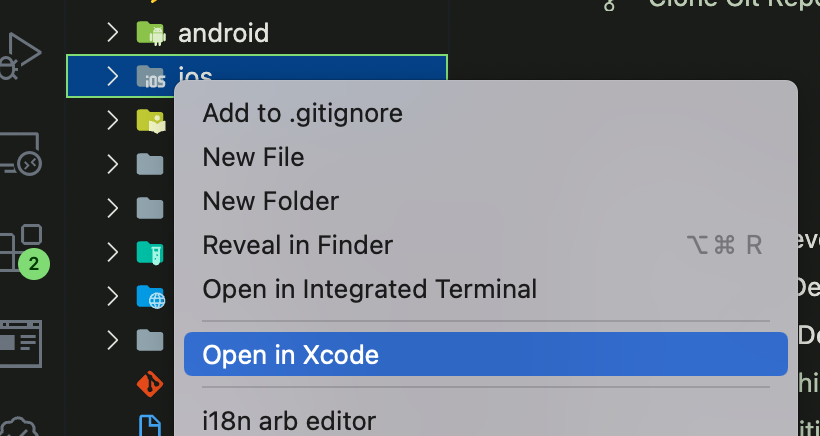
Open up the iOS project in Xcode by right clicking on the iOS folder and selecting "Open in Xcode".
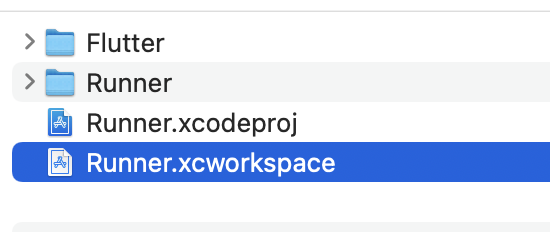
You can also open the project by double clicking on the ios/Runner.xcworkspace file.
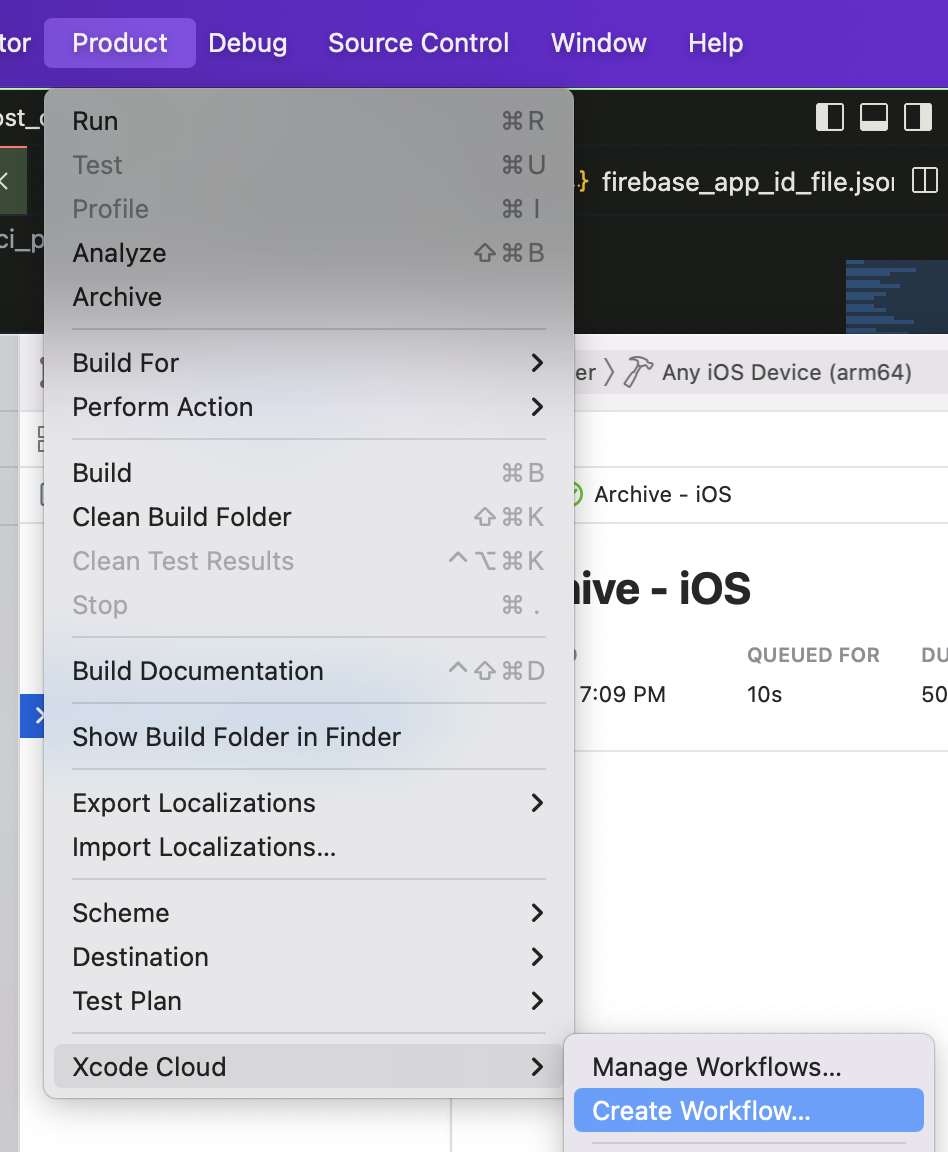
Make sure you have the latest version of Xcode Cloud install and that you have access to the beta. Create a new workflow by the menu Product > Xcode Cloud > Create Workflow:
Follow the flow to add the project and choose which type of build you want.
Make sure to remove MacOS as a target in the workflow by selecting Archive - MacOS and the delete icon on the top right.
If you want to build and release the MacOS app you will need to do that with another script in the macos folder and a workflow in that Xcode workspace.
You can create the file macos/ci_scripts/ci_post_clone.sh and update it with the following:
#!/bin/sh

# Install CocoaPods using Homebrew.
brew install cocoapods

# Install Flutter
brew install --cask flutter

# Run Flutter doctor
flutter doctor

# Enable macos
flutter config --enable-macos-desktop

# Get packages
flutter packages get

# Update generated files
flutter pub run build_runner build

# Build ios app
flutter build ios --no-codesign
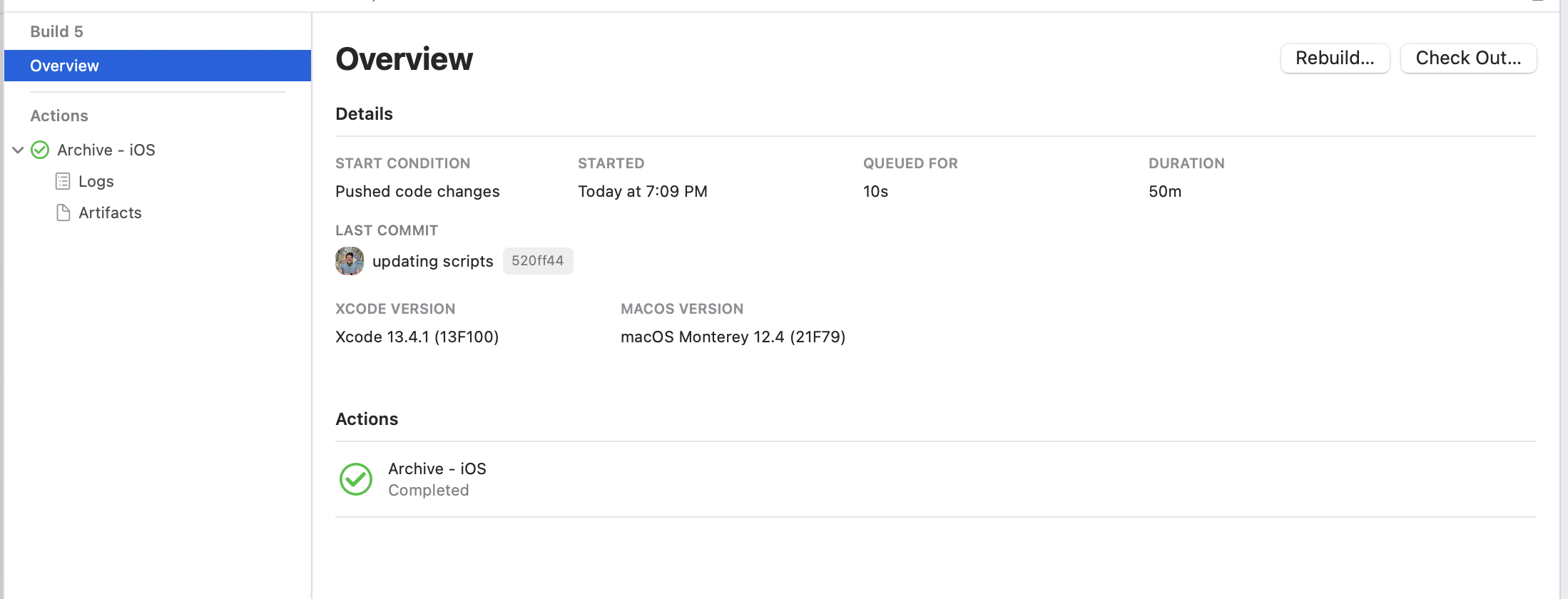
If all goes well it will look like the following after a successful build:
Conclusion
Flutter makes it ease to build and deploy to multiple platforms and Xcode Cloud takes care of the signing for Apple platforms.
You can learn more about cd and flutter here.