
mfukushim-map-traveler-mcp について
map-traveler-mcp は、Google マップ上でアバターが仮想旅行を行うための環境を作る MCP サーバーです。MCP クライアントから指示を出し、写真付きで旅の進捗を確認したいユーザー向けです。
主な機能
- 01Google マップ上のアバターの移動制御
- 02アバターを合成した旅行画像の生成
- 03Bluesky への旅行の投稿
- 04stdio と Streamable-HTTP の両方に対応
- 05複数の画像生成および背景除去バックエンドに対応
活用シーン
- 01Claude Desktop からアバターのストリートビュー散策を指示
- 02仮想旅行を写真の連続として記録
- 03LibreChat 上での旅行ボットの利用
MCP 対応
Claude Desktop などの MCP クライアントに旅行関連のツールを提供する MCP サーバーです。stdio または Streamable-HTTP で動作し、環境変数または Smithery.ai の config 指定で設定します。
設定
リモートサーバーはインストール不要です。クライアントを選んで設定をコピーするか、ワンクリックで導入できます。
https://server.smithery.ai/@mfukushim/map-traveler-mcp/mcpclaude mcp add --transport http ai-smithery-mfukushim-map-traveler https://server.smithery.ai/@mfukushim/map-traveler-mcp/mcp{"mcpServers":{"ai-smithery-mfukushim-map-traveler":{"type":"http","url":"https://server.smithery.ai/@mfukushim/map-traveler-mcp/mcp"}}}Cursor で開く{"servers":{"ai-smithery-mfukushim-map-traveler":{"type":"http","url":"https://server.smithery.ai/@mfukushim/map-traveler-mcp/mcp"}}}VS Code で開く{"mcpServers":{"ai-smithery-mfukushim-map-traveler":{"type":"http","url":"https://server.smithery.ai/@mfukushim/map-traveler-mcp/mcp"}}}{"mcpServers":{"ai-smithery-mfukushim-map-traveler":{"serverUrl":"https://server.smithery.ai/@mfukushim/map-traveler-mcp/mcp"}}}コマンドはターミナルで実行し、JSON は各クライアントの MCP 設定に貼り付けて再起動します。認可が必要なサーバーは初回接続時にログインを求めます。
https://server.smithery.ai/@mfukushim/map-traveler-mcp/mcp認証が必要ツール
詳細
MCP 向けバーチャル旅行ボット環境
現在、次世代の旅行ボットシステムを開発中です。完成までにはしばらく時間がかかりますが、それまでの間、MCP v1 モードで動作するこの MCP サーバーをぜひお楽しみください。
英語 / 日本語
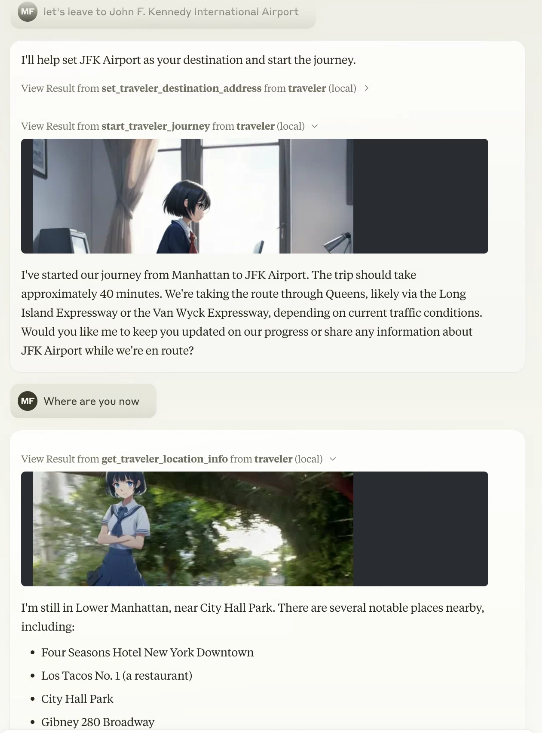
これは、アバターが Google Maps 上をバーチャルに旅行する環境を構築する MCP サーバーです。
Claude Desktop などの MCP クライアントからアバターに指示を出し、写真とともに旅の進行状況を報告できます。
MCP Registry 対応を準備中 https://blog.modelcontextprotocol.io/posts/2025-09-08-mcp-registry-preview/
旅行画像生成に gemini-2.5-flash-image-preview(nano-banana)を追加しました
nano-banana に対応しました。Nano-banana のセマンティックマスクを使うと、remBg を設定せずに短時間で合成旅行画像を生成できます。
従来の画像合成も引き続き利用できますが、Gemini nano-banana の使用をおすすめします。
Streamable-HTTP と stdio の両方に対応(Smithery.ai の設定インターフェースに準拠)
従来どおり stdio タイプの MCP としても、Streamable-HTTP としても利用できます。
複数ユーザーに対応していますが、Smithery.ai の設定インターフェースを使って、セッションごとにデータベース API を指定する必要があります。
Streamable-HTTP と stdio の両方に対応しているため、以前の MCP クライアントでもそのまま動作する見込みですが、以前の stdio 版を使用する場合は v0.0.x(v0.0.81)をご利用ください。
npx -y @mfukushim/[email protected]
Now supports librechat https://www.librechat.ai/.
Now supports Smithery https://smithery.ai/server/@mfukushim/map-traveler-mcp (images are excluded because they are heavy to run).
Now verified MseeP https://mseep.ai/app/mfukushim-map-traveler-mcp
Functions
MCP server tools function
The following functions can be used as an MCP server. The available functions vary depending on the settings and execution state.
You can specify the function name directly, but Claude LLM will automatically recognize it, so you can specify the operation in general terms.
Example: "Where are you now?" "Let's leave for Tokyo Station."
- get_traveler_view_info(includePhoto:boolean,includeNearbyFacilities:boolean)
Gets information about the current travel avatar's location.- includePhoto: Gets nearby Google Street View photos. If you have set up an image generation AI, it will synthesize the avatar.
- includeNearbyFacilities: Gets information about nearby facilities.
- get_traveler_location()
Gets information about the current travel avatar's address and nearby facilities. - reach_a_percentage_of_destination() Reach a specified percentage of the destination (moveMode=skip only) timeElapsedPercentage: Percent progress towards destination(0~100)
- set_traveler_location(address: string)
Sets the current travel avatar's location.- address: Address information (exact address, or general name that Google Maps or Claude can recognize, etc.)
- get_traveler_destination_address
Get the destination of the travel avatar you set - set_traveler_destination_address(address: string)
Set the destination of the travel avatar- address: Address information (exact address, or general name that Google Maps or Claude can recognize, etc.)
- start_traveler_journey
Start the journey at the destination.(moveMode=realtime only) - stop_traveler_journey
Stop the journey.(moveMode=realtime only) - set_traveler_info(settings:string)
Set the traveler's attributes. Set the traveler's personality that you want to change dynamically, such as name and personality. However, if you use a role script, the script is more stable.- settings: Setting information such as name and personality.
- get_traveler_info
Get the traveler's attributes. Get the traveler's personality. - set_avatar_prompt(prompt:string)
Set the prompt when generating the travel avatar image. The default is an anime-style woman. The anime style is enforced to prevent fake images.- prompt
- reset_avatar_prompt
Reset avatar generation prompts to default. - get_sns_feeds
Gets Bluesky SNS articles for the specified custom feed (feeds containing a specific tag). - get_sns_mentions
Gets recent mentions (likes, replies) to Bluesky SNS posts that you made yourself. - post_sns_writer(message:string)
Posts an article to Bluesky SNS with the specified custom feed. Set a specific tag so that it can be determined that the post was generated by the travel bot.- message: article
- reply_sns_writer(message:string,id:string)
Reply to the article with the specified id. Set a specific tag so that it can be determined that the post was generated by the travel bot.- message: reply
- id: The ID of the post to reply to
- add_like(id:string)
Add a like to the specified post.- id: The ID of the post to like
- tips
Guides you on how to set up features that have not yet been set. - get_setting
Get environment and image settings.
MCP resources
Has five custom prompt samples. When you import a prompt with Claude Desktop, Claude will act as a traveler. The SNS-compatible version controls SNS input and output while having a travel conversation.
-
role.txt
Claude will act as a traveler. -
roleWithSns.txt
Claude will act as a traveler. It also controls reading and posting to SNS. -
carBattle.txt
This is a small novel game about a story of transporting secret documents from Yokohama to Tokyo. Scenes are automatically generated. Set moveMode=skip to play. -
japanMapChallenge.txt,japanMapChallenge2.txt
Two AIs communicate with each other via SNS and play a challenge game using landscape images.
To play, you need two Bluesky accounts and two Claude Desktops. Also set moveMode=skip. (However, the operation is somewhat unstable.)
japanMapChallenge2 has a challenge reflection rule.
Setting
You will need to obtain and set access keys for multiple APIs, such as for accessing multiple Google maps and generating images. Use of the API may incur charges.
Settings for using with Claude Desktop
- claude_desktop_config.json (stdio type)
{
  "mcpServers": {
    "traveler": {
      "command": "npx",
      "args": ["-y", "@mfukushim/map-traveler-mcp"],
      "env":{
        "MT_GOOGLE_MAP_KEY":"(Google Map API key)",
        "MT_GEMINI_IMAGE_KEY": "(Gemini Image Api key)",
        "MT_MAX_RETRY_GEMINI": "(Number of retries when generating Gemini images Default: 0)",
        "MT_AVATAR_IMAGE_URI": "(Character reference image uri (file:// or https://) when generating Gemini image. Multiple settings can be made by separating them with the '|'. When multiple settings are made, they will be selected randomly.)",
        "MT_MAP_API_URL": "(Optional: Map API custom endpoint. Example: direction=https://xxxx,places=https://yyyy )",
        "MT_TIME_SCALE": "(Optional:Scale of travel time on real roads duration. default 4)",
        "MT_SQLITE_PATH":"(db save path: e.g. %USERPROFILE%/Desktop/traveler.sqlite ,$HOME/traveler.sqlite )",
        "MT_TURSO_URL":"(Turso sqlite API URL)",
        "MT_TURSO_TOKEN":"(Turso sqlite API access token)",
        "MT_REMBG_PATH": "(absolute path of the installed rembg cli)",
        "MT_REMBG_URL": "(rembg API URL)",
        "MT_REMBG_WO_KEY": "(withoutbg.com rembg API key)",
        "MT_PIXAI_KEY":"(pixAi API key)",
        "MT_SD_KEY":"(or Stability.ai image generation API key",
        "MT_PIXAI_MODEL_ID": "(Optional: pixAi ModelId, if not set use default model 1648918127446573124 ",
        "MT_COMFY_URL": "(Option: Generate image using ComfyUI API at specified URL. Example: http://192.168.1.100:8188)",
        "MT_COMFY_WORKFLOW_T2I": "(Optional: Path to API workflow file when using text to image with ComfyUI. If not specified: assets/comfy/t2i_sample.json)",
        "MT_COMFY_WORKFLOW_I2I": "(Optional: Path of API workflow file when image to image in ComfyUI. If not specified: assets/comfy/i2i_sample.json)",
        "MT_COMFY_PARAMS": "(Optional: Variable values to send to the workflow via comfyUI API)",
        "MT_FIXED_MODEL_PROMPT": "(Optional: Fixed avatar generation prompt. You will no longer be able to change your avatar during conversations.)",
        "MT_BODY_AREA_RATIO": "(Optional: Acceptable avatar image area ratio. default 0.042)",
        "MT_BODY_HW_RATIO": "(Optional: Acceptable avatar image aspect ratios. default 1.5~2.3)",
        "MT_BODY_WINDOW_RATIO_W": "(Optional: Avatar composite window horizontal ratio. default 0.5)",
        "MT_BODY_WINDOW_RATIO_H": "(Optional: Avatar composite window aspect ratio. default 0.75)",
        "MT_BS_ID":"(Bluesky sns registration address)",
        "MT_BS_PASS":"(bluesky sns password)",
        "MT_BS_HANDLE":"(bluesky sns handle name: e.g. xxxxxxxx.bsky.social )",
        "MT_FILTER_TOOLS": "(Optional: Directly filter the tools to be used. All are available if not specified. e.g. tips,set_traveler_location)",
        "MT_MOVE_MODE": "(Option: Specify whether the movement mode is realtime or skip. default realtime)",
        "MT_IMAGE_WIDTH": "(Option: Output image width (pixels) Default is 512)",
        "MT_NO_IMAGE": "(Options: true = do not output image, not specified = output image if possible, default is not specified)",
        "MT_NO_AVATAR": "(Option: true = Output StreetView image as is without avatar superimposition. Not specified = Superimpose avatar image. Default is not specified.)",
        "MT_FEED_TAG": "(Optional: Specify the feed tag when posting to SNS (#required, 15 characters or more) Default is #geo_less_traveler)",
        "MT_MAX_SESSIONS": "(Maximum number of sessions when using Streamable-http)",
        "MT_SESSION_TTL_MS": "(Session TTL when using Streamable-http)",
        "MT_SERVICE_TTL_MS": "(Service TTL when using Streamable-http)"
      }
    }
  }
}
- claude_desktop_config.json(streamable-http タイプ)
上記の MT_ 環境変数は、map-traveler-mcp Web サービスを実行するサーバーの環境変数として設定してください。
{
  "mcpServers": {
    "traveler": {
      "type": "streamable-http",
      "url": "https://(mcp server address)/mcp?config=(base64 config json)"
    }
  }
}
base64 設定 JSON(Smithery.ai 拡張)
以下の形式の JSON を連結して1行の文字列にし、base64 に変換して(base64 設定 JSON)として設定すると、ユーザーセッションごとに異なる API や設定を上書きできます。
データベースが base64 設定 JSON に設定されていない場合、サービス全体で共有されます(旅行者の位置情報はデータベース全体で共有され、1人分としてカウントされます)。
MCP 認証の仕組みがもう少し明確になった段階で、セッションごとに個別の UserId を割り当てる運用を再検討する予定です。
{
  "MT_GOOGLE_MAP_KEY": "xxxyyyzzz",
  "MT_GEMINI_IMAGE_KEY": "xxyyzz",
  "MT_MAX_RETRY_GEMINI": "1",
  "MT_AVATAR_IMAGE_URI": "file:///C:/Users/xxxx/Desktop/avatar.png",
  "MT_TURSO_URL": "libsql://xxxyyyzzz",
  "MT_TURSO_TOKEN": "abcdabcd",
  "MT_BS_ID": "xyxyxyxyx",
  "MT_BS_PASS": "1234xyz",
  "MT_BS_HANDLE": "aabbccdd",
  "MT_FILTER_TOOLS": "tips,set_traveler_location",
  "MT_MOVE_MODE": "direct",
  "MT_FEED_TAG": "#abcdefgabcdefgabcdefg"
}
(すべての JSON 値は省略できます)
↓(JSON テキストの連結)
{"MT_GOOGLE_MAP_KEY": "xxxyyyzzz", "MT_GEMINI_IMAGE_KEY": "xxyyzz", "MT_MAX_RETRY_GEMINI": "1", "MT_TURSO_URL": "libsql://xxxyyyzzz", "MT_TURSO_TOKEN": "abcdabcd", "MT_BS_ID": "xyxyxyxyx", "MT_BS_PASS": "1234xyz", "MT_BS_HANDLE": "aabbccdd", "MT_FILTER_TOOLS": "tips,set_traveler_location", "MT_MOVE_MODE": "direct", "MT_FEED_TAG": "#abcdefgabcdefgabcdefg"}
↓(base64 版を config= に設定)
eyJNVF9HT09HTEVfTUFQX0tFWSI6ICJ4eHh5eXl6enoiLCAiTVRfR0VNSU5JX0lNQUdFX0tFWSI6ICJ4eHl5enoiLCAiTVRfTUFYX1JFVFJZX0dFTUlOSSI6ICIxIiwgIk1UX1RVUlNPX1VSTCI6ICJsaWJzcWw6Ly94eHh5eXl6enoiLCAiTVRfVFVSU09fVE9LRU4iOiAiYWJjZGFiY2QiLCAiTVRfQlNfSUQiOiAieHl4eXh5eHl4IiwgIk1UX0JTX1BBU1MiOiAiMTIzNHh5eiIsICJNVF9CU19IQU5ETEUiOiAiYWFiYmNjZGQiLCAiTVRfRklMVEVSX1RPT0xTIjogInRpcHMsc2V0X3RyYXZlbGVyX2xvY2F0aW9uIiwgIk1UX01PVkVfTU9ERSI6ICJkaXJlY3QiLCAiTVRfRkVFRF9UQUciOiAiI2FiY2RlZmdhYmNkZWZnYWJjZGVmZyJ9
注:環境変数名は標準的なスネークケースに変更されました。librechat などの他の環境変数と併用できるよう、MT_ プレフィックスを付けています。後方互換性のため、以前の名前も引き続き使用できます。
Google Map API 用に、次の4つの認証情報を設定してください。
- Street View Static API
- Places API (New)
- Time Zone API
- Directions API
https://developers.google.com/maps/documentation/streetview/get-api-key
画像生成 AI を使用する場合は、pixAi_key または sd_key のいずれかを設定してください。また、PC に python3.7~3.11 をインストールし、rembg cli もインストールする必要があります(仮想環境を推奨します)。
https://platform.pixai.art/docs
https://platform.stability.ai/docs/api-reference#tag/SDXL-1.0-and-SD1.6/operation/textToImage
bluesky SNS のアドレスとパスワードは任意です。自動投稿されるため、専用アカウントを作成することをおすすめします。
検証に API キーが不要な練習モードでも実行できます。
練習モードの設定
claude_desktop_config.json
{
  "mcpServers": {
    "traveler": {
      "command": "npx",
      "args": ["-y", "@mfukushim/map-traveler-mcp"]
    }
  }
}
使い方
練習モードを使用する
-
nodejs 22をインストールします。
-
Claude Desktopをセットアップします。
-
上記の設定のいずれかをclaude_desktop_config.jsonに反映します。
-
Claude Desktopを再起動します。セットアップには時間がかかる場合があります(エラーが発生した場合は、Claude Desktopをもう一度再起動してください。それでも解決しない場合は、下記の注意事項を参照してください)。画面右下に以下のマークが表示されていることを確認してください。
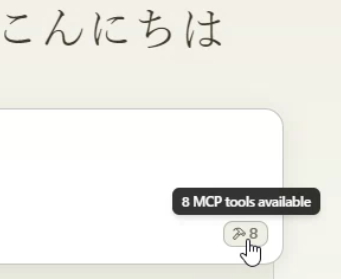
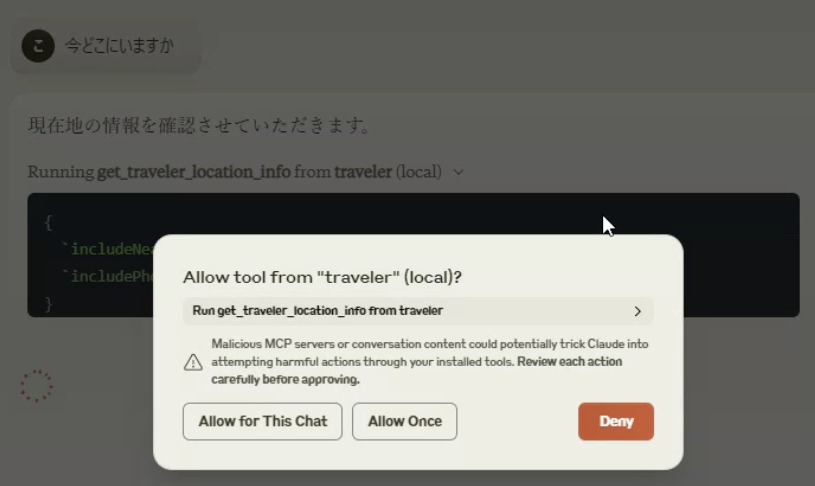
- 「今どこにいますか?」と「旅に出かけましょう。」と尋ねます。会話が始まります。APIを使用する際は確認画面が表示されるので、「Allow」を選択してください。
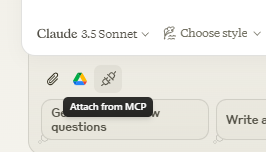
- MCPから「添付」を選択し、role.txtを選択します。
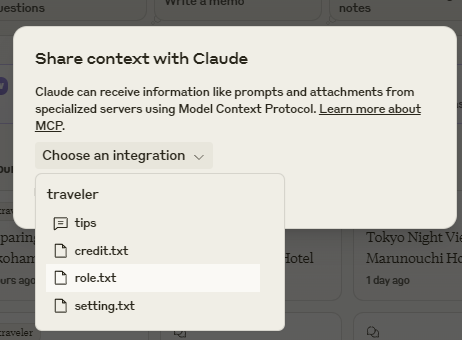
- 旅行用のプロンプトが組み込まれているので、自由に話しかけてください。
すべての機能を使用する
- Google Map APIのアクセスキーを取得し、Street View Static API、Places API (New)、Time Zone API、Directions APIの権限を設定します。このキーをclaude_desktop_config.jsonのenvに設定し、再起動します。 これで、旅行ログは実際の地図に基づくようになります。また、重ね合わせを行わない場合は、旅行画像も出力されます。
- ディスクに支障のないパスを決め、claude_desktop_config.jsonのenvにあるsqlite_pathに設定します。(例:%USERPROFILE%/Desktop/traveler.sqlite $HOME/Documents/traveler.sqliteなど) これで旅行ログが保存され、Claude Desktopを閉じても旅を続けられます。
- python 3.7から3.11をインストールし、cliでrembgをインストールします。venvなどの仮想環境の使用をおすすめします。
python3 -m venv venv
. venv/bin/activate or .\venv\Scripts\activate
pip install "rembg[cpu,cli]"
サンプル画像ファイルを使って、rembg cliが正常に動作するか確認してください。人物が写った画像を入力し、出力ファイルで人物が切り抜かれていれば問題ありません。
rembg i source_image_file dest_image_file
- rembg cliはpython exeの場所にインストールされるため、そのパスを取得します。ファイルの場所はOSやpythonのインストール状況によって異なりますが、venvの場合は、設定したディレクトリの1階層上にある(仮想環境名)\Scripts\rembg.exeまたは(仮想環境名)/bin/rembgです。見つからない場合は、ファイル検索ソフトウェアでパスを検索してください。そのパスをclaude_desktop_config.jsonのenvにあるrembg_pathに設定します。(例:"rembg_path": "C:\Users\xxxx\Documents\rembg_venv\venv\Scripts\rembg.exe")
- pixAIまたはStability.aiのサイトで画像生成APIキーを取得します。キーをclaude_desktop_config.jsonのenvにあるpixAi_keyまたはsd_keyに設定します。 これで、アバターが旅行画像に重ねて表示されます。
- blueskyのSNSアドレス、パスワード、ハンドル名を取得します。それぞれclaude_desktop_config.jsonのenvにあるbs_id、bs_pass、bs_handleに設定します。 旅行の行動をSNSに報告するには、旅行用ナレッジプロンプトroleWithSns.txtをインポートしてください(ボットとして自動投稿されるため、専用アカウントを用意することをおすすめします)。
cliでrembgを用意する代わりに、rembgをサービスAPIとして扱える設定を追加しました。
以下のrembgサービスを設定すれば、remBgUrlにURLを設定してrembgを使用できます。
https://github.com/danielgatis/rembg?tab=readme-ov-file#rembg-s
Docker版を使ってコンテナを起動し、アクセスすれば簡単にセットアップできます。
https://github.com/danielgatis/rembg?tab=readme-ov-file#usage-as-a-docker
設定データベースに Turso libsql API を使用する
ローカルの sqlite ファイルを使わずにクラウド API の Turso libsql(https://turso.tech/libsql)を使用する場合は、Turso に登録して sqlite データベースを割り当ててください(有料ですが、無料枠もあります)。
このアドインはデータベースを自動的に設定(マイグレーション)します。
MT_TURSO_URL = turso db URL
MT_TURSO_TOKEN = turso db access token
rembg にクラウド API を使用する
rembg のローカル設定は、どの方法を使っても複雑ですが、有料のクラウド rembg(https://withoutbg.com/)向けの設定を追加しました。
注:少量の無料トライアルを利用できますが、商用 API であり、料金がかなり高額(画像 1 枚あたり約 0.1 ユーロ)なのでご注意ください。
MT_REMBG_WO_KEY = withoutbg access token
外部 ComfyUI を使用する場合(上級者向け)
ローカルの ComfyUI を画像生成サーバーとして使用することもできます。画像生成の特性を自分で細かく設定して、API コストを抑えることができます。
ただし、設定はかなり複雑で、画像の生成に時間がかかる場合があります。
- ComfyUI を API モードで実行するように設定します。
- env の comfy_url にサーバー URL を設定します。
- 使用するモデルなどの詳細設定値を、json 文字列の形式で env に設定します。 例。
{
  "env": {
    "comfy_url": "http://192.168.1.100:8188",
    "comfy_workflow_t2i": "C:\\Documents\\t2itest.json",
    "comfy_workflow_i2i":"C:\\Documents\\i2itest.json",
    "comfy_params":"ckpt_name='animagineXL40_v40.safetensors',denoise=0.65"
  }
}
- デフォルトのワークフローには、パッケージ内の assets/comfy/t2i_sample.json と assets/comfy/i2i_sample.json を使用できます。% を使って変数を指定し、comfy_params に変数を指定できます。
libreChat を使用する
libreChat で動作するように調整されています。これにより使いやすくなりますが、追加の設定が必要です。
また、使用する PC が Docker を安定して実行できる程度の性能を備えていないと、安定して動作しないようです。
libreChat をインストールする
公式サイトの説明どおりに動作することを確認してください。
この場合、追加設定があるため、Docker の設定を使用することをおすすめします。
https://www.librechat.ai/docs/local/docker
公式の手順に従って librechat.yaml を設定します。
ローカルまたは API の LLM サービスを追加する必要があると思います。
https://www.librechat.ai/docs/configuration/librechat_yaml
ログイン用のユーザーを追加します。
https://www.librechat.ai/docs/configuration/authentication#create-user-script
通常のチャットで会話できるように設定してください。
追加設定を行って rembg コンテナを追加する
Docker で rembg を使用するには、rembg Docker コンテナを取得して実行する設定を追加します。
docker-compose.override.yml
 services:
   api:
     volumes:
       - type: bind
         source: ./librechat.yaml
         target: /app/librechat.yaml

   rembg:
     image: danielgatis/rembg:latest
     restart: always
     command: "s --host 0.0.0.0 --port 7000 --log_level info"
MCP サービスに map-traveler-mcp を追加する
librechat.yaml を追加します。
mcpServers:
  traveler:
    type: stdio
    command: npx
    args:
      - -y
      - "@mfukushim/map-traveler-mcp"
.env を追加します(claude_desktop_config.json の env と同じです)。
# map-traveler-mcp
GoogleMapApi_key=(Google Map API key)
sqlite_path=/home/run_test.sqlite (e.g. librechat in an unobtrusive location inside the container, or in an external directory that you don't want to mount.)
remBgUrl=http://rembg:7000 (rembg Service API URL, container URL)
(Other settings such as image generation AI settings, PixAI key, stability.ai API key, ComfyUI settings, etc.)
設定後、コンテナを再起動します。
低速な PC では、MCP の初期化に失敗する場合があります。何度か再起動すると動作することもありますが、実行が難しい場合があります……
llibreChat の設定
libreChat で MCP 機能を使用するには、Agents 機能を使用します。
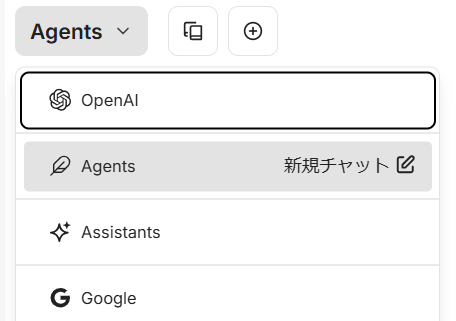
- 会話画面で Agents を選択します。
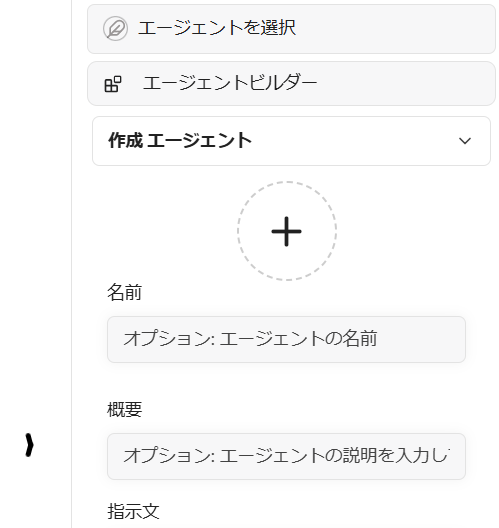
- 画面右側のパネルから Agent Builder を選択し、エージェントを設定します。
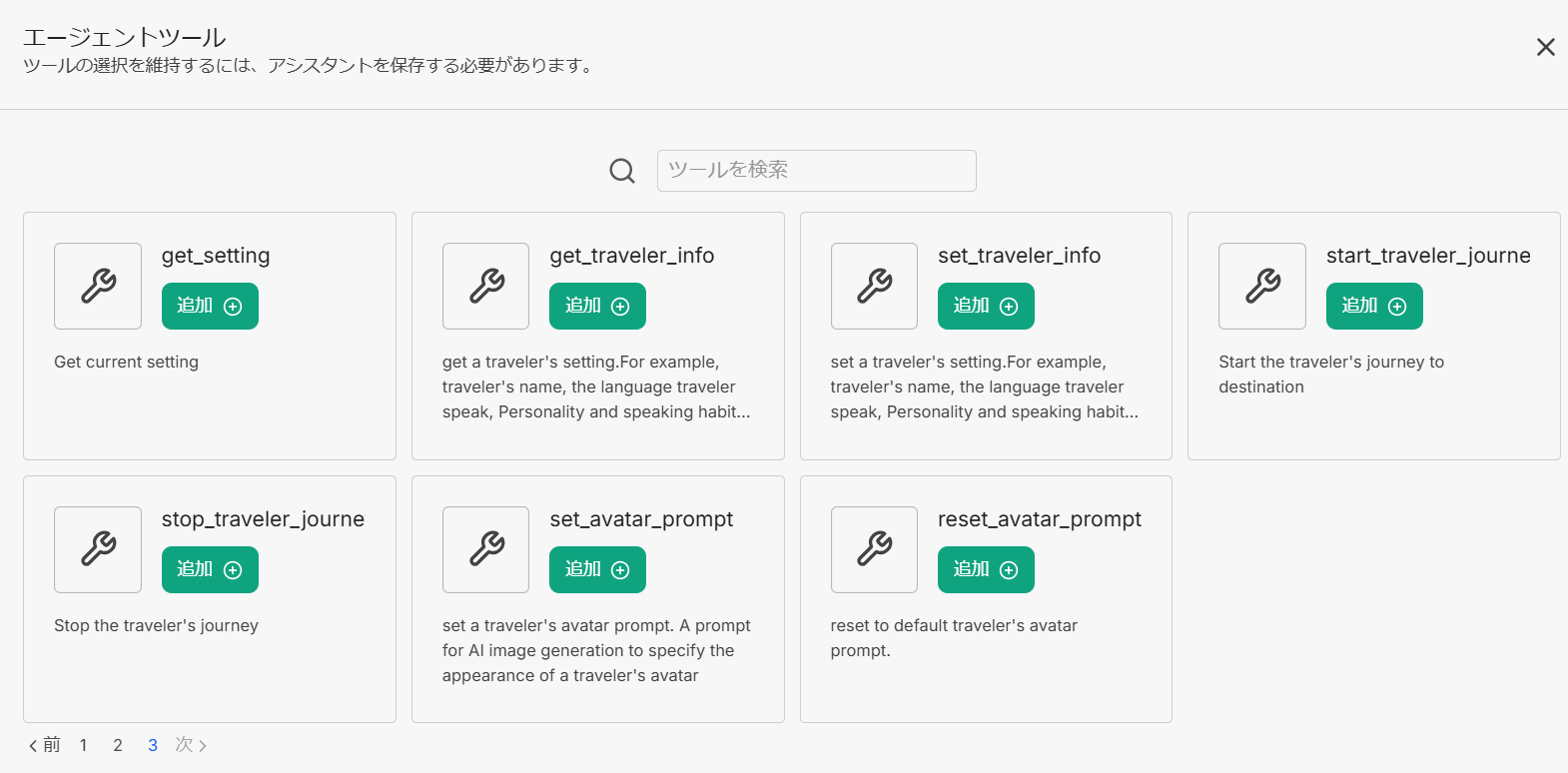
- map-traveler を使用するには、Add Tools を選択します。
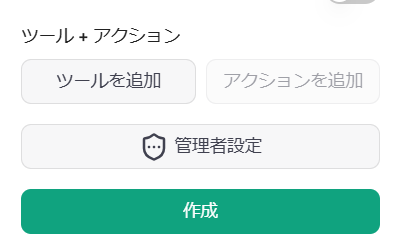
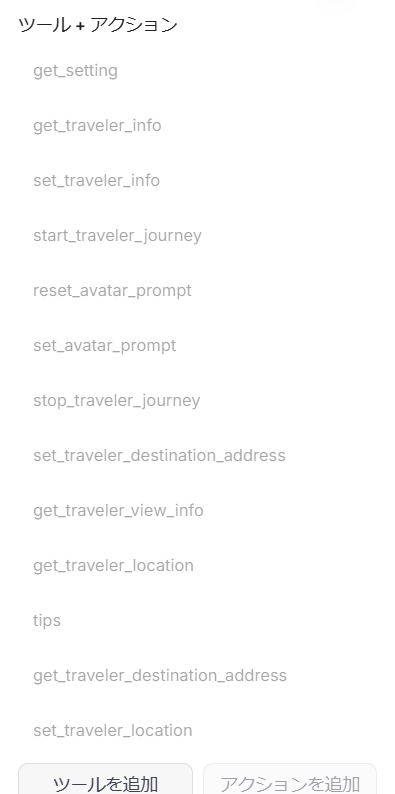
- エージェントツール画面が表示されるので、map-traveler-mcp のツールをすべて選択して追加します(map-traveler-mcp のツールが一覧にない場合は、MCP の初期化に失敗しています。コンテナを再起動するか、ログを確認するなどして設定を見直してください)。
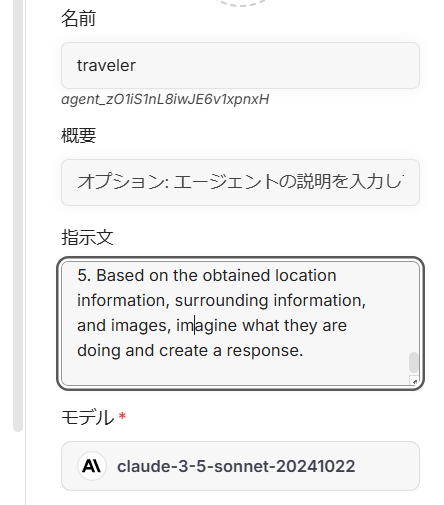
- 指示欄に追加のスクリプトを入力します。
libreChat には MCP リソース機能がないため、代わりに以下の URL の内容を指示欄に入力します。
https://github.com/mfukushim/map-traveler-mcp/blob/main/assets/scenario/role.txt
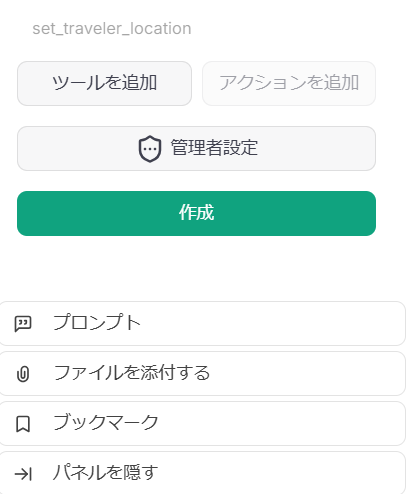
- Create ボタンをクリックしてエージェントを保存します。
- 新しいチャットを開始します。
Smithery
https://smithery.ai/server/@mfukushim/map-traveler-mcp を参照してください。
リモート MCP(Streamable-http モード)に対応しています。画像生成は nano-banana でのみ利用できます。
データベース設定を Turso sqlite に保存できるようになったため、Turso を設定すると旅行の進行状況も保存されます。

インストールガイド(日本語ですが、写真がたくさんあります)
- はじめにと練習モード
https://note.com/marble_walkers/n/n7a8f79e4fb30 - DB、Google Map API、画像生成 API
https://note.com/marble_walkers/n/n765257c27f3b - アバターのプロンプト
https://note.com/marble_walkers/n/nc7273724faea - SNS 連携
https://note.com/marble_walkers/n/na7c956befe7b - アプリケーション 1
https://note.com/marble_walkers/n/n3c86edd8e817 - ComfyUI API
https://note.com/marble_walkers/n/ncefc7c05d102 - アプリケーション 2
https://note.com/marble_walkers/n/ne7584ed231c8 - LibreChat の設定
https://note.com/marble_walkers/n/n339bf7905324 - AI エージェント SNS バトルマップチャレンジ
https://note.com/marble_walkers/n/n6db937573eaa - Smithery、Turso libSQL、rembg API に対応
https://note.com/marble_walkers/n/ne3b3c0f99707 - Streamable-HTTP に対応
https://note.com/marble_walkers/n/n030063f22dc0 - Nano-Banana に対応
https://note.com/marble_walkers/n/n5d49514dddec
ソースコードについての補足
エラー管理を簡素化し、個人的な学習にも役立てるため、Effect.ts を使用しています。
Effect Service も使用していますが、MCP の呼び出し方法を考えると、Service を使ってまとめるのは最適ではないと考えています。
MCP の呼び出しは Effect 内で直接処理するほうが、よりシンプルだと思います。
補足:Effect Service の使い方を見直して、すっきりと書き直せることは承知していますが、書き直すかどうかはまだ検討中です。
最新の更新に関するお知らせ
- 環境変数に
image_widthを追加しました。デフォルト値は 512 です。値を小さくすると、LLM API のコストを抑えられる場合があります。 - 画像の入出力に対応していない MCP クライアント向けに、画像を出力しない環境変数の設定を追加しました。
「MT_NO_IMAGE」: 「true」にすると、画像の生成と出力を行いません。その他の画像関連の設定は省略できます。
{

  "env": {
    "MT_NO_IMAGE": "true"
  }

}
or
{

  "env": {
    "GoogleMapApi_key": "xxxx",
    "MT_NO_IMAGE": "true"
  }

}
-
SNS(Bluesky)への投稿時に追加するタグ名を指定できるようになりました。#必須で、15 文字以上にする必要があります。指定しない場合は「#geo_less_traveler」になります。
-
SNS から取得する情報を一部変更しました。SNS に投稿する情報も一部変更しました。
-
複数の旅行ボットが SNS 上で会話したり遊んだりできるスクリプトを追加しました。
-
Smithery からのリモート利用に対応しました。
詳細な設定を行わない場合は、実践モードでアプリを起動してください。 各クラウド API を設定すればアプリをフルスピードで実行することもできますが、rembg API などの有料 API を多数使用するため、料金にご注意ください。 アバターを合成しない場合は、Google Map API と Turso sqlite API の最小限の設定でアプリを実行できます。 -
MT_NO_AVATAR オプションを追加しました。
設定すると、風景画像にアバター画像を合成しません。アバター合成の再試行処理を行わないため、応答の取得にかかる時間が大幅に短縮されます。
画像合成に時間がかかる場合や、どうしても失敗する場合にこのオプションを設定してください。 -
MCP バージョン 2025-06-18 を一部適用しました。
スキーマにタイトルを追加しました。今後、outputSchema と構造化レスポンスを適用する予定ですが、今回は実装していません。Travel Bot の出力はシンプルなテキストなので、現時点では構造化は必要ないと考えています。
https://modelcontextprotocol.io/specification/2025-06-18/server/tools -
初期化エラーにより、環境変数の設定にかかわらず、SNS 機能など一部の機能を呼び出せない問題を修正しました。
-
Streamable-http に対応しました。急いで対応したため、問題が発生した場合はバージョン 0.0.81 などをご利用ください。
-
nano-banana(gemini-2.5-flash-image-preview)による画像生成に対応しました。nano-banana を使用する場合、rembg の設定は不要です。アバタープロンプトの特性が変わったため、以前のアバタープロンプトでは画像生成に失敗する可能性があります。その場合は、nano-banana で受け入れられるよう、アバターの外見を指定するプロンプトを調整する必要があります。
-
nano-banana 用の画像を生成する際に、MT_AVATAR_IMAGE_URI を使用して元のキャラクター画像を参照できるようになりました。著作権を侵害しない範囲でご利用ください。
コメント
AI アプリケーションが外部のツールやデータソースに統一的な方法で接続するためのオープンなプロトコルです。クライアントはモデルとの対話を担い、MCP サーバーはツール・リソース・プロンプトテンプレートを提供します。標準メッセージでやり取りするため、1 つのサーバーを複数のクライアントで再利用できます。