
mcp-manimgl について
mcp-manimglは、Manim OpenGLによるシーン作成、アニメーション、音声、レンダリング機能をMCPツールとして提供します。数学アニメーションの制作に使え、ナレーションや音楽付きの動画にも対応します。
主な機能
- 01シーンの作成と設定
- 02数学オブジェクトとLaTeXの追加
- 03オブジェクトや変形のアニメーション
- 04ナレーションとBGMの追加
- 05動画のレンダリングとフレーム保存
- 06シーンスクリプトの生成
活用シーン
- 01数学的概念のアニメーション化
- 02ナレーション付き解説動画の作成
- 03MIDIベースのBGM追加
- 04レンダリングしたシーンのフレーム保存
MCP 対応
シーン、オブジェクト、アニメーション、音声、レンダリングのツールと、環境情報リソースをMCPクライアントに公開します。
設定
ローカルサーバーの設定はどのクライアントでも共通です。コピーしてクライアントの MCP 設定ファイルに貼り付けてください。
ツール
58掲載時のツール一覧 · 2 週間前に更新
| パラメーター | 型 | 必須 | 説明 |
|---|---|---|---|
| fps | integer | いいえ | レンダリングのフレームレート。 |
| resolution | string | いいえ | "WxH" のような解像度文字列。例:"1920x1080"。 |
| frame_height | number | いいえ | 座標系の高さ(manim 単位)。 |
| background_color | string | いいえ | 背景の 16 進カラーコードまたは色名。 |
詳細
mcp-manimgl — LLM 向けの数学アニメーション機能をツールとして提供する manimgl(Manim OpenGL)用 MCP サーバーです。



mcp-name: io.github.daedalus/mcp-manimgl
インストール
pip install mcp-manimgl
オプションの追加機能:
# For rendering (requires manimgl + system deps)
pip install "mcp-manimgl[render]"

# For audio narration + MIDI music support
pip install "mcp-manimgl[audio]"
システム依存関係
| 依存関係 | 必要な用途 | インストール |
|---|---|---|
ffmpeg + ffprobe | 音声のミキシング、ナレーションの同期、音楽のダッキング | apt install ffmpeg |
libfluidsynth3 | MIDI ファイルの音声へのレンダリング | apt install libfluidsynth3 |
SoundFont(.sf2/.sf3) | MIDI の楽器音 | apt install fluidr3mono-gm-soundfont |
| pangocairo、OpenGL | Manim レンダリングエンジン | manimgl docsを参照 |
サーバーは起動時に Python 以外の依存関係を確認し、不足しているものがあれば stderr と mcp-manimgl://info リソースを通じて通知します。
使い方
MCP サーバー
# Run with stdio transport (default for MCP)
mcp-manimgl
Claude Desktop、Cursor、その他の MCP クライアントでの使用
mcp.json に追加します。
{
  "mcpServers": {
    "mcp-manimgl": {
      "command": "mcp-manimgl"
    }
  }
}
ツール
サーバーは次のカテゴリのツールを提供します。
シーン管理
create_scene— 新しいシーンを作成・設定しますclear_scene— すべての要素を削除しますadd_wait— 待機/一時停止を追加しますset_camera— カメラを設定しますset_config— グローバルなレンダリング設定を行いますsave_state/restore_state— 状態を管理しますgenerate_scene_script— 生成された Python スクリプトを取得します
Mobject の作成
add_circle、add_square、add_rectangle、add_polygonadd_line、add_arrow、add_dotadd_text、add_tex(LaTeX)add_function_graph、add_parametric_curveadd_coordinate_system、add_vectoradd_labeled_point、add_brace、add_number_lineadd_decimal_number、add_matrixadd_3d_object(球、立方体、トーラス、円錐、円柱)
Mobject の操作
move_to、shift、scale、rotateset_color、set_opacitynext_to、align_to
アニメーション
animate_transform、animate_fade_in/out、animate_growanimate_rotate、animate_scale、animate_shiftanimate_indicate、animate_write、animate_set_coloranimate_move_along_path、animate_group
音声
add_narration— 現在のタイムライン位置で再生する TTS(gTTS)ナレーションを生成しますadd_background_music— 音声ファイルまたはMIDI ファイルからバックグラウンド音楽を追加します(FluidSynth を使って自動レンダリング)。音量調整、ループ再生、ナレーション中のサイドチェーン・ダッキングに対応しています。
レンダリング
render_scene— 動画をレンダリングします(バックグラウンド音楽とナレーションをダッキング処理とともに自動でミックスします)save_frame— 単一フレームを保存しますget_render_status— 環境を確認します
音声機能
ナレーション
# TTS narration at current timeline position
add_narration("Shor's algorithm factors large numbers in polynomial time.")
バックグラウンド音楽
音声ファイル(.mp3、.wav、.ogg)または MIDI ファイル(.mid、.midi)を受け付けます。MIDI ファイルは FluidSynth とシステムの SoundFont を使って音声にレンダリングされます。
# From an audio file
add_background_music("/path/to/music.mp3", volume=0.3, loop=True)

# From a MIDI file (auto-rendered)
add_background_music("/path/to/classical.mid", volume=0.2)

# With ducking configuration
add_background_music(
    "bach_chorale.mid",
    volume=0.25,
    loop=True,
    duck_threshold="-20dB",
    duck_ratio=6,
    duck_attack=0.05,
    duck_release=0.3,
)
バックグラウンド音楽とナレーションの両方がある場合、render_scene は自動的に次の処理を行います。
- manimgl を使って音声なしの動画をレンダリングします
- 設定された音量で音楽トラックを配置します(必要に応じてループします)
- 各ナレーショントラックをタイムライン上の位置に配置します
- サイドチェーン・コンプレッションを適用し、ナレーション中に音楽の音量を下げます
- ffmpeg を使ってすべてを合成し、最終的な MP4 を作成します
例:ショアのアルゴリズム
LaTeX、5 つの TTS ナレーショントラック、クラシックな MIDI バックグラウンド音楽を使ってショアのアルゴリズムを解説するナレーション付きアニメーションです。
視聴:
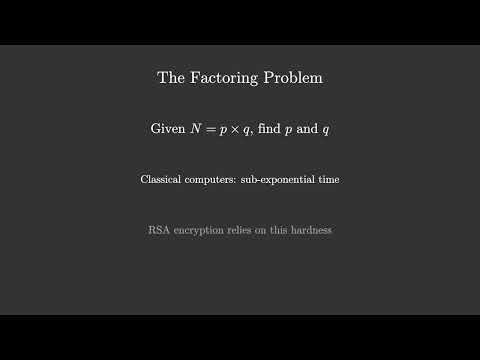
MCP ツールの呼び出し順序:
# 1. Configure scene
create_scene(background_color="#0a0a2e", resolution="1920x1080", fps=30)

# 2. Background music (auto-loops to fill video duration)
add_background_music("classical.mid", volume=0.25, loop=True)

# 3. Create mobjects + animate (5 sections)
add_tex("Shor's Algorithm", font_size=72, color="#FFD700")
add_tex("Integer Factorization on Quantum Computers", font_size=36, color="#88CCFF")
animate_fade_in("m_...", run_time=1.5)
# ... more shapes, LaTeX formulas, fade-ins, fade-outs ...

# 4. Narration at specific timeline positions
add_narration("Shor's algorithm factors large numbers...")   # ~3.5s
add_narration("The factoring problem...")                     # ~18.5s
add_narration("Key insight: reduce factoring to period...")   # ~36.1s
add_narration("Quantum period finding uses superposition...") # ~55.4s
add_narration("Summary of Shor's algorithm...")               # ~76.3s

# 5. Render (auto-mixes video + narrations + ducked BGM)
render_scene(output_path="data/Shors_Algorithm.mp4")
リポジトリのルートにある shor_mcp.py で、シーンスクリプト全体を確認できます。
MIDI レンダリング
MIDI ファイルは、システムのサウンドフォントを使用して pyfluidsynth でレンダリングされます。Debian/Ubuntu の場合:
sudo apt install fluidr3mono-gm-soundfont libfluidsynth3
pip install "mcp-manimgl[audio]"
自動検出されるサウンドフォントのパス:
/usr/share/sounds/sf3/(.sf3)/usr/share/sounds/sf2/(.sf2)/usr/share/fluidr3mono-gm-soundfont/
開発
git clone https://github.com/dclavijo/mcp-manimgl.git
cd mcp-manimgl
pip install -e ".[test]"

# run tests
pytest

# format
ruff format src/ tests/

# lint + type check
prospector --with-tool ruff --with-tool mypy src/

# security scan
semgrep --config=auto --severity=ERROR src/

# find unused code
vulture --min-confidence 90 src/
MCP
mcp-name: io.github.dclavijo/mcp-manimgl
コメント
AI アプリケーションが外部のツールやデータソースに統一的な方法で接続するためのオープンなプロトコルです。クライアントはモデルとの対話を担い、MCP サーバーはツール・リソース・プロンプトテンプレートを提供します。標準メッセージでやり取りするため、1 つのサーバーを複数のクライアントで再利用できます。