
mcp-obsidian について
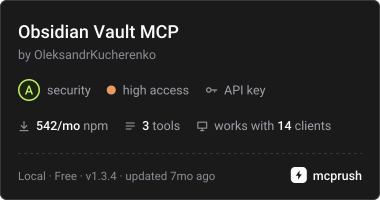
mcp-obsidianは、Local REST APIを介してObsidian VaultをAIアシスタントに接続します。ノートの取得や検索を行うユーザー向けで、キーワード検索とセマンティック検索に加え、URL切り替えとstdio/HTTPトランスポートに対応します。
主な機能
- 01ノート本文とメタデータの取得
- 02クエリによるノート検索
- 03セマンティック検索
- 04複数URLの確認と自動切り替え
- 05stdioとHTTPトランスポートへの対応
活用シーン
- 01Vaultから特定のテーマに関するノートを探す
- 02ログや監視ツールに関するノートを要約する
- 03Obsidian APIの接続障害時に接続先を切り替える
MCP 対応
MCPサーバーとして、Local REST API経由でノート取得、キーワード検索、セマンティック検索のツールを公開し、obsidian:// URIでノートリソースを提供します。
設定
ローカルサーバーの設定はどのクライアントでも共通です。コピーしてクライアントの MCP 設定ファイルに貼り付けてください。
npx -y @oleksandrkucherenko/mcp-obsidianAPI_KEYシークレットObsidian Local REST API keyAPI_URLSJSON array or semicolon-separated list of Obsidian REST API URLs for failoverAPI_HOSTObsidian REST API host (legacy single-URL config)API_PORTObsidian REST API port (legacy single-URL config)MCP_TRANSPORTSEnabled transports (default: stdio,http)MCP_HTTP_PORTHTTP transport bind port (default: 3000)MCP_HTTP_HOSTHTTP transport bind host (default: 0.0.0.0)MCP_HTTP_TOKENシークレットBearer token for HTTP transport authenticationローカルサーバーにはマシン上の実行環境(Node.js 18 以上など)が必要です。設定ファイルの場所はクライアントごとに異なります。
ツール
ローカルサーバーのツールはマシン上で起動して初めて取得できます。メンテナーはまだツール一覧を提供していません。
詳細
mcp-obsidian
Deployed / Usage







CI/CD ステータス


- mcp-obsidian
MCP ツールとリソース
この MCP サーバーは、AI アシスタントに次のツールとリソースを公開します。
ツール
| ツール | 説明 | パラメーター |
|---|---|---|
get_note_content | Obsidian ノートの内容とメタデータを取得します | filePath(文字列)- ノートへのパス |
obsidian_search | クエリ文字列を使ってノートを検索します | query(文字列)- 検索クエリ |
obsidian_semantic_search | ノートのセマンティック検索 | query(文字列)- 検索クエリ |
リソース
| リソース | URI パターン | 説明 |
|---|---|---|
| Obsidian ノート | obsidian://{path} | URI 経由でノートにアクセスします(例:obsidian://Daily/2025-01-16.md) |
クイックテスト
# 1. Set your Obsidian API key
export OBSIDIAN_API_KEY="your-obsidian-rest-api-key"

# 2. Add MCP server and test (Claude Code)
claude mcp add obsidian -- bunx -y @oleksandrkucherenko/mcp-obsidian
claude "Search my Obsidian vault for monitoring tools, summarize findings"

# 2. Alternative: Codex CLI
codex mcp add obsidian --command "bunx -y @oleksandrkucherenko/mcp-obsidian"
codex "Find notes about logging frameworks and create a comparison table"
使用例: 「ログやメトリクスの追跡に使える、Obsidian の保管庫内のツールをすべて探して、要約レポートを作成して」 — AI が保管庫を検索し、OpenTelemetry、Datadog、Prometheus などに関するノートを見つけて、構造化された要約を生成します。
その他の CLI ツール(Gemini、OpenCode、Kilo Code、Copilot)については、手動テストガイドを参照してください。

MCP の設定
複数 URL の設定(推奨)
自動フェイルオーバーと自己修復には API_URLS を使用してください。 サーバーはすべての URL を並列でテストし、最速の URL を選択して、障害発生時には自動的に再接続します。
{
  "mcpServers": {
    "obsidian": {
      "command": "docker",
      "args": [
        "run",
        "--name", "mcp-obsidian",
        "--rm",
        "-i",  // Keep STDIN open for stdio transport
        "-p", "3000:3000",
        "-e", "API_KEY",
        "-e", "API_URLS",
        "-e", "DEBUG", // for logs
        "ghcr.io/oleksandrkucherenko/obsidian-mcp:latest"
      ],
      "env": {
        "API_KEY": "<secret_key>",
        // JSON array - automatically tests and selects fastest URL
        "API_URLS": "[\"https://127.0.0.1:27124\",\"https://172.26.32.1:27124\",\"https://host.docker.internal:27124\"]",
        "DEBUG": "mcp:*"
      }
    }
  }
}
自己修復機能:
- ✅ 起動時に URL を並列テスト
- ✅ 最速の URL を自動選択
- ✅ 30 秒ごとにヘルスを監視
- ✅ 接続が切断された場合に自動フェイルオーバー
- ✅ 過剰な切り替わりを防ぐ指数バックオフ
利用可能なトランスポート:
stdio- 標準入力/出力(デフォルト。ローカル MCP クライアントに最適)http- SSE ストリーミング対応の HTTP JSON-RPC(リモートアクセスに最適)
WSL2 の例:
# Automatically determine WSL gateway IP
export WSL_GATEWAY_IP=$(ip route show | grep -i default | awk '{ print $3}')

# Configure with multiple fallback URLs
API_URLS='["https://127.0.0.1:27124", "https://'$WSL_GATEWAY_IP':27124", "https://host.docker.internal:27124"]'
HTTP トランスポートの設定
MCP サーバーは、自動 URL フェイルオーバーに対応したリモートアクセス用 HTTP トランスポートをサポートしています。
{
  "mcpServers": {
    "obsidian-http": {
      "command": "docker",
      "args": [
        "run",
        "--name", "mcp-obsidian-http",
        "--rm",
        "-p", "3000:3000",
        "-e", "API_KEY",
        "-e", "API_URLS",
        "-e", "MCP_HTTP_PATH",
        "ghcr.io/oleksandrkucherenko/obsidian-mcp:latest"
      ],
      "env": {
        "API_KEY": "<secret_key>",
        "API_URLS": "[\"https://127.0.0.1:27124\",\"https://172.26.32.1:27124\",\"https://host.docker.internal:27124\"]",
        "MCP_HTTP_PATH": "/mcp" // endpoint path (default is: /mcp)
      }
    }
  }
}
認証を使用した分離設定
# Automatically determine WSL gateway IP
export WSL_GATEWAY_IP=$(ip route show | grep -i default | awk '{ print $3}')

# Configure with multiple fallback URLs
API_URLS='["https://127.0.0.1:27124", "https://'$WSL_GATEWAY_IP':27124", "https://host.docker.internal:27124"]'

# run MCP server on docker separately from IDE
docker run --name mcp-obsidian-http --rm \
  -p 3000:3000 \
  -e API_KEY="<secret_key>" \
  -e API_URLS="${API_URLS}" \
  -e MCP_HTTP_TOKEN=<your-secret-token-here> \
  ghcr.io/oleksandrkucherenko/obsidian-mcp:latest
{
  "mcpServers": {
    "obsidian": {
      "type": "streamable-http",
      "url": "http://localhost:3000/mcp",
      "headers": {
        "Authorization": "Bearer <your-secret-token-here>"
      }
    }
  }
}
クライアントは Authorization ヘッダーを含める必要があります。
Authorization: Bearer your-secret-token-here
Stdio トランスポートの設定
stdio トランスポートを使用したローカル開発の場合(デフォルト):
{
  "mcpServers": {
    "obsidian": {
      "command": "docker",
      "args": [
        "run",
        "--name", "mcp-obsidian-windsurf",
        "--interactive",
        "--rm",
        "-e", "API_KEY",
        "-e", "API_URLS",
        "-e", "DEBUG",
        "ghcr.io/oleksandrkucherenko/obsidian-mcp:latest"
      ],
      "env": {
        "API_KEY": "<secret_key>",
        "API_URLS": "[\"https://127.0.0.1:27124\",\"https://172.26.32.1:27124\"]",
        "DEBUG": "mcp:*" // default: disabled logs
      }
    }
  }
}
-
--rm- 終了時にコンテナと関連する匿名ボリュームを自動的に削除します -
-i, --interactive- STDIN を開いたままにします -
-e, --env- 環境変数を設定します -
--name string- コンテナに名前を割り当てます -
-p, --publish- コンテナのポートをホストに公開します
従来の単一 URL 設定
後方互換性のため、API_HOST と API_PORT を使用した単一 URL 設定も引き続き利用できます。
{
  "mcpServers": {
    "obsidian": {
      "command": "docker",
      "args": [
        "run",
        "--name", "mcp-obsidian",
        "--rm",
        "-i",
        "-e", "API_KEY",
        "-e", "API_HOST",
        "-e", "API_PORT",
        "ghcr.io/oleksandrkucherenko/obsidian-mcp:latest"
      ],
      "env": {
        "API_KEY": "<secret_key>",
        "API_HOST": "https://172.26.32.1",  // single URL without failover
        "API_PORT": "27124"
      }
    }
  }
}
注意: 単一 URL 設定では、自動フェイルオーバーやヘルス監視は利用できません。本番環境へのデプロイでは API_URLS を使用してください。
ヘルスエンドポイント
HTTP トランスポートが有効な場合、サーバーは /health にヘルスチェック用エンドポイントを公開します。
curl http://localhost:3000/health
レスポンス:
{
  "status": "healthy",
  "timestamp": "2025-01-12T12:00:00.000Z",
  "transport": "http",
  "authEnabled": false
}
Obsidian API 接続とすべてのトランスポートを含む包括的なヘルスステータスを確認するには、次の値を返す getHealthStatus() 関数を使用できます。
{
  "healthy": true,
  "obsidian": {
    "connected": true,
    "url": "https://obsidian:27124",
    "lastCheck": 1705065600000
  },
  "transports": {
    "stdio": { "running": true, "enabled": true },
    "http": { "running": true, "enabled": true }
  },
  "uptime": 3600,
  "timestamp": 1705065600000
}
CLI ツールの設定
このセクションでは、一般的な AI CLI ツールを MCP Obsidian サーバーで使用するための設定方法を説明します。
# MacOs or Linux
curl -fsSL https://bun.sh/install | bash

# Windows
powershell -c "irm bun.sh/install.ps1 | iex"
Claude Code CLI
Docker:
# Create mcp.json configuration
cat > mcp.json << 'EOF'
{
  "mcpServers": {
    "obsidian": {
      "command": "docker",
      "args": ["run", "--rm", "-i", "-e", "API_KEY", "-e", "API_URLS", "ghcr.io/oleksandrkucherenko/obsidian-mcp:latest"],
      "env": {
        "API_KEY": "<your-obsidian-api-key>",
        "API_URLS": "[\"https://host.docker.internal:27124\"]"
      }
    }
  }
}
EOF

# Run Claude with MCP config
claude --mcp-config ./mcp.json
NPX/Bunx:
cat > mcp.json << 'EOF'
{
  "mcpServers": {
    "obsidian": {
      "command": "bunx",
      "args": ["-y", "@oleksandrkucherenko/mcp-obsidian"],
      "env": {
        "API_KEY": "<your-obsidian-api-key>",
        "API_URLS": "[\"https://127.0.0.1:27124\"]"
      }
    }
  }
}
EOF

claude --mcp-config ./mcp.json
Gemini CLI
Docker:
gemini mcp add \
  -e API_KEY=<your-obsidian-api-key> \
  -e API_URLS='["https://host.docker.internal:27124"]' \
  obsidian \
  docker run --rm -i ghcr.io/oleksandrkucherenko/obsidian-mcp:latest
NPX/Bunx:
gemini mcp add \
  -e API_KEY=<your-obsidian-api-key> \
  -e API_URLS='["https://127.0.0.1:27124"]' \
  obsidian \
  bunx -y @oleksandrkucherenko/mcp-obsidian
HTTP トランスポート(リモートサーバー):
gemini mcp add --transport http obsidian-http http://localhost:3000/mcp
サーバーの一覧表示と管理:
gemini mcp list
gemini mcp remove obsidian
OpenCode CLI
プロジェクトのルートに opencode.json を作成します。
Docker:
{
  "mcp": {
    "obsidian": {
      "type": "local",
      "command": ["docker", "run", "--rm", "-i",
        "-e", "API_KEY", "-e", "API_URLS",
        "ghcr.io/oleksandrkucherenko/obsidian-mcp:latest"],
      "environment": {
        "API_KEY": "{env:API_KEY}",
        "API_URLS": "[\"https://host.docker.internal:27124\"]"
      },
      "enabled": true
    }
  }
}
NPX/Bunx:
{
  "mcp": {
    "obsidian": {
      "type": "local",
      "command": ["bunx", "-y", "@oleksandrkucherenko/mcp-obsidian"],
      "environment": {
        "API_KEY": "{env:API_KEY}",
        "API_URLS": "[\"https://127.0.0.1:27124\"]"
      },
      "enabled": true
    }
  }
}
HTTP トランスポート:
{
  "mcp": {
    "obsidian-http": {
      "type": "remote",
      "url": "http://localhost:3000/mcp",
      "enabled": true
    }
  }
}
Kilo Code CLI
プロジェクト内に .kilocode/mcp.json を作成するか、グローバル設定として ~/.kilocode/cli/global/settings/mcp_settings.json を作成します。
Docker:
{
  "mcpServers": {
    "obsidian": {
      "command": "docker",
      "args": ["run", "--rm", "-i", "-e", "API_KEY", "-e", "API_URLS",
        "ghcr.io/oleksandrkucherenko/obsidian-mcp:latest"],
      "env": {
        "API_KEY": "<your-obsidian-api-key>",
        "API_URLS": "[\"https://host.docker.internal:27124\"]"
      }
    }
  }
}
NPX/Bunx:
{
  "mcpServers": {
    "obsidian": {
      "command": "bunx",
      "args": ["-y", "@oleksandrkucherenko/mcp-obsidian"],
      "env": {
        "API_KEY": "<your-obsidian-api-key>",
        "API_URLS": "[\"https://127.0.0.1:27124\"]"
      }
    }
  }
}
HTTP トランスポート:
{
  "mcpServers": {
    "obsidian-http": {
      "type": "streamable-http",
      "url": "http://localhost:3000/mcp",
      "headers": {
        "Authorization": "Bearer <your-token>"
      }
    }
  }
}
Codex CLI
Docker:
# Register MCP server
codex mcp add obsidian \
  --command "docker run --rm -i -e API_KEY -e API_URLS ghcr.io/oleksandrkucherenko/obsidian-mcp:latest" \
  --env API_KEY=<your-obsidian-api-key> \
  --env 'API_URLS=["https://host.docker.internal:27124"]'
NPX/Bunx:
codex mcp add obsidian \
  --command "bunx -y @oleksandrkucherenko/mcp-obsidian" \
  --env API_KEY=<your-obsidian-api-key> \
  --env 'API_URLS=["https://127.0.0.1:27124"]'
GitHub Copilot CLI
~/.copilot/mcp-config.json(またはリポジトリのルートに .copilot/mcp-config.json)を作成します。
Docker:
{
  "mcpServers": {
    "obsidian": {
      "type": "local",
      "command": "docker",
      "args": ["run", "--rm", "-i", "-e", "API_KEY", "-e", "API_URLS",
        "ghcr.io/oleksandrkucherenko/obsidian-mcp:latest"],
      "env": {
        "API_KEY": "${OBSIDIAN_API_KEY}",
        "API_URLS": "[\"https://host.docker.internal:27124\"]"
      },
      "tools": ["*"]
    }
  }
}
NPX/Bunx:
{
  "mcpServers": {
    "obsidian": {
      "type": "local",
      "command": "bunx",
      "args": ["-y", "@oleksandrkucherenko/mcp-obsidian"],
      "env": {
        "API_KEY": "${OBSIDIAN_API_KEY}",
        "API_URLS": "[\"https://127.0.0.1:27124\"]"
      },
      "tools": ["*"]
    }
  }
}
注意: Copilot CLI v0.0.340 以降では、環境変数の展開に ${VAR} 構文が必要です。実行前にシェルで OBSIDIAN_API_KEY を設定してください。
クイックリファレンス
| CLI ツール | 設定ファイル | Docker 対応 | HTTP トランスポート |
|---|---|---|---|
| Claude Code | mcp.json | ✅ | ✅ |
| Gemini | settings.json | ✅ | ✅ |
| OpenCode | opencode.json | ✅ | ✅ |
| Kilo Code | .kilocode/mcp.json | ✅ | ✅ |
| Codex | CLI コマンド | ✅ | ✅ |
| Copilot | ~/.copilot/mcp-config.json | ✅ | ✅ |
詳細なテストと検証については、手動テストガイドを参照してください。
セットアップとトラブルシューティング
セットアップ
- Obsidian デスクトップアプリケーションを起動し、設定でLocal REST APIを有効にします。

この設定により、任意のネットワークインターフェースから Local REST API に接続できるようになります(localhost のみではなく、WSL2 のセットアップではこれが重要です)。
-
Obsidian の設定から API キーをコピーします。MCP の設定に必要になります。
-
Obsidian Local REST API が実行中であり、お使いのマシンからアクセスできることを確認します。
-
次に、お使いのマシンのネットワーク設定(ファイアウォールルールなど)を必ず確認してください。
Obsidian REST API が実行中であることを確認する(Windows ホスト、MacOS、Linux)
Windows CMD ターミナルで実行します:
# windows CMD, verify that port is listening (that rest api is running)
netstat -an | findstr 27124
# Expected output:
#   TCP    0.0.0.0:27124           0.0.0.0:0               LISTENING

# Verify that Obsidian Local REST API is working
curl --insecure https://localhost:27124
wget --no-check-certificate -S https://localhost:27124
http --verify=no https://localhost:27124
REST API の期待される応答:
{
  "status": "OK",
  "manifest": {
    "id": "obsidian-local-rest-api",
    "name": "Local REST API",
    "version": "3.2.0",
    "minAppVersion": "0.12.0",
    "description": "Get, change or otherwise interact with your notes in Obsidian via a REST API.",
    "author": "Adam Coddington",
    "authorUrl": "https://coddingtonbear.net/",
    "isDesktopOnly": true,
    "dir": ".obsidian/plugins/obsidian-local-rest-api"
  },
  "versions": {
    "obsidian": "1.8.10",
    "self": "3.2.0"
  },
  "service": "Obsidian Local REST API",
  "authenticated": false
}
WSL2、Ubuntu 上でホストされた Docker
graph LR
    subgraph "Windows Machine"
      obs("Obsidian Application")

      subgraph "WSL2"
        subgraph "Ubuntu"
          subgraph "Docker"
            mcp("mcp-obsidian:latest")
          end
        end
      end

      firewall(["Windows Firewall"]) -->|27124| obs

      mcp -->|https://$WSL_GATEWAY_IP:27124| firewall

      IDE -.->|MCP Server Tools| mcp
    end
WSL2 の Ubuntu ターミナル内で実行します:
export WSL_GATEWAY_IP=$(ip route show | grep -i default | awk '{ print $3}')
echo $WSL_GATEWAY_IP # expected something like: 172.26.32.1

# Verify that Obsidian Local REST API is working
curl --insecure https://$WSL_GATEWAY_IP:27124
wget --no-check-certificate -S https://$WSL_GATEWAY_IP:27124
http --verify=no https://$WSL_GATEWAY_IP:27124
Windows ファイアウォールを確認する
GUI を起動し、ルールを手動で設定します:
# Windows Defender Firewall / Inbound Rules. Press Win+R and type WF.msc or firewall.cpl
WF.msc
firewall.cpl # and then press 'Advanced settings'
または、管理者として Windows PowerShell で実行します:
# Add firewall rule to allow port 27124 (Run in Admin PowerShell)
New-NetFirewallRule -DisplayName "WSL2 Obsidian REST API" -Direction Inbound -LocalPort 27123,27124 -Protocol TCP -Action Allow
または、Windows CMD ターミナルで実行します:
# check firewall rules (CMD) that manage 27124 port
netsh advfirewall firewall show rule name=all | findstr /C:"Rule Name" /C:"LocalPort" /C:"RemotePort" | findstr /C:"27124"

# display rules that has WSL2 keyword in own name
netsh advfirewall firewall show rule name=all | grep -A 13 WSL2

# display rule definition by port number (4 line after, 9 lines before)
netsh advfirewall firewall show rule name=all | grep -A 4 -B 9 27124
ファイアウォールを無効化/有効化する
管理者として Windows PowerShell で実行します:
# Temporarily turn off firewall (for testing ONLY, not recommended for regular use)
Set-NetFirewallProfile -Profile Domain,Public,Private -Enabled False

# Restore Firewall state
Set-NetFirewallProfile -Profile Domain,Public,Private -Enabled True
BusyBox コンテナの接続を確認する
これらの手順により、ネットワーク設定が正しく、コンテナが Local REST API に接続できることを確認できます。
WSL2 の Ubuntu ターミナル内で実行します:
export WSL_GATEWAY_IP=$(ip route | grep default | awk '{print $3}')
echo "Windows host IP from WSL2: $WSL_GATEWAY_IP"
# Output:
#   Windows host IP from WSL2: 172.26.32.1

# run docker container to verify the connectivity from Docker inside
docker run --rm -it --network=host busybox sh

# inside the container run:
which wget
# /bin/wget

export WINDOWS_HOST_IP="172.26.32.1"
echo $WINDOWS_HOST_IP
# 172.26.32.1

# try to connect to the Local REST API
wget -qO- --no-check-certificate "https://$WINDOWS_HOST_IP:27124"
wget -qO- --no-check-certificate https://172.26.32.1:27124
Docker 化された Obsidian
コメント
AI アプリケーションが外部のツールやデータソースに統一的な方法で接続するためのオープンなプロトコルです。クライアントはモデルとの対話を担い、MCP サーバーはツール・リソース・プロンプトテンプレートを提供します。標準メッセージでやり取りするため、1 つのサーバーを複数のクライアントで再利用できます。