
cli について
PushToDisplayのCLIとMCPサーバーは、ターミナルやAIエージェントからディスプレイボードへ更新を送信します。ボードやデバイス接続の管理に加え、ブラウザーまたはデバイスコードでログインできます。
主な機能
- 01ボードへのスタイル付き更新送信
- 02ボードの一覧・作成・更新・削除
- 03アクティブなデバイス接続の一覧
- 04ブラウザーとデバイスコードでのログイン
- 05機械可読なJSON出力
活用シーン
- 01CI/CDのビルドやデプロイ状況の表示
- 02ディスプレイボードへのインシデント情報の掲載
- 03スクリプトやAIエージェントからのボード管理
MCP 対応
内蔵MCPサーバーは、更新送信とボード・デバイス管理のツールを提供します。CLIの認証済みセッションを引き継ぎ、stdioトランスポートを使うMCPクライアントに対応します。
設定
ローカルサーバーの設定はどのクライアントでも共通です。コピーしてクライアントの MCP 設定ファイルに貼り付けてください。
ツール
8掲載時のツール一覧 · 2 週間前に更新
| パラメーター | 型 | 必須 | 説明 |
|---|---|---|---|
| alignX | enum | いいえ | 水平方向の配置start | center | end |
| alignY | enum | いいえ | 垂直方向の配置start | center | end |
| blocks | array | はい | 表示するテキストブロック |
| boardId | string | いいえ | 更新の送信先となるボード ID。省略した場合は、ユーザーのデフォルトボードが使用されます。 |
| density | enum | いいえ | 行の密度compact | standard | spacious |
| panelId | integer | いいえ | パネル ID(1-4) |
| fullPanel | boolean | いいえ | フルパネルモードを使用 |
| background | string | いいえ | 全体の背景色(16 進数) |
詳細
pushtodisplay
Push To Display のコマンドラインインターフェースおよび MCP サーバーです。ターミナルや AI エージェントからディスプレイボードにリアルタイムの更新を送信できます。
アプリを入手
iOS と Android で Push to Display を入手して、あらゆる画面をライブディスプレイボードにできます。


インストール
npx で直接実行できます(インストール不要です)。
npx pushtodisplay --help
または、グローバルにインストールします。
npm install -g pushtodisplay
Node.js 18 以降が必要です。ガイド、ユースケース、API の詳細については、PushToDisplay のドキュメントをご覧ください。
クイックスタート
# Log in (opens browser)
pushtodisplay auth login

# Send an update (uses your default board)
pushtodisplay send "Hello, Display!"

# Send to a specific board
pushtodisplay send -b <board-id> "Deploy completed"

# List your boards
pushtodisplay boards list
認証
Push To Display アカウントでログインします。モバイルアプリで使用しているものと同じアカウントです。
ブラウザーログイン(デフォルト)
pushtodisplay auth login
ブラウザーが開きます。サインインすると、CLI が認証情報を自動的に受け取ります。
デバイスコードログイン(ヘッドレス)
ブラウザーのないマシン(SSH セッション、コンテナー、リモートサーバーなど)で使用します。
pushtodisplay auth login --device-code
CLI に URL とワンタイムコードが表示されます。任意のデバイスで URL を開いてコードを入力し、ログインを承認してください。
認証情報は OS のキーチェーン(macOS Keychain、Linux libsecret、Windows Credential Manager)に保存されます。キーチェーンを利用できない場合は、~/.config/pushtodisplay/ に保存されます。
# Check auth status
pushtodisplay auth status

# Machine-readable status for scripts/agents (exit 0 = authenticated)
pushtodisplay auth status --json

# Log out (clear stored credentials)
pushtodisplay auth logout
auth status は有効な認証状態を報告します。有効なリフレッシュトークンによって期限切れのアクセストークンを透過的に更新できる場合は、認証済みとして報告されます(トークンの実際の有効期限の代わりに will refresh automatically のメモが表示されます)。
認証済みの場合は 0、認証されていない場合は 1 で終了するため、スクリプトの実行条件として安全に使用できます。
{
  "authenticated": true,
  "method": "oauth",
  "accessTokenExpired": true,
  "canRefresh": true,
  "sessionExpiresAt": "2026-06-01T00:00:00.000Z"
}
コマンド
send
ボードにディスプレイの更新を送信します。
# Simple text
pushtodisplay send -b my-board-id "Deploy succeeded"

# Styled text
pushtodisplay send -b my-board-id "Status" --size large --weight bold --color "#00FF00"

# Multiple blocks
pushtodisplay send -b my-board-id "Build:" "passing" --color "#22C55E"

# Panel targeting with layout options
pushtodisplay send -b my-board-id --panel 2 "Right panel content"
pushtodisplay send -b my-board-id --panel 1 --full-panel --density compact --align-x center "Alert"

# Per-block styling with JSON (repeatable)
pushtodisplay send -b my-board-id \
  --block '{"text": "API Health", "size": "large", "weight": "bold"}' \
  --block '{"text": "Uptime: 99.97%", "color": "#22C55E"}'

# Pipe a full JSON payload from stdin
echo '{"boardId":"my-board-id","blocks":[{"text":"From pipe"}]}' | pushtodisplay send --stdin
-b フラグが指定されていない場合、サーバーはデフォルトのボードを使用します。
スタイルフラグ
| フラグ | 値 | 説明 |
|---|---|---|
-s, --size | small、medium、large | テキストサイズ |
-w, --weight | regular、semibold、bold | フォントの太さ |
-c, --color | 16進数カラー(#RRGGBB) | テキストの色 |
--background | 16進数カラー(#RRGGBB) | 背景色 |
パネルフラグ
| フラグ | 値 | 説明 |
|---|---|---|
-p, --panel | 1–4 | 対象のパネル番号 |
--full-panel | — | パネル領域全体に表示 |
--density | compact、standard、spacious | コンテンツの間隔 |
--align-x | start、center、end | 水平方向の配置 |
--align-y | start、center、end | 垂直方向の配置 |
その他のフラグ
| フラグ | 説明 |
|---|---|
-b, --board | ボード ID |
--block <json> | JSON 形式のスタイル付きブロック(繰り返し指定可) |
--stdin | stdin から完全な JSON リクエストを読み取る |
boards
pushtodisplay boards list              # List all boards
pushtodisplay boards get <id>          # Get board details
pushtodisplay boards create -n "Name"  # Create a board
pushtodisplay boards create -n "Dash" -l 4  # Create with a layout
pushtodisplay boards delete <id>       # Delete a board
作成オプション:
| フラグ | 説明 |
|---|---|
-n, --name | ボード名(必須) |
-d, --description | ボードの説明 |
-l, --layout | レイアウト ID |
devices
pushtodisplay devices list # List active device-board streams
config
pushtodisplay config              # Show current configuration
pushtodisplay config show         # Same as above
JSON 出力
任意のコマンドに --json を追加すると、機械可読形式で出力できます。
pushtodisplay boards list --json
pushtodisplay send -b my-board "test" --json
設定
設定は、環境変数 → 設定ファイル → デフォルト値の順に解決されます。
| 環境変数 | 説明 | デフォルト値 |
|---|---|---|
PTD_API_URL | API エンドポイント | https://api.pushtodisplay.com |
PTD_SERVICE_URL | サービスエンドポイント | https://services.pushtodisplay.com |
PTD_IDP_URL | ID プロバイダー | https://idp.pushtodisplay.com |
PTD_CONFIG_DIR | 設定ディレクトリ | ~/.config/pushtodisplay |
MCP サーバー
CLI には組み込みの Model Context Protocol サーバーが含まれており、AI エージェント(Claude、Cursor、VS Code Copilot など)がディスプレイボードに直接アクセスできます。
MCP サーバーは CLI のセッションを引き継ぎます。pushtodisplay auth login を実行済みの場合、自動的に認証されます。
セットアップ
Claude Code
claude mcp add pushtodisplay -- npx pushtodisplay mcp
Claude Desktop
~/Library/Application Support/Claude/claude_desktop_config.json(macOS)または %APPDATA%\Claude\claude_desktop_config.json(Windows)に追加します。
{
  "mcpServers": {
    "pushtodisplay": {
      "command": "npx",
      "args": ["pushtodisplay", "mcp"]
    }
  }
}
Cursor
「設定」→「MCP Servers」→「Add Server」を開くか、.cursor/mcp.json を編集します。
{
  "mcpServers": {
    "pushtodisplay": {
      "command": "npx",
      "args": ["pushtodisplay", "mcp"]
    }
  }
}
VS Code(GitHub Copilot)
.vscode/mcp.json に追加します。
{
  "servers": {
    "pushtodisplay": {
      "command": "npx",
      "args": ["pushtodisplay", "mcp"]
    }
  }
}
その他の MCP クライアント
stdio トランスポートに対応している MCP クライアントであれば、Push To Display を使用できます。サーバーコマンドは次のとおりです。
npx pushtodisplay mcp
利用可能な MCP ツール
| ツール | 説明 |
|---|---|
pushtodisplay_send_update | ボードにコンテンツを送信します |
pushtodisplay_list_boards | すべてのボードを一覧表示します |
pushtodisplay_get_board | ボードの詳細を取得します |
pushtodisplay_create_board | 新しいボードを作成します |
pushtodisplay_update_board | ボードの名前、説明、またはレイアウトを更新します |
pushtodisplay_set_default_board | ボードをデフォルトに設定します |
pushtodisplay_delete_board | ボードを完全に削除します |
pushtodisplay_list_devices | アクティブなデバイス接続を一覧表示します |
コマンド一覧
| コマンド | 説明 |
|---|---|
auth login | ログインします(ブラウザーまたはデバイスコード) |
auth logout | 保存された認証情報を削除します |
auth status | 現在の認証状態を表示します |
send [text...] | ディスプレイを更新します |
boards list | ボードを一覧表示します |
boards get <id> | ボードの詳細を取得します |
boards create | 新しいボードを作成します |
boards delete <id> | ボードを削除します |
devices list | アクティブなデバイス接続を一覧表示します |
config | 現在の設定を表示します |
mcp | MCP サーバーを起動します |
API キー認証
対話型ログインを利用できない CI/CD パイプラインやスクリプトでは、API キーを使用して認証できます。モバイルアプリまたはウェブポータルから作成してください。API キーは pt_ で始まります。
# Via environment variable
export PTD_API_KEY=pt_your_key_here
pushtodisplay send "From CI"

# Or store in keychain
pushtodisplay auth login --api-key pt_your_key_here
Note: API キー認証で利用できるのは
sendコマンドのみです。ボード、デバイス、設定管理に完全にアクセスするには、auth loginを使用してください。
スクリーンショット
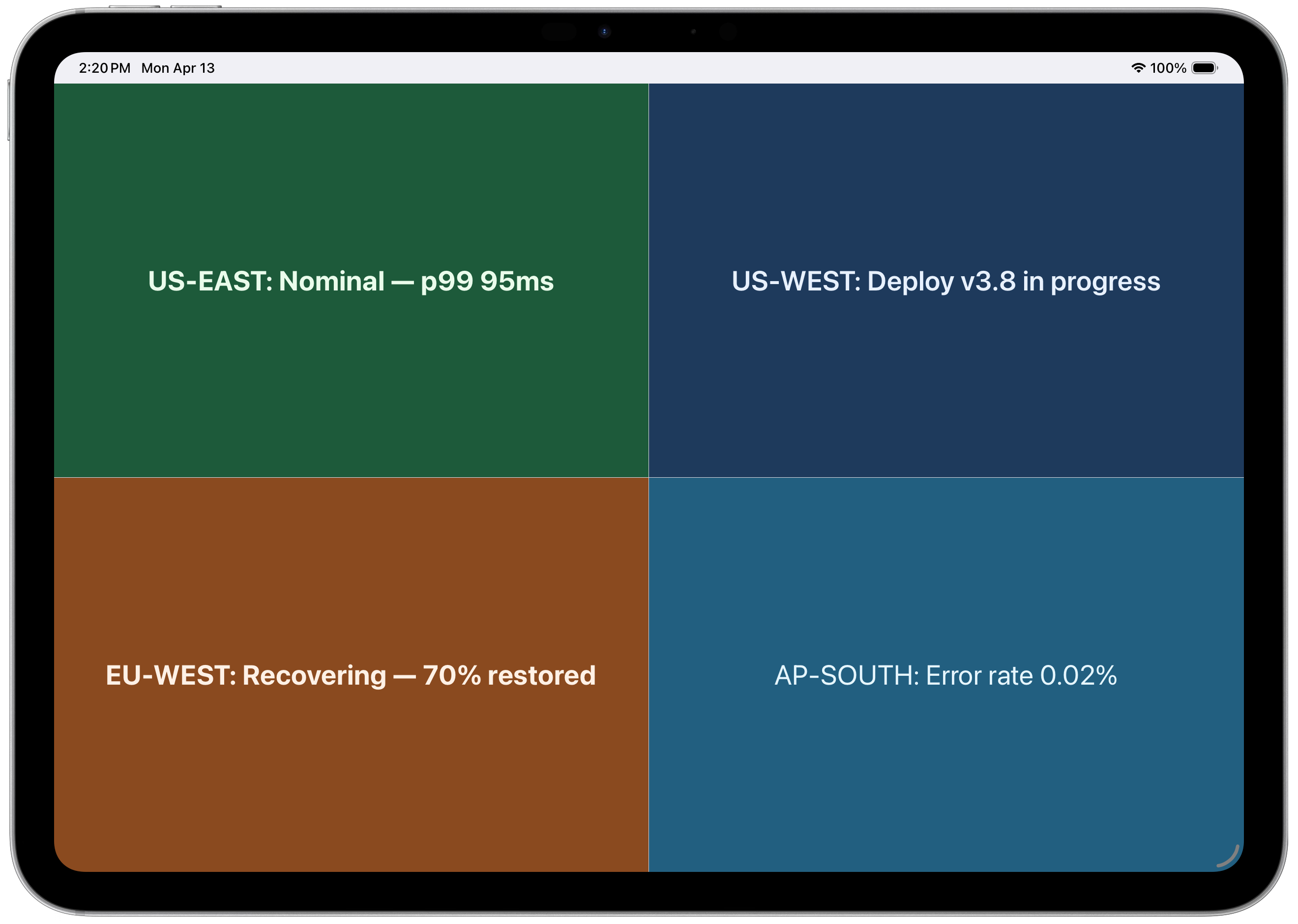
4パネルレイアウト — 地域別ステータスを一目で確認
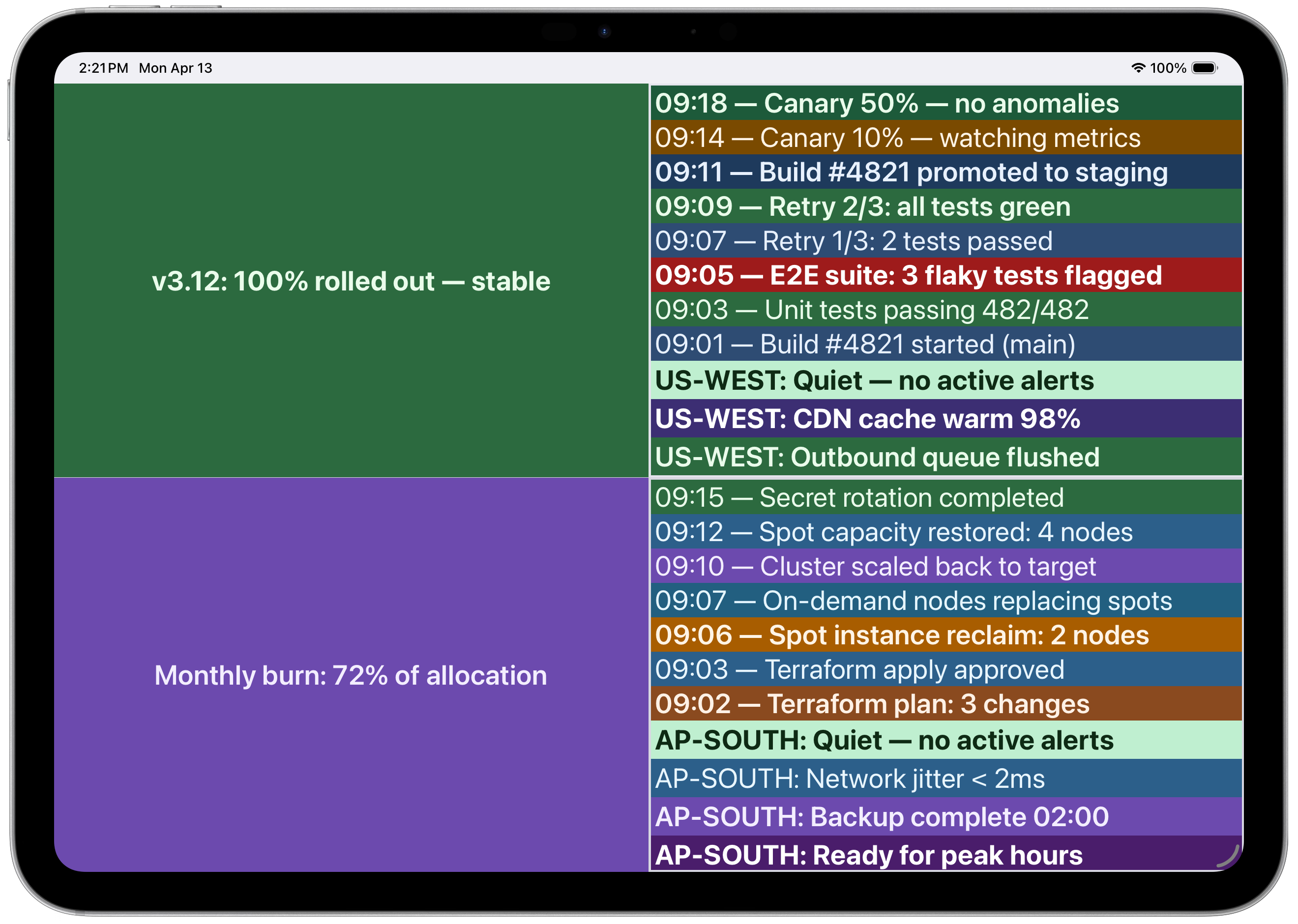 CI/CDパイプラインとインフラストラクチャのログを表示するマルチパネル
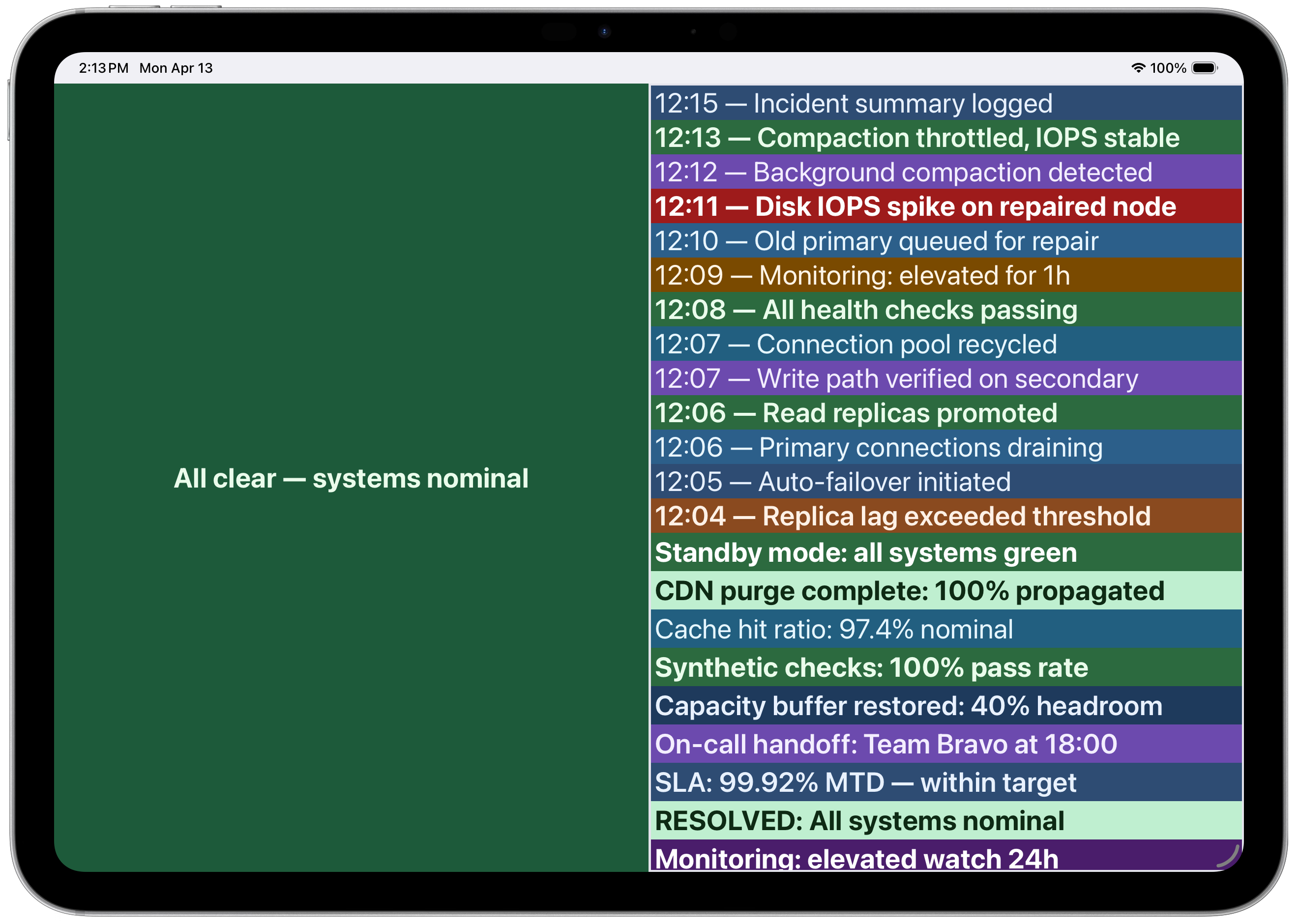 深刻度を色分けしたインシデントタイムライン
ライセンス
コメント
AI アプリケーションが外部のツールやデータソースに統一的な方法で接続するためのオープンなプロトコルです。クライアントはモデルとの対話を担い、MCP サーバーはツール・リソース・プロンプトテンプレートを提供します。標準メッセージでやり取りするため、1 つのサーバーを複数のクライアントで再利用できます。