
building-a-rich-text-editor-with-lit について
Building a Rich Text Editor with Litは、LitのWebコンポーネントでリッチテキストエディターを作るチュートリアルです。開発者向けに、プロジェクト設定からツールバー、コマンド処理、フォント検出までを扱います。
主な機能
- 01Lit Webコンポーネントの設定
- 02コントロールによるツールバー構築
- 03エディターコマンドのコールバック
- 04ブラウザーのフォント検出
- 05Viteを使った開発
活用シーン
- 01Litエディタープロジェクトの開始方法を学ぶ
- 02リッチテキスト用ツールバー操作の作成
- 03コントロールとドキュメントコマンドの連携
- 04文書で利用可能なフォントの確認
インストール
コマンドをコピーしてターミナルで実行します。
npx skills add https:/インストール後、Claude Code で/building-a-rich-text-editor-with-litを入力して読み込まれたか確認します。
詳細
Litでリッチテキストエディターを構築する
この記事では、Litのウェブコンポーネントを設定し、それを使ってリッチテキストエディターを作成する方法を説明します。
前提条件
- Vscode
- Node >= 16
- Typescript
はじめに
まず、ターミナルでプロジェクトの場所に移動し、次のコマンドを実行します。
npm init @vitejs/app --template lit-ts
次に、プロジェクト名としてlit-rich-text-editorを入力します。続いて、vscodeでプロジェクトを開き、依存関係をインストールします。
cd lit-rich-text-editor
npm i @material/mwc-icon-button
npm i -D @types/node
code .
vite.config.tsを次の内容に更新します。
import { defineConfig } from "vite";
import { resolve } from "path";

export default defineConfig({
  base: '/lit-rich-text-editor/',
  build: {
    lib: {
      entry: "src/lit-rich-text-editor.ts",
      formats: ["es"],
    },
    rollupOptions: {
      input: {
        main: resolve(__dirname, "index.html"),
      },
    },
  },
});
テンプレート
index.htmlを開き、次の内容に更新します。
<!DOCTYPE html>
<html lang="en">
  <head>
    <meta charset="UTF-8" />
    <link rel="icon" type="image/svg+xml" href="/src/favicon.svg" />
    <meta name="viewport" content="width=device-width, initial-scale=1.0" />
    <link
      href="https://fonts.googleapis.com/css?family=Material+Icons&display=block"
      rel="stylesheet"
    />
    <title>Lit Rich Text Editor</title>
    <script type="module" src="/src/lit-rich-text-editor.ts"></script>
    <style>
      body {
        padding: 0;
        margin: 0;
      }
      lit-rich-text-editor {
        --editor-width: 100%;
        --editor-height: 100vh;
      }
    </style>
  </head>
  <body>
    <lit-rich-text-editor>
     <template>
        <h1>Headline 1</h1>
        <p>This is a paragraph.</p>
        <p>
          <span style="background-color: rgb(255, 0, 0)"
            ><font color="#ffffff">Styled Text</font></span
          >
        </p>

        <p>
          Lorem ipsum dolor sit amet, consectetur adipiscing elit, sed do
          eiusmod tempor incididunt ut labore et dolore magna aliqua. Ut enim ad
          minim veniam, quis nostrud exercitation ullamco laboris nisi ut
          aliquip ex ea commodo consequat. Duis aute irure dolor in
          reprehenderit in voluptate velit esse cillum dolore eu fugiat nulla
          pariatur. Excepteur sint occaecat cupidatat non proident, sunt in
          culpa qui officia deserunt mollit anim id est laborum.
        </p>
      </template>
    </lit-rich-text-editor>
  </body>
</html>
重要なのは、bodyのパディングをなくすスタイルと、エディターがビューポート全体を占めるようにサイズを渡すCSSカスタムプロパティです。
lit-rich-text-editorタグの中には、レンダリングされないもののアクセス可能なHTMLを提供するため、スロットとして渡されるtemplateがあります。
また、後でエディター内で使用できるように、Material Iconsのインポートもあります。
エディター
次に作成するのはエディター本体です。src/lit-rich-text-editor.tsを開き、次の内容に更新します。
import { html, css, LitElement } from "lit";
import { customElement, property, state } from "lit/decorators.js";

import "@material/mwc-icon-button";

@customElement("lit-rich-text-editor")
export class LitRichTextEditor extends LitElement {
  @state() content: string = "";
  @state() root: Element | null = null;

  static styles = css`
    :host {
      --editor-width: 600px;
      --editor-height: 600px;
      --editor-background: #f1f1f1;
      --editor-toolbar-height: 33px;
      --editor-toolbar-background: black;
      --editor-toolbar-on-background: white;
      --editor-toolbar-on-active-background: #a4a4a4;
    }
    main {
      width: var(--editor-width);
      height: var(--editor-height);
      display: grid;
      grid-template-areas:
        "toolbar toolbar"
        "editor editor";
      grid-template-rows: var(--editor-toolbar-height) auto;
      grid-template-columns: auto auto;
    }
    #editor-actions {
      grid-area: toolbar;
      width: var(--editor-width);
      height: var(--editor-toolbar-height);
      background-color: var(--editor-toolbar-background);
      color: var(--editor-toolbar-on-background);
      overscroll-behavior: contain;
      overflow-y: auto;
      -ms-overflow-style: none;
      scrollbar-width: none;
    }
    #editor-actions::-webkit-scrollbar {
      display: none;
    }
    #editor {
      width: var(--editor-width);
      grid-area: editor;
      background-color: var(--editor-background);
    }
    #toolbar {
      width: 1090px;
      height: var(--editor-toolbar-height);
    }
    [contenteditable] {
      outline: 0px solid transparent;
    }
    #toolbar > mwc-icon-button {
      color: var(--editor-toolbar-on-background);
      --mdc-icon-size: 20px;
      --mdc-icon-button-size: 30px;
      cursor: pointer;
    }
    #toolbar > .active {
      color: var(--editor-toolbar-on-active-background);
    }
    select {
      margin-top: 5px;
      height: calc(var(--editor-toolbar-height) - 10px);
    }
    input[type="color"] {
      height: calc(var(--editor-toolbar-height) - 15px);
      -webkit-appearance: none;
      border: none;
      width: 22px;
    }
    input[type="color"]::-webkit-color-swatch-wrapper {
      padding: 0;
    }
    input[type="color"]::-webkit-color-swatch {
      border: none;
    }
  `;

  render() {
    return html`<main>
      <input id="bg" type="color" style="display:none" />
      <input id="fg" type="color" style="display:none" />
      <div id="editor-actions">
        <div id="toolbar">
        </div>
      </div>
      <div id="editor">${this.root}</div>
    </main> `;
  }

  async firstUpdated() {
    const elem = this.parentElement!.querySelector("lit-rich-text-editor template");
    this.content = elem?.innerHTML ?? "";
    this.reset();
  }

  reset() {
    const parser = new DOMParser();
    const doc = parser.parseFromString(this.content, "text/html");
    document.execCommand("defaultParagraphSeparator", false, "br");
    document.addEventListener("selectionchange", () => {
      this.requestUpdate();
    });
    const root = doc.querySelector("body");
    root!.setAttribute("contenteditable", "true");
    this.root = root;
  }

}
すべて更新したら、npm run devを実行します。ブラウザーに次のように表示されます。

まだ特別な動作はありませんが、テンプレートが読み込まれて要素に渡され、解析されたうえで、contenteditable属性がtrueに設定されます。
これは、スロットにアクセスし、レンダリングには使わないデータをノードに保持する方法です。この方法を使うと、HTMLソースを利用可能な形式に変換できます。
ツールバー
クラスの最後の}の前に、次の内容を追加します。
renderToolbar(command: (c: string, val: string | undefined) => void) {
    // TODO: Selection does not work on Safari iOS
    const selection = this.shadowRoot?.getSelection
      ? this.shadowRoot!.getSelection()
      : null;
    const tags: string[] = [];
    if (selection?.type === "Range") {
      // @ts-ignore
      let parentNode = selection?.baseNode;
      if (parentNode) {
        const checkNode = () => {
          const parentTagName = parentNode?.tagName?.toLowerCase()?.trim();
          if (parentTagName) tags.push(parentTagName);
        };
        while (parentNode != null) {
          checkNode();
          parentNode = parentNode?.parentNode;
        }
      }
    }

    const commands: {
      icon: string;
      command: string | (() => void);
      active?: boolean;
      type?: string;
      values?: { value: string; name: string; font?: boolean }[];
      command_value?: string;
    }[] = [
      {
        icon: "format_clear",
        command: "removeFormat",
      },

      {
        icon: "format_bold",
        command: "bold",
        active: tags.includes("b"),
      },
      {
        icon: "format_italic",
        command: "italic",
        active: tags.includes("i"),
      },
      {
        icon: "format_underlined",
        command: "underline",
        active: tags.includes("u"),
      },
      {
        icon: "format_align_left",
        command: "justifyleft",
      },
      {
        icon: "format_align_center",
        command: "justifycenter",
      },
      {
        icon: "format_align_right",
        command: "justifyright",
      },
      {
        icon: "format_list_numbered",
        command: "insertorderedlist",
        active: tags.includes("ol"),
      },
      {
        icon: "format_list_bulleted",
        command: "insertunorderedlist",
        active: tags.includes("ul"),
      },
      {
        icon: "format_quote",
        command: "formatblock",
        command_value: "blockquote",
      },
      {
        icon: "format_indent_decrease",
        command: "outdent",
      },
      {
        icon: "format_indent_increase",
        command: "indent",
      },

      {
        icon: "add_link",
        command: () => {
          const newLink = prompt("Write the URL here", "http://");
          if (newLink && newLink != "" && newLink != "http://") {
            command("createlink", newLink);
          }
        },
      },
      { icon: "link_off", command: "unlink" },
      {
        icon: "format_color_text",
        command: () => {
          const input = this.shadowRoot!.querySelector(
            "#fg"
          )! as HTMLInputElement;
          input.addEventListener("input", (e: any) => {
            const val = e.target.value;
            command("forecolor", val);
          });
          input.click();
        },
        type: "color",
      },
      {
        icon: "border_color",
        command: () => {
          const input = this.shadowRoot!.querySelector(
            "#bg"
          )! as HTMLInputElement;
          input.addEventListener("input", (e: any) => {
            const val = e.target.value;
            command("backcolor", val);
          });
          input.click();
        },
        type: "color",
      },
      {
        icon: "title",
        command: "formatblock",
        values: [
          { name: "Normal Text", value: "--" },
          { name: "Heading 1", value: "h1" },
          { name: "Heading 2", value: "h2" },
          { name: "Heading 3", value: "h3" },
          { name: "Heading 4", value: "h4" },
          { name: "Heading 5", value: "h5" },
          { name: "Heading 6", value: "h6" },
          { name: "Paragraph", value: "p" },
          { name: "Pre-Formatted", value: "pre" },
        ],
      },
      {
        icon: "text_format",
        command: "fontname",
        values: [
          { name: "Font Name", value: "--" },
          ...[...checkFonts()].map((f) => ({
            name: f,
            value: f,
            font: true,
          })),
        ],
      },
      {
        icon: "format_size",
        command: "fontsize",
        values: [
          { name: "Font Size", value: "--" },
          { name: "Very Small", value: "1" },
          { name: "Small", value: "2" },
          { name: "Normal", value: "3" },
          { name: "Medium Large", value: "4" },
          { name: "Large", value: "5" },
          { name: "Very Large", value: "6" },
          { name: "Maximum", value: "7" },
        ],
      },
      {
        icon: "undo",
        command: "undo",
      },
      {
        icon: "redo",
        command: "redo",
      },
      {
        icon: "content_cut",
        command: "cut",
      },
      {
        icon: "content_copy",
        command: "copy",
      },
      {
        icon: "content_paste",
        command: "paste",
      },
    ];

    return html`
      ${commands.map((n) => {
        return html`
          ${n.values
            ? html` <select
                id="${n.icon}"
                @change=${(e: any) => {
                  const val = e.target.value;
                  if (val === "--") {
                    command("removeFormat", undefined);
                  } else if (typeof n.command === "string") {
                    command(n.command, val);
                  }
                }}
              >
                ${n.values.map(
                  (v) => html` <option value=${v.value}>${v.name}</option>`
                )}
              </select>`
            : html` <mwc-icon-button
                icon="${n.icon}"
                class="${n.active ? "active" : "inactive"}"
                @click=${() => {
                  if (n.values) {
                  } else if (typeof n.command === "string") {
                    command(n.command, n.command_value);
                  } else {
                    n.command();
                  }
                }}
              ></mwc-icon-button>`}
        `;
      })}
    `;
}
ここではオブジェクトの配列を受け取り、渡された値に応じてmwc-icon-buttonまたはselectにマッピングできます。また、イベントリスナーを設定し、指定されたアクションのコマンドを実行します。
<div id="toolbar">タグの中に、次の内容を追加します。
${this.renderToolbar((command, val) => {
    document.execCommand(command, false, val);
    console.log("command", command, val);
})}
これによりコールバックを監視し、ドキュメントに対してコマンドを実行して、コンソールに記録します。
最後に、ファイルの末尾に次の内容を追加します。
export function checkFonts(): string[] {
  const fontCheck = new Set(
    [
      // Windows 10
      "Arial",
      "Arial Black",
      "Bahnschrift",
      "Calibri",
      "Cambria",
      "Cambria Math",
      "Candara",
      "Comic Sans MS",
      "Consolas",
      "Constantia",
      "Corbel",
      "Courier New",
      "Ebrima",
      "Franklin Gothic Medium",
      "Gabriola",
      "Gadugi",
      "Georgia",
      "HoloLens MDL2 Assets",
      "Impact",
      "Ink Free",
      "Javanese Text",
      "Leelawadee UI",
      "Lucida Console",
      "Lucida Sans Unicode",
      "Malgun Gothic",
      "Marlett",
      "Microsoft Himalaya",
      "Microsoft JhengHei",
      "Microsoft New Tai Lue",
      "Microsoft PhagsPa",
      "Microsoft Sans Serif",
      "Microsoft Tai Le",
      "Microsoft YaHei",
      "Microsoft Yi Baiti",
      "MingLiU-ExtB",
      "Mongolian Baiti",
      "MS Gothic",
      "MV Boli",
      "Myanmar Text",
      "Nirmala UI",
      "Palatino Linotype",
      "Segoe MDL2 Assets",
      "Segoe Print",
      "Segoe Script",
      "Segoe UI",
      "Segoe UI Historic",
      "Segoe UI Emoji",
      "Segoe UI Symbol",
      "SimSun",
      "Sitka",
      "Sylfaen",
      "Symbol",
      "Tahoma",
      "Times New Roman",
      "Trebuchet MS",
      "Verdana",
      "Webdings",
      "Wingdings",
      "Yu Gothic",
      // macOS
      "American Typewriter",
      "Andale Mono",
      "Arial",
      "Arial Black",
      "Arial Narrow",
      "Arial Rounded MT Bold",
      "Arial Unicode MS",
      "Avenir",
      "Avenir Next",
      "Avenir Next Condensed",
      "Baskerville",
      "Big Caslon",
      "Bodoni 72",
      "Bodoni 72 Oldstyle",
      "Bodoni 72 Smallcaps",
      "Bradley Hand",
      "Brush Script MT",
      "Chalkboard",
      "Chalkboard SE",
      "Chalkduster",
      "Charter",
      "Cochin",
      "Comic Sans MS",
      "Copperplate",
      "Courier",
      "Courier New",
      "Didot",
      "DIN Alternate",
      "DIN Condensed",
      "Futura",
      "Geneva",
      "Georgia",
      "Gill Sans",
      "Helvetica",
      "Helvetica Neue",
      "Herculanum",
      "Hoefler Text",
      "Impact",
      "Lucida Grande",
      "Luminari",
      "Marker Felt",
      "Menlo",
      "Microsoft Sans Serif",
      "Monaco",
      "Noteworthy",
      "Optima",
      "Palatino",
      "Papyrus",
      "Phosphate",
      "Rockwell",
      "Savoye LET",
      "SignPainter",
      "Skia",
      "Snell Roundhand",
      "Tahoma",
      "Times",
      "Times New Roman",
      "Trattatello",
      "Trebuchet MS",
      "Verdana",
      "Zapfino",
    ].sort()
  );
  const fontAvailable = new Set<string>();
  // @ts-ignore
  for (const font of fontCheck.values()) {
    // @ts-ignore
    if (document.fonts.check(`12px "${font}"`)) {
      fontAvailable.add(font);
    }
  }
  // @ts-ignore
  return fontAvailable.values();
}
こちらの素晴らしい提案に従い、ブラウザーと指定されたドキュメントで利用可能なフォントをすべて確認します。
実行
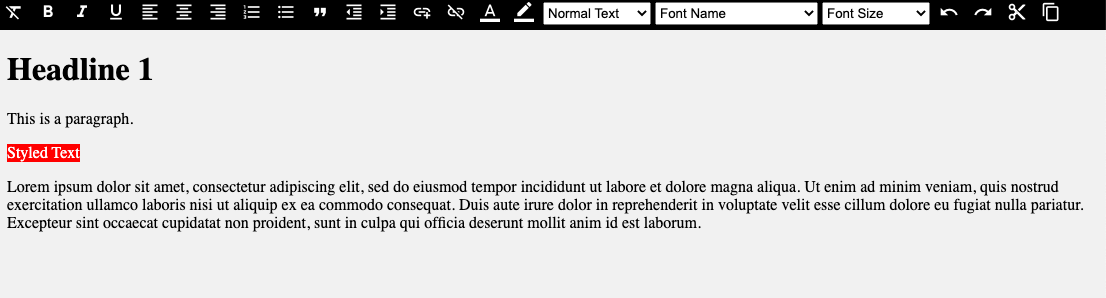
問題がなければ、npm run devを実行すると、ビューポートに次のように表示されます。
まとめ
Litでの構築について詳しく知りたい場合は、こちらのドキュメントをお読みください。
この例のソースはこちらで確認できます。