
host-your-flutter-project-as-a-rest-api について
FlutterとDartの開発者向けに、FlutterプロジェクトのモデルとビジネスロジックをREST APIで提供する方法を解説するチュートリアルです。クライアントとサーバーでコードを共有し、Dockerを使ってGoogle Cloud Runにデプロイする構成を紹介します。
主な機能
- 01Dartのモデルとビジネスロジックを共有
- 02shelfでRESTエンドポイントを提供
- 03コントローラーへリクエストをルーティング
- 04形式を統一したJSONレスポンスを返す
- 05Google Cloud Run向けのDocker構成を準備
活用シーン
- 01REST API経由でFlutterのモデルを公開
- 02クライアントとサーバーのロジックを同期
- 03Flutter widgetsなしで共有Dartロジックを実行
インストール
コマンドをコピーしてターミナルで実行します。
npx skills add https:/インストール後、Claude Code で/host-your-flutter-project-as-a-rest-apiを入力して読み込まれたか確認します。
詳細
Flutter プロジェクトを REST API としてホストする
Flutter プロジェクトをビルドした後、lib フォルダーのモデルとビジネスロジックを再利用したいと思うかもしれません。1 つのプロジェクトで、iOS、Android、Web、Windows、MacOS、Linux と REST API インターフェースを利用できるよう、プロジェクトを設定する方法を説明します。REST API は Google Cloud Run にデプロイして、どこでも Dart を使えるようにすることもできます。

クライアントとサーバーで 1 つのコードベース。
これにより、Dart モデルを REST API として公開し、アプリケーションの実行中もモデルをそのまま使いながら、lib フォルダーのビジネスロジックを実行できます。最終的なプロジェクトはこちらです。
セットアップ
他の Flutter プロジェクトと同様に、すでにマシンにFlutterがインストールされており、プロジェクトを作成できることを前提とします。これは中級レベルの難易度なので、挑戦する準備ができている方は読み進めてください。また、Dockerの基本を理解している必要があります。
1 つのプロジェクトにする理由
複雑なアプリケーションを構築すると、いずれサーバーと、そのサーバーを呼び出すアプリケーションが必要になることは、すぐには分からないかもしれません。Firebaseはこれを実現する優れた選択肢で、私もほぼすべてのプロジェクトで使っています。Firebase Functionsは非常に強力ですが、Javascript または Typescript に制限されます。Flutter プロジェクトで使っているものと同じパッケージを使えたらどうでしょうか。さらに言えば、両方で同じものを使えたらどうでしょうか。

サーバープロジェクトとクライアントプロジェクトがあり、REST API や Firebase などのクライアント SDK 経由で通信する場合、サーバーとクライアントそれぞれに、保存されたオブジェクトのモデルが存在するという問題が生じます。知らないうちに変更されると、深刻な不一致につながる可能性があります。GraphQL では受信するモデルを定義するため、この問題を大きく軽減できます。このアプローチなら、クライアントとサーバーの両方でビジネスロジックを常に最新の状態に保てます。
クライアントのセットアップ
最初の手順は、アプリケーションをビルドすることです。唯一変更するのは、UI とビジネスロジックを分離することです。Flutter を始めたばかりの頃は、すべてのロジックを画面に詰め込み、データが変わるたびに setState を呼び出してしまいがちです。新しい Flutter プロジェクトを作成した場合でも、アプリケーションはこのようになっています。そのため、状態管理ソリューションの選択が非常に重要です。
コードをすっきりと簡潔にするため、lib フォルダーに 2 つのフォルダーを作成します。
-
すべての Flutter ウィジェットと画面用の ui
-
すべてのビジネスロジック、クラス、モデル、ユーティリティ関数用の src
これにより、main.dart はクライアントアプリケーションのエントリーポイントだけになります。
import 'package:flutter/material.dart';

import 'plugins/desktop/desktop.dart';
import 'ui/home/screen.dart';

void main() {
  runApp(MyApp());
}

class MyApp extends StatelessWidget {
  @override
  Widget build(BuildContext context) {
    return MaterialApp(
      title: 'Flutter Demo',
      theme: ThemeData.light(),
      darkTheme: ThemeData.dark(),
      home: HomeScreen(),
    );
  }
}
まず、2 つの画面用にタブバーを作成しましょう。ui/home/screen.dart ファイルを作成し、次の内容を追加します。
import 'package:flutter/material.dart';

import '../counter/screen.dart';
import '../todo/screen.dart';

class HomeScreen extends StatefulWidget {
  @override
  _HomeScreenState createState() => _HomeScreenState();
}

class _HomeScreenState extends State<HomeScreen> {
  int _currentIndex = 0;

@override
  Widget build(BuildContext context) {
    return Scaffold(
      body: IndexedStack(
        index: _currentIndex,
        children: <Widget>[
          CounterScreen(),
          TodosScreen(),
        ],
      ),
      bottomNavigationBar: BottomNavigationBar(
        currentIndex: _currentIndex,
        onTap: (val) {
          if (mounted)
            setState(() {
              _currentIndex = val;
            });
        },
        type: BottomNavigationBarType.fixed,
        items: [
          BottomNavigationBarItem(
            icon: Icon(Icons.add),
            title: Text('Counter'),
          ),
          BottomNavigationBarItem(
            icon: Icon(Icons.list),
            title: Text('Todos'),
          ),
        ],
      ),
    );
  }
}
これは基本的な画面なので、ごく一般的な見た目になるはずです。
カウンターの例
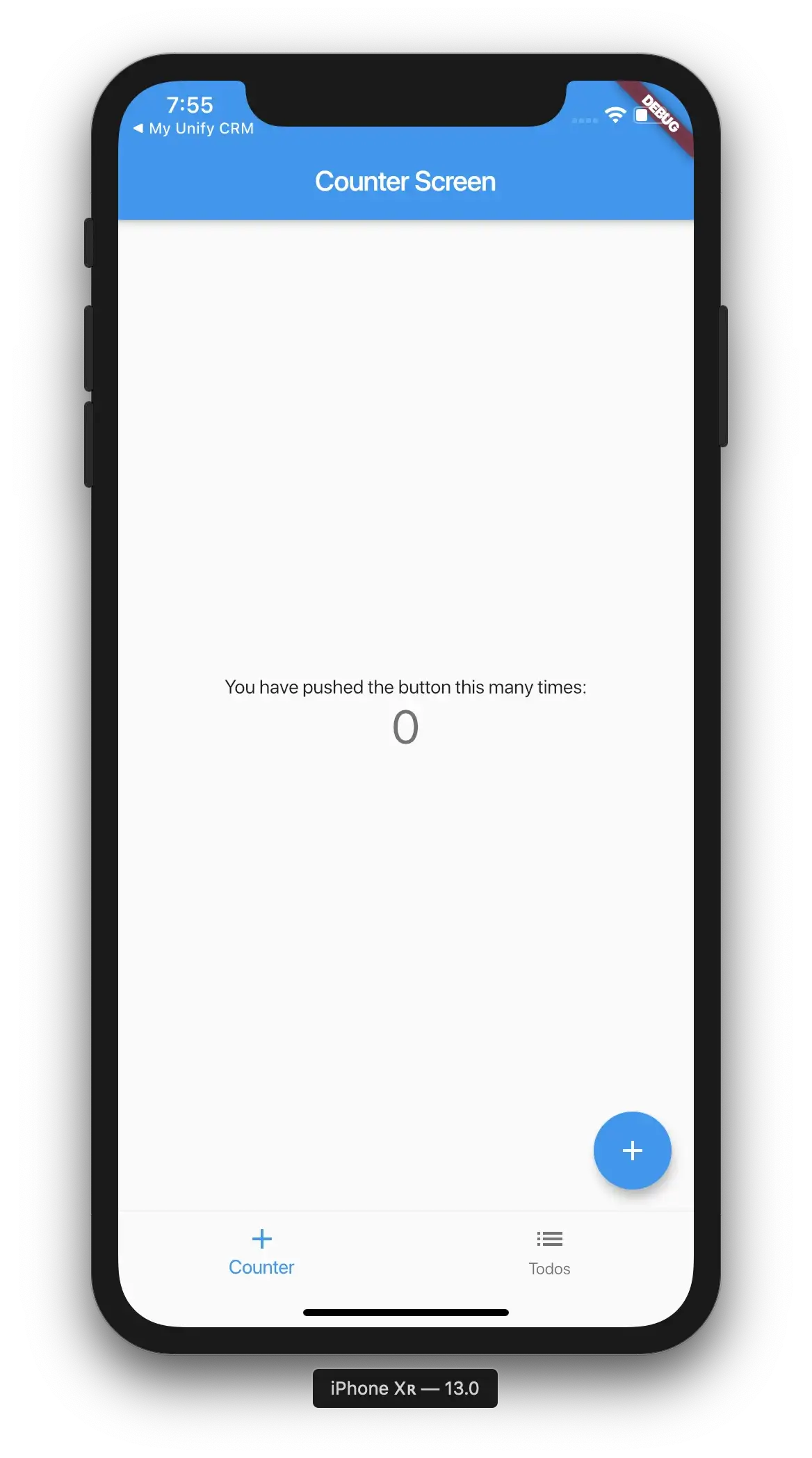
次に、ui/counter/screen.dart ファイルを作成し、次の内容を追加します。
import 'package:flutter/material.dart';
import 'package:shared_dart/src/models/counter.dart';

class CounterScreen extends StatefulWidget {
  @override
  _CounterScreenState createState() => _CounterScreenState();
}

class _CounterScreenState extends State<CounterScreen> {
  CounterModel _counterModel = CounterModel();

void _incrementCounter() {
    setState(() {
      // This call to setState tells the Flutter framework that something has
      // changed in this State, which causes it to rerun the build method below
      // so that the display can reflect the updated values. If we changed
      // _counter without calling setState(), then the build method would not be
      // called again, and so nothing would appear to happen.
      _counterModel.add();
    });
  }

@override
  Widget build(BuildContext context) {
    // This method is rerun every time setState is called, for instance as done
    // by the _incrementCounter method above.
    //
    // The Flutter framework has been optimized to make rerunning build methods
    // fast, so that you can just rebuild anything that needs updating rather
    // than having to individually change instances of widgets.
    return Scaffold(
      appBar: AppBar(
        // Here we take the value from the MyCounterPage object that was created by
        // the App.build method, and use it to set our appbar title.
        title: Text('Counter Screen'),
      ),
      body: Center(
        // Center is a layout widget. It takes a single child and positions it
        // in the middle of the parent.
        child: Column(
          // Column is also a layout widget. It takes a list of children and
          // arranges them vertically. By default, it sizes itself to fit its
          // children horizontally, and tries to be as tall as its parent.
          //
          // Invoke "debug painting" (press "p" in the console, choose the
          // "Toggle Debug Paint" action from the Flutter Inspector in Android
          // Studio, or the "Toggle Debug Paint" command in Visual Studio Code)
          // to see the wireframe for each widget.
          //
          // Column has various properties to control how it sizes itself and
          // how it positions its children. Here we use mainAxisAlignment to
          // center the children vertically; the main axis here is the vertical
          // axis because Columns are vertical (the cross axis would be
          // horizontal).
          mainAxisAlignment: MainAxisAlignment.center,
          children: <Widget>[
            Text(
              'You have pushed the button this many times:',
            ),
            Text(
              '${_counterModel.count}',
              style: Theme.of(context).textTheme.display1,
            ),
          ],
        ),
      ),
      floatingActionButton: FloatingActionButton(
        onPressed: _incrementCounter,
        tooltip: 'Increment',
        child: Icon(Icons.add),
      ), // This trailing comma makes auto-formatting nicer for build methods.
    );
  }
}
これは Flutter アプリケーションを作成するときに用意されるデフォルトのカウンターアプリですが、1 つだけ変更点があります。ロジックを保持するために CounterModel を使っています。
src/models/counter.dart にカウンターモデルを作成し、次の内容を追加します。
class CounterModel {
  CounterModel();

  int _count = 0;

  int get count => _count;

  void add() => _count++;

  void subtract() => _count--;

  void set(int val) => _count = val;
}
ご覧のとおり、柔軟性を完全に保ちながら、必要なものだけを簡単に公開できます。ここでは provider を使ってもよいですし、bloc やストリームを使うこともできます。
ToDo の例

ui/todos/screen.dart にファイルを作成し、次の内容を追加しましょう。
import 'package:flutter/material.dart';

import '../../src/classes/todo.dart';
import '../../src/models/todos.dart';

class TodosScreen extends StatefulWidget {
  @override
  _TodosScreenState createState() => _TodosScreenState();
}

class _TodosScreenState extends State<TodosScreen> {
  final _model = TodosModel();
  List<ToDo> _todos;

@override
  void initState() {
    _model.getList().then((val) {
      if (mounted)
        setState(() {
          _todos = val;
        });
    });
    super.initState();
  }

@override
  Widget build(BuildContext context) {
    return Scaffold(
      appBar: AppBar(
        title: Text('Todos Screen'),
      ),
      body: Builder(
        builder: (_) {
          if (_todos != null) {
            return ListView.builder(
              itemCount: _todos.length,
              itemBuilder: (context, index) {
                final _item = _todos[index];
                return ListTile(
                  title: Text(_item.title),
                  subtitle: Text(_item.completed ? 'Completed' : 'Pending'),
                );
              },
            );
          }
          return Center(
            child: CircularProgressIndicator(),
          );
        },
      ),
    );
  }
}
TodosModel にロジックがあり、toJson と fromJson には ToDo クラスを使用していることがわかります。
src/classes/todo.dart にファイルを作成し、次の内容を追加します。
// To parse this JSON data, do
//
//     final toDo = toDoFromJson(jsonString);

import 'dart:convert';

List<ToDo> toDoFromJson(String str) => List<ToDo>.from(json.decode(str).map((x) => ToDo.fromJson(x)));

String toDoToJson(List<ToDo> data) => json.encode(List<dynamic>.from(data.map((x) => x.toJson())));

class ToDo {
    int userId;
    int id;
    String title;
    bool completed;

ToDo({
        this.userId,
        this.id,
        this.title,
        this.completed,
    });

factory ToDo.fromJson(Map<String, dynamic> json) => ToDo(
        userId: json["userId"],
        id: json["id"],
        title: json["title"],
        completed: json["completed"],
    );

Map<String, dynamic> toJson() => {
        "userId": userId,
        "id": id,
        "title": title,
        "completed": completed,
    };
}
そして、モデル src/models/todo.dart を作成し、次の内容を追加します。
import 'dart:convert';

import 'package:http/http.dart' as http;
import 'package:shared_dart/src/classes/todo.dart' as t;

class TodosModel {
  final kTodosUrl = '[https://jsonplaceholder.typicode.com/todos'](https://jsonplaceholder.typicode.com/todos');

Future<List<t.ToDo>> getList() async {
    final _response = await http.get(kTodosUrl);
    if (_response != null) {
      final _todos = t.toDoFromJson(_response.body);
      if (_todos != null) {
        return _todos;
      }
    }
    return [];
  }

Future<t.ToDo> getItem(int id) async {
    final _response = await http.get('$kTodosUrl/$id');
    if (_response != null) {
      final _todo = t.ToDo.fromJson(json.decode(_response.body));
      if (_todo != null) {
        return _todo;
      }
    }
    return null;
  }
}
ここでは、json を返す URL からダミーデータを取得し、クラスに変換しています。これは、ネットワーク通信の例として紹介したいものです。データを取得する場所は 1 つだけです。
プロジェクトを実行する(Web)
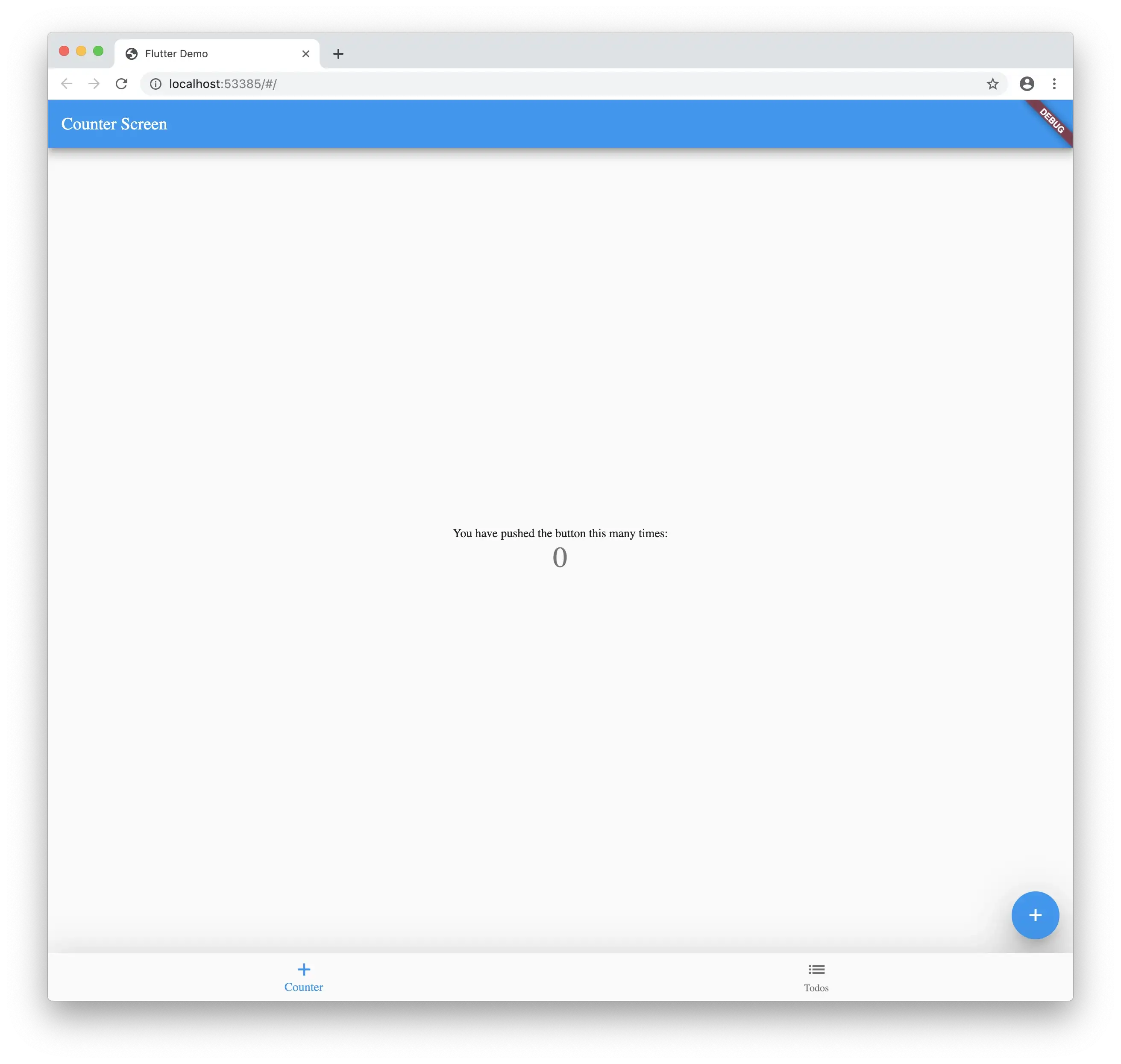
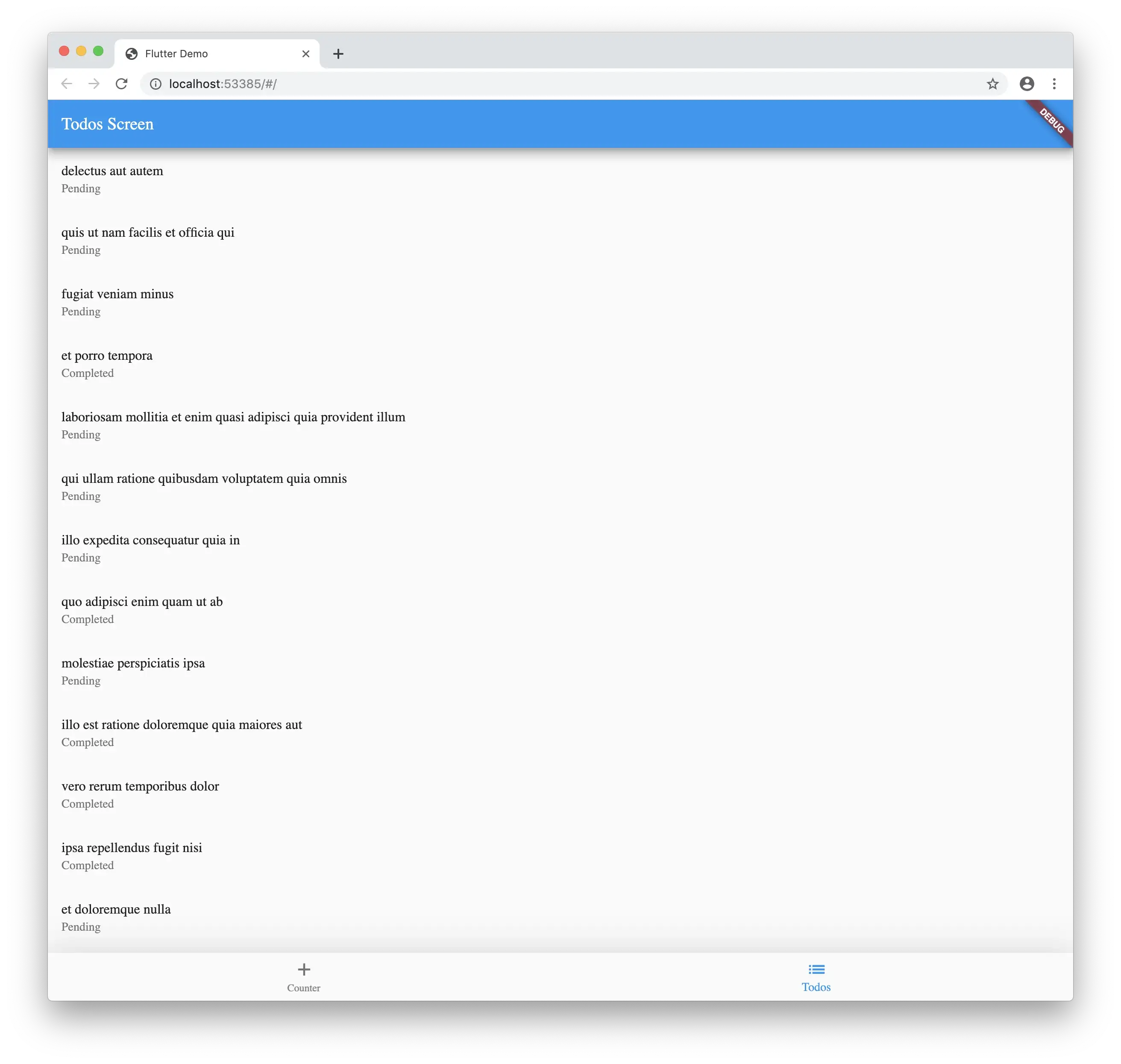
ご覧のとおり、Chrome でプロジェクトを実行すると、モバイルで表示したものと同じアプリケーションが表示されます。Web でもネットワーク通信が機能しています。期待どおり、モデルを呼び出してリストを取得できます。
サーバーのセットアップ
いよいよ、魔法の時間です……
プロジェクトフォルダーのルートに Dockerfile というファイルを作成し、次の内容を追加します。
# Use Google's official Dart image.
# [https://hub.docker.com/r/google/dart-runtime/](https://hub.docker.com/r/google/dart-runtime/)
FROM google/dart-runtime
ルートに service.yaml という別のファイルを作成し、次の内容を追加します。
apiVersion: serving.knative.dev/v1
    kind: Service
    metadata:
      name: PROJECT_NAME
      namespace: default
    spec:
      template:
        spec:
          containers:
            - image: docker.io/YOUR_DOCKER_NAME/PROJECT_NAME
              env:
                - name: TARGET
                  value: "PROJECT_NAME v1"
PROJECT_NAME をプロジェクト名に置き換えます。この例では shared-dart を使用します。
コンテナーを正しくデプロイできるように、YOUR_DOCKER_NAME も Docker のユーザー名に置き換える必要があります。
pubspec.yaml を次の内容で更新します。
name: shared_dart
description: A new Flutter project.
publish_to: none
version: 1.0.0+1

environment:
  sdk: ">=2.1.0 <3.0.0"

dependencies:
  flutter:
    sdk: flutter
  shelf: ^0.7.3
  cupertino_icons: ^0.1.2
  http: ^0.12.0+2

dev_dependencies:
  flutter_test:
    sdk: flutter

flutter:
  uses-material-design: true
ここで重要なパッケージは shelf です。Dart で HTTP サーバーを実行できるようにします。
プロジェクトのルートに bin フォルダーを作成し、その中に server.dart ファイルを追加して、次の内容に置き換えます。
import 'dart:io';

import 'package:shelf/shelf.dart' as shelf;
import 'package:shelf/shelf_io.dart' as io;

import 'src/routing.dart';

void main() {
  final handler = const shelf.Pipeline()
      .addMiddleware(shelf.logRequests())
      .addHandler(RouteUtils.handler);

final port = int.tryParse(Platform.environment['PORT'] ?? '8080');
  final address = InternetAddress.anyIPv4;

io.serve(handler, address, port).then((server) {
    server.autoCompress = true;
    print('Serving at [http://${server.address.host}:${server.port}'](http://${server.address.host}:${server.port}'));
  });
}
これにより、コンテナーが待ち受けるポートとリクエストの処理方法を指定します。
bin フォルダー内に src フォルダーを作成し、その中に routing.dart ファイルを追加して、内容を次のように置き換えます。
import 'dart:async';

import 'package:shelf/shelf.dart' as shelf;

import 'controllers/index.dart';
import 'result.dart';

class RouteUtils {
  static FutureOr<shelf.Response> handler(shelf.Request request) {
    var component = request.url.pathSegments.first;
    var handler = _handlers(request)[component];
    if (handler == null) return shelf.Response.notFound(null);
    return handler;
  }

static Map<String, FutureOr<shelf.Response>> _handlers(
      shelf.Request request) {
    return {
      'info': ServerResponse('Info', body: {
        "version": 'v1.0.0',
        "status": "ok",
      }).ok(),
      'counter': CounterController().result(request),
      'todos': TodoController().result(request),
    };
  }
}
まだメインプロジェクトからインポートしているものはありませんが、いくつか共通点が見えてくるでしょう。ここでは、todos と counter の URL パスに対応するコントローラーを指定しています。
'counter': CounterController().result(request),
'todos': TodoController().result(request),
つまり、次のような URL はすべて、リクエストを処理するために TodoController にルーティングされます。https://mydomain.com/todos , https://mydomain.com/todos/1
FutureOr について知ったのも、このときが初めてでした。同期関数または非同期関数を返せるようになります。
REST API の構築で重要なのは、レスポンスボディに一貫性を持たせることです。ここでは、呼び出しのステータス、メッセージ、ボディなど、常に返したいフィールドを追加するラッパーを作成できます。
src/result.dart にファイルを作成し、次の内容を追加します。
import 'dart:convert';

import 'package:shelf/shelf.dart' as shelf;

class ServerResponse {
  final String message;
  final dynamic body;
  final StatusType type;

ServerResponse(
    this.message, {
    this.type = StatusType.success,
    this.body,
  });

Map<String, dynamic> toJson() {
    return {
      "status": type.toString().replaceAll('StatusType.', ''),
      "message": message,
      "body": body ?? '',
    };
  }

String toJsonString() {
    return json.encode(toJson());
  }

shelf.Response ok() {
    return shelf.Response.ok(
      toJsonString(),
      headers: {
        'Content-Type': 'application/json',
      },
    );
  }
}

enum StatusType { success, error }

abstract class ResponseImpl {
  Future<shelf.Response> result(shelf.Request request);
}
これにより、常に JSON と、表示したいフィールドが返されます。ここにページネーションのメタデータを含めることもできます。
src/controllers/counter.dart にファイルを作成し、次の内容を追加します。
import 'package:shared_dart/src/models/counter.dart';
import 'package:shelf/shelf.dart' as shelf;

import '../result.dart';

class CounterController implements ResponseImpl {
  const CounterController();

@override
  Future<shelf.Response> result(shelf.Request request) async {
    final _model = CounterModel();
    final _params = request.url.queryParameters;
    if (_params != null) {
      final _val = int.tryParse(_params['count'] ?? '0');
      _model.set(_val);
    } else {
      _model.add();
    }
    return ServerResponse('Info', body: {
      "counter": _model.count,
    }).ok();
  }
}
プロジェクトのルートにある lib フォルダーをインポートしていることがわかります。pubspec.yaml を共有しているため、すべてのパッケージを共有できます。先ほど作成した CounterModel をインポートできます。
src/controllers/todos.dart にファイルを作成し、次の内容を追加します。
import 'package:shared_dart/src/models/todos.dart';
import 'package:shelf/src/request.dart';

import 'package:shelf/src/response.dart';

import '../result.dart';

class TodoController implements ResponseImpl {
  @override
  Future<Response> result(Request request) async {
    final _model = TodosModel();
    if (request.url.pathSegments.length > 1) {
      final _id = int.tryParse(request.url.pathSegments[1] ?? '1');
      final _todo = await _model.getItem(_id);
      return ServerResponse('Todo Item', body: _todo).ok();
    }
    final _todos = await _model.getList();
    return ServerResponse(
      'List Todos',
      body: _todos.map((t) => t.toJson()).toList(),
    ).ok();
  }
}
先ほどと同様に、lib フォルダーから TodosModel モデルをインポートしています。
便利に使えるよう、src/controllers/index.dart にファイルを作成し、次の内容を追加します。
export 'counter.dart';
export 'todo.dart';
これにより、すべてのコントローラーを簡単にインポートできるようになります。
プロジェクト(サーバー)を実行する
VSCode を使用している場合は、次の内容で launch.json を更新する必要があります。
{
    // Use IntelliSense to learn about possible attributes.
    // Hover to view descriptions of existing attributes.
    // For more information, visit: [https://go.microsoft.com/fwlink/?linkid=830387](https://go.microsoft.com/fwlink/?linkid=830387)
    "version": "0.2.0",
    "configurations": [
        {
            "name": "Client",
            "request": "launch",
            "type": "dart",
            "program": "lib/main.dart"
        },
          {
            "name": "Server",
            "request": "launch",
            "type": "dart",
            "program": "bin/server.dart"
        }
    ]
}
Server を選択して実行すると、次のように出力が表示されます。
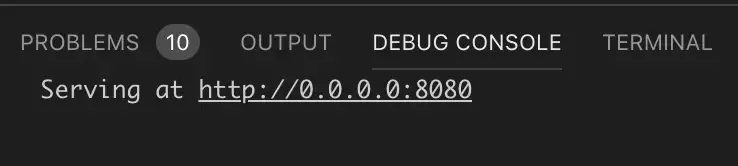
ブラウザーで開くこともできますが、Postman で操作することもできます。
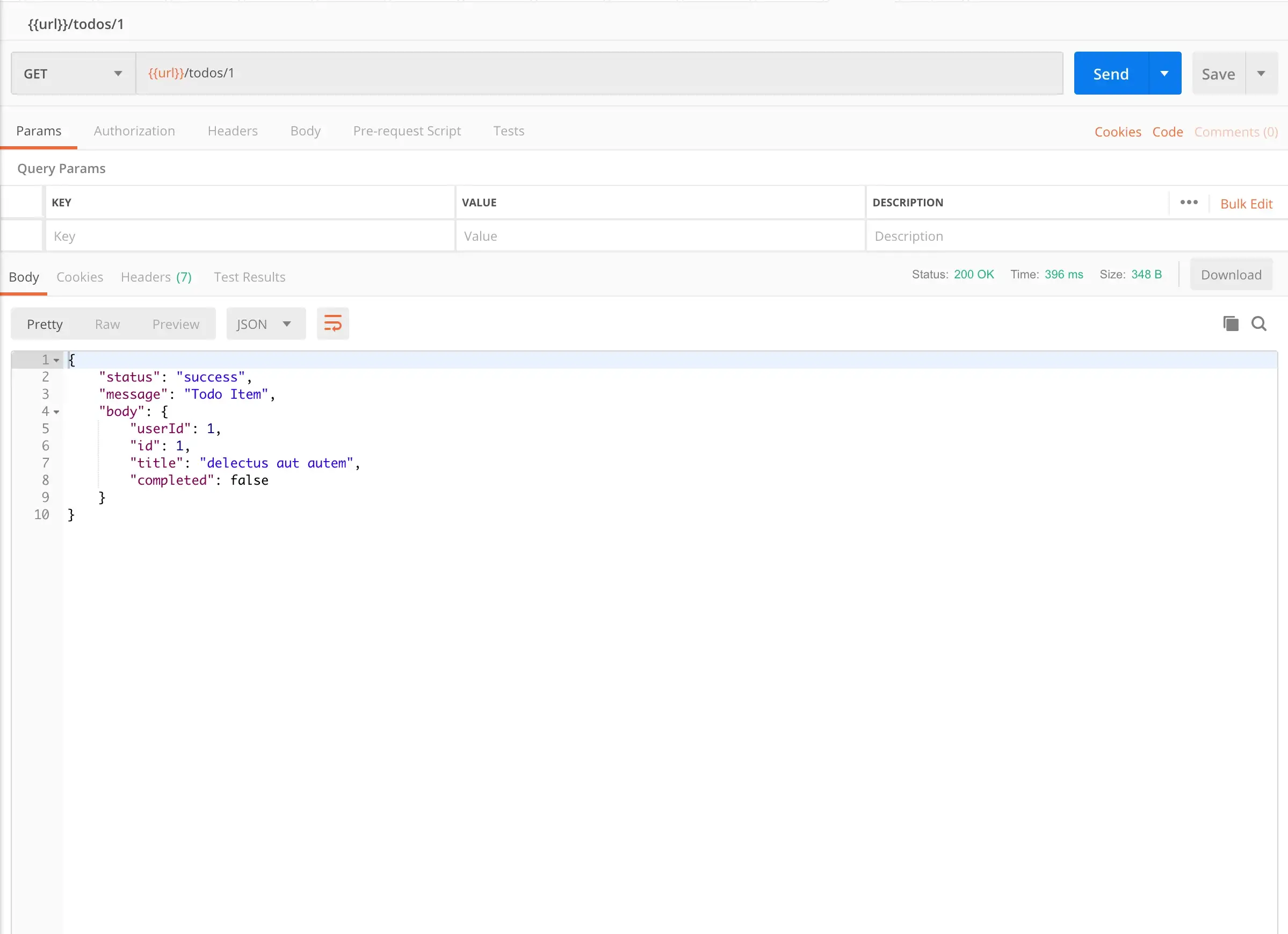
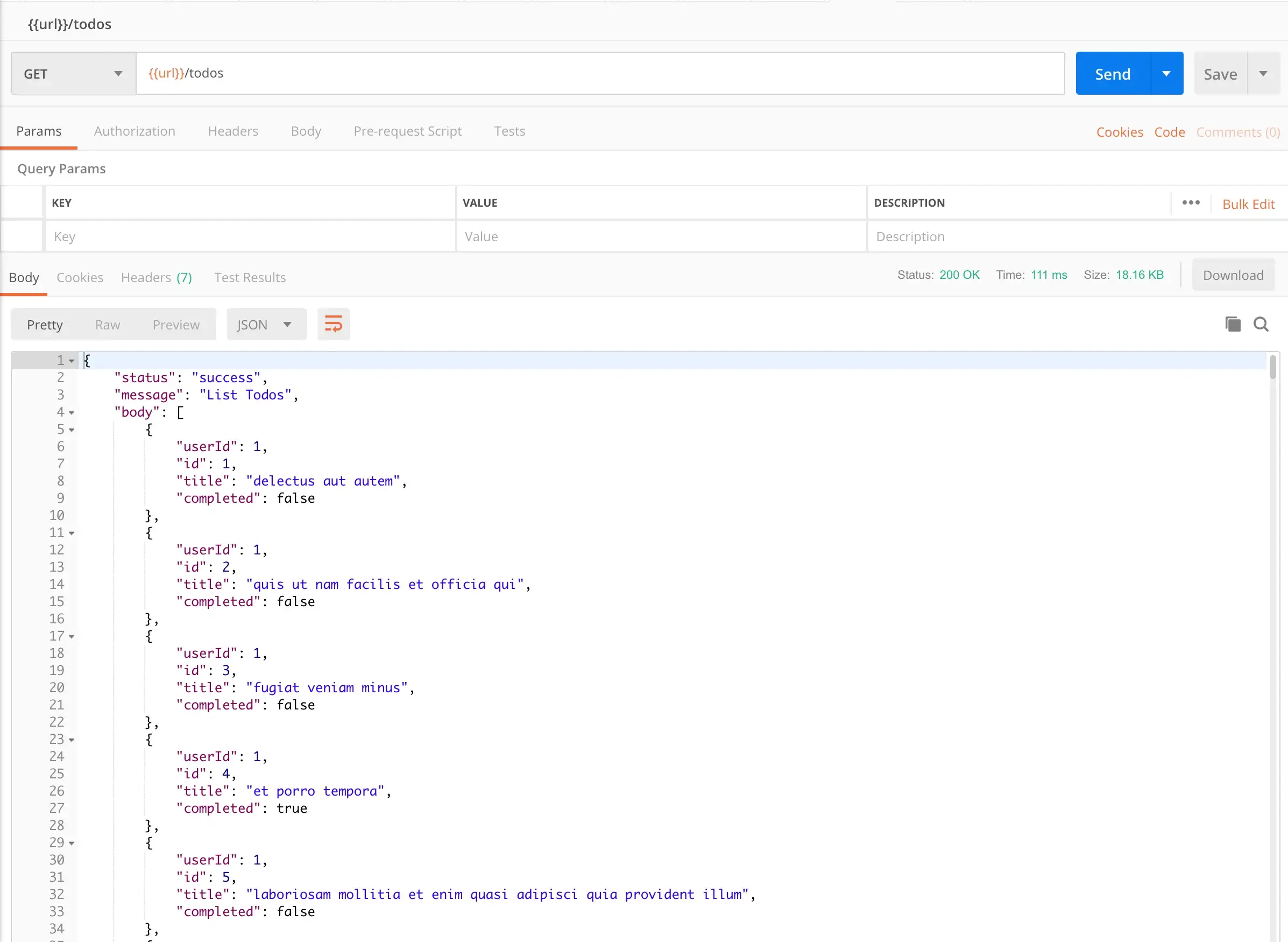
URL に todos や todos/1 を追加するだけで、異なる応答が返されます。
カウンターモデルでは、クエリパラメーターも使用できます!
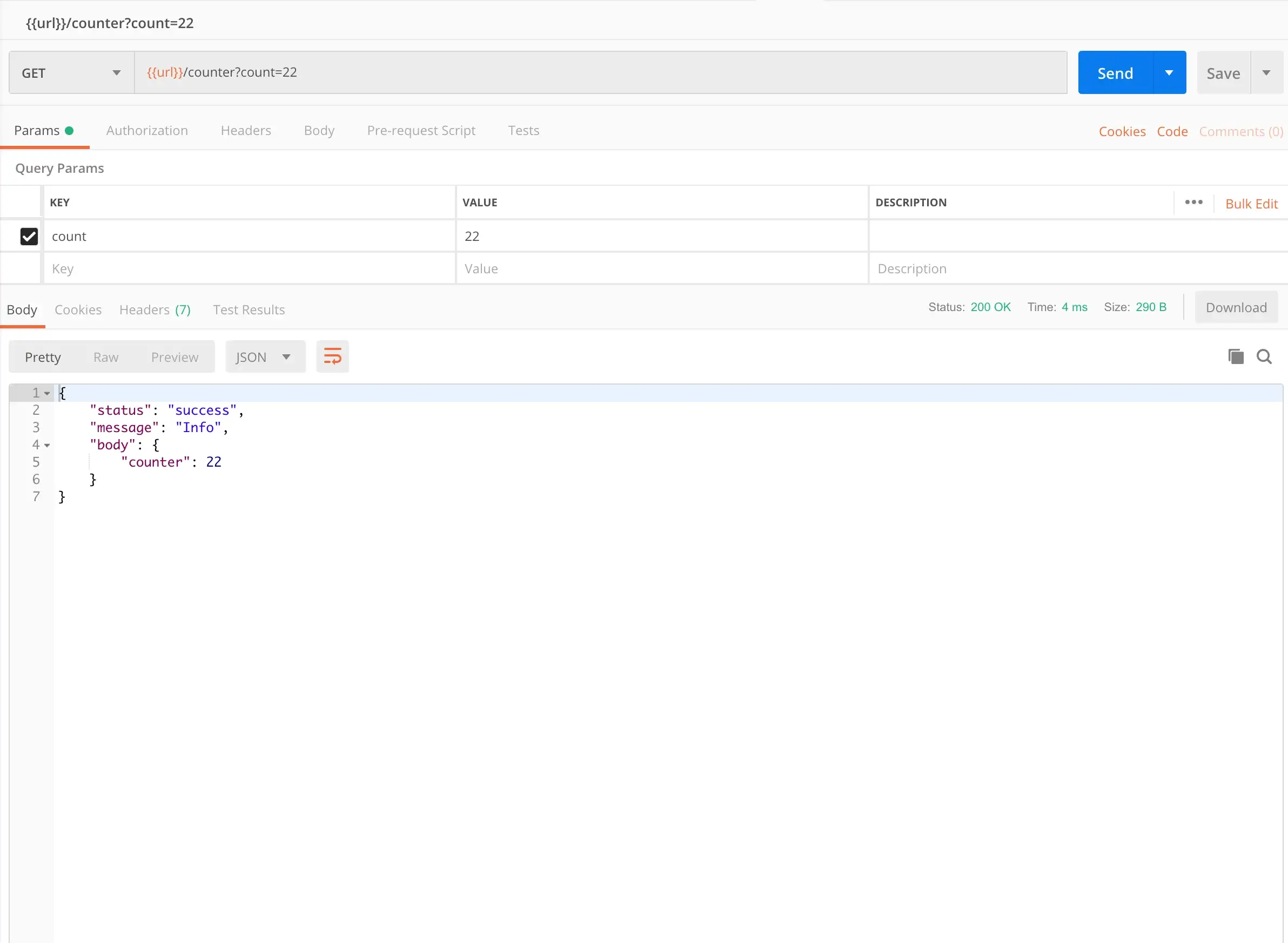
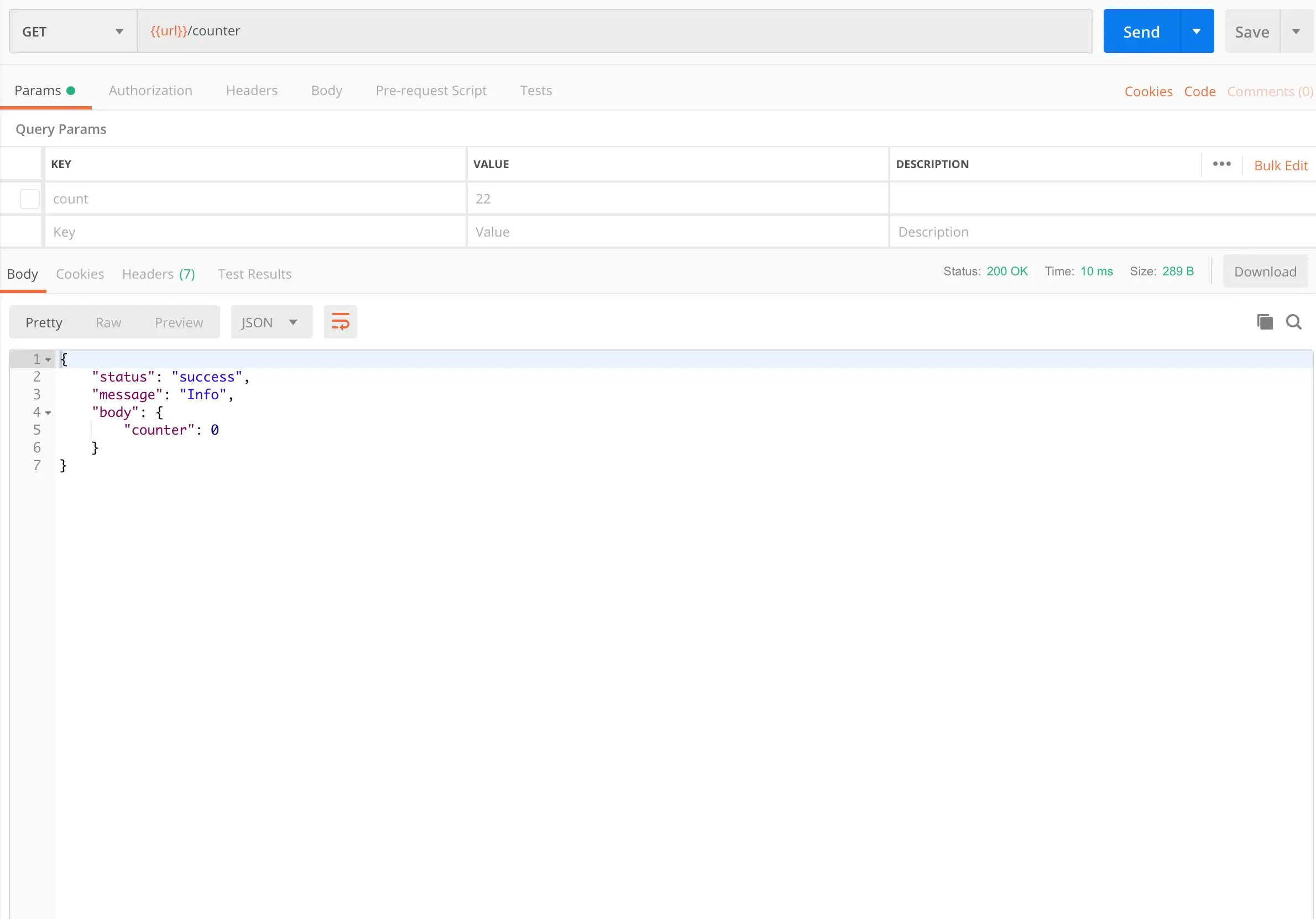
?count=22 を追加するだけで、入力値に応じてモデルが更新されます。
Flutter ウィジェットを必要とせず、Flutter プロジェクトの lib フォルダーにある Dart コードを実行していることにご注意ください!
副次的な利点として、このプロジェクトをデスクトップでも実行できます。デスクトップに必要なフォルダーについては、Flutter Desktop Embedding の最終プロジェクトをご確認ください。
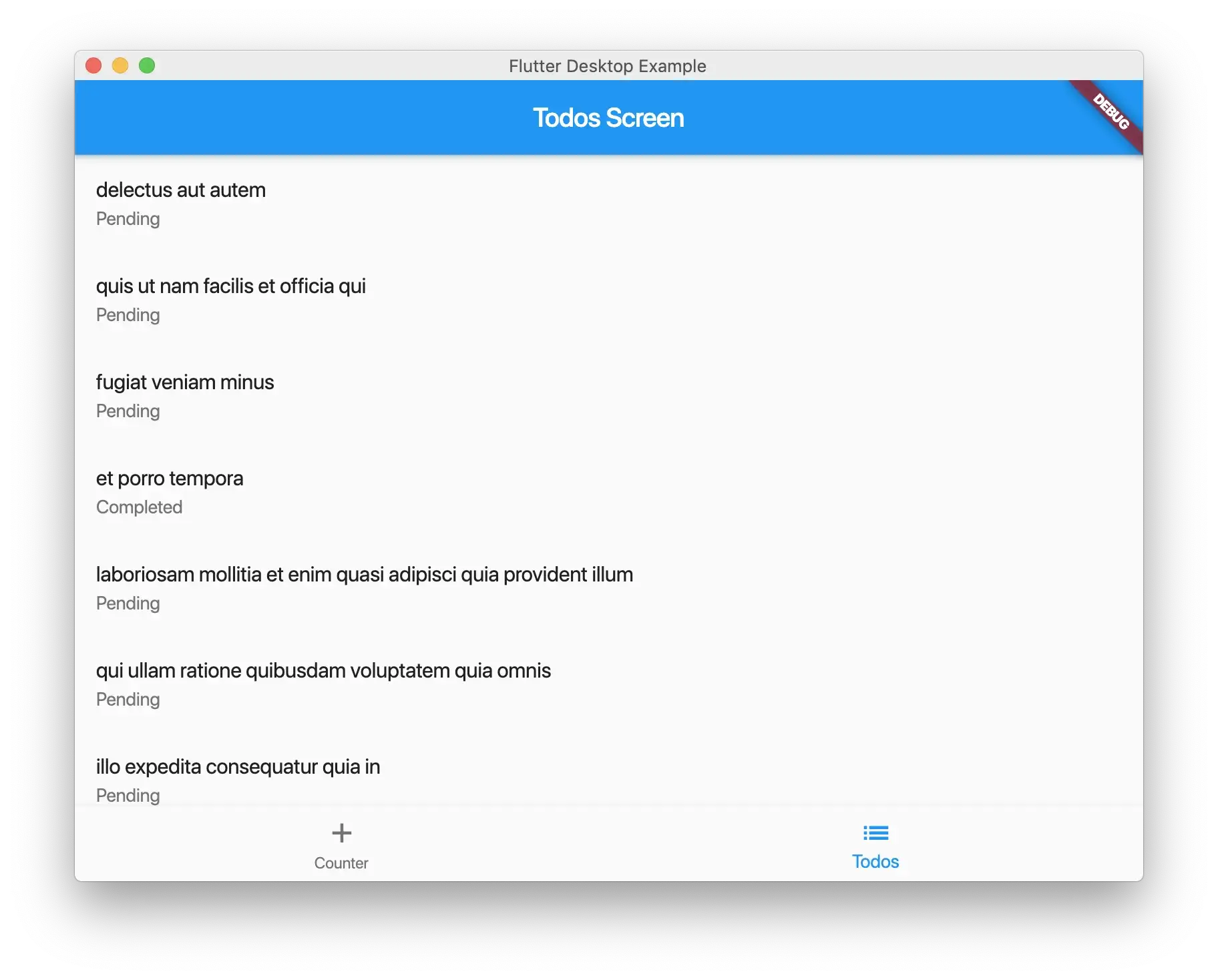
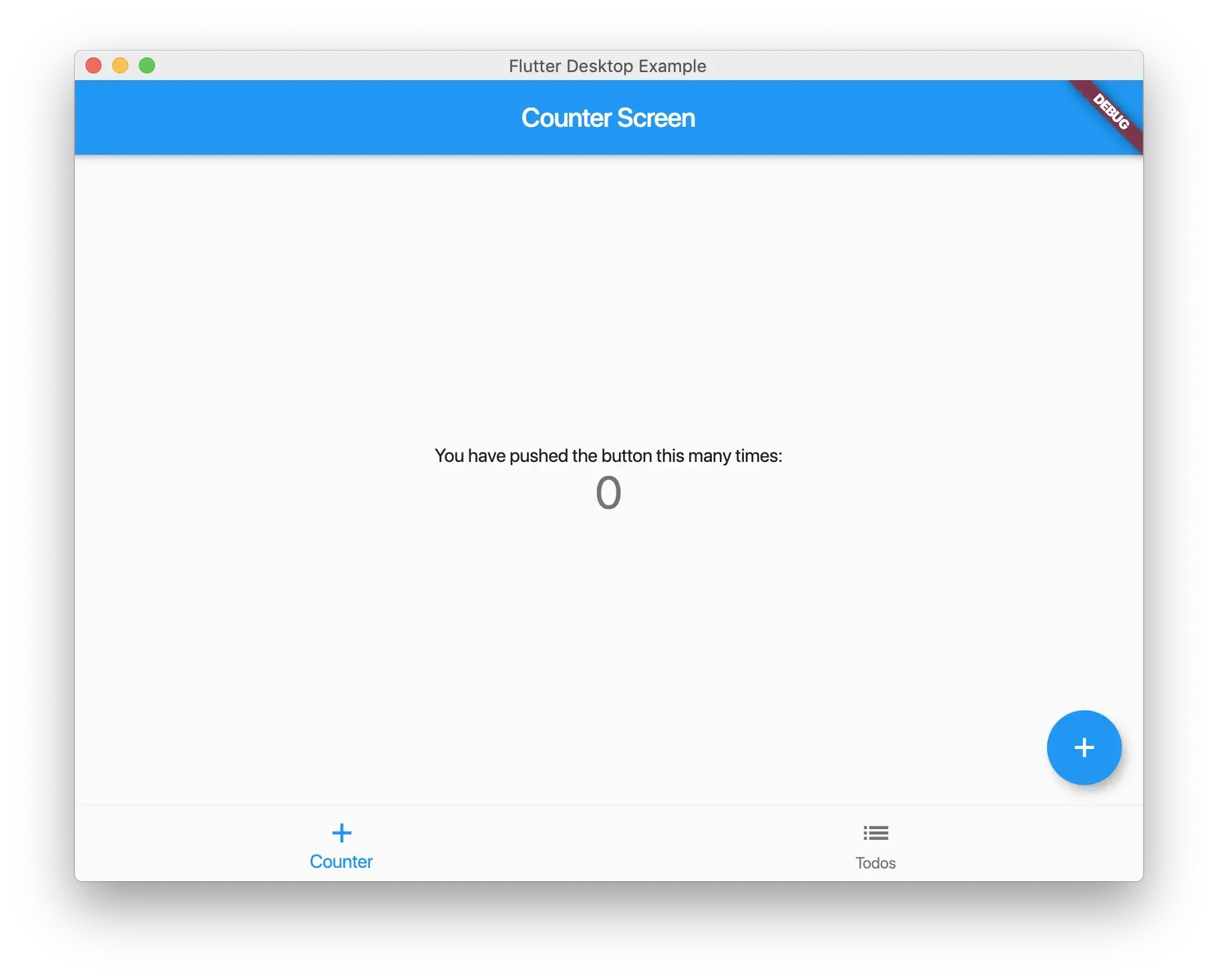
まとめ
コンテナを Cloud Run にデプロイする場合は、次のコマンドを実行できます。
gcloud builds submit — tag gcr.io/YOUR_GOOGLE_PROJECT_ID/PROJECT_NAME .
PROJECT_NAME をプロジェクト名に置き換えてください。この例では shared-dart を使用しています。
また、YOUR_GOOGLE_PROJECT_ID を Google Cloud のプロジェクト ID に置き換える必要があります。プロジェクト ID はこちらで作成できます。
最終的なプロジェクトのソースコードはこちらです。ご意見をお聞かせください!