
how-to-build-a-native-cross-platform-project-with-flutter について
Flutter でモバイル、Web、デスクトップ向けのプロジェクトを構築する方法を解説するチュートリアルです。条件付きインポートでプラットフォーム別の実装を選び、未対応時の代替処理も用意します。
主な機能
- 01Flutter のクロスプラットフォーム設定
- 02プラットフォーム別の条件付きインポート
- 03未対応プラットフォーム向けの代替処理
- 04環境別の URL 起動
活用シーン
- 01モバイルと Web で Flutter コードを共有
- 02環境別コードへインポートを振り分け
- 03Web とモバイルで異なる URL 起動を実装
インストール
コマンドをコピーしてターミナルで実行します。
npx skills add https:/インストール後、Claude Code で/how-to-build-a-native-cross-platform-project-with-flutterを入力して読み込まれたか確認します。
詳細
Flutter でネイティブのクロスプラットフォームプロジェクトを構築する方法
同じプロジェクト内で dart:html と dart:io をインポートする!
TLDR 完成版のソースはこちらです:here。
これまで、Flutter を使って iOS/Android、Web、デスクトップで動作するプロジェクトを作成できましたが、共有できるのは純粋な Dart プラグインのみでした。
Google I/O で Flutter for web が発表されましたが、これは一時的なフォークであり、import 'package:flutter/material.dart'; を import 'package:flutter_web/material.dart'; に変更する必要がありました。
ご想像のとおり、コードベースをフォークしてインポートを変更する必要があったため、これは非常に困難でした。また、依存関係のパスが必要なパッケージや、Flutter に依存するパッケージをインポートできないことも意味していました。ついにマージが完了しました。もうインポートを変更する必要はありません!

これであらゆるプラグインを使用でき、デバッガーを使ったり、Web フォルダーが追加された新しい Flutter プロジェクトを作成したり、Web プラグインを利用したりできるようになりました。ほかにもできることがたくさんあります。
注意事項
動作させるには、最新の Flutter を使用する必要があります。

Flutter を始めたばかりの方は、プロジェクトを手順に沿って新規作成する方法を説明したこちらの便利なガイドをご覧ください。
flutter_x という名前で新しいプロジェクトを作成すると、次のようになります。
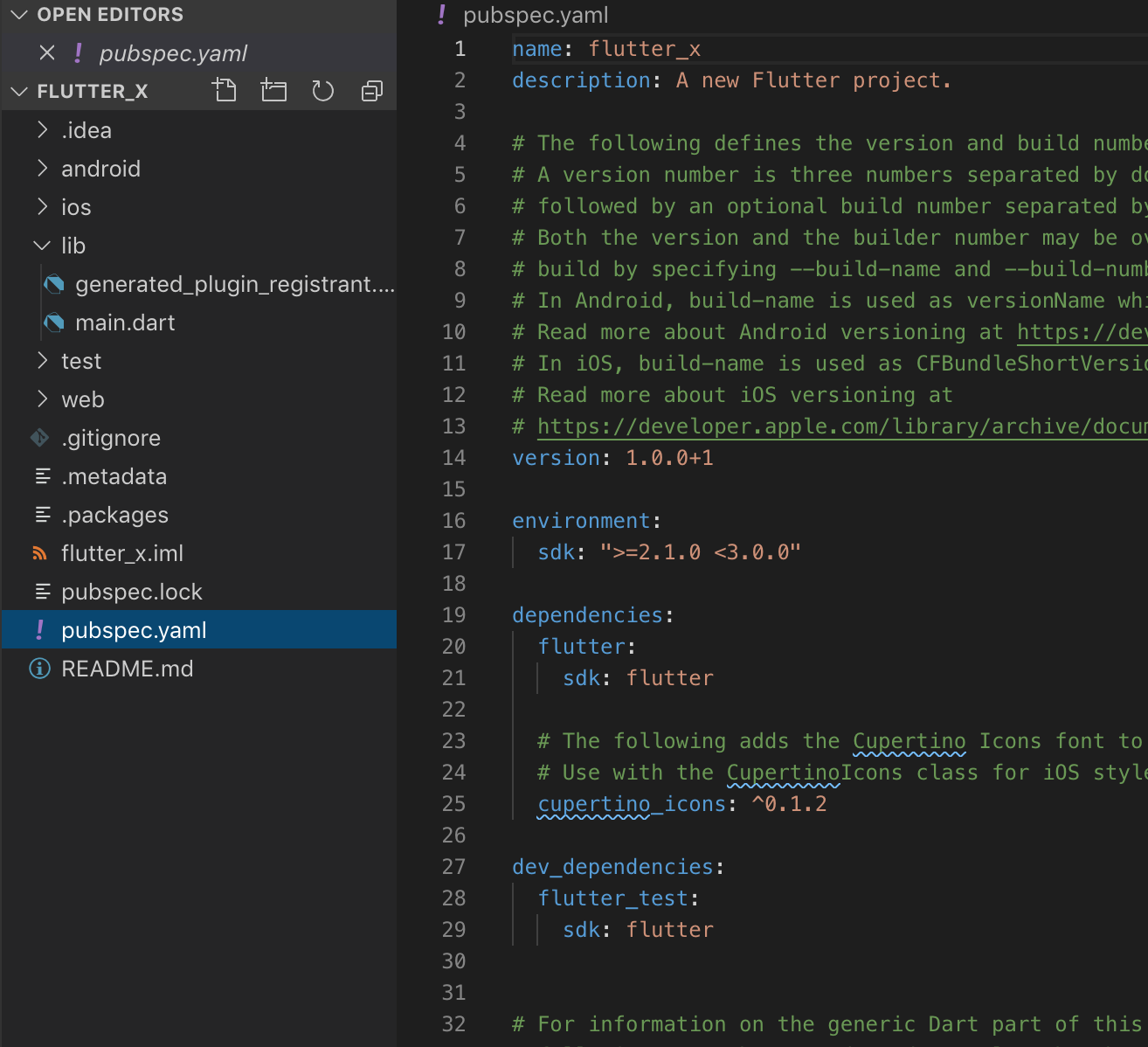
スタータープロジェクトはこちらからダウンロードすることもできます。
コードは次のようになります。
import 'package:flutter/material.dart';

void main() => runApp(MyApp());

class MyApp extends StatelessWidget {
  // This widget is the root of your application.
  @override
  Widget build(BuildContext context) {
    return MaterialApp(
      title: 'Flutter Demo',
      theme: ThemeData(
        // This is the theme of your application.
        //
        // Try running your application with "flutter run". You'll see the
        // application has a blue toolbar. Then, without quitting the app, try
        // changing the primarySwatch below to Colors.green and then invoke
        // "hot reload" (press "r" in the console where you ran "flutter run",
        // or simply save your changes to "hot reload" in a Flutter IDE).
        // Notice that the counter didn't reset back to zero; the application
        // is not restarted.
        primarySwatch: Colors.blue,
      ),
      home: MyHomePage(title: 'Flutter Demo Home Page'),
    );
  }
}

class MyHomePage extends StatefulWidget {
  MyHomePage({Key key, this.title}) : super(key: key);

  // This widget is the home page of your application. It is stateful, meaning
  // that it has a State object (defined below) that contains fields that affect
  // how it looks.

  // This class is the configuration for the state. It holds the values (in this
  // case the title) provided by the parent (in this case the App widget) and
  // used by the build method of the State. Fields in a Widget subclass are
  // always marked "final".

  final String title;

  @override
  _MyHomePageState createState() => _MyHomePageState();
}

class _MyHomePageState extends State<MyHomePage> {
  int _counter = 0;

  void _incrementCounter() {
    setState(() {
      // This call to setState tells the Flutter framework that something has
      // changed in this State, which causes it to rerun the build method below
      // so that the display can reflect the updated values. If we changed
      // _counter without calling setState(), then the build method would not be
      // called again, and so nothing would appear to happen.
      _counter++;
    });
  }

  @override
  Widget build(BuildContext context) {
    // This method is rerun every time setState is called, for instance as done
    // by the _incrementCounter method above.
    //
    // The Flutter framework has been optimized to make rerunning build methods
    // fast, so that you can just rebuild anything that needs updating rather
    // than having to individually change instances of widgets.
    return Scaffold(
      appBar: AppBar(
        // Here we take the value from the MyHomePage object that was created by
        // the App.build method, and use it to set our appbar title.
        title: Text(widget.title),
      ),
      body: Center(
        // Center is a layout widget. It takes a single child and positions it
        // in the middle of the parent.
        child: Column(
          // Column is also a layout widget. It takes a list of children and
          // arranges them vertically. By default, it sizes itself to fit its
          // children horizontally, and tries to be as tall as its parent.
          //
          // Invoke "debug painting" (press "p" in the console, choose the
          // "Toggle Debug Paint" action from the Flutter Inspector in Android
          // Studio, or the "Toggle Debug Paint" command in Visual Studio Code)
          // to see the wireframe for each widget.
          //
          // Column has various properties to control how it sizes itself and
          // how it positions its children. Here we use mainAxisAlignment to
          // center the children vertically; the main axis here is the vertical
          // axis because Columns are vertical (the cross axis would be
          // horizontal).
          mainAxisAlignment: MainAxisAlignment.center,
          children: <Widget>[
            Text(
              'You have pushed the button this many times:',
            ),
            Text(
              '$_counter',
              style: Theme.of(context).textTheme.display1,
            ),
          ],
        ),
      ),
      floatingActionButton: FloatingActionButton(
        onPressed: _incrementCounter,
        tooltip: 'Increment',
        child: Icon(Icons.add),
      ), // This trailing comma makes auto-formatting nicer for build methods.
    );
  }
}
すべてが動作することを確認するため、iOS/Android でプロジェクトを実行してみましょう。
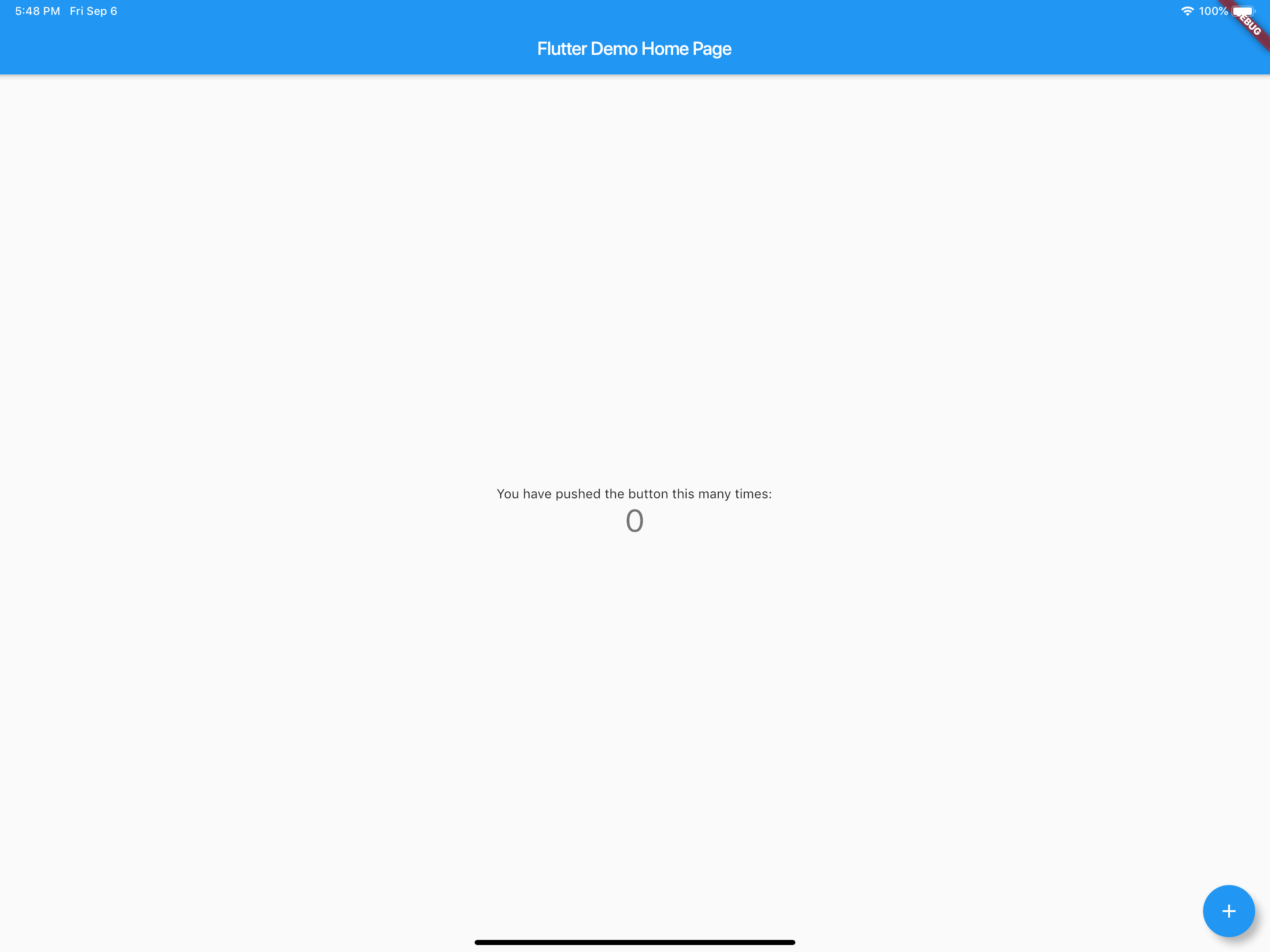
カウンターアプリが正しく起動して動作するはずです。次に終了して、Chrome で実行してください。デバイスとして一覧に表示されます。コマンドラインから flutter run -d chrome を実行することもできます。
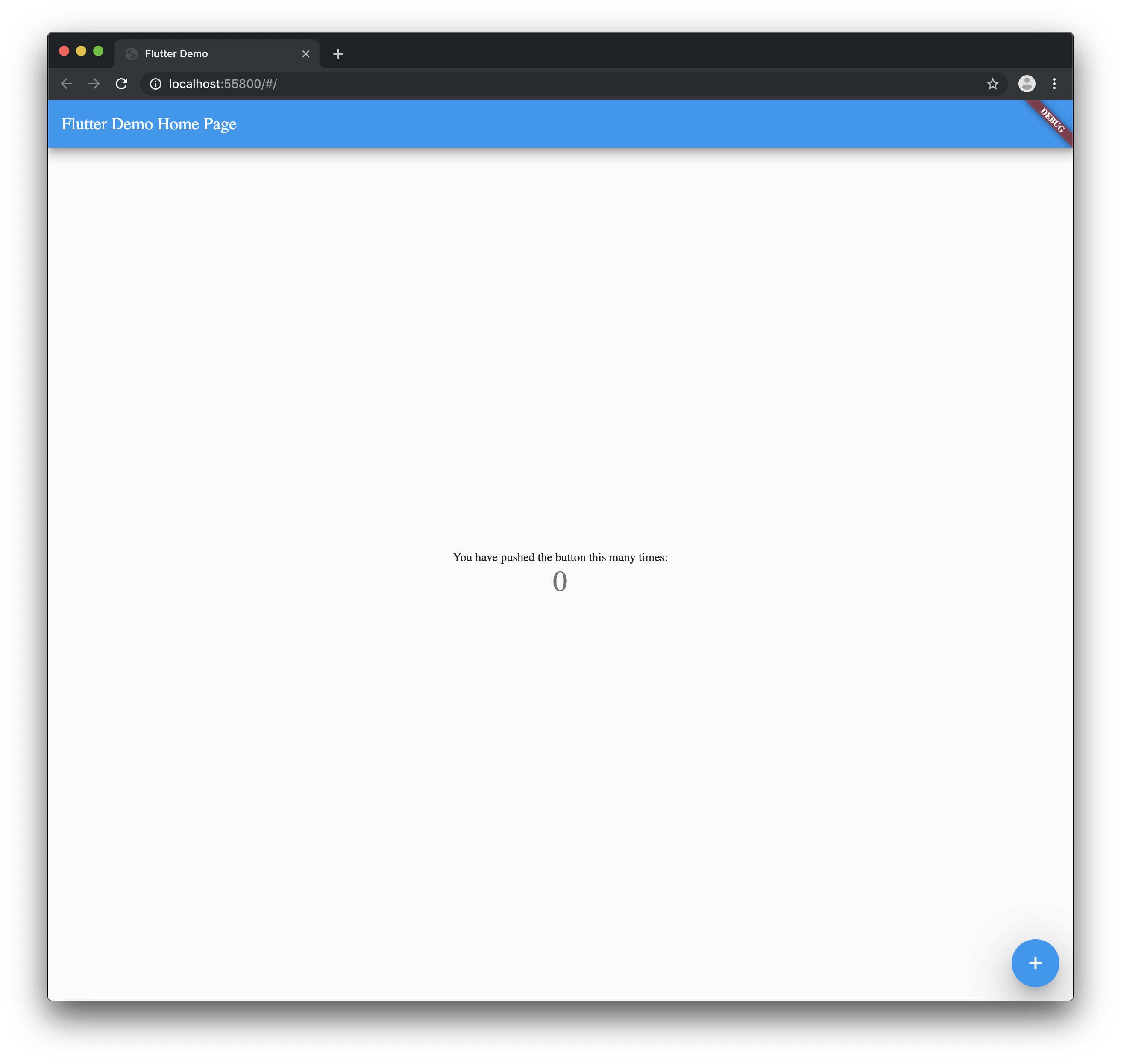
Web ではまだホットリロードを利用できないので、ご注意ください。
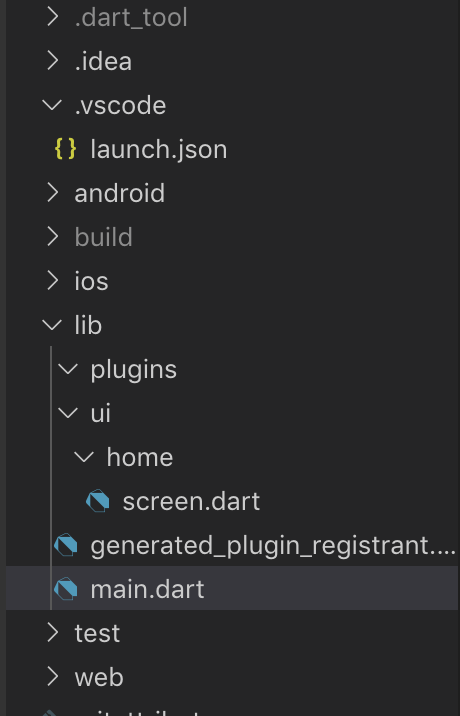
これでプロジェクトは次のようになっているはずです。
pubspec.yaml を開き、次のパッケージをインポートしてください。
dependencies:
  universal_html:
  url_launcher:
pubspec.yaml に生成されたコメントは削除してもかまいません。
pubspec.yaml は次のようになります。
name: flutter_x
description: A new Flutter project.

version: 1.0.0+1

environment:
  sdk: ">=2.1.0 <3.0.0"

dependencies:
  flutter:
    sdk: flutter

cupertino_icons: ^0.1.2
  universal_html: ^1.1.0
  url_launcher: ^5.1.2

dev_dependencies:
  flutter_test:
    sdk: flutter

flutter:

uses-material-design: true
デフォルトでは、デバイスがモバイルか Web かを判定しようとすると、そのプラットフォーム向けではないプラグインをインポートした場合、コンパイル時にエラーが発生します。これを回避するために、動的インポートを使用します。
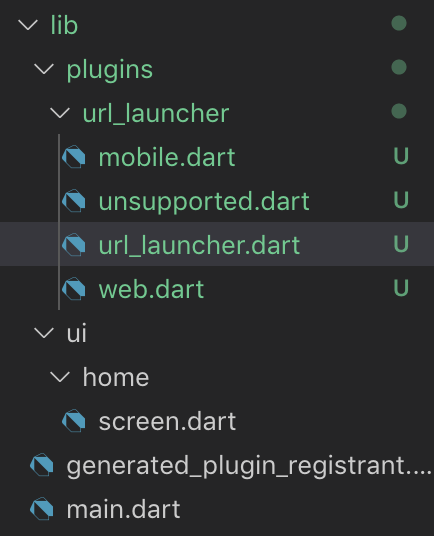
plugins フォルダー内に url_launcher フォルダーを作成し、その中に url_launcher.dart、mobile.dart、web.dart、unsupported.dart ファイルを作成します。
url_launcher.dart ファイルに次のコードを追加します。
export 'unsupported.dart'
    if (dart.library.html) 'web.dart'
    if (dart.library.io) 'mobile.dart';
これにより、実行時に適切なファイルが選択され、サポートされていない場合にはフォールバックが使用されます。
エッジケースに備えて、インポート用のフォールバックを設定する必要があります。unsupported.dart に次のコードを追加します。
class UrlUtils {
  UrlUtils._();

static void open(String url, {String name}) {
    throw 'Platform Not Supported';
  }
}
正しく動作させるには、UrlUtils クラスと公開メソッドを 3 つのファイルすべてで一致させる必要があります。常に最初に unsupported を設定し、入力ミスを防ぐために、そのファイルを mobile.dart と web.dart にコピーしてください。
これで、各クラスに上記のコードが記述された 3 つのファイルが揃っているはずです。
mobile.dart に次のコードを追加します。
import 'package:url_launcher/url_launcher.dart';

class UrlUtils {
  UrlUtils._();

static void open(String url, {String name}) async {
    if (await canLaunch(url)) {
      await launch(url);
    }
  }
}
これにより、リンクはそれぞれ Safari のビューコントローラーまたは Android のデフォルトブラウザーで開きます。
web.dart に次のコードを追加します。
import 'package:universal_html/prefer_universal/html.dart' as html;

class UrlUtils {
  UrlUtils._();

static void open(String url, {String name}) {
    html.window.open(url, name);
  }
}
指定したリンクを含む新しいブラウザーウィンドウが開きます。
画面中央にボタンを追加します。ui/home/screen.dart は次のようになります。
import 'package:flutter/material.dart';

class MyHomePage extends StatefulWidget {
  MyHomePage({Key key, this.title}) : super(key: key);

final String title;

@override
  _MyHomePageState createState() => _MyHomePageState();
}

class _MyHomePageState extends State<MyHomePage> {
  @override
  Widget build(BuildContext context) {
    return Scaffold(
      appBar: AppBar(
        title: Text(widget.title),
      ),
      body: Center(
          child: RaisedButton(
        child: Text('Open Flutter.dev'),
        onPressed: () {},
      )),
    );
  }
}
onPressed を次のように更新します。
onPressed: () {
    try {
        UrlUtils.open('[https://flutter.dev'](https://flutter.dev'));
    } catch (e) {
        print('Error -> $e');
    }
},
UrlUtils をインポートするときは、正しい URI をインポートすることが重要です。
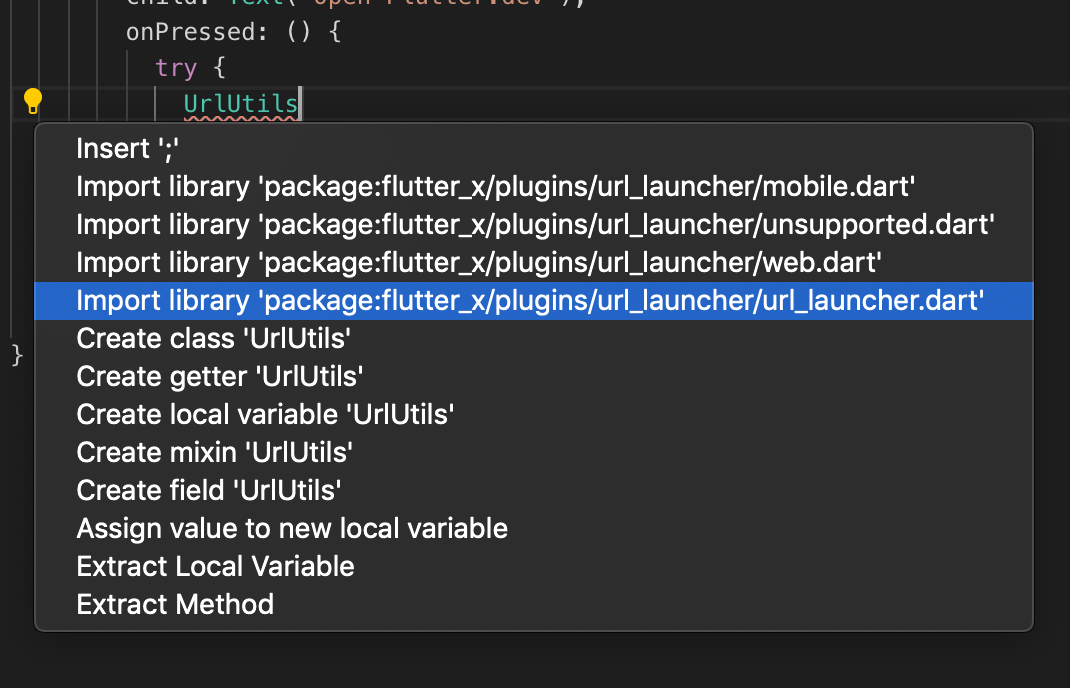
import 'package:flutter_x/plugins/url_launcher/url_launcher.dart'; のみをインポートしてください。
必要であれば、相対インポートを使用できます。
UI コードは次のようになります。
import 'package:flutter/material.dart';

import '../../plugins/url_launcher/url_launcher.dart';

class MyHomePage extends StatefulWidget {
  MyHomePage({Key key, this.title}) : super(key: key);

final String title;

@override
  _MyHomePageState createState() => _MyHomePageState();
}

class _MyHomePageState extends State<MyHomePage> {
  @override
  Widget build(BuildContext context) {
    return Scaffold(
      appBar: AppBar(
        title: Text(widget.title),
      ),
      body: Center(
          child: RaisedButton(
        child: Text('Open Flutter.dev'),
        onPressed: () {
          try {
            UrlUtils.open('[https://flutter.dev'](https://flutter.dev'));
          } catch (e) {
            print('Error -> $e');
          }
        },
      )),
    );
  }
}
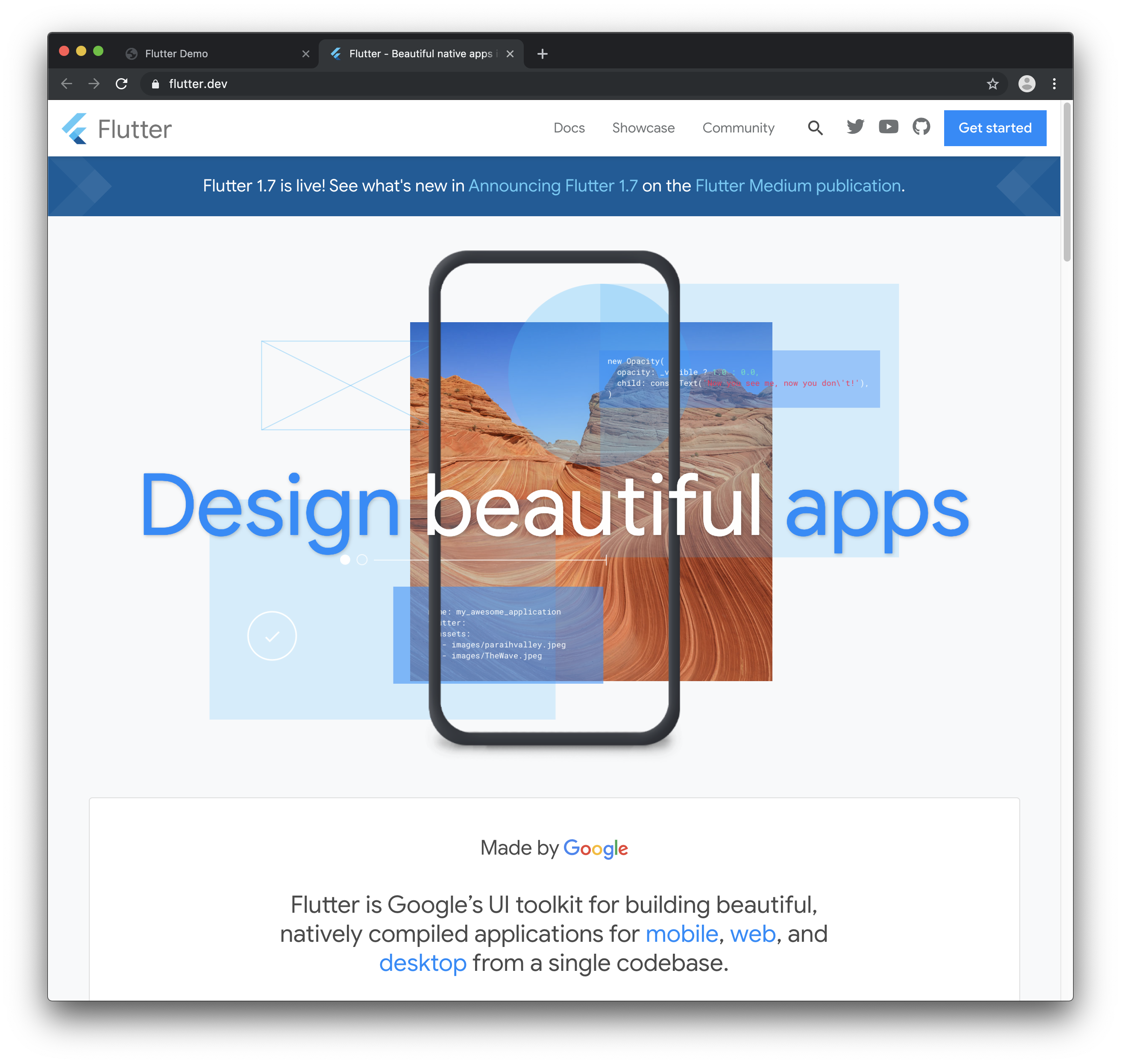
web でアプリを実行すると、次のように表示されます。
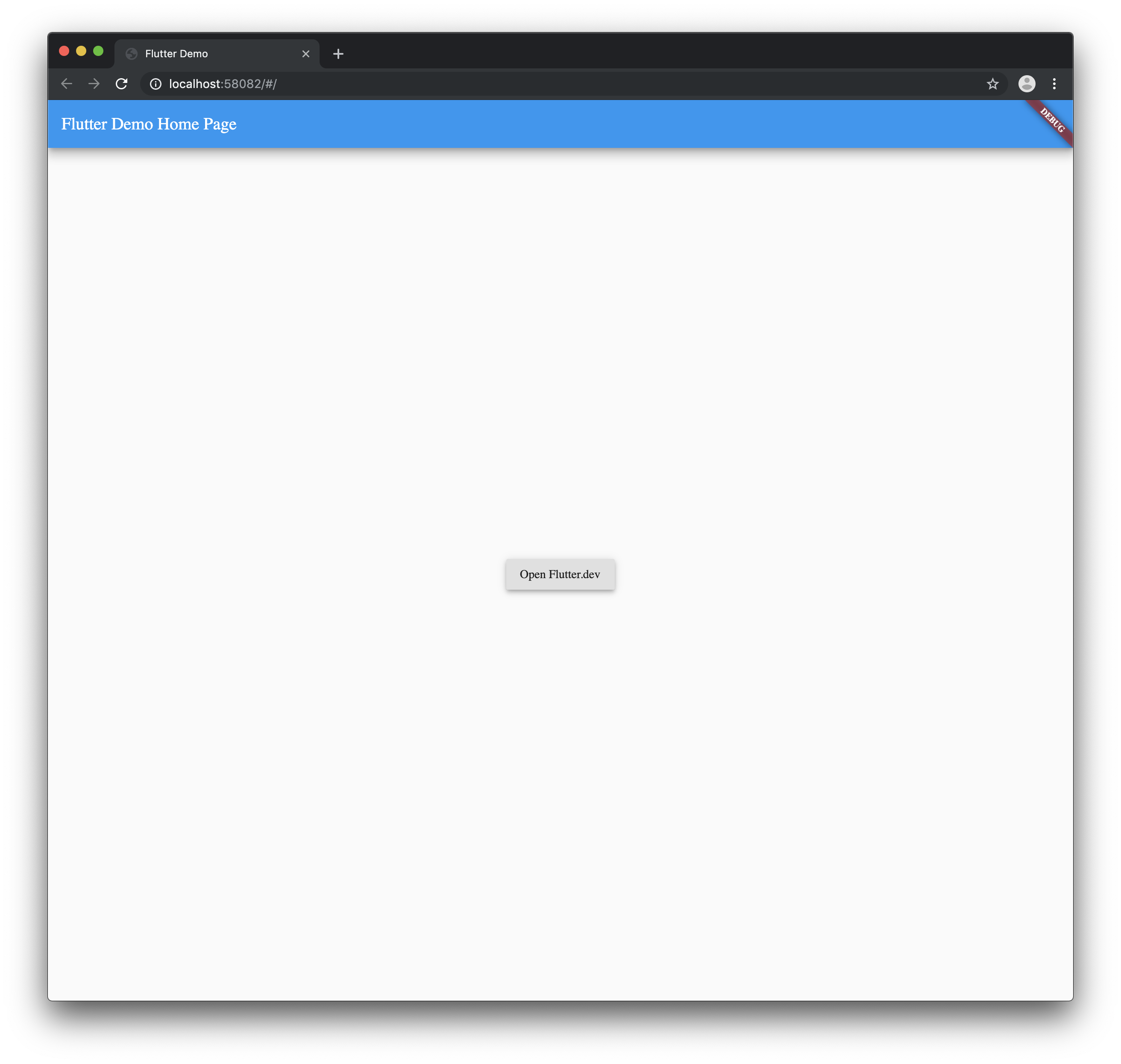
ボタンをタップすると……
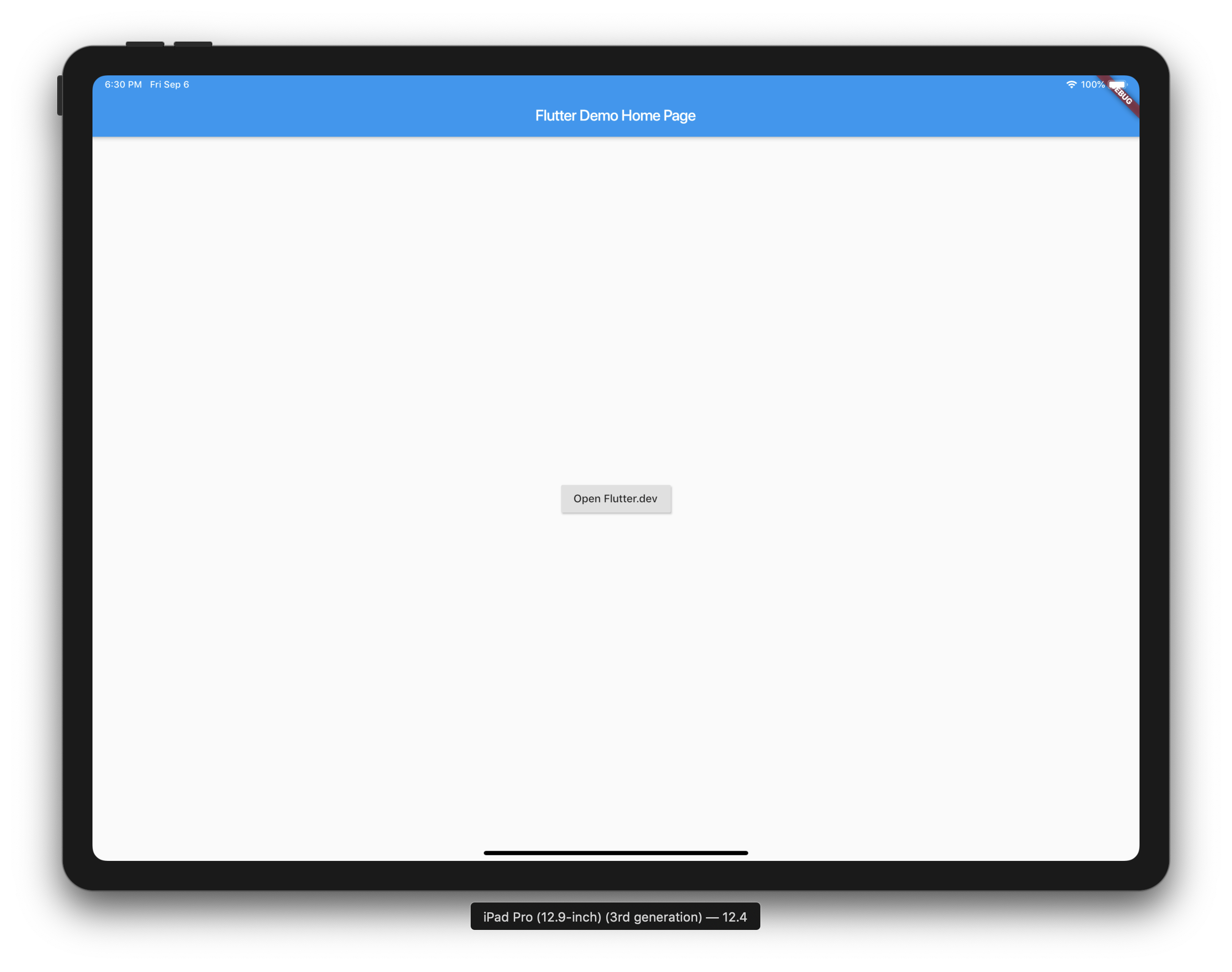
iOS/Android で実行すると、次のように表示されます。
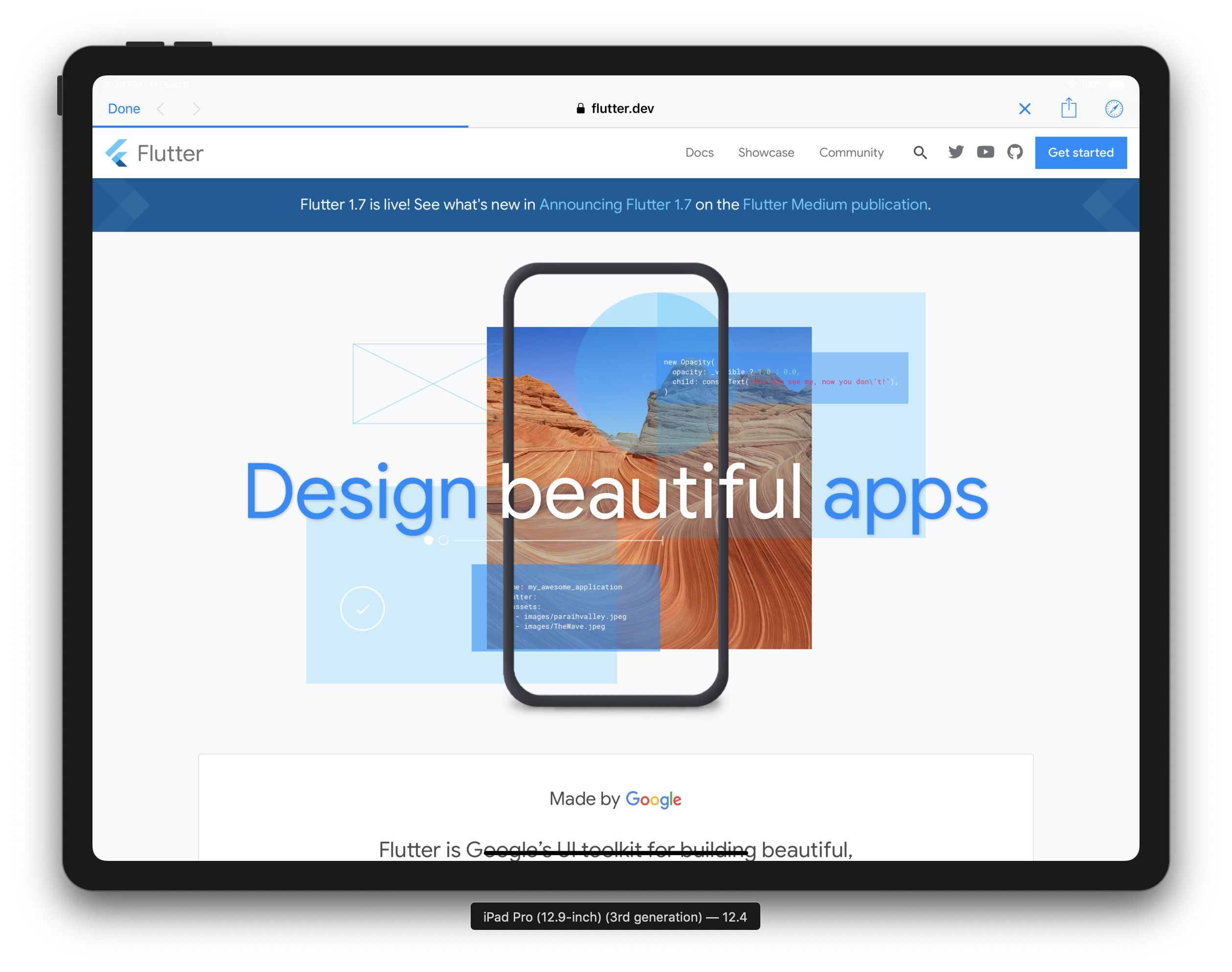
ボタンをタップすると……
おめでとうございます!完成です 🎉

完成したプロジェクトはこちらにあります。
ご質問があれば、お気軽にお問い合わせください!