
how-to-build-a-webrtc-signal-server-with-pocketbase について
PocketBaseでWebRTCのシグナリングサーバーを構築する開発者向けのチュートリアルです。サーバーのコレクション設定、Viteクライアント、2つのブラウザーでの通話手順を説明します。
主な機能
- 01PocketBaseをシグナリングサーバーとして利用
- 02SQLiteで通話データを保存
- 03ICEサーバーと候補データのコレクション設定
- 04ViteとPocketBase SDKでクライアントを構築
活用シーン
- 01ブラウザー間のWebRTC通話デモを構築
- 02offer、answer、ICE候補データを保存
- 032つのブラウザーで通話の参加と終了をテスト
インストール
コマンドをコピーしてターミナルで実行します。
npx skills add https:/インストール後、Claude Code で/how-to-build-a-webrtc-signal-server-with-pocketbaseを入力して読み込まれたか確認します。
詳細
PocketBase で WebRTC シグナルサーバーを構築する方法
概要
WebRTC を初めて使う方には、WebRTC in 100 seconds に関する、こちらの素晴らしい Fireship の動画をご覧になることをおすすめします。
また、Firebase の例をお探しの場合は、この例の大部分のベースとなっているこちらのリポジトリをご覧ください。
この例では、WebRTC のシグナルサーバーとして PocketBase を使用し、サーバー上で SQLite を実行します。また、Server Sent Events(SSE) を基盤とする、使いやすいリアルタイム SDK を利用します。
サーバーのセットアップ
PocketBase をダウンロードし、プロジェクト用の新しいディレクトリを作成します。
mkdir webrtc-pocketbase-demo
cd webrtc-pocketbase-demo
作成したディレクトリ内の .pb サブディレクトリに PocketBase のバイナリをコピーします。MacOS をお使いの場合は、設定で実行ファイルの実行を許可する必要があります。
次のコマンドで PocketBase サーバーを起動します。
.pb/pocketbase serve
問題がなければ、次のように表示されます。
2023/11/04 15:10:56 Server started at http://127.0.0.1:8090
├─ REST API: http://127.0.0.1:8090/api/
└─ Admin UI: http://127.0.0.1:8090/_/
Admin UI の URL を開き、新しいユーザー名とパスワードを作成します。
この例では、メールアドレスとパスワードは次のとおりです。
キー
値
メールアドレス
パスワード
Test123456789
次のように表示されます。
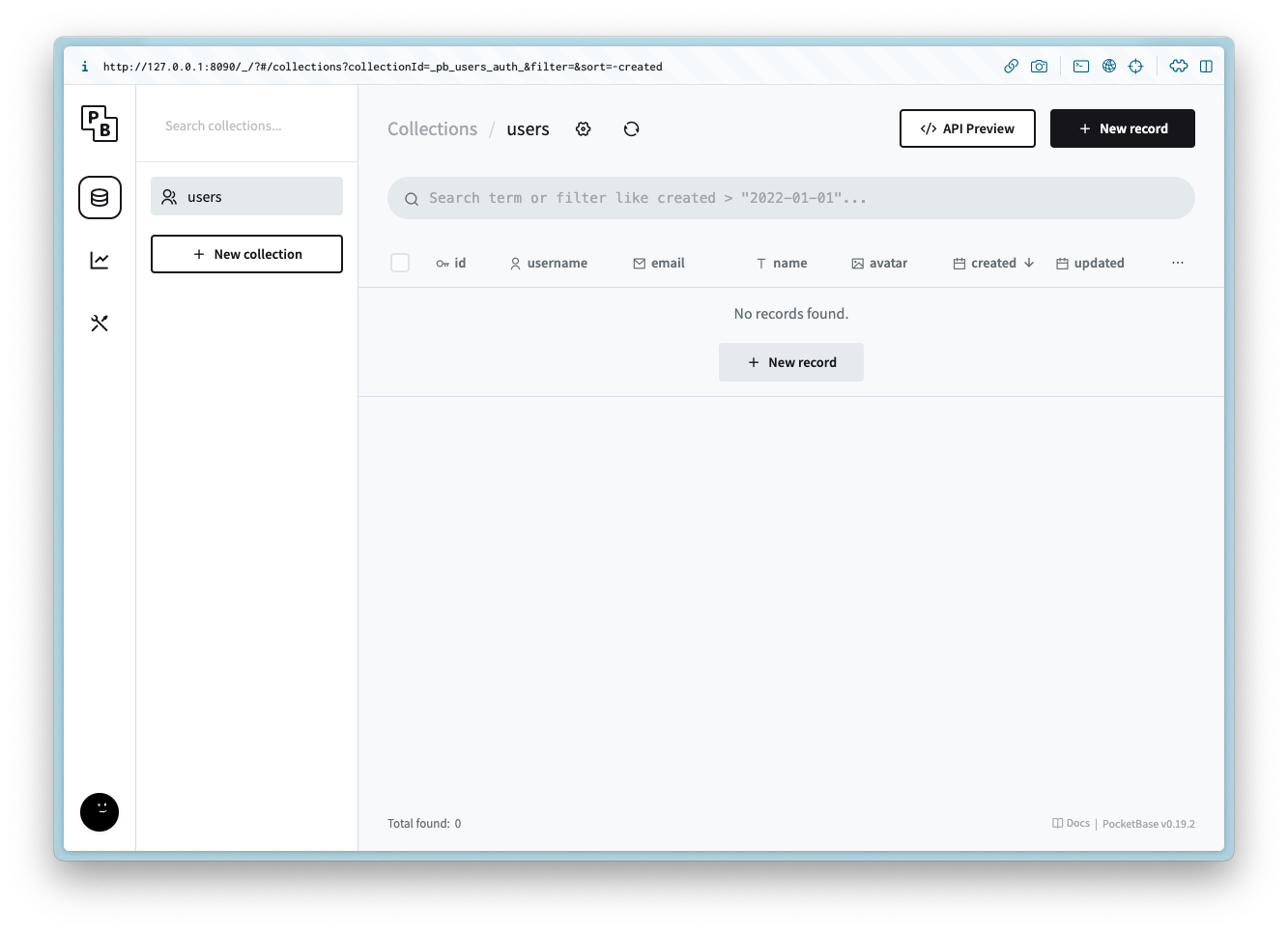
コレクションの作成
ice_servers
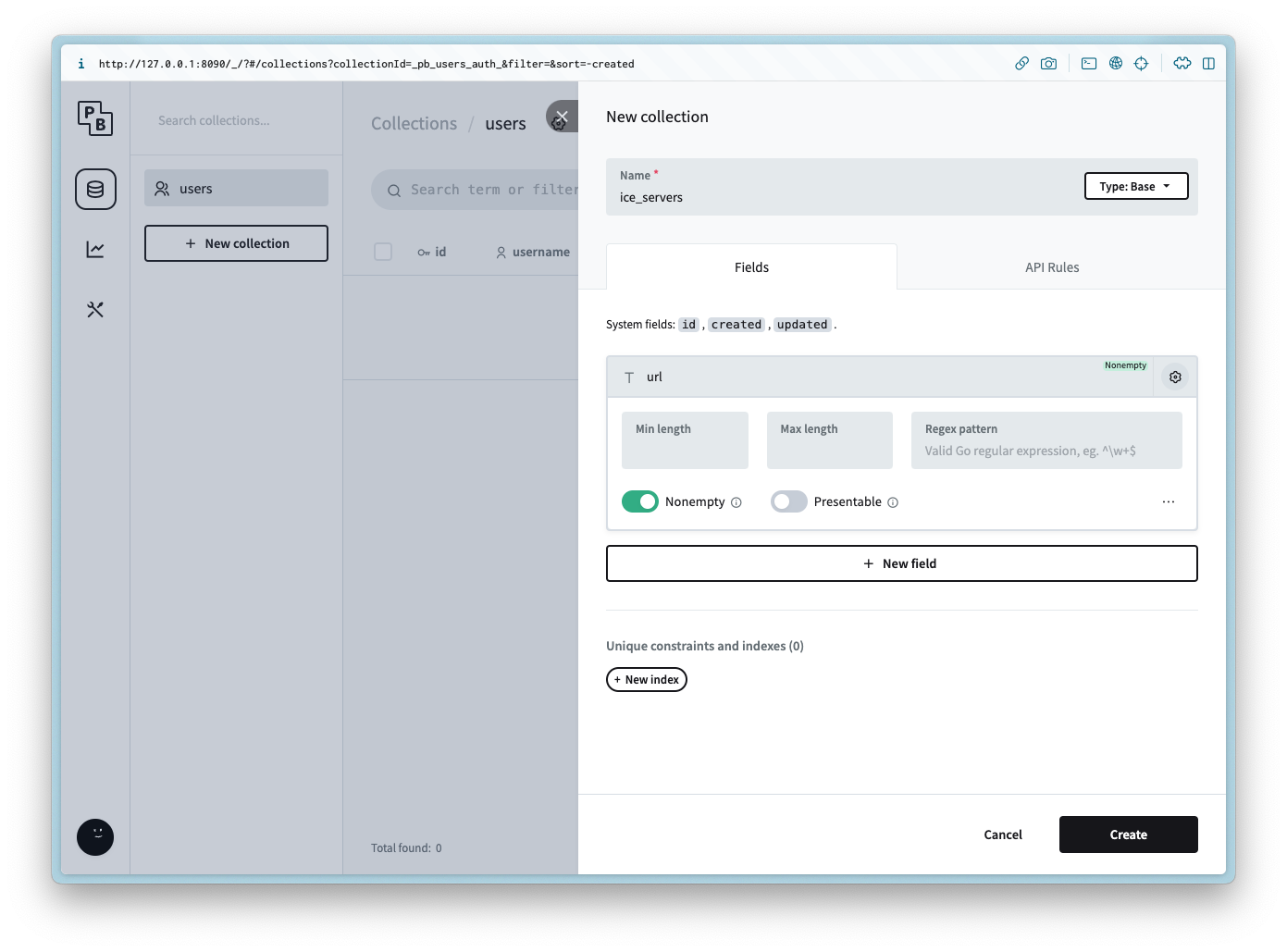
ice_servers という名前の新しいコレクションを作成し、次の列を追加します。
列名
列の種類
url
プレーンテキスト
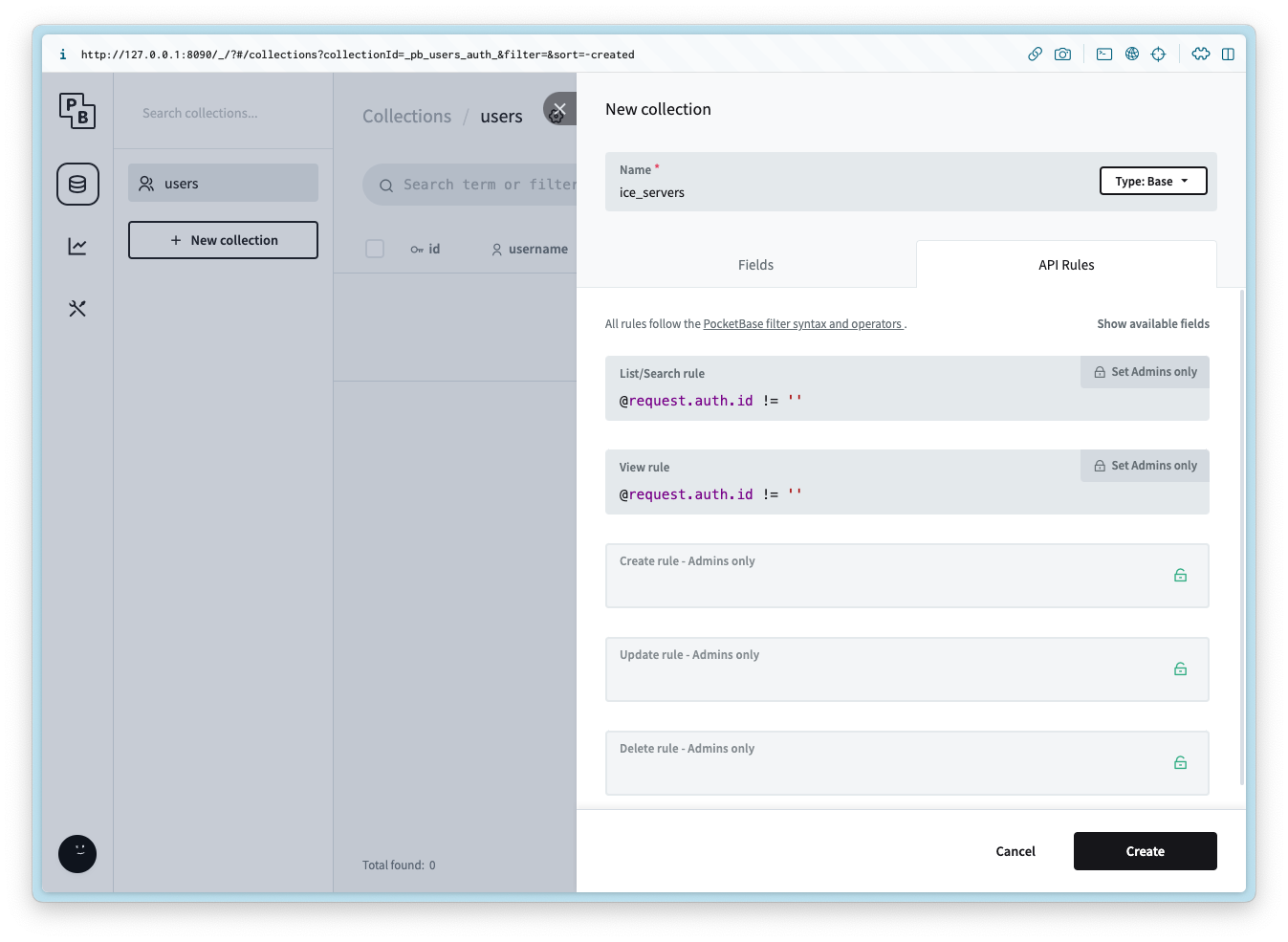
次の API ルールを List/Search と View に追加します。
@request.auth.id != ''
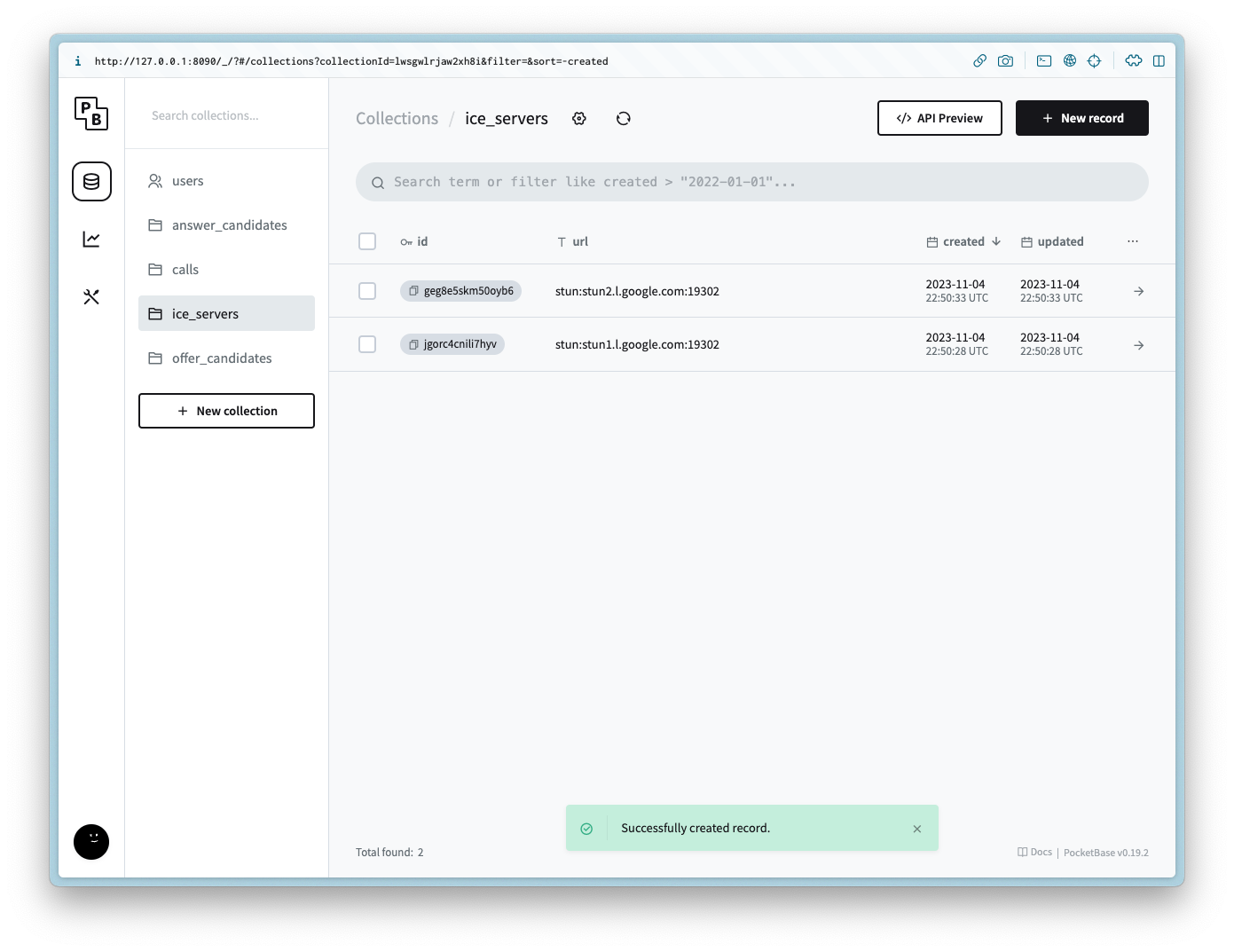
コレクションを作成したら、次の url の値ごとにレコードを 2 件追加します。
stun:stun1.l.google.com:19302
stun:stun2.l.google.com:19302
calls
calls という名前の新しいコレクションを作成し、次の列を追加します。
列名
列の種類
列の設定
user_id
リレーション
空欄不可、users、カスケード削除は true
offer
JSON
answer
JSON
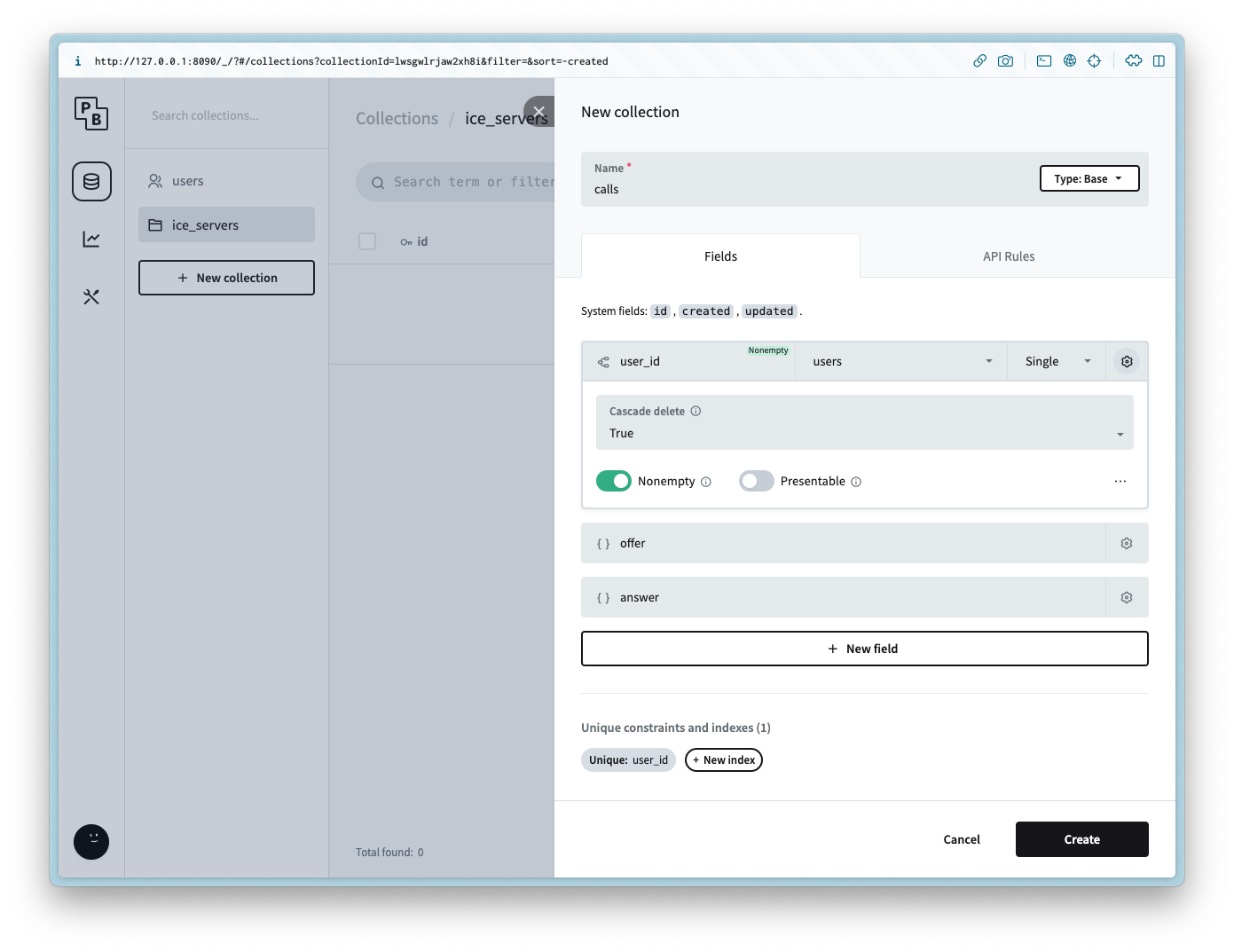
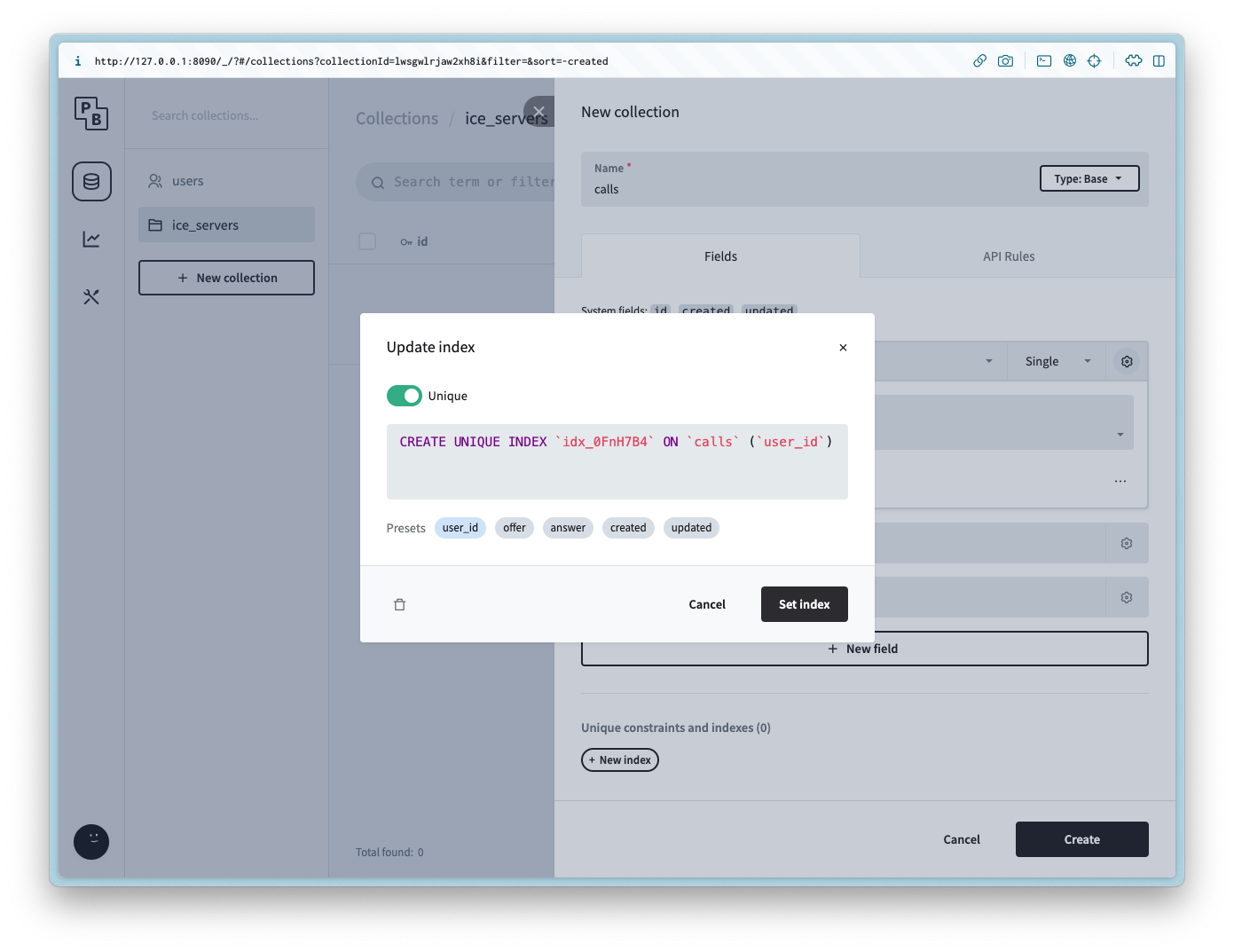
user_id 列に一意制約を設定すると、ユーザーごとの通話を 1 件に制限することもできます。
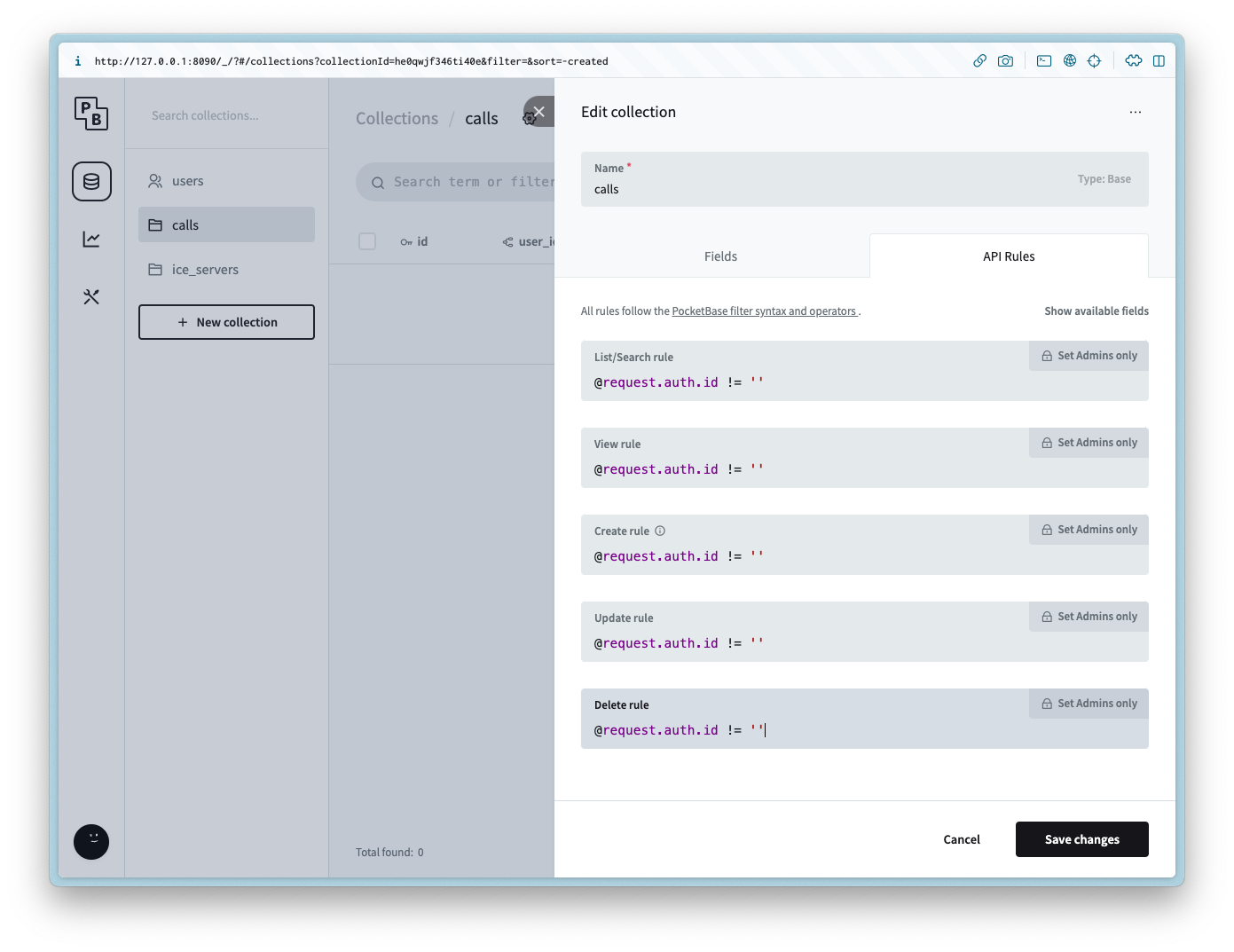
次の API ルールをすべてのメソッドに追加します。
@request.auth.id != ''
offer_candidates
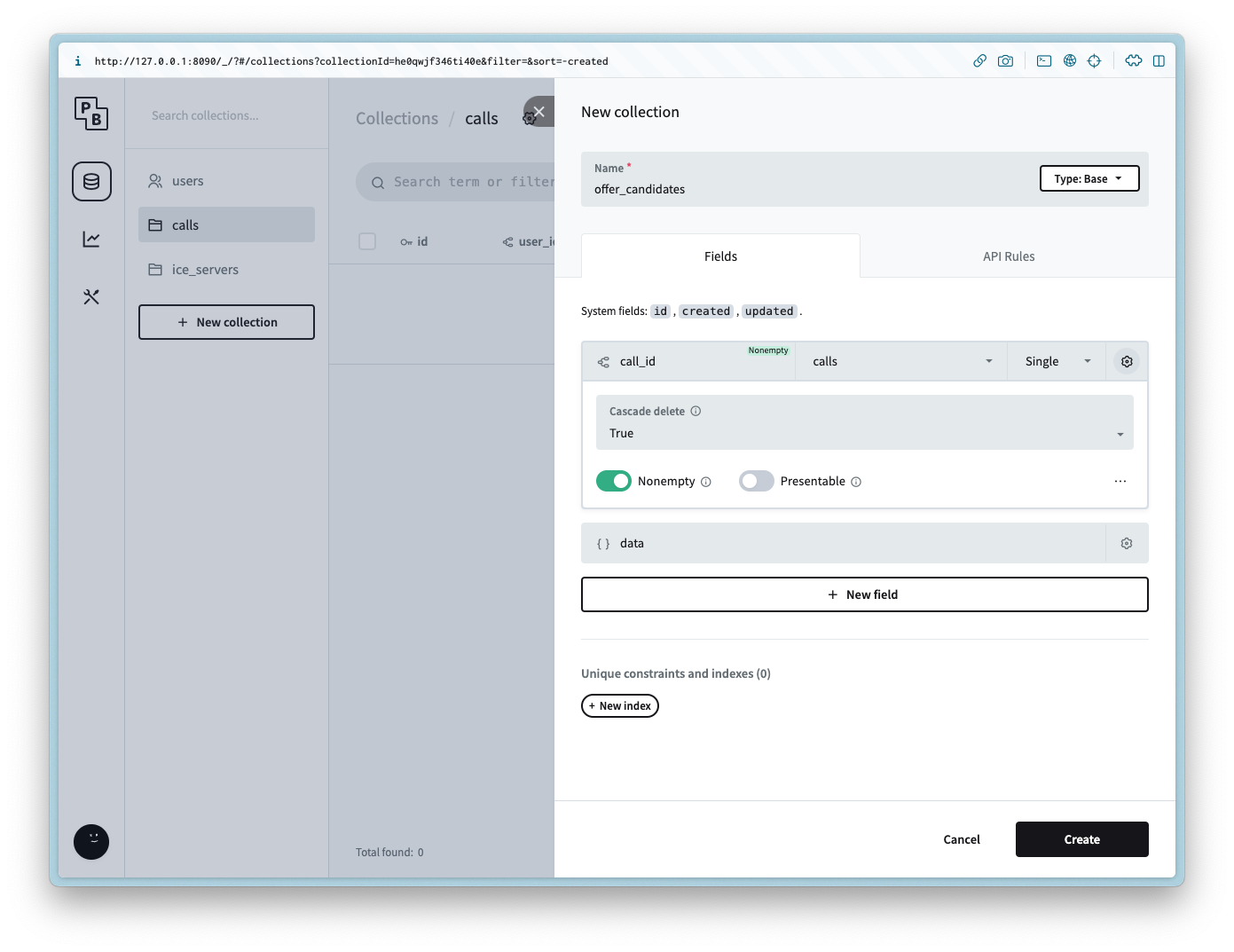
offer_candidates という名前の新しいコレクションを作成し、次の列を追加します。
列名
列の種類
列の設定
call_id
リレーション
空欄不可、calls、カスケード削除は true
data
JSON
次の API ルールをすべてのメソッドに追加します。
@request.auth.id != ''
answer_candidates
以下の列を含む、answer_candidates という名前の新しいコレクションを作成します。
列名
列の型
列の設定
call_id
リレーション
空でない値、calls、カスケード削除は true
data
JSON
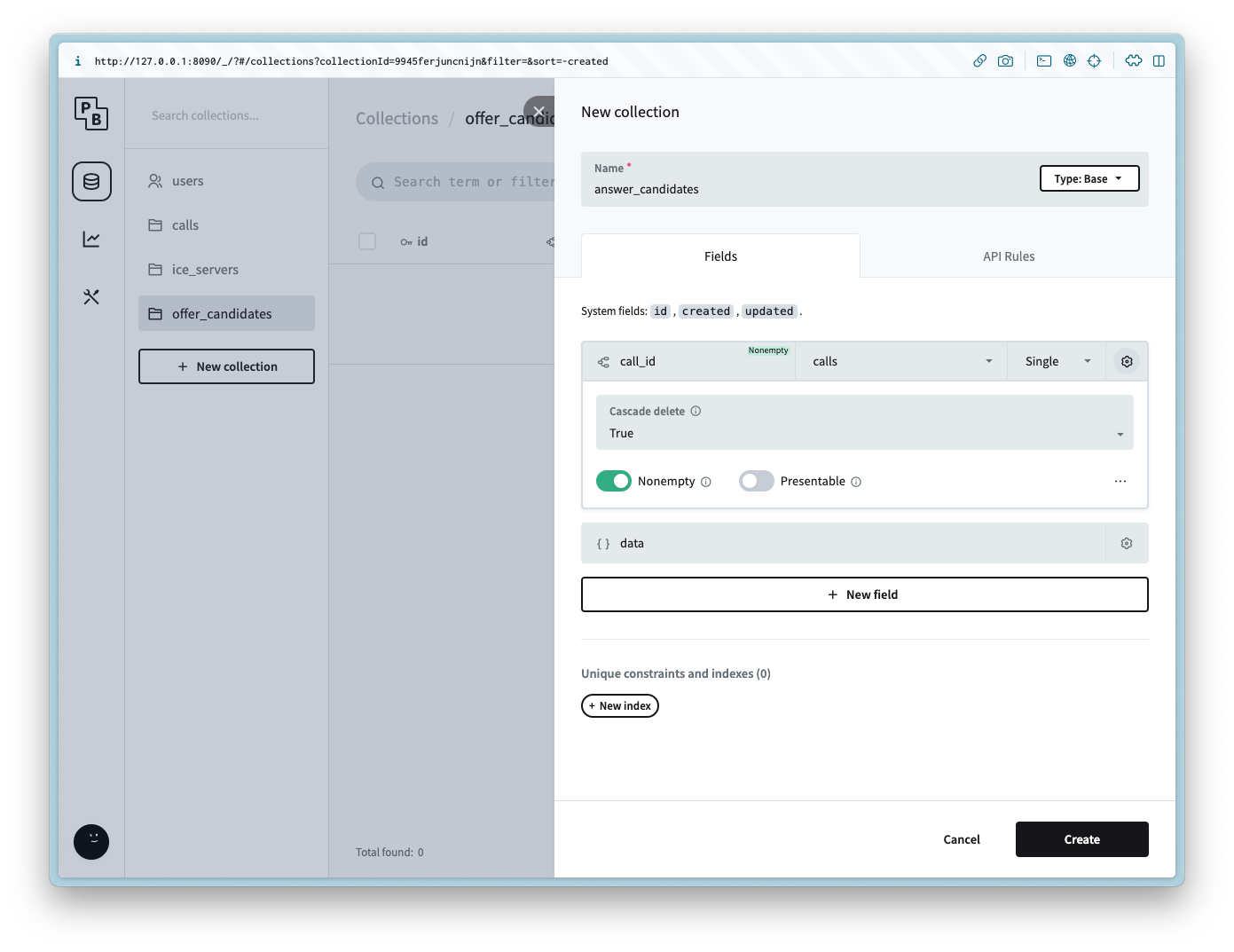
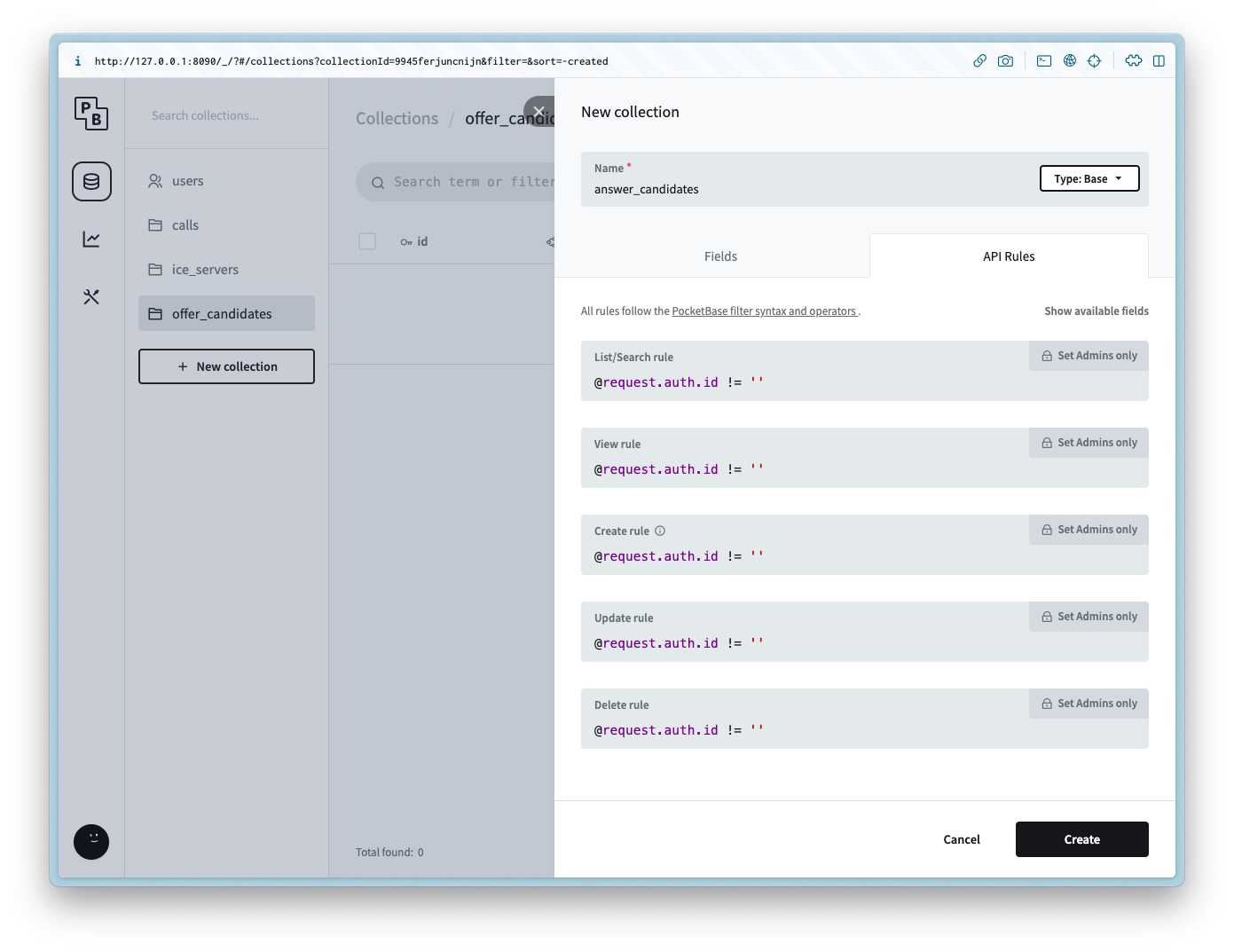
すべてのメソッドに、以下の API ルールを追加します。
@request.auth.id != ''
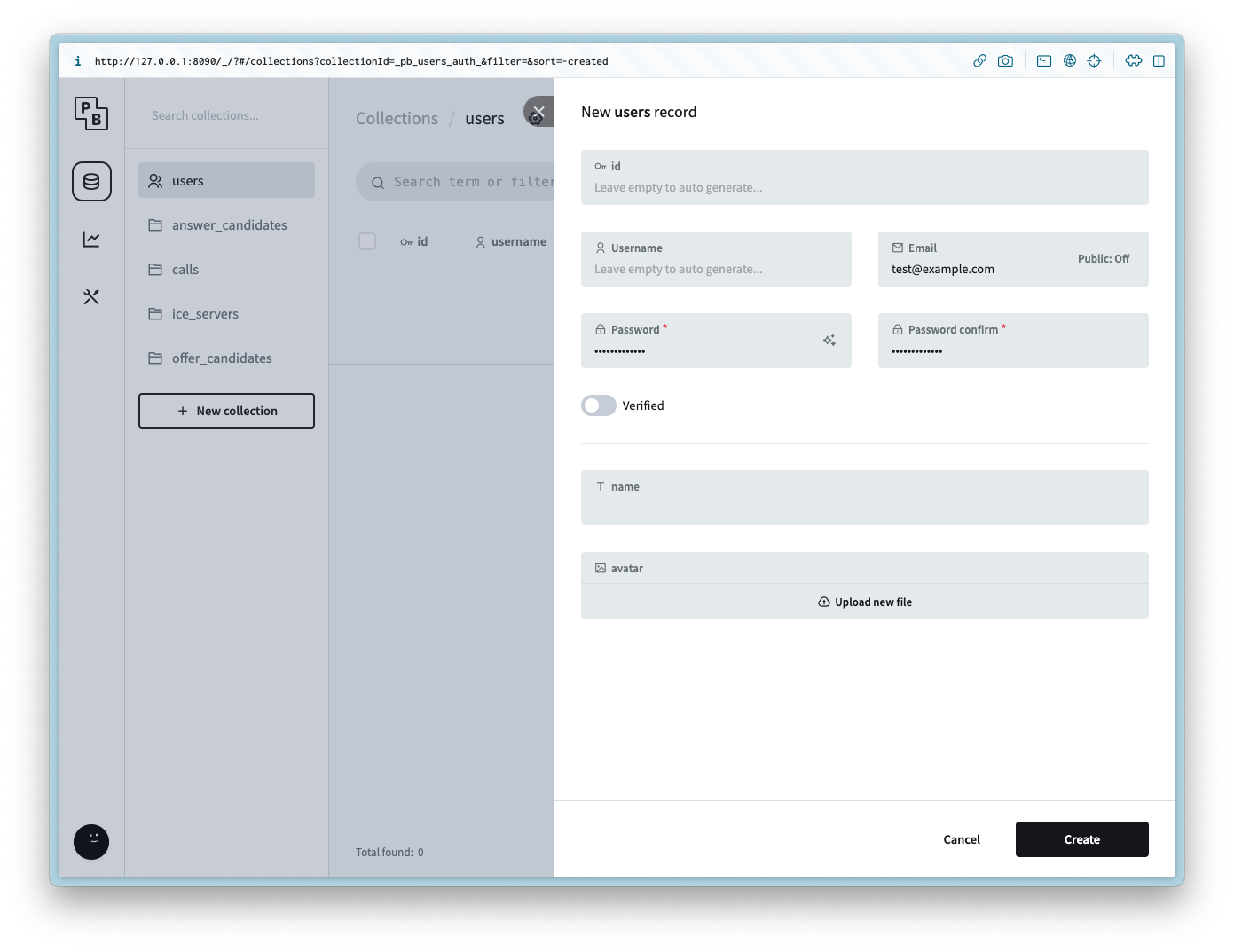
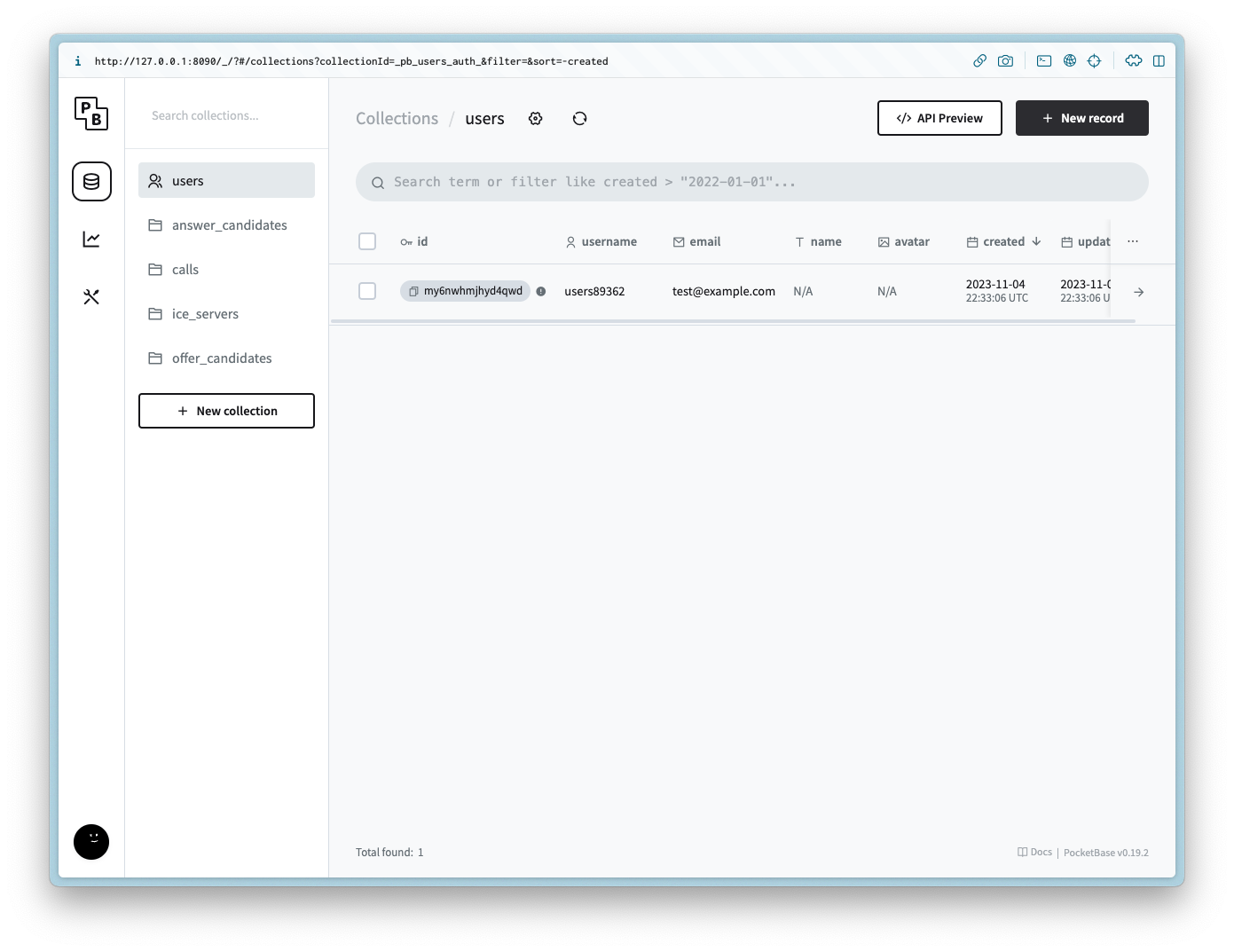
users
デモ用のため、ユーザー向けの認証フォームは含めません。例をシンプルにするため、管理者と同じログイン情報で新しいユーザーを作成します。
クライアントのセットアップ
ディレクトリに移動し、以下のコマンドを実行して開始します。
npm init -y
npm i -D vite
npm i pocketbase
package.json を以下の内容に更新します。
{
  "name": "webrtc-pocketbase-demo",
  "version": "0.0.0",
  "scripts": {
    "dev": "vite",
    "build": "vite build",
    "serve": "vite preview"
  },
  "devDependencies": {
    "vite": "^4.5.0"
  },
  "dependencies": {
    "pocketbase": "^0.19.0"
  }
}
Git リポジトリを使用している場合は、.gitignore を以下の内容に更新または作成します。
node_modules
.DS_Store
dist
dist-ssr
*.local
.pb
.env
HTML
index.html を作成し、以下を追加します。
<!DOCTYPE html>
<html lang="en">
  <head>
    <meta charset="UTF-8" />
    <link rel="icon" type="image/svg+xml" href="favicon.svg" />
    <meta name="viewport" content="width=device-width, initial-scale=1.0" />
    <title>WebRTC Pocketbase Demo</title>
  </head>
  <body>
    <h2>1. Start your Webcam</h2>
    <div class="videos">
      <span>
        <h3>Local Stream</h3>
        <video id="webcamVideo" autoplay playsinline></video>
      </span>
      <span>
        <h3>Remote Stream</h3>
        <video id="remoteVideo" autoplay playsinline></video>
      </span>
    </div>
    <button id="webcamButton">Start webcam</button>
    <h2>2. Create a new Call</h2>
    <button id="callButton" disabled>Create Call (offer)</button>``
    <h2>3. Join a Call</h2>
    <p>Answer the call from a different browser window or device</p>
    <input id="callInput" />
    <button id="answerButton" disabled>Answer</button>
    <h2>4. Hangup</h2>
    <button id="hangupButton" disabled>Hangup</button>
    <script type="module" src="/main.js"></script>
  </body>
</html>
CSS
style.css を作成し、以下を追加します。
body {
  --text-color: #2c3e50;
  --video-background-color: #2c3e50;
  font-family: system-ui, -apple-system, BlinkMacSystemFont, "Segoe UI", Roboto,
    Oxygen, Ubuntu, Cantarell, "Open Sans", "Helvetica Neue", sans-serif;
  -webkit-font-smoothing: antialiased;
  -moz-osx-font-smoothing: grayscale;
  text-align: center;
  color: var(--text-color);
  margin: 80px 10px;
}

video {
  width: 40vw;
  height: 30vw;
  margin: 2rem;
  background: var(--video-background-color);
}

.videos {
  display: flex;
  align-items: center;
  justify-content: center;
}
JS
main.js を作成し、以下を追加します。
import "./style.css";

import PocketBase from "pocketbase";

const pb = new PocketBase("http://127.0.0.1:8090");

const calls = pb.collection("calls");
const offerCandidates = pb.collection("offer_candidates");
const answerCandidates = pb.collection("answer_candidates");

const webcamButton = document.getElementById("webcamButton");
const webcamVideo = document.getElementById("webcamVideo");
const callButton = document.getElementById("callButton");
const callInput = document.getElementById("callInput");
const answerButton = document.getElementById("answerButton");
const remoteVideo = document.getElementById("remoteVideo");
const hangupButton = document.getElementById("hangupButton");

const auth = await pb
  .collection("users")
  .authWithPassword(
    import.meta.env.VITE_POCKETBASE_USERNAME,
    import.meta.env.VITE_POCKETBASE_PASSWORD
  );
const userId = auth.record.id;
const iceServers = await pb.collection("ice_servers").getFullList();

const servers = {
  iceServers: [{ urls: iceServers.map((e) => e.url) }],
  iceCandidatePoolSize: 10,
};

const pc = new RTCPeerConnection(servers);
let localStream = null;
let remoteStream = null;

webcamButton.onclick = async () => {
  localStream = await navigator.mediaDevices.getUserMedia({
    video: true,
    audio: true,
  });
  remoteStream = new MediaStream();

  localStream.getTracks().forEach((track) => {
    pc.addTrack(track, localStream);
  });

  pc.ontrack = (event) => {
    const stream = event.streams[0];
    stream.getTracks().forEach((track) => {
      remoteStream.addTrack(track);
    });
  };

  webcamVideo.srcObject = localStream;
  remoteVideo.srcObject = remoteStream;

  callButton.disabled = false;
  answerButton.disabled = false;
  webcamButton.disabled = true;
};

callButton.onclick = async () => {
  const call = await calls.create({
    user_id: userId,
  });
  const callId = call.id;

  callInput.value = callId;

  pc.onicecandidate = (event) => {
    event.candidate &&
      offerCandidates.create({
        call_id: callId,
        data: event.candidate.toJSON(),
      });
  };

  const offerDescription = await pc.createOffer();
  await pc.setLocalDescription(offerDescription);

  const offer = {
    sdp: offerDescription.sdp,
    type: offerDescription.type,
  };

  await calls.update(callId, { offer });

  calls.subscribe(callId, (e) => {
    const data = e.record;
    if (!pc.currentRemoteDescription && data?.answer) {
      const answerDescription = new RTCSessionDescription(data.answer);
      pc.setRemoteDescription(answerDescription);
    }
  });

  answerCandidates.subscribe("*", (e) => {
    if (e.action === "create") {
      if (e.record?.call_id === callId) {
        const data = e.record.data;
        const candidate = new RTCIceCandidate(data);
        pc.addIceCandidate(candidate);
      }
    }
  });

  hangupButton.disabled = false;
};

answerButton.onclick = async () => {
  const callId = callInput.value;
  const call = await calls.getOne(callId);

  pc.onicecandidate = (event) => {
    event.candidate &&
      answerCandidates.create({
        call_id: call.id,
        data: event.candidate.toJSON(),
      });
  };

  const offerDescription = call.offer;
  const remoteDescription = new RTCSessionDescription(offerDescription);
  await pc.setRemoteDescription(remoteDescription);

  const answerDescription = await pc.createAnswer();
  await pc.setLocalDescription(answerDescription);

  const answer = {
    type: answerDescription.type,
    sdp: answerDescription.sdp,
  };

  await calls.update(call.id, { answer });

  offerCandidates.subscribe("*", async (e) => {
    if (e.record?.call_id === call.id) {
      if (e.action === "create") {
        const data = e.record.data;
        const candidate = new RTCIceCandidate(data);
        await pc.addIceCandidate(candidate);
      } else if (e.action === "delete") {
        await offerCandidates.unsubscribe();
        window.location.reload();
      }
    }
  });
};

hangupButton.onclick = async () => {
  const callId = callInput.value;
  pc.close();
  await calls.unsubscribe(callId);
  await calls.delete(callId);
  await answerCandidates.unsubscribe();
  window.location.reload();
};
サンプルの実行
以下のコマンドを実行してクライアントを起動します(サーバーが別のターミナルクライアントで実行されていることを確認してください)。
npm run dev
成功すると、以下のように表示されます。
  VITE v4.5.0  ready in 547 ms

  ➜  Local:   http://localhost:5173/
  ➜  Network: use --host to expose
  ➜  press h to show help
同じ URL を開いたブラウザーを 2 つ起動します。
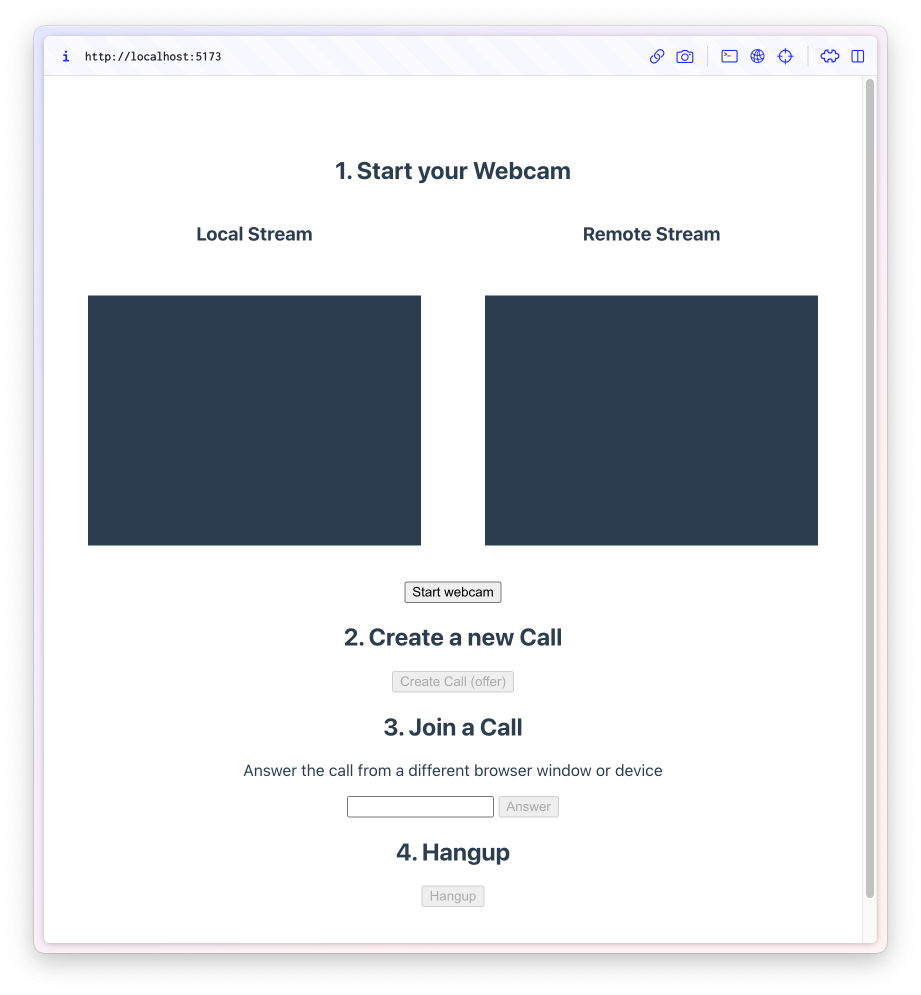
最初のウィンドウで Start webcam をクリックし、次に Create Call (offer) をクリックします。
カメラへのアクセス許可を求めるメッセージが表示された後、新しい ID が生成され、Join a Call のテキストフィールドに追加されます。
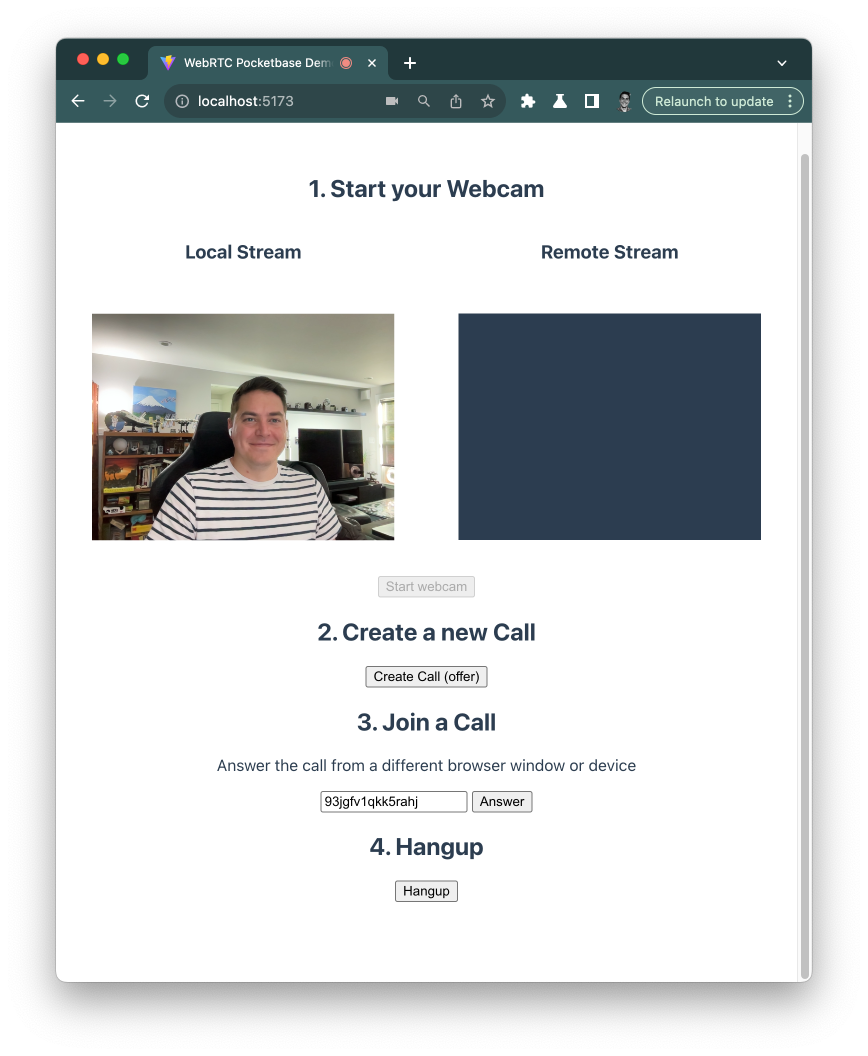
新しい ID をコピーして 2 つ目のウィンドウのフィールドに貼り付け、Start webcam をクリックします。
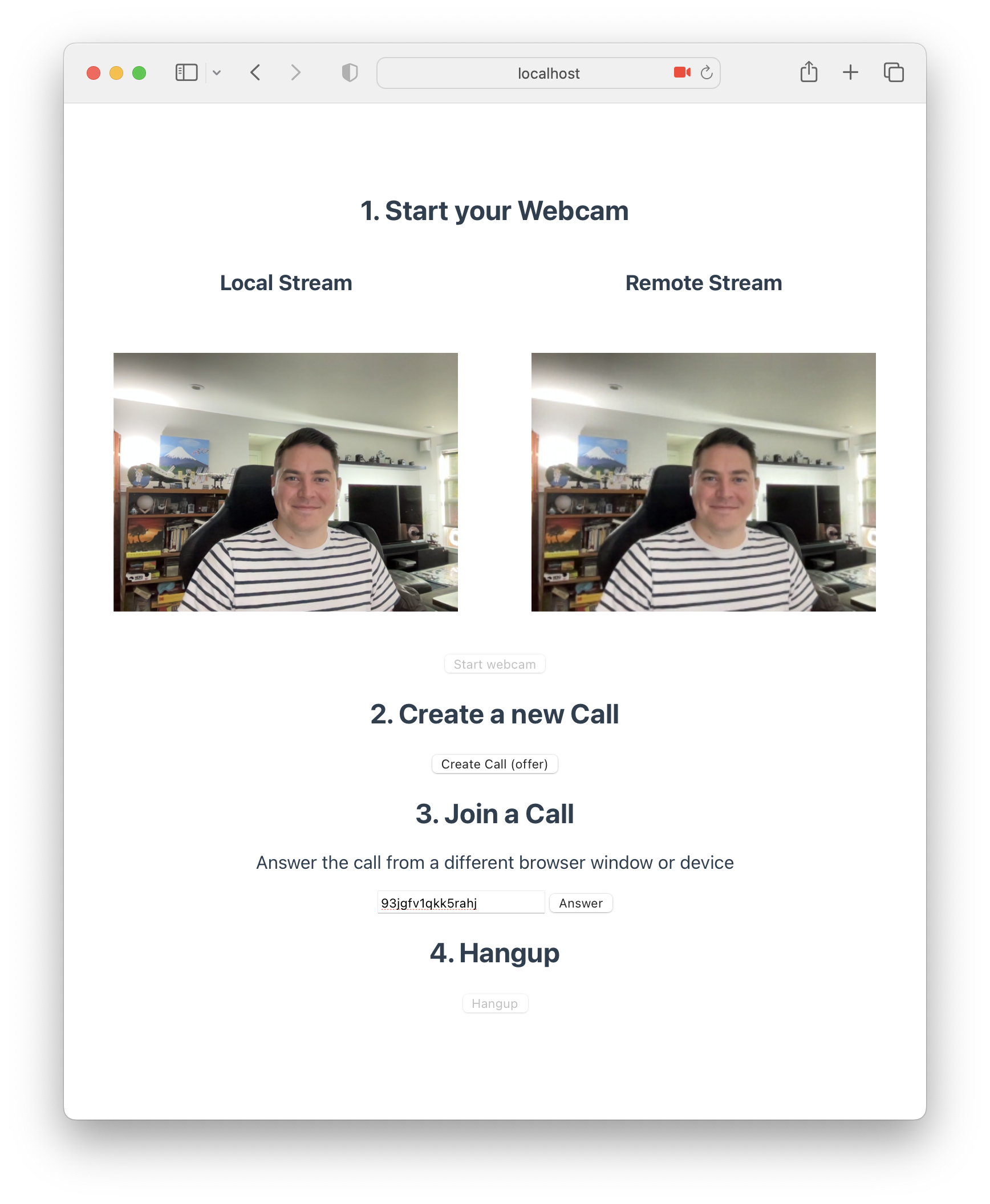
通話が終わったら、Hangup をクリックします 🎉。
まとめ
ソースコードはこちらで確認できます。