
lit-and-monaco-editor について
Lit、TypeScript、Viteを使うWeb開発者向けのチュートリアルです。Monaco EditorをLitのWebコンポーネントで包み、スロットまたはプロパティからコードと言語を渡す方法を説明します。
主な機能
- 01LitによるMonaco Editorのラップ
- 02スロットやプロパティでコードを指定
- 03コードの言語とテーマの設定
- 04エディター内容の取得と設定
- 05システムのダークモードへの対応
活用シーン
- 01Webページへの対話型コードエディターの埋め込み
- 02再利用可能なWebコンポーネントとしてのエディター構築
インストール
コマンドをコピーしてターミナルで実行します。
npx skills add https:/インストール後、Claude Code で/lit-and-monaco-editorを入力して読み込まれたか確認します。
詳細
Lit と Monaco Editor
この記事では、Lit のウェブコンポーネントをセットアップし、VSCode を支える Monaco Editor をラップする方法を説明します。
VSCode と Lit を使った拡張機能の作成方法については、こちらのブログ記事をご覧ください。
前提条件
- Vscode
- Node >= 16
- Typescript
はじめに
まず、ターミナルでプロジェクトの場所に移動し、次のコマンドを実行します。
npm init @vitejs/app --template lit-ts
次に、プロジェクト名 lit-code-editor を入力します。続いて、vscode でプロジェクトを開き、依存関係をインストールします。
cd lit-code-editor
npm i lit monaco-editor
npm i -D @types/node
code .
vite.config.ts を次のように更新します。
import { defineConfig } from "vite";
import { resolve } from "path";

export default defineConfig({
  base: "/lit-code-editor/",
  build: {
    rollupOptions: {
      input: {
        main: resolve(__dirname, "index.html"),
      },
    },
  },
});
テンプレート
index.html を開き、次のように更新します。
<!DOCTYPE html>
<html lang="en">
  <head>
    <meta charset="UTF-8" />
    <link rel="icon" type="image/svg+xml" href="/src/favicon.svg" />
    <meta name="viewport" content="width=device-width, initial-scale=1.0" />
    <title>Lit Code Editor</title>
    <script type="module" src="/src/code-editor.ts"></script>
    <style>
      body {
        margin: 0;
        padding: 0;
        width: 100%;
        height: 100vh;
      }
    </style>
  </head>
  <body>
    <code-editor>
      <script type="text/javascript">
function x() {
  console.log("Hello world! :)");
}
      </script>
    </code-editor>
  </body>
</html>
lit-element にスロットを設定します。このスロットが、エディターの初期コードになります。言語は、code-editor コンポーネントの type を設定するか、属性を追加することで指定できます。
ウェブコンポーネント
コンポーネントを更新する前に、my-element.ts を code-editor.ts に名前変更する必要があります。
code-editor.ts を開き、次のように更新します。
import { css, html, LitElement } from "lit";
import { customElement, property } from "lit/decorators.js";
import { createRef, Ref, ref } from "lit/directives/ref.js";

// -- Monaco Editor Imports --
import * as monaco from "monaco-editor";
import styles from "monaco-editor/min/vs/editor/editor.main.css";
import editorWorker from "monaco-editor/esm/vs/editor/editor.worker?worker";
import jsonWorker from "monaco-editor/esm/vs/language/json/json.worker?worker";
import cssWorker from "monaco-editor/esm/vs/language/css/css.worker?worker";
import htmlWorker from "monaco-editor/esm/vs/language/html/html.worker?worker";
import tsWorker from "monaco-editor/esm/vs/language/typescript/ts.worker?worker";

// @ts-ignore
self.MonacoEnvironment = {
  getWorker(_: any, label: string) {
    if (label === "json") {
      return new jsonWorker();
    }
    if (label === "css" || label === "scss" || label === "less") {
      return new cssWorker();
    }
    if (label === "html" || label === "handlebars" || label === "razor") {
      return new htmlWorker();
    }
    if (label === "typescript" || label === "javascript") {
      return new tsWorker();
    }
    return new editorWorker();
  },
};

@customElement("code-editor")
export class CodeEditor extends LitElement {
  private container: Ref<HTMLElement> = createRef();
  editor?: monaco.editor.IStandaloneCodeEditor;
  @property() theme?: string;
  @property() language?: string;
  @property() code?: string;

  static styles = css`
    :host {
      --editor-width: 100%;
      --editor-height: 100vh;
    }
    main {
      width: var(--editor-width);
      height: var(--editor-height);
    }
  `;

  render() {
    return html`
      <style>
        ${styles}
      </style>
      <main ${ref(this.container)}></main>
    `;
  }
}

declare global {
  interface HTMLElementTagNameMap {
    "code-editor": CodeEditor;
  }
}
ここでは、vite の Web Workerをセットアップし、コンテナー要素からテンプレートに参照を渡すために、ref ディレクティブを使用しています。
Monaco Editor のスタイルも、シャドウルートに読み込む style 要素として渡します。
次に、指定されたコードと言語にアクセスするためのヘルパーメソッドを追加します。
private getFile() {
  if (this.children.length > 0) return this.children[0];
  return null;
}

private getCode() {
  if (this.code) return this.code;
  const file = this.getFile();
  if (!file) return;
  return file.innerHTML.trim();
}

private getLang() {
  if (this.language) return this.language;
  const file = this.getFile();
  if (!file) return;
  const type = file.getAttribute("type")!;
  return type.split("/").pop()!;
}

private getTheme() {
  if (this.theme) return this.theme;
  if (this.isDark()) return "vs-dark";
  return "vs-light";
}

private isDark() {
  return (
    window.matchMedia &&
    window.matchMedia("(prefers-color-scheme: dark)").matches
  );
}
これらのメソッドは、指定された言語の script タグがスロットにあるかを確認するか、code-editor に設定されたプロパティを調べて、その値を返します。
次に、エディターをコンテナー参照に接続します。
firstUpdated() {
  this.editor = monaco.editor.create(this.container.value!, {
    value: this.getCode(),
    language: this.getLang(),
    theme: this.getTheme(),
    automaticLayout: true,
  });
   window
    .matchMedia("(prefers-color-scheme: dark)")
    .addEventListener("change", () => {
      monaco.editor.setTheme(this.getTheme());
    });
}
これでエディターが実行され、操作できるようになります。
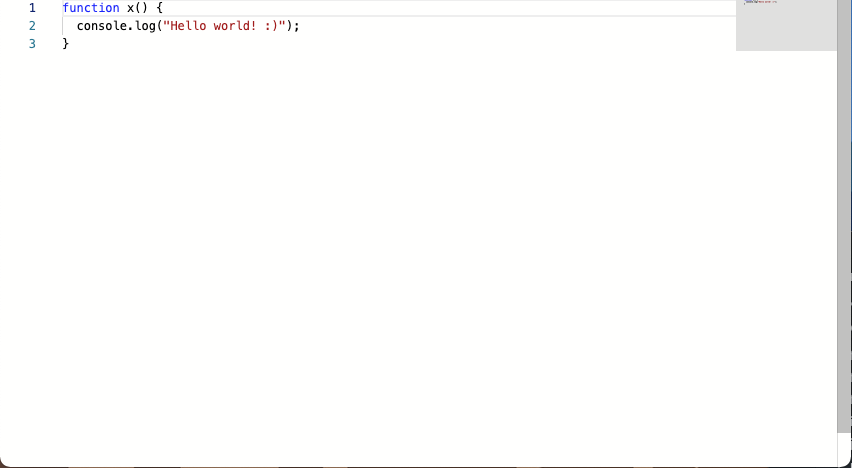
システムがダークモードに切り替わると、エディターも切り替わります!
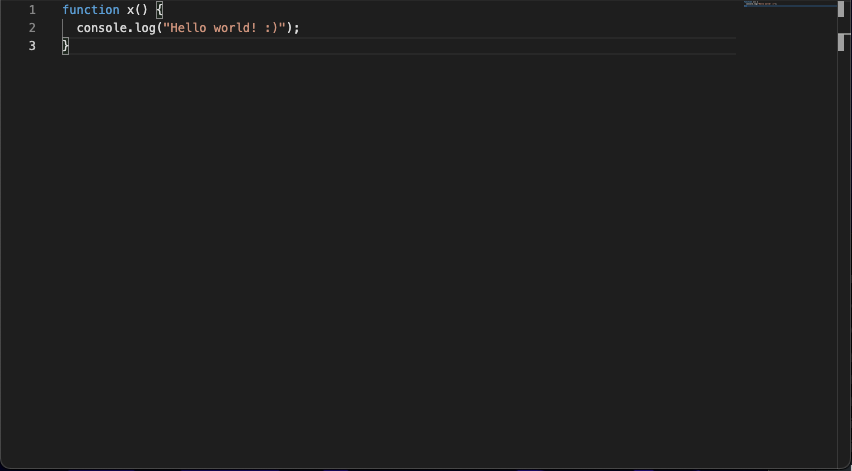
エディターの値を取得および設定するには、2 つのヘルパーメソッドを追加します。
setValue(value: string) {
  this.editor!.setValue(value);
}

getValue() {
  const value = this.editor!.getValue();
  return value;
}
これで期待どおりに動作するはずです。最終的なコードは次のようになります。
import { css, html, LitElement } from "lit";
import { customElement, property } from "lit/decorators.js";
import { createRef, Ref, ref } from "lit/directives/ref.js";

// -- Monaco Editor Imports --
import * as monaco from "monaco-editor";
import styles from "monaco-editor/min/vs/editor/editor.main.css";
import editorWorker from "monaco-editor/esm/vs/editor/editor.worker?worker";
import jsonWorker from "monaco-editor/esm/vs/language/json/json.worker?worker";
import cssWorker from "monaco-editor/esm/vs/language/css/css.worker?worker";
import htmlWorker from "monaco-editor/esm/vs/language/html/html.worker?worker";
import tsWorker from "monaco-editor/esm/vs/language/typescript/ts.worker?worker";

// @ts-ignore
self.MonacoEnvironment = {
  getWorker(_: any, label: string) {
    if (label === "json") {
      return new jsonWorker();
    }
    if (label === "css" || label === "scss" || label === "less") {
      return new cssWorker();
    }
    if (label === "html" || label === "handlebars" || label === "razor") {
      return new htmlWorker();
    }
    if (label === "typescript" || label === "javascript") {
      return new tsWorker();
    }
    return new editorWorker();
  },
};

@customElement("code-editor")
export class CodeEditor extends LitElement {
  private container: Ref<HTMLElement> = createRef();
  editor?: monaco.editor.IStandaloneCodeEditor;
  @property() theme?: string;
  @property() language?: string;
  @property() code?: string;

  static styles = css`
    :host {
      --editor-width: 100%;
      --editor-height: 100vh;
    }
    main {
      width: var(--editor-width);
      height: var(--editor-height);
    }
  `;

  render() {
    return html`
      <style>
        ${styles}
      </style>
      <main ${ref(this.container)}></main>
    `;
  }

  private getFile() {
    if (this.children.length > 0) return this.children[0];
    return null;
  }

  private getCode() {
    if (this.code) return this.code;
    const file = this.getFile();
    if (!file) return;
    return file.innerHTML.trim();
  }

  private getLang() {
    if (this.language) return this.language;
    const file = this.getFile();
    if (!file) return;
    const type = file.getAttribute("type")!;
    return type.split("/").pop()!;
  }

  private getTheme() {
    if (this.theme) return this.theme;
    if (this.isDark()) return "vs-dark";
    return "vs-light";
  }

  private isDark() {
    return (
      window.matchMedia &&
      window.matchMedia("(prefers-color-scheme: dark)").matches
    );
  }

  setValue(value: string) {
    this.editor!.setValue(value);
  }

  getValue() {
    const value = this.editor!.getValue();
    return value;
  }

  firstUpdated() {
    this.editor = monaco.editor.create(this.container.value!, {
      value: this.getCode(),
      language: this.getLang(),
      theme: this.getTheme(),
      automaticLayout: true,
    });
    window
      .matchMedia("(prefers-color-scheme: dark)")
      .addEventListener("change", () => {
        monaco.editor.setTheme(this.getTheme());
      });
  }
}

declare global {
  interface HTMLElementTagNameMap {
    "code-editor": CodeEditor;
  }
}
使用方法
このコンポーネントでは、スロットを使ってコードを指定できます。
<code-editor>
  <script type="text/javascript">
function x() {
  console.log("Hello world! :)");
}
  </script>
</code-editor>
または、プロパティで指定できます。
<code-editor
  code="console.log('Hello World');"
  language="javascript"
  >
</code-editor>
両方を指定することもできます。
<code-editor language="typescript">
  <script>
function x() {
  console.log("Hello world! :)");
}
  </script>
</code-editor>
テーマを手動で設定することもできます。
<code-editor theme="vs-light"> </code-editor>
まとめ
Lit を使った開発について詳しく知りたい場合は、こちらのドキュメントをご覧ください。
この例のソースはこちらで確認できます。