
关于 Isaacsim Mcp Server
Isaacsim Mcp Server 将 NVIDIA Isaac Sim 接入 MCP,面向机器人仿真开发者,可从兼容客户端控制场景、机器人和模拟运行。它提供分类工具、逐步运行与状态检查,并支持热重载和多实例。
主要功能
- 01控制场景、物体、灯光和材质
- 02创建机器人与传感器并检查状态
- 03运行、暂停、逐步推进仿真
- 04执行及热重载 Python 脚本
- 05支持多 Isaac Sim 实例
适用场景
- 01用自然语言搭建机器人仿真场景
- 02检查关节、物理状态并调试行为
- 03在仿真中搜索资产或生成 3D 模型
MCP 相关
该 MCP 服务通过本地 TCP 连接到运行中的 Isaac Sim 扩展,向 MCP 客户端提供场景、机器人、传感器、资产和仿真控制工具。
配置
本地服务的配置在各客户端中通用,复制后粘贴到客户端的 MCP 配置文件即可。
工具
42收录的工具列表 · 更新于 3 周前
此工具无需参数。
详细介绍
Isaac Sim MCP 服务




通过 Model Context Protocol(MCP)使用自然语言控制 NVIDIA Isaac Sim。
将任何兼容 MCP 的 IDE(Cursor、VS Code、Claude Code、Windsurf、Antigravity、JetBrains)连接到正在运行的 Isaac Sim 实例,并通过自然语言提示词进行控制——创建机器人、构建场景、运行仿真,以及直接在编辑器中调试物理效果。
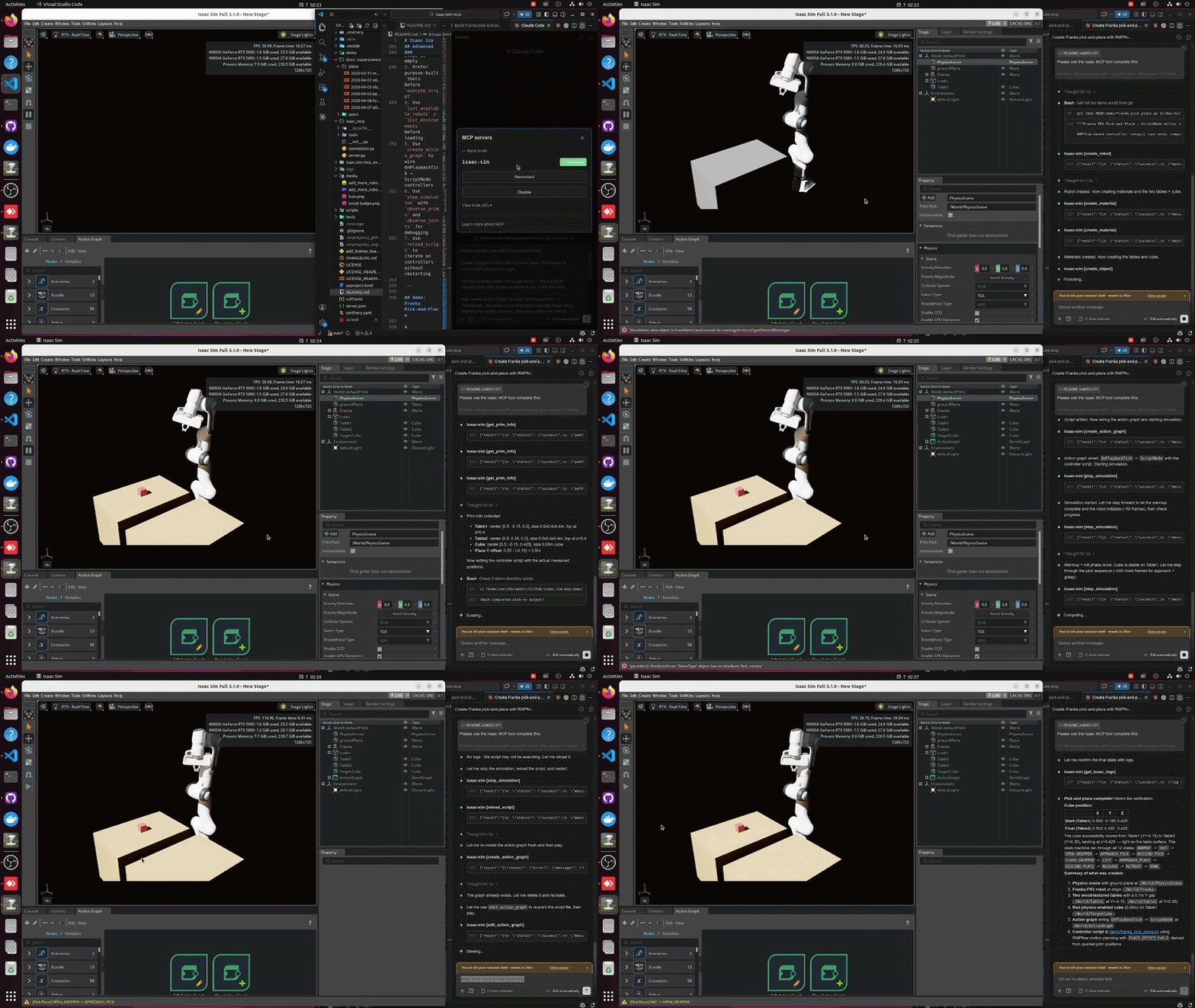
主要功能
- 43 个工具,涵盖 9 个类别——场景、对象、照明、机器人、传感器、材质、资产、仿真、图
- 从 Isaac Sim 资产库自动发现 107+ 款机器人(Franka、UR、Unitree、Boston Dynamics 等)
- 逐步执行并观察调试——单次调用即可逐步运行仿真,并检查 prim 位置、关节状态和物理效果
- 热重载——无需重启 Isaac Sim,即可迭代 Python 控制器
- 多实例——在不同端口并行运行多个 Isaac Sim 会话
- 适用于 Isaac Sim 5.1.0 - 6.0.1(PhysX + Newton),并提供用于隔离不同版本的模块化适配器层
安装
选项 A:使用 pip 安装(推荐)
pip install isaacsim-mcp-server
这会安装 MCP 服务和 isaacsim-mcp-server CLI。你仍需从仓库安装 Isaac Sim 扩展(请参阅下方的启动 Isaac Sim)。
选项 B:从源代码安装
git clone https://github.com/whats2000/isaacsim-mcp-server
cd isaacsim-mcp-server
./scripts/setup_python_env.sh
要求
| 要求 | 版本 |
|---|---|
| NVIDIA Isaac Sim | 5.1.0 - 6.0.1(PhysX 或 Newton) |
| Python | 3.10+ |
uv | 最新版本(从源代码安装时使用) |
| 平台 | Linux(Ubuntu 22.04+)或 Windows 10/11 |
重要
支持 Linux 和 Windows。在 Windows 上,请使用 PowerShell 启动脚本
scripts/run_isaac_sim.ps1替代.sh脚本(见下文)。 不支持 macOS,因为 NVIDIA Isaac Sim 无法在 macOS 上运行。
说明
欢迎提交贡献,以支持其他 Isaac Sim 版本。 适配器层经过设计,便于隔离不同版本。
快速开始
1. 设置环境
如果你是从源代码安装:
./scripts/setup_python_env.sh
在 Windows 上,uv sync 会创建虚拟环境(.venv),并安装
该软件包及其依赖项:
uv sync
2. 使用扩展启动 Isaac Sim
./scripts/run_isaac_sim.sh
你应该会在日志中看到:
Registered 43 command handlers
Isaac Sim MCP server started on localhost:8766
脚本会在 $HOME/isaacsim 中查找 Isaac Sim;如需使用其他安装位置,请设置 ISAACSIM_ROOT。
选择物理引擎。 Isaac Sim 6.0+ 提供 PhysX(默认)和 Newton 后端。使用 --newton / --physx 或 ISAACSIM_ENGINE 进行选择:
./scripts/run_isaac_sim.sh                  # PhysX (default)
./scripts/run_isaac_sim.sh --newton         # Newton
ISAACSIM_ENGINE=newton ./scripts/run_isaac_sim.sh
script/launch_isaac_sim_mcp.sh 也支持相同的标志。命令行中的其他参数会原样传递给 Kit。服务会自动检测当前使用的引擎,因此无需更改 MCP 端的配置。Newton 需要 6.0 或更高版本;在 5.1.0 上请求使用 Newton 时,会显示明确的错误消息。
在 Windows 上,请改用 PowerShell 启动器。它支持相同的引擎选择,并会将额外参数传递给 Kit:
.\scripts\run_isaac_sim.ps1                          # PhysX (default)
.\scripts\run_isaac_sim.ps1 -Engine newton           # Newton
$env:ISAACSIM_ENGINE = 'newton'; .\scripts\run_isaac_sim.ps1
脚本会依次从 -IsaacSimRoot、$env:ISAACSIM_ROOT、本地源码构建目录、C:\isaacsim 和 %USERPROFILE%\isaacsim 中确定安装位置。它还会创建可写的 USD 工作目录(.cache\usd),因为 Windows 没有 /tmp。
可选:用于 3D 生成的 Beaver3D / NVIDIA API 密钥
export BEAVER3D_MODEL="<your beaver3d model name>"
export ARK_API_KEY="<your beaver3d api key>"
export NVIDIA_API_KEY="<your nvidia api key>"
在 Windows 上(PowerShell):
$env:BEAVER3D_MODEL = "<your beaver3d model name>"
$env:ARK_API_KEY = "<your beaver3d api key>"
$env:NVIDIA_API_KEY = "<your nvidia api key>"
3. 连接 IDE
将 MCP 服务添加到编辑器中。将路径替换为实际的仓库位置。command 示例适用于 Linux/macOS;各指南中也提供 Windows 对应配置,该配置会调用 PowerShell 启动器 scripts\run_mcp_server.ps1。
Claude Code(CLI)
claude mcp add isaac-sim /path/to/isaacsim-mcp-server/scripts/run_mcp_server.sh
或者编辑 ~/.claude.json / .mcp.json:
{
  "mcpServers": {
    "isaac-sim": {
      "command": "/path/to/isaacsim-mcp-server/scripts/run_mcp_server.sh"
    }
  }
}
在 Windows 上,调用 PowerShell 启动器:
claude mcp add isaac-sim -- powershell -NoProfile -ExecutionPolicy Bypass -File C:\path\to\isaacsim-mcp-server\scripts\run_mcp_server.ps1
{
  "mcpServers": {
    "isaac-sim": {
      "command": "powershell",
      "args": ["-NoProfile", "-ExecutionPolicy", "Bypass", "-File", "C:\\path\\to\\isaacsim-mcp-server\\scripts\\run_mcp_server.ps1"]
    }
  }
}
VS Code
在工作区中创建 .vscode/mcp.json:
{
  "servers": {
    "isaac-sim": {
      "command": "/path/to/isaacsim-mcp-server/scripts/run_mcp_server.sh"
    }
  }
}
在 Windows 上,调用 PowerShell 启动器:
{
  "servers": {
    "isaac-sim": {
      "command": "powershell",
      "args": ["-NoProfile", "-ExecutionPolicy", "Bypass", "-File", "C:\\path\\to\\isaacsim-mcp-server\\scripts\\run_mcp_server.ps1"]
    }
  }
}
Cursor
打开 Cursor Settings > MCP,或编辑 ~/.cursor/mcp.json:
{
  "mcpServers": {
    "isaac-sim": {
      "command": "/path/to/isaacsim-mcp-server/scripts/run_mcp_server.sh"
    }
  }
}
在 Windows 上,调用 PowerShell 启动器:
{
  "mcpServers": {
    "isaac-sim": {
      "command": "powershell",
      "args": ["-NoProfile", "-ExecutionPolicy", "Bypass", "-File", "C:\\path\\to\\isaacsim-mcp-server\\scripts\\run_mcp_server.ps1"]
    }
  }
}
Claude Desktop
编辑对应平台的配置文件:
- macOS:
~/Library/Application Support/Claude/claude_desktop_config.json - Windows:
%APPDATA%\Claude\claude_desktop_config.json - Linux:
~/.config/Claude/claude_desktop_config.json
{
  "mcpServers": {
    "isaac-sim": {
      "command": "/path/to/isaacsim-mcp-server/scripts/run_mcp_server.sh"
    }
  }
}
在 Windows 上,调用 PowerShell 启动器:
{
  "mcpServers": {
    "isaac-sim": {
      "command": "powershell",
      "args": ["-NoProfile", "-ExecutionPolicy", "Bypass", "-File", "C:\\path\\to\\isaacsim-mcp-server\\scripts\\run_mcp_server.ps1"]
    }
  }
}
Windsurf
打开 Windsurf Settings > MCP,或编辑 ~/.codeium/windsurf/mcp_config.json:
{
  "mcpServers": {
    "isaac-sim": {
      "command": "/path/to/isaacsim-mcp-server/scripts/run_mcp_server.sh"
    }
  }
}
在 Windows 上,调用 PowerShell 启动器:
{
  "mcpServers": {
    "isaac-sim": {
      "command": "powershell",
      "args": ["-NoProfile", "-ExecutionPolicy", "Bypass", "-File", "C:\\path\\to\\isaacsim-mcp-server\\scripts\\run_mcp_server.ps1"]
    }
  }
}
Antigravity
打开 Agent 侧边栏,点击 … > MCP Servers > Manage MCP Servers >
View raw config,或编辑 ~/.gemini/config/mcp_config.json(全局配置)或
.agents/mcp_config.json(工作区配置):
{
  "mcpServers": {
    "isaac-sim": {
      "command": "/path/to/isaacsim-mcp-server/scripts/run_mcp_server.sh"
    }
  }
}
在 Windows 上,调用 PowerShell 启动器:
{
  "mcpServers": {
    "isaac-sim": {
      "command": "powershell",
      "args": ["-NoProfile", "-ExecutionPolicy", "Bypass", "-File", "C:\\path\\to\\isaacsim-mcp-server\\scripts\\run_mcp_server.ps1"]
    }
  }
}
JetBrains IDE
前往 Settings > Tools > AI Assistant > MCP Servers 并添加服务,命令填写
/path/to/isaacsim-mcp-server/scripts/run_mcp_server.sh。详情请参阅
JetBrains MCP 文档。
在 Windows 上,将命令设为 powershell,参数设为
-NoProfile -ExecutionPolicy Bypass -File C:\path\to\isaacsim-mcp-server\scripts\run_mcp_server.ps1。
4. 开始输入提示词
Check the connection with get_scene_info.
If the scene is empty, create a physics scene.
Add a Franka robot at the origin and a Go1 quadruped at [2, 0, 0].
架构
MCP Client (IDE)
      |
      v
isaacsim-mcp-server          (PyPI package / CLI)
      |
      v  TCP socket (localhost:8766)
      |
isaac.sim.mcp_extension      (Omniverse extension)
      |
      v
Handlers -> Adapter -> Isaac Sim 5.1 / 6.0 APIs
工具
9 个类别共 43 个工具:
| 类别 | 数量 | 可执行的操作 |
|---|---|---|
| 场景 | 7 | 检查场景、创建物理场景、列出/加载环境、浏览 prim |
| 对象 | 4 | 创建、删除、变换和克隆基本图元 |
| 照明 | 2 | 创建和调整灯光 |
| 机器人 | 6 | 生成 107+ 个机器人、检查关节、设置位置、刷新库 |
| 传感器 | 4 | 创建相机/LiDAR、捕获图像、获取点云 |
| 材质 | 2 | 创建和应用材质 |
| 资产 | 4 | 导入 URDF、加载/搜索 USD、生成 3D 模型 |
| 图表 | 2 | 构建和编辑 Action Graph(OnPlaybackTick、ScriptNode、脚本文件附加) |
| 仿真 | 11 | 播放/暂停/停止/单步执行、执行 Python、检查物理状态、热重载 |
完整工具列表
场景: get_scene_info create_physics_scene clear_scene list_prims get_prim_info list_environments load_environment
对象: create_object delete_object transform_object clone_object
照明: create_light modify_light
机器人: create_robot list_available_robots refresh_robot_library get_robot_info set_joint_positions get_joint_positions
传感器: create_camera capture_image create_lidar get_lidar_point_cloud
材质: create_material apply_material
资产: import_urdf load_usd search_usd generate_3d
图表: create_action_graph edit_action_graph
仿真: play_simulation pause_simulation stop_simulation step_simulation set_physics_params get_isaac_logs get_simulation_state get_physics_state get_joint_config set_drive_params execute_script reload_script
已知限制
常规会话中可能遇到的未解决缺陷。对于可能的情况,系统会在使用时发出警告;此列表用于帮助你在启动前选择运行时。
| 影响范围 | 现象 | 问题 |
|---|---|---|
| 6.0 Newton | 关节驱动无法收敛——命令目标会被超越,关节会继续运动,且关节限位不会生效。场景设置、步进和检查均正常;请在 PhysX(isaac-sim.sh)上运行运动任务。 | #21 |
| 6.0 | 会话中创建的第一个 RTX 相机无法移除。create_camera 在交付该相机时会发出一次警告。 | #20 |
| 5.1 | get_lidar_point_cloud 约三分之一的读取会填充数据,因此调用方必须重试。在时间轴运行期间创建的 LiDAR 则永远不会填充数据——请在停止状态下创建。 | #31 |
| 5.1 | RTX LiDAR prim 无法删除;该 prim 会作为 Camera 留下。create_lidar 会拒绝此类路径,并指定一个可用路径。 | #25 |
示例提示词
场景初始化
Check the connection with get_scene_info. If the scene is empty, create a physics scene.
Add stronger lighting and place a camera that looks at the workspace.
机器人布局
Create three Franka robots in a row at [0,0,0], [2,0,0], and [4,0,0].
Then add a Go1 robot at [1, 3, 0].
环境加载
List available environments, choose a warehouse-like one, and load it.
Create a camera and capture an image.
资产搜索和 3D 生成
Search for a rusty desk, load the best result near [0, 5, 0], scaled to [2, 2, 2].
高级用法
多个实例
并行运行多个 Isaac Sim 会话。每个会话使用不同的端口(从 8766 自动分配)。
# First instance (default port 8766)
claude mcp add isaac-sim /path/to/isaacsim-mcp-server/scripts/run_mcp_server.sh

# Second instance (port 8767)
claude mcp add isaac-sim-2 -e ISAAC_MCP_PORT=8767 -- /path/to/isaacsim-mcp-server/scripts/run_mcp_server.sh
多个实例的 JSON 配置
{
  "mcpServers": {
    "isaac-sim": {
      "command": "/path/to/isaacsim-mcp-server/scripts/run_mcp_server.sh"
    },
    "isaac-sim-2": {
      "command": "/path/to/isaacsim-mcp-server/scripts/run_mcp_server.sh",
      "env": { "ISAAC_MCP_PORT": "8767" }
    }
  }
}
桌面启动器(Linux)
安装专用的 Isaac Sim MCP 应用图标:
./scripts/install_desktop_entry.sh
这会创建一个启动器,可自动分配端口、等待扩展套接字就绪,并在退出时清理。
推荐工作流
- 使用
get_scene_info验证连接 - 如果舞台为空,则创建物理场景
- 优先使用专用工具,而不是
execute_script - 加载前使用
list_available_robots/list_environments - 使用
create_action_graph将 OnPlaybackTick → ScriptNode 控制器连接起来 - 使用
step_simulation,并搭配observe_prims和observe_joints进行调试 - 使用
reload_script迭代控制器,无需重启
演示:Franka 抓取与放置
demo/franka_pick_place.py 中提供了一个可直接运行的演示,使用 RMPflow 进行运动规划:
Please use the Isaac MCP tool complete this:

Create a physics scene with a ground plane, then spawn a Franka FR3 robot at the origin.

Add two textured tables with a gap along Y. Place a small textured cube with physics enabled on top of the first table.

Use `create_action_graph` to wire `OnPlaybackTick` → `ScriptNode`, and write a pick-and-place controller script using RMPflow for motion planning. Save the script to the `demo/` directory.

Use `get_prim_info` to query actual positions and sizes of the tables and cube before writing the controller — do not hardcode coordinates.

Start the simulation with Play. The robot should pick the cube from table 1 and place it on table 2. Verify the process using `step_simulation` with `observe_prims` on the cube to confirm it reaches table 2.
使用 create_action_graph 搭配 script_file,一步完成 Action Graph + ScriptNode 设置;此外还使用了可观测性工具:get_joint_config、搭配 observe_prims 的 step_simulation、get_physics_state,以及用于脚本热重载的 edit_action_graph。
开发
# Run the MCP inspector
./.venv/bin/python -m mcp dev ./isaac_mcp/server.py
检查器可通过 http://localhost:5173 访问。
设置说明
| 脚本 | 用途 | 默认值 |
|---|---|---|
setup_python_env.sh | 创建虚拟环境并安装软件包 | Python 3.10 |
run_isaac_sim.sh | 启动带扩展的 Isaac Sim(Linux) | $HOME/isaacsim |
run_isaac_sim.ps1 | 启动带扩展的 Isaac Sim(Windows) | C:\isaacsim |
run_mcp_server.sh | 启动 MCP 服务(Linux) | 端口 8766 |
run_mcp_server.ps1 | 启动 MCP 服务(Windows) | 端口 8766 |
launch_isaac_sim_mcp.sh | 组合启动器 | 自动分配端口 |
dev_mcp_server.sh | 支持热重载的开发服务 | 端口 8766 |
覆盖默认值:
PYTHON_SPEC=3.11 ./scripts/setup_python_env.sh
ISAACSIM_ROOT=/opt/isaacsim ./scripts/run_isaac_sim.sh
ISAACSIM_ENGINE=newton ./scripts/run_isaac_sim.sh
引擎选择配置位于 scripts/lib/isaac_launcher.sh 中:每种引擎都映射到 Isaac Sim 随附的启动脚本。添加新条目即可支持新的后端,并在每个启动脚本中启用 ISAACSIM_ENGINE=<name> 和 --<name>。
故障排除
如果 Isaac Sim 提示 Can't find extension with name: isaac.sim.mcp_extension:
# Make sure you're in the repo root
pwd
test -f ./isaac.sim.mcp_extension/config/extension.toml && echo OK
注意:--ext-folder 必须指向仓库根目录,而不是直接指向 isaac.sim.mcp_extension/。
贡献
欢迎提交拉取请求。改进工具、文档、适配器和测试都很有帮助。
许可证
MIT 许可证。版权所有 (c) 2023-2025 omni-mcp,版权所有 (c) 2026 whats2000。请参阅 LICENSE。
评论
一个开放协议,规定了 AI 应用如何以统一方式连接外部工具与数据源。客户端负责与模型对话,MCP 服务负责提供工具、资源和提示模板,两者通过标准消息通信,同一个服务可以被不同客户端复用。