
关于 mcp-obsidian
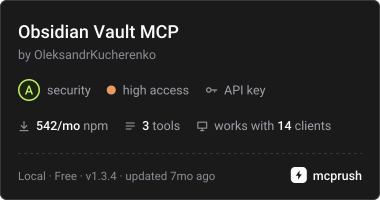
mcp-obsidian 将 Obsidian Vault 通过 Local REST API 接入 AI 助手,适用于需要检索和读取笔记的用户。它提供关键词与语义搜索,并支持多 URL 故障切换及 stdio、HTTP 传输。
主要功能
- 01读取笔记内容和元数据
- 02关键词搜索笔记
- 03语义搜索笔记
- 04多 URL 并行检测与自动故障切换
- 05支持 stdio 和 HTTP 传输
适用场景
- 01从 Vault 检索主题相关笔记
- 02汇总日志与监控工具笔记
- 03Obsidian API 连接中断时切换地址
MCP 相关
作为 MCP 服务,它通过 Local REST API 提供笔记读取、关键词及语义搜索工具,并以 obsidian:// URI 暴露笔记资源。
配置
本地服务的配置在各客户端中通用,复制后粘贴到客户端的 MCP 配置文件即可。
npx -y @oleksandrkucherenko/mcp-obsidianAPI_KEY密钥Obsidian Local REST API keyAPI_URLSJSON array or semicolon-separated list of Obsidian REST API URLs for failoverAPI_HOSTObsidian REST API host (legacy single-URL config)API_PORTObsidian REST API port (legacy single-URL config)MCP_TRANSPORTSEnabled transports (default: stdio,http)MCP_HTTP_PORTHTTP transport bind port (default: 3000)MCP_HTTP_HOSTHTTP transport bind host (default: 0.0.0.0)MCP_HTTP_TOKEN密钥Bearer token for HTTP transport authentication本地服务需要在你的电脑上安装运行环境(如 Node.js 18+)。各客户端的配置文件位置不同,请参考客户端文档。
工具
本地服务需要在你的电脑上运行后才能读取工具,维护者暂未提供工具列表。
详细介绍
mcp-obsidian
Deployed / Usage







CI/CD 状态


MCP 工具与资源
此 MCP 服务向 AI 助手提供以下工具和资源:
工具
| 工具 | 描述 | 参数 |
|---|---|---|
get_note_content | 获取 Obsidian 笔记的内容和元数据 | filePath(字符串)- 笔记路径 |
obsidian_search | 使用查询字符串搜索笔记 | query(字符串)- 搜索查询 |
obsidian_semantic_search | 对笔记进行语义搜索 | query(字符串)- 搜索查询 |
资源
| 资源 | URI 模式 | 描述 |
|---|---|---|
| Obsidian 笔记 | obsidian://{path} | 通过 URI 访问笔记(例如,obsidian://Daily/2025-01-16.md) |
快速测试
# 1. Set your Obsidian API key
export OBSIDIAN_API_KEY="your-obsidian-rest-api-key"

# 2. Add MCP server and test (Claude Code)
claude mcp add obsidian -- bunx -y @oleksandrkucherenko/mcp-obsidian
claude "Search my Obsidian vault for monitoring tools, summarize findings"

# 2. Alternative: Codex CLI
codex mcp add obsidian --command "bunx -y @oleksandrkucherenko/mcp-obsidian"
codex "Find notes about logging frameworks and create a comparison table"
示例用例: “在我的 Obsidian 库中查找所有用于跟踪日志和指标的工具,并生成一份摘要报告”——AI 会搜索你的库,找到有关 OpenTelemetry、Datadog、Prometheus 等的笔记,并生成一份结构化摘要。
其他 CLI 工具(Gemini、OpenCode、Kilo Code、Copilot)的相关说明,请参阅手动测试指南。

配置 MCP
多 URL 配置(推荐)
使用 API_URLS 实现自动故障转移和自我修复。 服务会并行测试所有 URL,选择速度最快的一个,并在发生故障时自动重新连接。
{
  "mcpServers": {
    "obsidian": {
      "command": "docker",
      "args": [
        "run",
        "--name", "mcp-obsidian",
        "--rm",
        "-i",  // Keep STDIN open for stdio transport
        "-p", "3000:3000",
        "-e", "API_KEY",
        "-e", "API_URLS",
        "-e", "DEBUG", // for logs
        "ghcr.io/oleksandrkucherenko/obsidian-mcp:latest"
      ],
      "env": {
        "API_KEY": "<secret_key>",
        // JSON array - automatically tests and selects fastest URL
        "API_URLS": "[\"https://127.0.0.1:27124\",\"https://172.26.32.1:27124\",\"https://host.docker.internal:27124\"]",
        "DEBUG": "mcp:*"
      }
    }
  }
}
自我修复功能:
- ✅ 启动时并行测试 URL
- ✅ 自动选择速度最快的 URL
- ✅ 每 30 秒进行一次运行状况监控
- ✅ 连接断开时自动故障转移
- ✅ 采用指数退避,防止频繁切换
可用传输方式:
stdio- 标准输入/输出(默认,最适合本地 MCP 客户端)http- 支持 SSE 流式传输的 HTTP JSON-RPC(最适合远程访问)
WSL2 示例:
# Automatically determine WSL gateway IP
export WSL_GATEWAY_IP=$(ip route show | grep -i default | awk '{ print $3}')

# Configure with multiple fallback URLs
API_URLS='["https://127.0.0.1:27124", "https://'$WSL_GATEWAY_IP':27124", "https://host.docker.internal:27124"]'
HTTP 传输配置
MCP 服务支持 HTTP 传输,可通过自动 URL 故障转移实现远程访问:
{
  "mcpServers": {
    "obsidian-http": {
      "command": "docker",
      "args": [
        "run",
        "--name", "mcp-obsidian-http",
        "--rm",
        "-p", "3000:3000",
        "-e", "API_KEY",
        "-e", "API_URLS",
        "-e", "MCP_HTTP_PATH",
        "ghcr.io/oleksandrkucherenko/obsidian-mcp:latest"
      ],
      "env": {
        "API_KEY": "<secret_key>",
        "API_URLS": "[\"https://127.0.0.1:27124\",\"https://172.26.32.1:27124\",\"https://host.docker.internal:27124\"]",
        "MCP_HTTP_PATH": "/mcp" // endpoint path (default is: /mcp)
      }
    }
  }
}
使用身份验证的解耦配置
# Automatically determine WSL gateway IP
export WSL_GATEWAY_IP=$(ip route show | grep -i default | awk '{ print $3}')

# Configure with multiple fallback URLs
API_URLS='["https://127.0.0.1:27124", "https://'$WSL_GATEWAY_IP':27124", "https://host.docker.internal:27124"]'

# run MCP server on docker separately from IDE
docker run --name mcp-obsidian-http --rm \
  -p 3000:3000 \
  -e API_KEY="<secret_key>" \
  -e API_URLS="${API_URLS}" \
  -e MCP_HTTP_TOKEN=<your-secret-token-here> \
  ghcr.io/oleksandrkucherenko/obsidian-mcp:latest
{
  "mcpServers": {
    "obsidian": {
      "type": "streamable-http",
      "url": "http://localhost:3000/mcp",
      "headers": {
        "Authorization": "Bearer <your-secret-token-here>"
      }
    }
  }
}
客户端必须包含 Authorization 标头:
Authorization: Bearer your-secret-token-here
Stdio 传输配置
使用 stdio 传输进行本地开发(默认):
{
  "mcpServers": {
    "obsidian": {
      "command": "docker",
      "args": [
        "run",
        "--name", "mcp-obsidian-windsurf",
        "--interactive",
        "--rm",
        "-e", "API_KEY",
        "-e", "API_URLS",
        "-e", "DEBUG",
        "ghcr.io/oleksandrkucherenko/obsidian-mcp:latest"
      ],
      "env": {
        "API_KEY": "<secret_key>",
        "API_URLS": "[\"https://127.0.0.1:27124\",\"https://172.26.32.1:27124\"]",
        "DEBUG": "mcp:*" // default: disabled logs
      }
    }
  }
}
-
--rm- 容器退出时自动删除容器及其关联的匿名卷 -
-i, --interactive- 保持 STDIN 处于打开状态 -
-e, --env- 设置环境变量 -
--name string- 为容器指定名称 -
-p, --publish- 将容器端口发布到主机
旧版单 URL 配置
为保持向后兼容,你仍可使用 API_HOST 和 API_PORT 进行单 URL 配置:
{
  "mcpServers": {
    "obsidian": {
      "command": "docker",
      "args": [
        "run",
        "--name", "mcp-obsidian",
        "--rm",
        "-i",
        "-e", "API_KEY",
        "-e", "API_HOST",
        "-e", "API_PORT",
        "ghcr.io/oleksandrkucherenko/obsidian-mcp:latest"
      ],
      "env": {
        "API_KEY": "<secret_key>",
        "API_HOST": "https://172.26.32.1",  // single URL without failover
        "API_PORT": "27124"
      }
    }
  }
}
注意: 单 URL 配置不提供自动故障转移或运行状况监控。生产环境部署请使用 API_URLS。
健康检查端点
启用 HTTP 传输后,服务会在 /health 提供健康检查端点:
curl http://localhost:3000/health
响应:
{
  "status": "healthy",
  "timestamp": "2025-01-12T12:00:00.000Z",
  "transport": "http",
  "authEnabled": false
}
如需全面的健康状态(包括 Obsidian API 连接和所有传输方式),可以使用 getHealthStatus() 函数,它会返回:
{
  "healthy": true,
  "obsidian": {
    "connected": true,
    "url": "https://obsidian:27124",
    "lastCheck": 1705065600000
  },
  "transports": {
    "stdio": { "running": true, "enabled": true },
    "http": { "running": true, "enabled": true }
  },
  "uptime": 3600,
  "timestamp": 1705065600000
}
CLI 工具配置
本节介绍如何配置常见的 AI CLI 工具,以使用 MCP Obsidian 服务。
# MacOs or Linux
curl -fsSL https://bun.sh/install | bash

# Windows
powershell -c "irm bun.sh/install.ps1 | iex"
Claude Code CLI
Docker:
# Create mcp.json configuration
cat > mcp.json << 'EOF'
{
  "mcpServers": {
    "obsidian": {
      "command": "docker",
      "args": ["run", "--rm", "-i", "-e", "API_KEY", "-e", "API_URLS", "ghcr.io/oleksandrkucherenko/obsidian-mcp:latest"],
      "env": {
        "API_KEY": "<your-obsidian-api-key>",
        "API_URLS": "[\"https://host.docker.internal:27124\"]"
      }
    }
  }
}
EOF

# Run Claude with MCP config
claude --mcp-config ./mcp.json
NPX/Bunx:
cat > mcp.json << 'EOF'
{
  "mcpServers": {
    "obsidian": {
      "command": "bunx",
      "args": ["-y", "@oleksandrkucherenko/mcp-obsidian"],
      "env": {
        "API_KEY": "<your-obsidian-api-key>",
        "API_URLS": "[\"https://127.0.0.1:27124\"]"
      }
    }
  }
}
EOF

claude --mcp-config ./mcp.json
Gemini CLI
Docker:
gemini mcp add \
  -e API_KEY=<your-obsidian-api-key> \
  -e API_URLS='["https://host.docker.internal:27124"]' \
  obsidian \
  docker run --rm -i ghcr.io/oleksandrkucherenko/obsidian-mcp:latest
NPX/Bunx:
gemini mcp add \
  -e API_KEY=<your-obsidian-api-key> \
  -e API_URLS='["https://127.0.0.1:27124"]' \
  obsidian \
  bunx -y @oleksandrkucherenko/mcp-obsidian
HTTP 传输(远程服务):
gemini mcp add --transport http obsidian-http http://localhost:3000/mcp
列出和管理服务:
gemini mcp list
gemini mcp remove obsidian
OpenCode CLI
在项目根目录创建 opencode.json:
Docker:
{
  "mcp": {
    "obsidian": {
      "type": "local",
      "command": ["docker", "run", "--rm", "-i",
        "-e", "API_KEY", "-e", "API_URLS",
        "ghcr.io/oleksandrkucherenko/obsidian-mcp:latest"],
      "environment": {
        "API_KEY": "{env:API_KEY}",
        "API_URLS": "[\"https://host.docker.internal:27124\"]"
      },
      "enabled": true
    }
  }
}
NPX/Bunx:
{
  "mcp": {
    "obsidian": {
      "type": "local",
      "command": ["bunx", "-y", "@oleksandrkucherenko/mcp-obsidian"],
      "environment": {
        "API_KEY": "{env:API_KEY}",
        "API_URLS": "[\"https://127.0.0.1:27124\"]"
      },
      "enabled": true
    }
  }
}
HTTP 传输:
{
  "mcp": {
    "obsidian-http": {
      "type": "remote",
      "url": "http://localhost:3000/mcp",
      "enabled": true
    }
  }
}
Kilo Code CLI
在项目中创建 .kilocode/mcp.json,或在全局位置创建 ~/.kilocode/cli/global/settings/mcp_settings.json:
Docker:
{
  "mcpServers": {
    "obsidian": {
      "command": "docker",
      "args": ["run", "--rm", "-i", "-e", "API_KEY", "-e", "API_URLS",
        "ghcr.io/oleksandrkucherenko/obsidian-mcp:latest"],
      "env": {
        "API_KEY": "<your-obsidian-api-key>",
        "API_URLS": "[\"https://host.docker.internal:27124\"]"
      }
    }
  }
}
NPX/Bunx:
{
  "mcpServers": {
    "obsidian": {
      "command": "bunx",
      "args": ["-y", "@oleksandrkucherenko/mcp-obsidian"],
      "env": {
        "API_KEY": "<your-obsidian-api-key>",
        "API_URLS": "[\"https://127.0.0.1:27124\"]"
      }
    }
  }
}
HTTP 传输:
{
  "mcpServers": {
    "obsidian-http": {
      "type": "streamable-http",
      "url": "http://localhost:3000/mcp",
      "headers": {
        "Authorization": "Bearer <your-token>"
      }
    }
  }
}
Codex CLI
Docker:
# Register MCP server
codex mcp add obsidian \
  --command "docker run --rm -i -e API_KEY -e API_URLS ghcr.io/oleksandrkucherenko/obsidian-mcp:latest" \
  --env API_KEY=<your-obsidian-api-key> \
  --env 'API_URLS=["https://host.docker.internal:27124"]'
NPX/Bunx:
codex mcp add obsidian \
  --command "bunx -y @oleksandrkucherenko/mcp-obsidian" \
  --env API_KEY=<your-obsidian-api-key> \
  --env 'API_URLS=["https://127.0.0.1:27124"]'
GitHub Copilot CLI
创建 ~/.copilot/mcp-config.json(或在仓库根目录创建 .copilot/mcp-config.json):
Docker:
{
  "mcpServers": {
    "obsidian": {
      "type": "local",
      "command": "docker",
      "args": ["run", "--rm", "-i", "-e", "API_KEY", "-e", "API_URLS",
        "ghcr.io/oleksandrkucherenko/obsidian-mcp:latest"],
      "env": {
        "API_KEY": "${OBSIDIAN_API_KEY}",
        "API_URLS": "[\"https://host.docker.internal:27124\"]"
      },
      "tools": ["*"]
    }
  }
}
NPX/Bunx:
{
  "mcpServers": {
    "obsidian": {
      "type": "local",
      "command": "bunx",
      "args": ["-y", "@oleksandrkucherenko/mcp-obsidian"],
      "env": {
        "API_KEY": "${OBSIDIAN_API_KEY}",
        "API_URLS": "[\"https://127.0.0.1:27124\"]"
      },
      "tools": ["*"]
    }
  }
}
注意: Copilot CLI v0.0.340+ 要求使用 ${VAR} 语法展开环境变量。运行前,请在 shell 中设置 OBSIDIAN_API_KEY。
快速参考
| CLI 工具 | 配置文件 | Docker 支持 | HTTP 传输 |
|---|---|---|---|
| Claude Code | mcp.json | ✅ | ✅ |
| Gemini | settings.json | ✅ | ✅ |
| OpenCode | opencode.json | ✅ | ✅ |
| Kilo Code | .kilocode/mcp.json | ✅ | ✅ |
| Codex | CLI 命令 | ✅ | ✅ |
| Copilot | ~/.copilot/mcp-config.json | ✅ | ✅ |
有关详细的测试和验证,请参阅手动测试指南。
设置与故障排除
设置
- 运行 Obsidian 桌面应用,并在设置中启用 Local REST API。

此设置允许你从任何网络接口连接到 Local REST API(而不仅限于 localhost;这对于设置 WSL2 至关重要)。
-
从 Obsidian 设置中复制 API Key;配置 MCP 时需要用到它。
-
确认 Obsidian Local REST API 正在运行,并且可以从你的计算机访问。
-
下一步始终是检查计算机上的网络设置(防火墙规则等)。
验证 Obsidian REST API 是否正在运行(Windows 主机、MacOS、Linux)
在 Windows CMD 终端中运行:
# windows CMD, verify that port is listening (that rest api is running)
netstat -an | findstr 27124
# Expected output:
#   TCP    0.0.0.0:27124           0.0.0.0:0               LISTENING

# Verify that Obsidian Local REST API is working
curl --insecure https://localhost:27124
wget --no-check-certificate -S https://localhost:27124
http --verify=no https://localhost:27124
预期的 REST API 响应:
{
  "status": "OK",
  "manifest": {
    "id": "obsidian-local-rest-api",
    "name": "Local REST API",
    "version": "3.2.0",
    "minAppVersion": "0.12.0",
    "description": "Get, change or otherwise interact with your notes in Obsidian via a REST API.",
    "author": "Adam Coddington",
    "authorUrl": "https://coddingtonbear.net/",
    "isDesktopOnly": true,
    "dir": ".obsidian/plugins/obsidian-local-rest-api"
  },
  "versions": {
    "obsidian": "1.8.10",
    "self": "3.2.0"
  },
  "service": "Obsidian Local REST API",
  "authenticated": false
}
WSL2、托管于 Ubuntu 的 Docker
graph LR
    subgraph "Windows Machine"
      obs("Obsidian Application")

      subgraph "WSL2"
        subgraph "Ubuntu"
          subgraph "Docker"
            mcp("mcp-obsidian:latest")
          end
        end
      end

      firewall(["Windows Firewall"]) -->|27124| obs

      mcp -->|https://$WSL_GATEWAY_IP:27124| firewall

      IDE -.->|MCP Server Tools| mcp
    end
在 WSL2 Ubuntu 终端中运行:
export WSL_GATEWAY_IP=$(ip route show | grep -i default | awk '{ print $3}')
echo $WSL_GATEWAY_IP # expected something like: 172.26.32.1

# Verify that Obsidian Local REST API is working
curl --insecure https://$WSL_GATEWAY_IP:27124
wget --no-check-certificate -S https://$WSL_GATEWAY_IP:27124
http --verify=no https://$WSL_GATEWAY_IP:27124
验证 Windows 防火墙
打开图形界面并手动设置规则:
# Windows Defender Firewall / Inbound Rules. Press Win+R and type WF.msc or firewall.cpl
WF.msc
firewall.cpl # and then press 'Advanced settings'
或者,以管理员身份在 Windows PowerShell 中运行:
# Add firewall rule to allow port 27124 (Run in Admin PowerShell)
New-NetFirewallRule -DisplayName "WSL2 Obsidian REST API" -Direction Inbound -LocalPort 27123,27124 -Protocol TCP -Action Allow
或者,在 Windows CMD 终端中运行:
# check firewall rules (CMD) that manage 27124 port
netsh advfirewall firewall show rule name=all | findstr /C:"Rule Name" /C:"LocalPort" /C:"RemotePort" | findstr /C:"27124"

# display rules that has WSL2 keyword in own name
netsh advfirewall firewall show rule name=all | grep -A 13 WSL2

# display rule definition by port number (4 line after, 9 lines before)
netsh advfirewall firewall show rule name=all | grep -A 4 -B 9 27124
禁用/启用防火墙
以管理员身份在 Windows PowerShell 中执行:
# Temporarily turn off firewall (for testing ONLY, not recommended for regular use)
Set-NetFirewallProfile -Profile Domain,Public,Private -Enabled False

# Restore Firewall state
Set-NetFirewallProfile -Profile Domain,Public,Private -Enabled True
在 BusyBox 容器中验证连接
这些步骤可帮助我们确认网络设置正确,并且容器可以连接到 Local REST API。
在 WSL2 Ubuntu 终端中执行:
export WSL_GATEWAY_IP=$(ip route | grep default | awk '{print $3}')
echo "Windows host IP from WSL2: $WSL_GATEWAY_IP"
# Output:
#   Windows host IP from WSL2: 172.26.32.1

# run docker container to verify the connectivity from Docker inside
docker run --rm -it --network=host busybox sh

# inside the container run:
which wget
# /bin/wget

export WINDOWS_HOST_IP="172.26.32.1"
echo $WINDOWS_HOST_IP
# 172.26.32.1

# try to connect to the Local REST API
wget -qO- --no-check-certificate "https://$WINDOWS_HOST_IP:27124"
wget -qO- --no-check-certificate https://172.26.32.1:27124
Docker 化的 Obsidian
评论
一个开放协议,规定了 AI 应用如何以统一方式连接外部工具与数据源。客户端负责与模型对话,MCP 服务负责提供工具、资源和提示模板,两者通过标准消息通信,同一个服务可以被不同客户端复用。