
关于 SeleniumBase MCP
SeleniumBase MCP 是面向开发者和测试团队的 Python 浏览器自动化、抓取与测试框架。其 CDP Mode 提供隐蔽浏览器操作选项和 CAPTCHA 处理功能。
主要功能
- 01CDP Mode 浏览器自动化
- 02针对反机器人检测的隐蔽选项
- 03CAPTCHA 处理
- 04网页抓取
- 05基于 pytest 的端到端测试
适用场景
- 01自动执行浏览器交互
- 02抓取网页列表内容
- 03使用 pytest 测试 Web 应用
MCP 相关
README 提及 SeleniumBase MCP 并链接到 MCP,但未说明向 MCP 客户端开放哪些能力。
配置
本地服务的配置在各客户端中通用,复制后粘贴到客户端的 MCP 配置文件即可。
工具
本地服务需要在你的电脑上运行后才能读取工具,维护者暂未提供工具列表。
详细介绍
📊 SeleniumBase
一个框架,适用于浏览器自动化、网页抓取和测试。
包含用于绕过机器人检测和 CAPTCHA 的隐身选项。









🚀 开始 |
🏰 功能 |
🎛️ 选项 |
📚 示例 |
💻 脚本 |
🗾 区域设置
📗 API |
📘 隐身 API |
🔠 设计模式 |
🔴 录制器 |
📊 仪表板
🎖️ 图形界面 |
📰 测试页面 |
👤 UC 模式 |
🐙 CDP 模式 |
📶 图表 |
🖥️ 设备农场
👁️ 原理 |
🚝 迁移 |
🎭 隐身 Playwright |
🛂 MasterQA |
🚎 导览
🤖 MCP |
🟨 JS 管理器 |
🌏 翻译器 |
🎞️ 演示工具 |
🖼️ 视觉 |
🗂️ 测试计划
🥷 CDP Mode 可让浏览器自动化避开反机器人服务的检测,并为原版 Playwright 添加 隐身 功能。还包含绕过 CAPTCHA 的代码。
📚 以 "test" 开头或结尾的示例脚本专为使用 pytest 运行而设计。其他脚本可直接使用原生 python 运行。(这些脚本以 "raw" 开头,以免混淆。)
📝 这是一个使用 示例,采用 seleniumbase sb_cdp(纯 CDP 模式):
(它可同时绕过 BrowserScan 和 Sannysoft 的机器人检测)
from seleniumbase import sb_cdp

sb = sb_cdp.Chrome()
sb.goto("https://browserscan.net/bot-detection")
sb.assert_element('strong:contains("Normal")')
sb.sleep(1)
sb.goto("https://bot.sannysoft.com/")
sb.assert_element(".passed")
sb.assert_element_not_visible(".failed")
sb.sleep(1)
sb.quit()
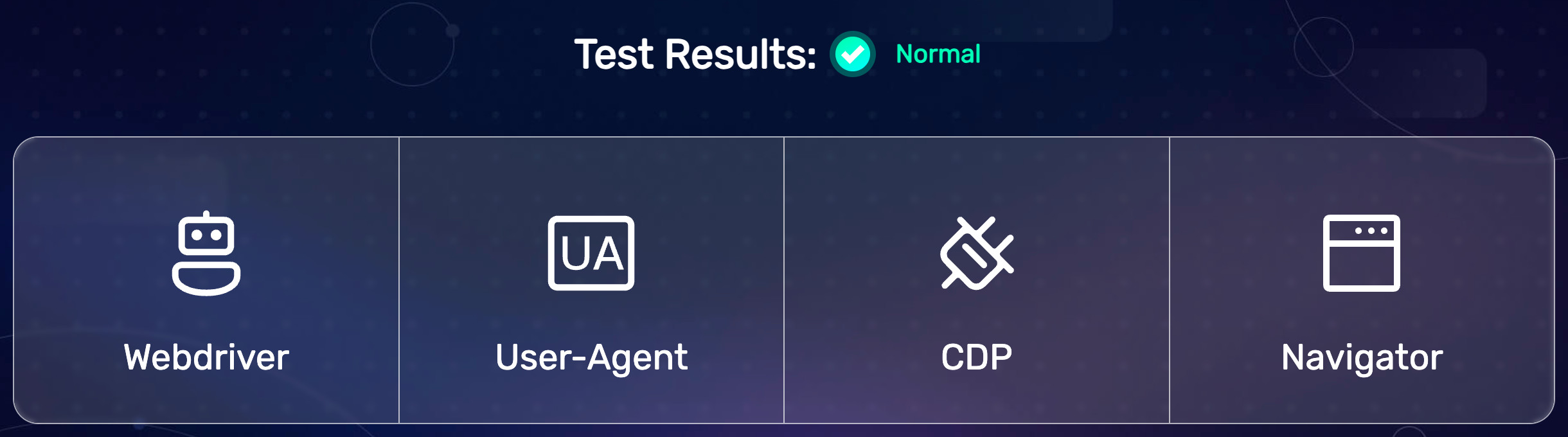
(所有 BrowserScan 机器人检测测试均已成功通过)
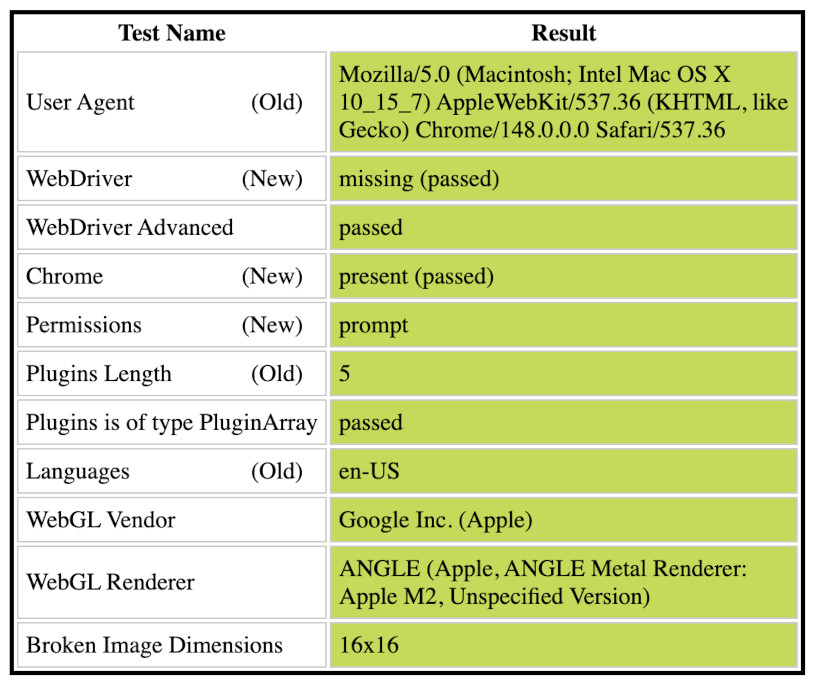
(所有 Sannysoft 机器人检测测试均已成功通过)
📝 这是另一个使用 示例,采用 seleniumbase sb_cdp(纯 CDP 模式):
(它会执行各种浏览器操作,并绕过 Cloudflare Turnstile)
from seleniumbase import sb_cdp

sb = sb_cdp.Chrome(incognito=True)
sb.goto("https://www.planetminecraft.com/account")
sb.assert_element('input[name="login"]')
sb.type('input[name="email"]', "[email protected]")
sb.type('input[name="password"]', "Fake_Password")
sb.click("input#autologin")  # The checkbox
if sb.is_element_visible("input[disabled]"):
    sb.solve_captcha()  # Enables the input
sb.assert_element_absent("input[disabled]")
sb.sleep(1.5)
sb.quit()
python raw_cdp_planetmc.py
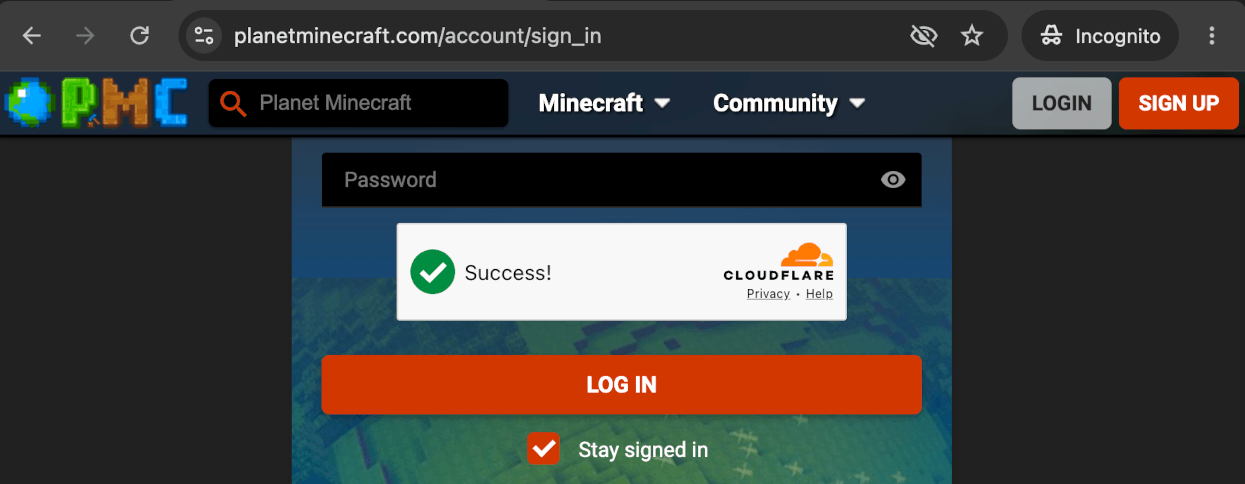
✅ sb.solve_captcha() 可处理未被自动绕过的 CAPTCHA。
(如果页面上没有 CAPTCHA 时调用,则不会发生任何操作/不起作用。)
ℹ️ sb.assert_* 方法最多等待 7 秒,以确认预期条件出现。
📝 此脚本会抓取 Hacker News 列表:
from seleniumbase import sb_cdp

sb = sb_cdp.Chrome(fast=True)
sb.goto("https://hn.algolia.com/?query=seleniumbase")
elements = sb.find_elements("div.Story_title > a")
for element in elements:
    print("* " + element.text)
python raw_cdp_yc_news.py
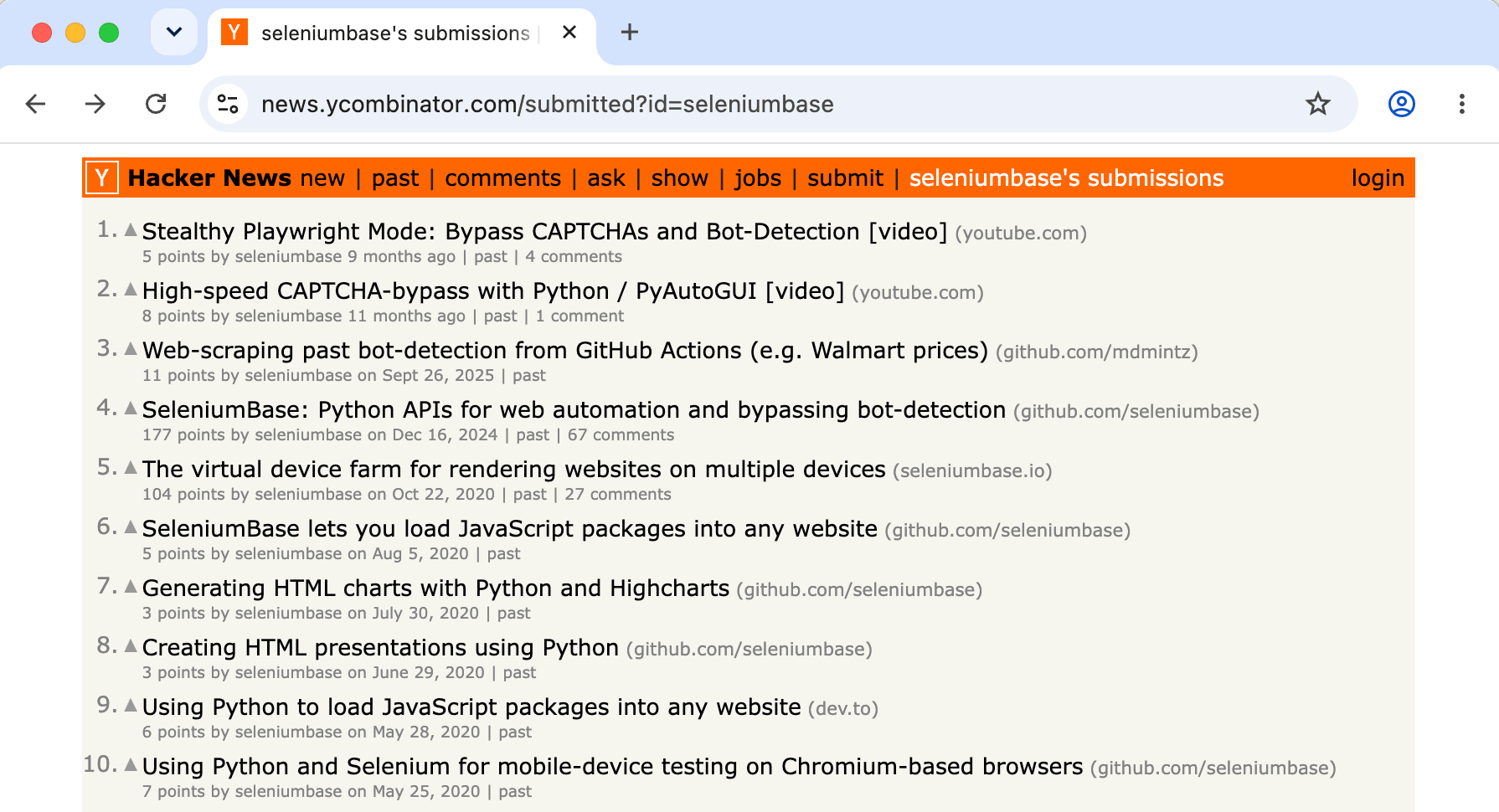
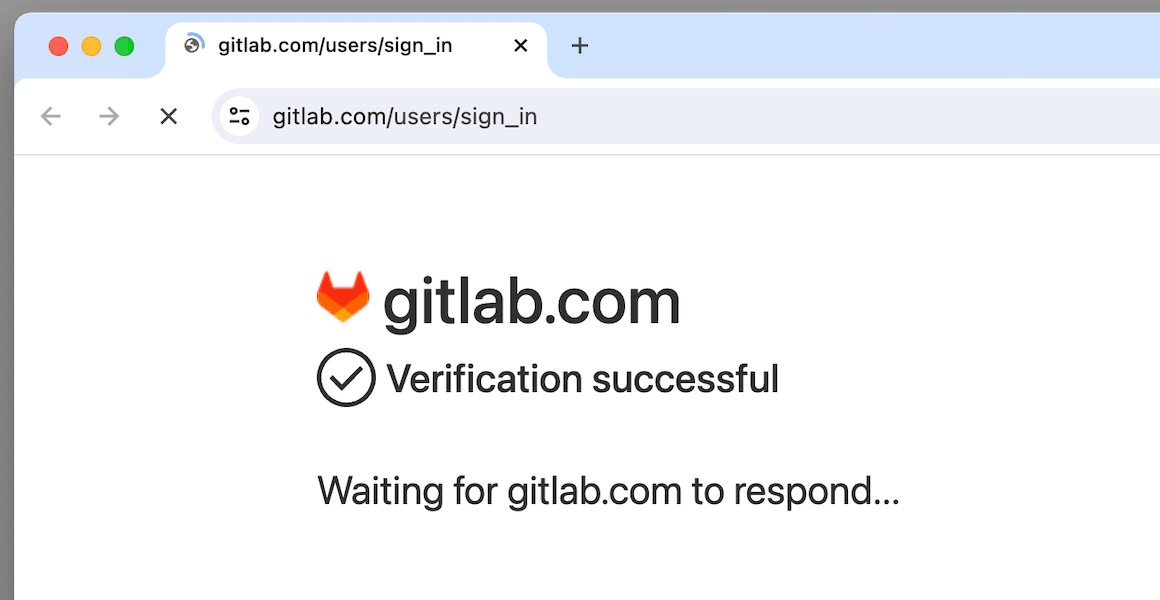
📝 此脚本使用 UC + CDP 模式绕过 Cloudflare 的挑战页面:
from seleniumbase import SB

with SB(uc=True, test=True, locale="en") as sb:
    sb.activate_cdp_mode()
    sb.goto("https://gitlab.com/users/sign_in")
    sb.sleep(2)
    sb.solve_captcha()
    sb.highlight('h1:contains("GitLab")')
    sb.highlight('button:contains("Sign in")')
python raw_gitlab.py
🧪 端到端测试示例位于 ./examples/。
🐙 隐身 CDP 模式示例位于 ./examples/cdp_mode/。
🎭 隐身 Playwright 示例位于 ./examples/cdp_mode/playwright/。
🌐 支持的 Chromium 浏览器的 CLI 选项
💡 可以通过命令行参数设置要使用的 Chromium 浏览器:
python SCRIPT.py --chromium  # Use the unbranded Chromium browser
python SCRIPT.py --cft  # Use Chrome-for-testing
python SCRIPT.py --edge  # Use Microsoft Edge
python SCRIPT.py --brave  # Use Brave browser
Google Chrome 是默认浏览器。如果系统上尚未安装,只有未加品牌标识的 Chromium 和 Chrome-for-Testing 会自动下载。
也可以通过方法参数设置 Chromium 浏览器,例如:cft=True、use_chromium=True、browser="edge"、browser="brave" 等。例如:
sb = sb_cdp.Chrome(use_chromium=True)
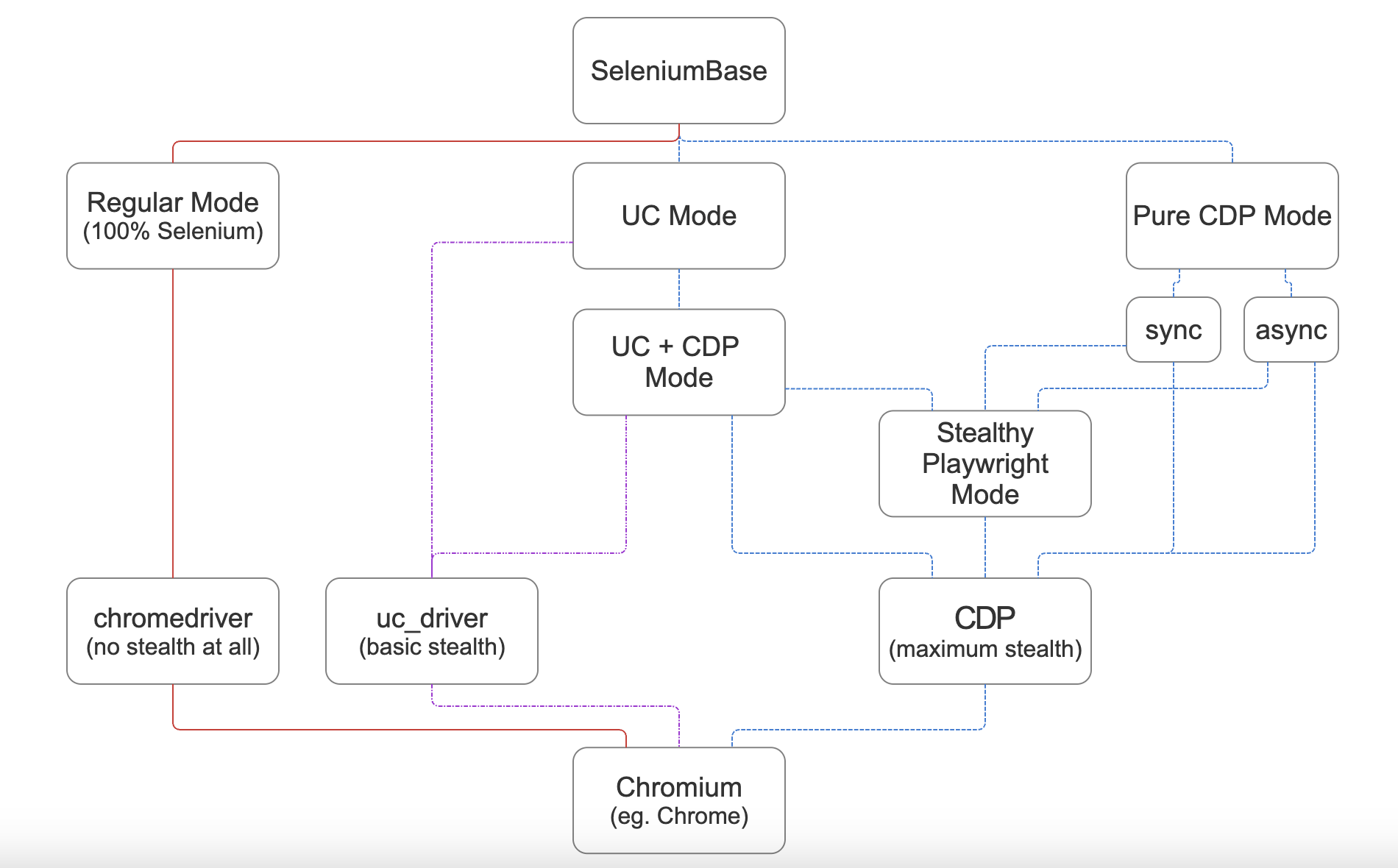
⚙️ 隐身架构流程图:
🧪 使用 pytest 进行全面的 E2E 测试:
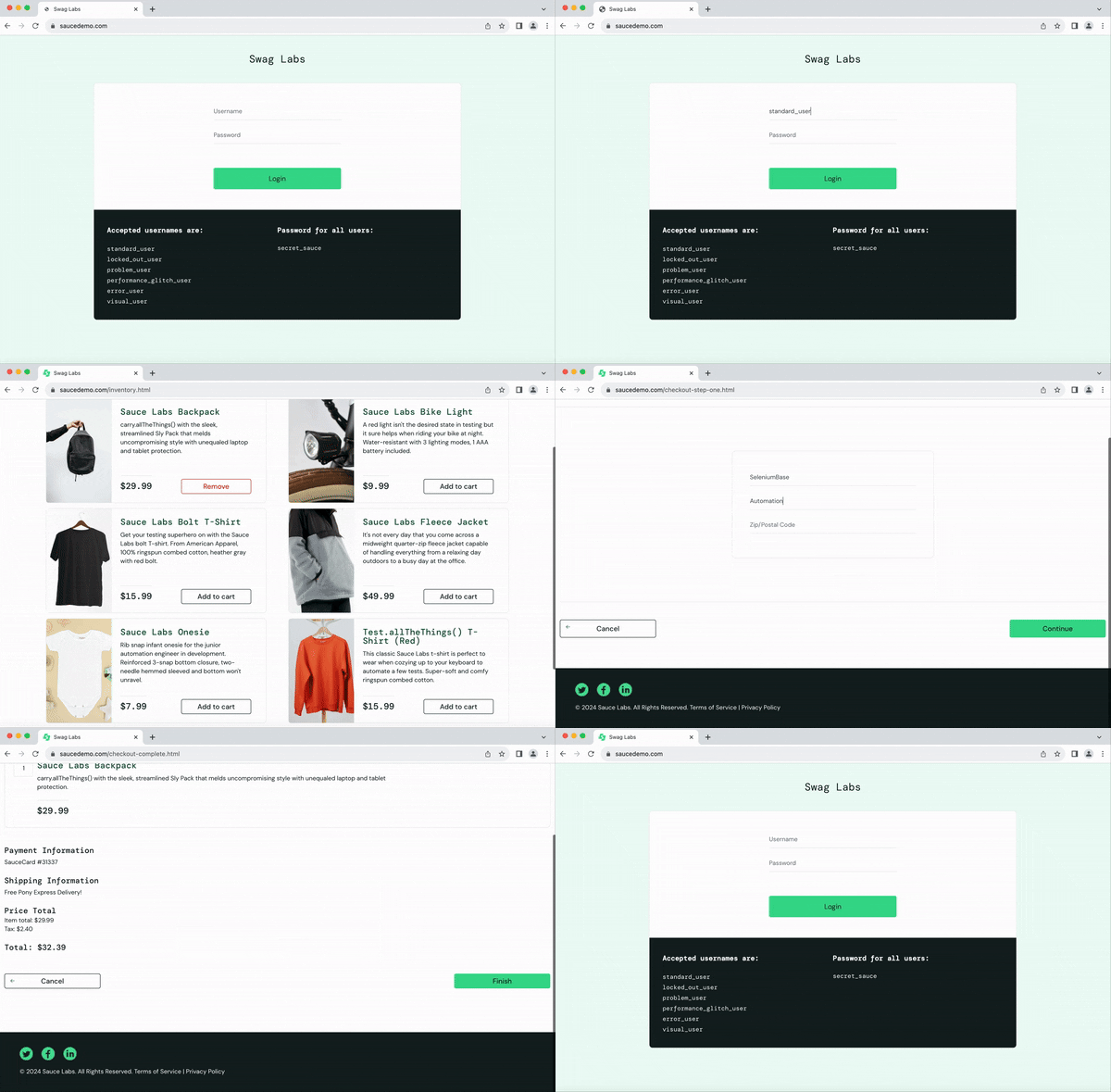
📝 此脚本会测试一个电子商务网站:(通过 pytest 运行):
from seleniumbase import BaseCase
BaseCase.main(__name__, __file__)  # Call pytest

class MyTestClass(BaseCase):
    def test_swag_labs(self):
        self.goto("https://www.saucedemo.com")
        self.type("#user-name", "standard_user")
        self.type("#password", "secret_sauce\n")
        self.assert_element("div.inventory_list")
        self.click('button[name*="backpack"]')
        self.click("#shopping_cart_container a")
        self.assert_text("Backpack", "div.cart_item")
        self.click("button#checkout")
        self.type("input#first-name", "SeleniumBase")
        self.type("input#last-name", "Automation")
        self.type("input#postal-code", "77123")
        self.click("input#continue")
        self.click("button#finish")
        self.assert_text("Thank you for your order!")
pytest test_get_swag.py
🥷 要在 pytest 中实现隐身模式,请添加命令行选项 --uc。
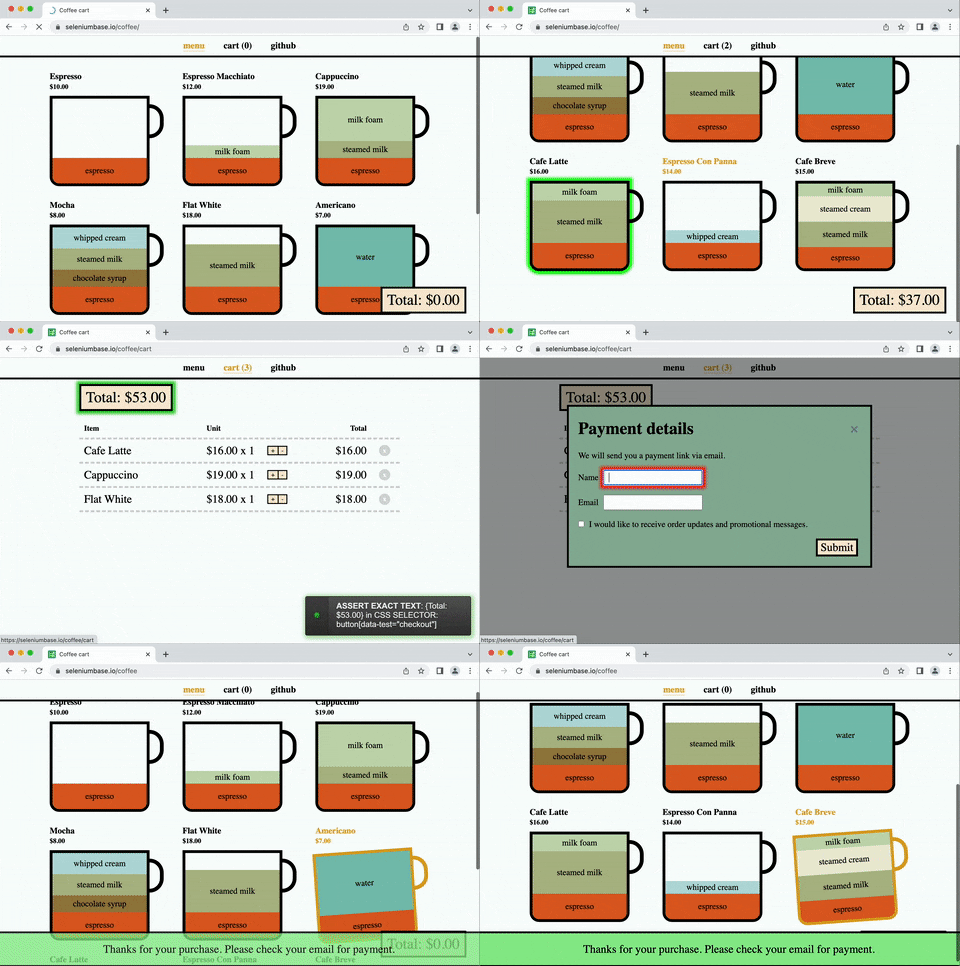
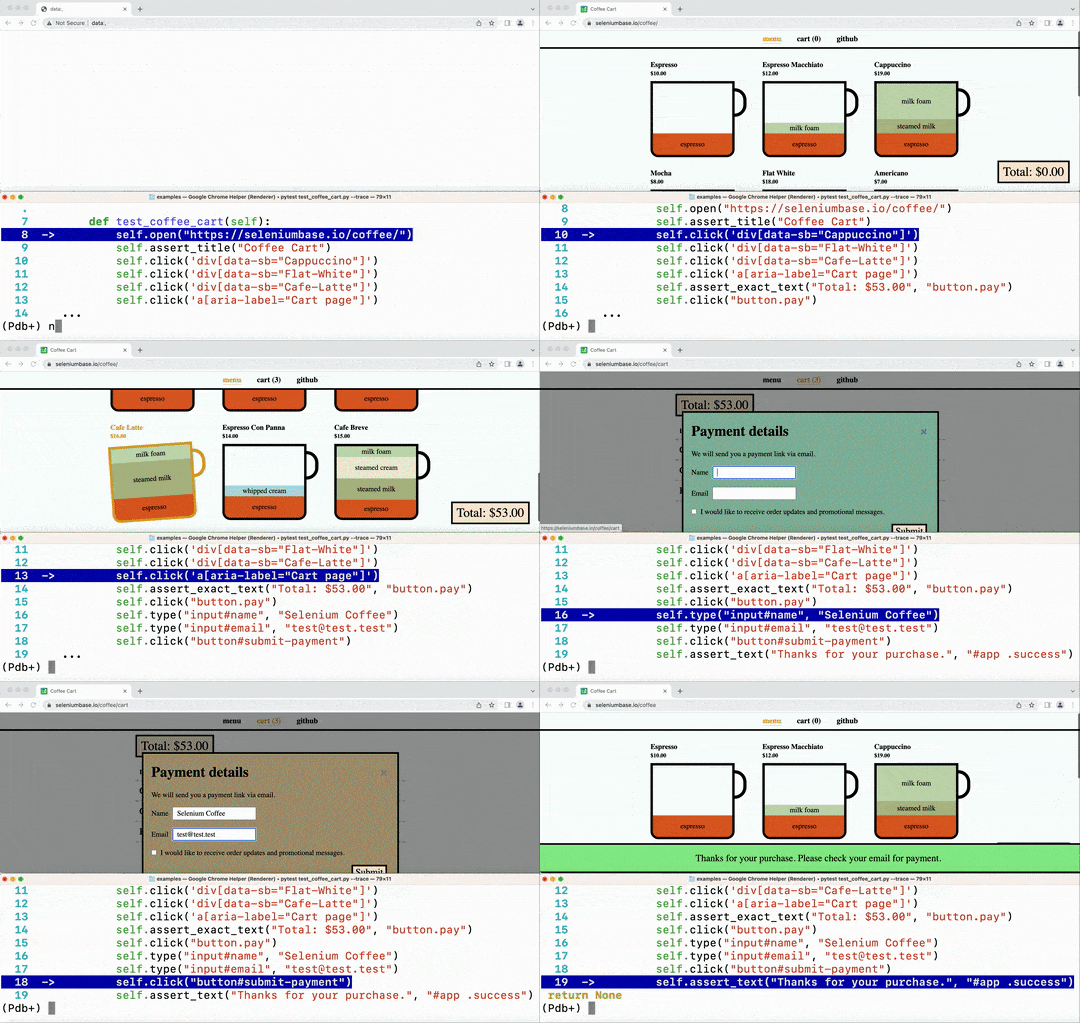
📝 此脚本使用 pytest 测试另一个电子商务网站:
from seleniumbase import BaseCase
BaseCase.main(__name__, __file__)

class CoffeeCartTest(BaseCase):
    def test_coffee_cart(self):
        self.goto("https://seleniumbase.io/coffee/")
        self.assert_title("Coffee Cart")
        self.assert_element('button:contains("Total: $0.00")')
        self.click('div[data-sb="Cappuccino"]')
        self.assert_exact_text("cart (1)", 'a[aria-label="Cart page"]')
        self.click('div[data-sb="Flat-White"]')
        self.assert_exact_text("cart (2)", 'a[aria-label="Cart page"]')
        self.click('div[data-sb="Cafe-Latte"]')
        self.assert_exact_text("cart (3)", 'a[aria-label="Cart page"]')
        self.click('a[aria-label="Cart page"]')
        self.assert_exact_text("Total: $53.00", "button.pay")
        self.click("button.pay")
        self.type("input#name", "Selenium Coffee")
        self.type("input#email", "[email protected]")
        self.click("button#submit-payment")
        self.assert_text("Thanks for your purchase.", "#app .success")
pytest test_coffee_cart.py --demo
(
--demo模式会减慢测试速度并突出显示操作)
📝 此脚本使用 pytest 展示多种操作:
pytest test_demo_site.py
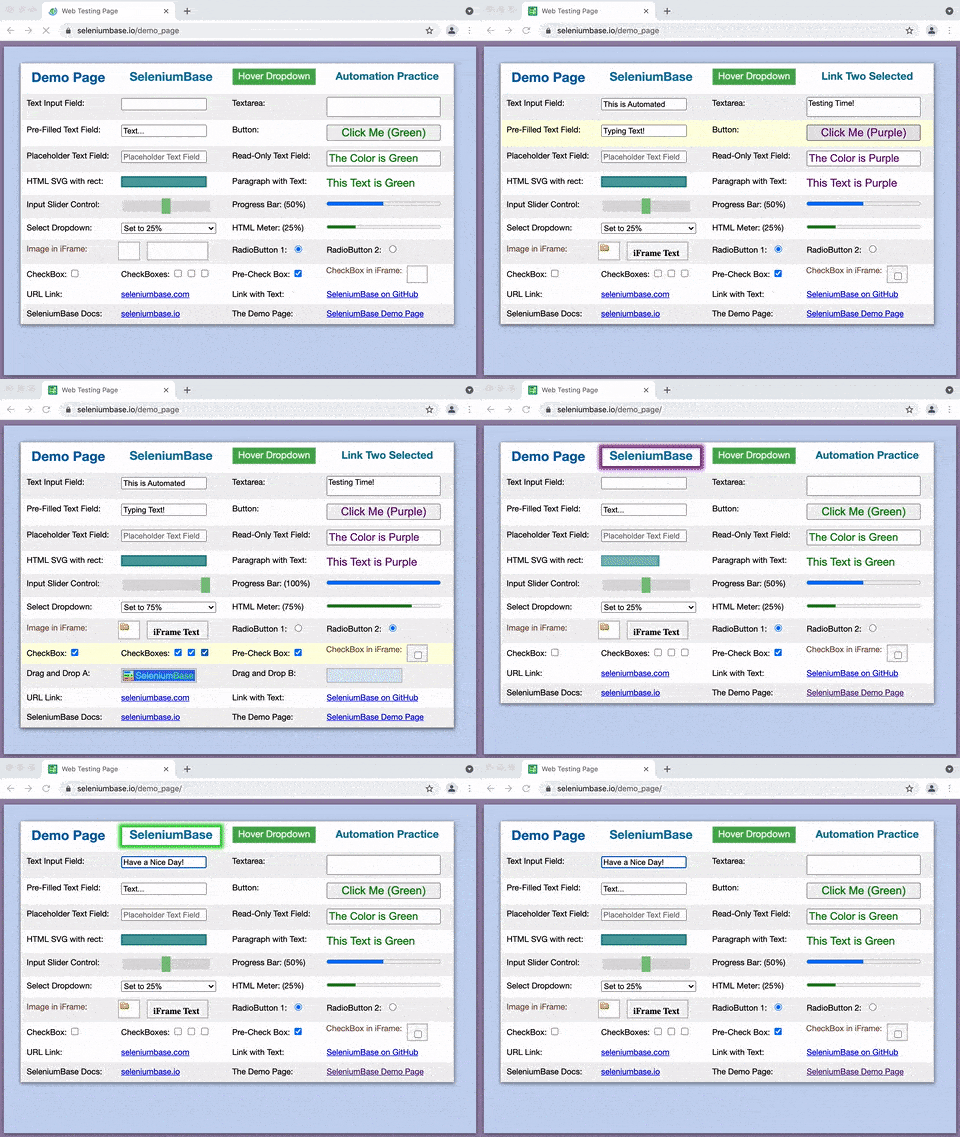
可轻松输入、点击、选择、切换、拖放等。
📚 更多脚本请参阅 SeleniumBase/examples/ 文件夹。

浏览 README:
▶️ SeleniumBase 与原始 Selenium 有何不同?(点击展开)
💡 SeleniumBase 是一个用于浏览器自动化和测试的 Python 框架。SeleniumBase 使用 Selenium/WebDriver API,并集成了 pytest、pynose 和 behave 等测试运行器,提供有序的结构、测试发现、测试执行、测试状态(例如通过、失败或跳过),以及用于更改默认设置(例如浏览器选择)的命令行选项。使用原生 Selenium 时,你需要自行设置选项解析器,以便通过命令行配置测试。
💡 SeleniumBase 的驱动管理器让你能更好地控制驱动的自动下载。(在 pytest 运行命令中使用 --driver-version=VER 指定版本。)默认情况下,如果未设置,SeleniumBase 会下载与浏览器主版本匹配的驱动版本。
💡 SeleniumBase 会自动识别 CSS 选择器和 XPath,因此你无需在命令中指定选择器类型(但也可以选择指定)。
💡 SeleniumBase 的方法通常会在一次方法调用中执行多个操作。例如,self.type(selector, text) 会执行以下操作:
1. 等待元素可见。
2. 等待元素可交互。
3. 清空文本字段。
4. 输入新文本。
5. 如果文本以 "\n" 结尾,则按下 Enter/提交。
使用原生 Selenium 时,这些操作需要多次方法调用。
💡 未设置时,SeleniumBase 会使用默认超时值:
✅ self.click("button")
使用原生 Selenium 时,如果元素需要更多时间加载,方法会立即失败(默认情况下):
❌ self.driver.find_element(by="css selector", value="button").click()
(可靠的代码胜过不可靠的代码。)
💡 SeleniumBase 允许你更改方法的显式超时值:
✅ self.click("button", timeout=10)
使用原生 Selenium 时,则需要编写更多代码:
❌ WebDriverWait(driver, 10).until(EC.element_to_be_clickable("css selector", "button")).click()
(简洁的代码胜过复杂的代码。)
💡 测试失败时,SeleniumBase 会提供清晰的错误输出。使用原生 Selenium 时,错误消息可能会变得非常杂乱。
💡 SeleniumBase 让你可以为测试生成仪表板和报告。它还会将失败测试的屏幕截图保存到 ./latest_logs/ 文件夹。原生 Selenium 开箱即用时不提供这些选项。
💡 SeleniumBase 附带用于运行测试的桌面 GUI 应用,例如适用于 pytest 的 SeleniumBase Commander,以及适用于 behave 的 SeleniumBase Behave GUI。
💡 SeleniumBase 有自己的 Recorder / Test Generator,可根据手动浏览器操作创建测试。
💡 SeleniumBase 附带用于整理测试和步骤说明的测试用例管理软件(“CasePlans”)。
💡 SeleniumBase 包含用于构建数据应用(“ChartMaker”)的工具,可从 Python 生成 JavaScript。
📚 了解编写测试的不同方式:
📗📝 这是 test_simple_login.py,它使用 BaseCase 类继承,可通过 pytest 或 pynose 运行。(使用 self.driver 访问 Selenium 的原始 driver。)
from seleniumbase import BaseCase
BaseCase.main(__name__, __file__)

class TestSimpleLogin(BaseCase):
    def test_simple_login(self):
        self.goto("seleniumbase.io/simple/login")
        self.type("#username", "demo_user")
        self.type("#password", "secret_pass")
        self.click('a:contains("Sign in")')
        self.assert_exact_text("Welcome!", "h1")
        self.assert_element("img#image1")
        self.highlight("#image1")
        self.click_link("Sign out")
        self.assert_text("signed out", "#top_message")
📘📝 这是 raw_login_sb.py,它使用 SB 上下文管理器。可通过纯 python 运行。(使用 sb.driver 访问 Selenium 的原始 driver。)
from seleniumbase import SB

with SB() as sb:
    sb.goto("seleniumbase.io/simple/login")
    sb.type("#username", "demo_user")
    sb.type("#password", "secret_pass")
    sb.click('a:contains("Sign in")')
    sb.assert_exact_text("Welcome!", "h1")
    sb.assert_element("img#image1")
    sb.highlight("#image1")
    sb.click_link("Sign out")
    sb.assert_text("signed out", "#top_message")
📙📝 这是 raw_login_driver.py,它使用 Driver 管理器。可通过纯 python 运行。(此 driver 是 Selenium 原始 driver 的增强版本,包含更多方法。)
from seleniumbase import Driver

driver = Driver()
try:
    driver.goto("seleniumbase.io/simple/login")
    driver.type("#username", "demo_user")
    driver.type("#password", "secret_pass")
    driver.click('a:contains("Sign in")')
    driver.assert_exact_text("Welcome!", "h1")
    driver.assert_element("img#image1")
    driver.highlight("#image1")
    driver.click_link("Sign out")
    driver.assert_text("signed out", "#top_message")
finally:
    driver.quit()
 设置 Python 和 Git:

🔵 建议使用 Python 虚拟环境。
 安装 SeleniumBase:
🔵 如何使用 pip 从 PyPI 安装 seleniumbase:
pip install seleniumbase
- (添加
--upgrade或-U以升级 SeleniumBase。) - (添加
--force-reinstall以升级间接依赖包。)
🔵 如何从 GitHub 克隆版本安装 seleniumbase:
git clone https://github.com/seleniumbase/SeleniumBase.git
cd SeleniumBase/
pip install -e .
🔵 如何从 GitHub 克隆版本升级现有安装:
git pull
pip install -e .
🔵 输入 seleniumbase 或 sbase,验证 SeleniumBase 是否已成功安装:
 ___      _          _             ___
/ __| ___| |___ _ _ (_)_  _ _ __  | _ ) __ _ ______
\__ \/ -_) / -_) ' \| | \| | '  \ | _ \/ _` (_-< -_)
|___/\___|_\___|_||_|_|\_,_|_|_|_\|___/\__,_/__|___|
----------------------------------------------------

╭──────────────────────────────────────────────────╮
│  * USAGE: "seleniumbase [COMMAND] [PARAMETERS]"  │
│  *    OR:        "sbase [COMMAND] [PARAMETERS]"  │
│                                                  │
│ COMMANDS:        PARAMETERS / DESCRIPTIONS:      │
│    get / install    [DRIVER_NAME] [OPTIONS]      │
│    methods          (List common Python methods) │
│    options          (List common pytest options) │
│    behave-options   (List common behave options) │
│    gui / commander  [OPTIONAL PATH or TEST FILE] │
│    behave-gui       (SBase Commander for Behave) │
│    caseplans        [OPTIONAL PATH or TEST FILE] │
│    mkdir            [DIRECTORY] [OPTIONS]        │
│    mkfile           [FILE.py] [OPTIONS]          │
│    mkrec / codegen  [FILE.py] [OPTIONS]          │
│    recorder         (Open Recorder Desktop App.) │
│    record           (If args: mkrec. Else: App.) │
│    mkpres           [FILE.py] [LANG]             │
│    mkchart          [FILE.py] [LANG]             │
│    print            [FILE] [OPTIONS]             │
│    translate        [SB_FILE.py] [LANG] [ACTION] │
│    convert          [WEBDRIVER_UNITTEST_FILE.py] │
│    extract-objects  [SB_FILE.py]                 │
│    inject-objects   [SB_FILE.py] [OPTIONS]       │
│    objectify        [SB_FILE.py] [OPTIONS]       │
│    revert-objects   [SB_FILE.py] [OPTIONS]       │
│    encrypt / obfuscate                           │
│    decrypt / unobfuscate                         │
│    proxy            (Start a basic proxy server) │
│    download server  (Get Selenium Grid JAR file) │
│    grid-hub         [start|stop] [OPTIONS]       │
│    grid-node        [start|stop] --hub=[HOST/IP] │
│                                                  │
│ *  EXAMPLE => "sbase get chromedriver stable"    │
│ *  For command info => "sbase help [COMMAND]"    │
│ *  For info on all commands => "sbase --help"    │
╰──────────────────────────────────────────────────╯
🔵 下载 WebDriver:
✅ SeleniumBase 会根据需要自动下载 WebDriver,例如 chromedriver。
▶️ 以下是下载 chromedriver 的示例输出。(点击展开)
*** Getting chromedriver 154.0.8037.57 (Latest Stable)

Downloading chromedriver-mac-arm64.zip from:
https://storage.googleapis.com/chrome-for-testing-public/154.0.8037.57/mac-arm64/chromedriver-mac-arm64.zip ...
Download Complete!

Extracting ['chromedriver'] from chromedriver-mac-arm64.zip ...
Unzip Complete!

The file [chromedriver] was saved to:
~/github/SeleniumBase/seleniumbase/drivers/
chromedriver

[chromedriver 154.0.8037.57] is ready for use!
基本示例 / 用法:
🔵 如果你已克隆 SeleniumBase,可以运行 examples/ 文件夹中的测试。
这是 my_first_test.py:
cd examples/
pytest my_first_test.py
以下是 my_first_test.py 的完整代码:
from seleniumbase import BaseCase
BaseCase.main(__name__, __file__)

class MyTestClass(BaseCase):
    def test_swag_labs(self):
        self.goto("https://www.saucedemo.com")
        self.type("#user-name", "standard_user")
        self.type("#password", "secret_sauce\n")
        self.assert_element("div.inventory_list")
        self.assert_exact_text("Products", "span.title")
        self.click('button[name*="backpack"]')
        self.click("#shopping_cart_container a")
        self.assert_exact_text("Your Cart", "span.title")
        self.assert_text("Backpack", "div.cart_item")
        self.click("button#checkout")
        self.type("#first-name", "SeleniumBase")
        self.type("#last-name", "Automation")
        self.type("#postal-code", "77123")
        self.click("input#continue")
        self.assert_text("Checkout: Overview")
        self.assert_text("Backpack", "div.cart_item")
        self.assert_text("29.99", "div.inventory_item_price")
        self.click("button#finish")
        self.assert_exact_text("Thank you for your order!", "h2")
        self.assert_element('img[alt="Pony Express"]')
        self.js_click("a#logout_sidebar_link")
        self.assert_element("div#login_button_container")
- 默认情况下,使用 CSS 选择器 查找页面元素。
- 如果你刚接触 CSS 选择器,可以通过 CSS Diner 等游戏来学习。
- 如需了解更多,这里有一份 CSS 属性选择器进阶指南。
以下是一些常用的 SeleniumBase 方法:
self.goto(url)  # Navigate the browser window to the URL.
self.open(url)  # Same as `self.goto(url)`
self.activate_cdp_mode()  # Activate CDP Mode from UC Mode.
self.type(selector, text)  # Update the field with the text.
self.click(selector)  # Click the element with the selector.
self.click_link(link_text)  # Click the link containing text.
self.go_back()  # Navigate back to the previous URL.
self.select_option_by_text(dropdown_selector, option)
self.hover_and_click(hover_selector, click_selector)
self.drag_and_drop(drag_selector, drop_selector)
self.get_text(selector)  # Get the text from the element.
self.get_current_url()  # Get the URL of the current page.
self.get_page_source()  # Get the HTML of the current page.
self.get_attribute(selector, attribute)  # Get element attribute.
self.get_title()  # Get the title of the current page.
self.switch_to_frame(frame)  # Switch into the iframe container.
self.switch_to_default_content()  # Leave the iframe container.
self.open_new_window()  # Open a new window in the same browser.
self.switch_to_window(window)  # Switch to the browser window.
self.switch_to_default_window()  # Switch to the original window.
self.get_new_driver(OPTIONS)  # Open a new driver with OPTIONS.
self.switch_to_driver(driver)  # Switch to the browser driver.
self.switch_to_default_driver()  # Switch to the original driver.
self.wait_for_element(selector)  # Wait until element is visible.
self.is_element_visible(selector)  # Return element visibility.
self.is_text_visible(text, selector)  # Return text visibility.
self.sleep(seconds)  # Do nothing for the given amount of time.
self.save_screenshot(name)  # Save a screenshot in .png format.
self.assert_element(selector)  # Verify the element is visible.
self.assert_text(text, selector)  # Verify text in the element.
self.assert_exact_text(text, selector)  # Verify text is exact.
self.assert_title(title)  # Verify the title of the web page.
self.assert_downloaded_file(file)  # Verify file was downloaded.
self.assert_no_404_errors()  # Verify there are no broken links.
self.assert_no_js_errors()  # Verify there are no JS errors.
🔵 SeleniumBase 方法的完整列表,请参阅:方法摘要
趣闻 / 了解更多:
✅ SeleniumBase 会自动处理常见的 WebDriver 操作,例如在测试前启动 Web 浏览器、在测试失败时保存屏幕截图,以及在测试后关闭 Web 浏览器。
✅ SeleniumBase 支持通过命令行选项自定义测试。
✅ SeleniumBase 使用简洁的命令语法。例如:
self.type("input", "dogs\n") # (The "\n" presses ENTER)
大多数 SeleniumBase 脚本都可以通过 pytest、pynose 或纯 python 运行。并非所有测试运行器都能运行所有测试格式。例如,使用 sb pytest fixture 的测试只能通过 pytest 运行。(参见 语法格式。)此外,还有一种 Gherkin 测试格式,可通过 behave 运行。
pytest coffee_cart_tests.py --rs
pytest test_sb_fixture.py --demo
pytest test_suite.py --rs --html=report.html --dashboard

pynose basic_test.py --mobile
pynose test_suite.py --headless --report --show-report

python raw_sb.py
python raw_test_scripts.py

behave realworld.feature
behave calculator.feature -D rs -D dashboard
✅ pytest 支持自动发现测试。如果你没有指定要运行的具体文件或文件夹,pytest 会根据以下规则自动搜索所有子目录中的测试:
- 以
test_开头或以_test.py结尾的 Python 文件。 - 以
test_开头的 Python 方法。
如果存在 SeleniumBase 的 pytest.ini 文件,你可以修改默认的发现设置。Python 类名可以任意设置,因为 seleniumbase.BaseCase 继承了 unittest.TestCase,以触发自动发现。
✅ 在实际运行前,你可以进行预检,查看 pytest 会发现哪些测试:
pytest --co -q
✅ 调用 pytest 或 pynose 执行文件时,可以指定更具体的路径:
pytest [FILE_NAME.py]::[CLASS_NAME]::[METHOD_NAME]

pynose [FILE_NAME.py]:[CLASS_NAME].[METHOD_NAME]
✅ 不再有不稳定的测试!SeleniumBase 方法会在与页面元素交互前自动等待其完成加载(最长等待时间有限)。
 ✅ SeleniumBase 支持所有主流浏览器和操作系统:
浏览器:Chrome、Edge、Firefox 和 Safari。
系统:Linux/Ubuntu、macOS 和 Windows。
✅ SeleniumBase 适用于所有主流 CI/CD 平台:






✅ SeleniumBase 包含一种名为 MasterQA 的自动化/手动混合解决方案,可在手动测试人员进行验证的同时,通过自动化加快手动测试。
✅ SeleniumBase 支持离线运行测试(前提是之前联网时已下载 WebDriver)。
✅ 如需查看 SeleniumBase 的完整功能列表,请点击此处。
演示模式 / 调试:
🔵 演示模式可帮助你了解测试正在执行的操作。如果测试运行得太快,让你看不清楚,可以在演示模式下运行测试,让浏览器在每个操作之间短暂停顿、高亮显示正在操作的页面元素,并显示断言:
pytest my_first_test.py --demo
🔵 可以使用 time.sleep(seconds) 让测试在指定位置等待:
import time; time.sleep(3) # Do nothing for 3 seconds.
🔵 使用 Python 内置的 pdb 库进入调试模式,帮助你调试测试:
breakpoint() # Shortcut for "import pdb; pdb.set_trace()"
(
pdb命令:n、c、s、u、d=>next、continue、step、up、down)
🔵 若要暂停抛出异常或错误的活动测试(并在控制台进入调试模式时保持浏览器窗口打开),请将 --pdb 添加为 pytest 选项:
pytest test_fail.py --pdb
🔵 若要在调试模式下启动测试,请将 --trace 添加为 pytest 选项:
pytest test_coffee_cart.py --trace
🔵 命令行选项:
-v  # Verbose mode. Prints the full name of each test and shows more details.
-q  # Quiet mode. Print fewer details in the console output when running tests.
-x  # Stop running the tests after the first failure is reached.
--html=report.html  # Creates a detailed pytest-html report after tests finish.
--co | --collect-only  # Show what tests would get run. (Without running them)
--co -q  # (Both options together!) - Do a dry run with full test names shown.
-n=NUM  # Multithread the tests using that many threads. (Speed up test runs!)
-s  # See print statements. (Should be on by default with pytest.ini present.)
--junit-xml=report.xml  # Creates a junit-xml report after tests finish.
--pdb  # If a test fails, enter Post Mortem Debug Mode. (Don't use with CI!)
--trace  # Enter Debug Mode at the beginning of each test. (Don't use with CI!)
-m=MARKER  # Run tests with the specified pytest marker.
✅ SeleniumBase 为测试提供了其他 pytest 命令行选项:
--browser=BROWSER  # (The web browser to use. Default: "chrome".)
--chrome  # (Shortcut for "--browser=chrome". On by default.)
--edge  # (Shortcut for "--browser=edge".)
--firefox  # (Shortcut for "--browser=firefox".)
--safari  # (Shortcut for "--browser=safari".)
--opera  # (Shortcut for "--browser=opera".)
--brave  # (Shortcut for "--browser=brave".)
--comet  # (Shortcut for "--browser=comet".)
--chromium  # (Shortcut for using base `Chromium`)
--settings-file=FILE  # (Override default SeleniumBase settings.)
--env=ENV  # (Set the test env. Access with "self.env" in tests.)
--account=STR  # (Set account. Access with "self.account" in tests.)
--data=STRING  # (Extra test data. Access with "self.data" in tests.)
--var1=STRING  # (Extra test data. Access with "self.var1" in tests.)
--var2=STRING  # (Extra test data. Access with "self.var2" in tests.)
--var3=STRING  # (Extra test data. Access with "self.var3" in tests.)
--variables=DICT  # (Extra test data. Access with "self.variables".)
--user-data-dir=DIR  # (Set the Chrome user data directory to use.)
--protocol=PROTOCOL  # (The Selenium Grid protocol: http|https.)
--server=SERVER  # (The Selenium Grid server/IP used for tests.)
--port=PORT  # (The Selenium Grid port used by the test server.)
--cap-file=FILE  # (The web browser's desired capabilities to use.)
--cap-string=STRING  # (The web browser's desired capabilities to use.)
--proxy=SERVER:PORT  # (Connect to a proxy server:port as tests are running)
--proxy=USERNAME:PASSWORD@SERVER:PORT  # (Use an authenticated proxy server)
--proxy-bypass-list=STRING # (";"-separated hosts to bypass, Eg "*.foo.com")
--proxy-pac-url=URL  # (Connect to a proxy server using a PAC_URL.pac file.)
--proxy-pac-url=USERNAME:PASSWORD@URL  # (Authenticated proxy with PAC URL.)
--proxy-driver  # (If a driver download is needed, will use: --proxy=PROXY.)
--multi-proxy  # (Allow multiple authenticated proxies when multi-threaded.)
--agent=STRING  # (Modify the web browser's User-Agent string.)
--mobile  # (Use the mobile device emulator while running tests.)
--metrics=STRING  # (Set mobile metrics: "CSSWidth,CSSHeight,PixelRatio".)
--chromium-arg="ARG=N,ARG2"  # (Set Chromium args, ","-separated, no spaces.)
--firefox-arg="ARG=N,ARG2"  # (Set Firefox args, comma-separated, no spaces.)
--firefox-pref=SET  # (Set a Firefox preference:value set, comma-separated.)
--extension-zip=ZIP  # (Load a Chrome Extension .zip|.crx, comma-separated.)
--extension-dir=DIR  # (Load a Chrome Extension directory, comma-separated.)
--disable-features="F1,F2"  # (Disable features, comma-separated, no spaces.)
--binary-location=PATH  # (Set path of the Chromium browser binary to use.)
--driver-version=VER  # (Set the chromedriver or uc_driver version to use.)
--sjw  # (Skip JS Waits for readyState to be "complete" or Angular to load.)
--wfa  # (Wait for AngularJS to be done loading after specific web actions.)
--pls=PLS  # (Set pageLoadStrategy on Chrome: "normal", "eager", or "none".)
--headless  # (The default headless mode. Linux uses this mode by default.)
--headless1  # (Use Chrome's old headless mode. Fast, but has limitations.)
--headless2  # (Use Chrome's new headless mode, which supports extensions.)
--headed  # (Run tests in headed/GUI mode on Linux OS, where not default.)
--xvfb  # (Run tests using the Xvfb virtual display server on Linux OS.)
--xvfb-metrics=STRING  # (Set Xvfb display size on Linux: "Width,Height".)
--locale=LOCALE_CODE  # (Set the Language Locale Code for the web browser.)
--interval=SECONDS  # (The autoplay interval for presentations & tour steps)
--start-page=URL  # (The starting URL for the web browser when tests begin.)
--archive-logs  # (Archive existing log files instead of deleting them.)
--archive-downloads  # (Archive old downloads instead of deleting them.)
--time-limit=SECONDS  # (Safely fail any test that exceeds the time limit.)
--fast  # (Run the automation at full speed. May impact stealth.)
--slow  # (Slow down the automation. Faster than using Demo Mode.)
--demo  # (Slow down and visually see test actions as they occur.)
--demo-sleep=SECONDS  # (Set the wait time after Slow & Demo Mode actions.)
--highlights=NUM  # (Number of highlight animations for Demo Mode actions.)
--message-duration=SECONDS  # (The time length for Messenger alerts.)
--check-js  # (Check for JavaScript errors after page loads.)
--ad-block  # (Block some types of display ads from loading.)
--host-resolver-rules=RULES  # (Set host-resolver-rules, comma-separated.)
--block-images  # (Block images from loading during tests.)
--do-not-track  # (Indicate to websites that you don't want to be tracked.)
--verify-delay=SECONDS  # (The delay before MasterQA verification checks.)
--ee | --esc-end  # (Lets the user end the current test via the ESC key.)
--recorder  # (Enables the Recorder for turning browser actions into code.)
--rec-sb-mgr  # (A Recorder Mode that generates SB() context manager code.)
--rec-sb-cdp  # (A Recorder Mode that generates Pure CDP Mode sb_cdp code.)
--rec-behave  # (Same as Recorder Mode, but also generates behave-gherkin.)
--rec-sleep  # (If the Recorder is enabled, also records self.sleep calls.)
--rec-print  # (If the Recorder is enabled, prints output after tests end.)
--disable-cookies  # (Disable Cookies on websites. Pages might break!)
--disable-js  # (Disable JavaScript on websites. Pages might break!)
--disable-csp  # (Disable the Content Security Policy of websites.)
--disable-ws  # (Disable Web Security on Chromium-based browsers.)
--enable-ws  # (Enable Web Security on Chromium-based browsers.)
--enable-sync  # (Enable "Chrome Sync" on websites.)
--uc | --undetected  # (Use undetected-chromedriver to evade bot-detection.)
--uc-cdp-events  # (Capture CDP events when running in "--undetected" mode.)
--log-cdp  # ("goog:loggingPrefs", {"performance": "ALL", "browser": "ALL"})
--remote-debug  # (Sync to Chrome Remote Debugger chrome://inspect/#devices)
--ftrace | --final-trace  # (Debug Mode after each test. Don't use with CI!)
--dashboard  # (Enable the SeleniumBase Dashboard. Saved at: dashboard.html)
--dash-title=STRING  # (Set the title shown for the generated dashboard.)
--enable-3d-apis  # (Enables WebGL and 3D APIs.)
--swiftshader  # (Chrome "--use-gl=angle" / "--use-angle=swiftshader-webgl")
--incognito  # (Enable Chrome's Incognito mode.)
--guest  # (Enable Chrome's Guest mode.)
--dark  # (Enable Chrome's Dark mode.)
--devtools  # (Open Chrome's DevTools when the browser opens.)
--rs | --reuse-session  # (Reuse browser session for all tests.)
--rcs | --reuse-class-session  # (Reuse session for tests in class.)
--crumbs  # (Delete all cookies between tests reusing a session.)
--disable-beforeunload  # (Disable the "beforeunload" event on Chrome.)
--window-position=X,Y  # (Set the browser's starting window position.)
--window-size=WIDTH,HEIGHT  # (Set the browser's starting window size.)
--maximize  # (Start tests with the browser window maximized.)
--screenshot  # (Save a screenshot at the end of each test.)
--no-screenshot  # (No screenshots saved unless tests directly ask it.)
--visual-baseline  # (Set the visual baseline for Visual/Layout tests.)
--external-pdf  # (Set Chromium "plugins.always_open_pdf_externally":True.)
--timeout-multiplier=MULTIPLIER  # (Multiplies the default timeout values.)
--list-fail-page  # (After each failing test, list the URL of the failure.)
(查看完整的命令行选项定义列表,请点击**此处**。有关命令行选项的详细示例,请参阅 customizing_test_runs.md)
🔵 测试失败时,最近一次测试运行的日志和截图会保存到 latest_logs/ 文件夹。如果在命令行选项中添加 --archive_logs,或在 settings.py 中将 ARCHIVE_EXISTING_LOGS 设置为 True,这些日志就会移至 archived_logs/;否则,下一次测试运行开始时会清理日志文件。test_suite.py 集合中包含一些故意失败的测试,供你查看日志记录的工作方式。
cd examples/

pytest test_suite.py --chrome

pytest test_suite.py --firefox
覆盖 seleniumbase/config/settings.py 的简便方法是使用自定义设置文件。
添加到测试中的命令行选项如下:(请参阅 examples/custom_settings.py)
--settings_file=custom_settings.py
(设置包括默认超时值、双因素身份验证密钥、DB 凭据、S3 凭据,以及测试使用的其他重要设置。)
🔵 如需从命令行向测试传递其他数据,请添加 --data="ANY STRING"。
在测试中,你可以使用 self.data 访问这些数据。
目录配置:
🔵 使用 pytest 运行测试时,你需要在根文件夹中放置一份 pytest.ini。使用 pynose 运行测试时,你需要在根文件夹中放置一份 setup.cfg。这些文件用于指定测试的默认配置。测试文件夹中还应包含一个空白的 init.py 文件,以便测试文件可以从该文件夹导入其他文件。
🔵 sbase mkdir DIR 会创建一个包含配置文件和示例测试的文件夹:
sbase mkdir ui_tests
新建文件夹中将包含以下文件:
ui_tests/
├── __init__.py
├── my_first_test.py
├── parameterized_test.py
├── pytest.ini
├── requirements.txt
├── setup.cfg
├── test_demo_site.py
└── boilerplates/
    ├── __init__.py
    ├── base_test_case.py
    ├── boilerplate_test.py
    ├── classic_obj_test.py
    ├── page_objects.py
    ├── sb_fixture_test.py
    └── samples/
        ├── __init__.py
        ├── google_objects.py
        ├── google_test.py
        ├── sb_swag_test.py
        └── swag_labs_test.py
ProTip™: 在 sbase mkdir 命令中添加 -b 或 --basic,也可以创建一个不含示例测试的模板文件夹:
sbase mkdir ui_tests --basic
新建文件夹中将包含以下文件:
ui_tests/
├── __init__.py
├── pytest.ini
├── requirements.txt
└── setup.cfg
这些文件中,pytest.ini 配置文件最为重要,其次是空白的 __init__.py 文件。此外还有一个 setup.cfg 文件(供 pynose 使用)。最后,requirements.txt 文件可用于帮助你在环境中安装 seleniumbase(如果尚未安装)。
ProTip™: 添加 --gha,即可包含一个使用默认设置的 GitHub Actions .yml 文件:
ui_tests/
└── .github
    └── workflows/
        └── python-package.yml
失败测试的日志文件:
下面来看一个失败测试的示例:
""" test_fail.py """
from seleniumbase import BaseCase
BaseCase.main(__name__, __file__)

class MyTestClass(BaseCase):

    def test_find_army_of_robots_on_xkcd_desert_island(self):
        self.goto("https://xkcd.com/731/")
        self.assert_element("div#ARMY_OF_ROBOTS", timeout=1)  # This should fail
你可以在 examples/ 文件夹中按如下方式运行它:
pytest test_fail.py
🔵 你会看到系统创建了一个日志文件夹 ./latest_logs/,用于保存有关失败测试的信息(和截图)。测试运行期间,如果你在 settings.py 中将 ARCHIVE_EXISTING_LOGS 设置为 True,或者运行测试时使用 --archive-logs,之前的结果就会移至 archived_logs 文件夹。如果选择不归档现有日志,它们就会被删除,并由最近一次测试运行的日志取代。
SeleniumBase 仪表板:
🔵 pytest 的 --dashboard 选项会生成一个位于 dashboard.html 的 SeleniumBase 仪表板。测试运行并生成结果时,仪表板会自动更新。示例:
pytest --dashboard --rs --headless
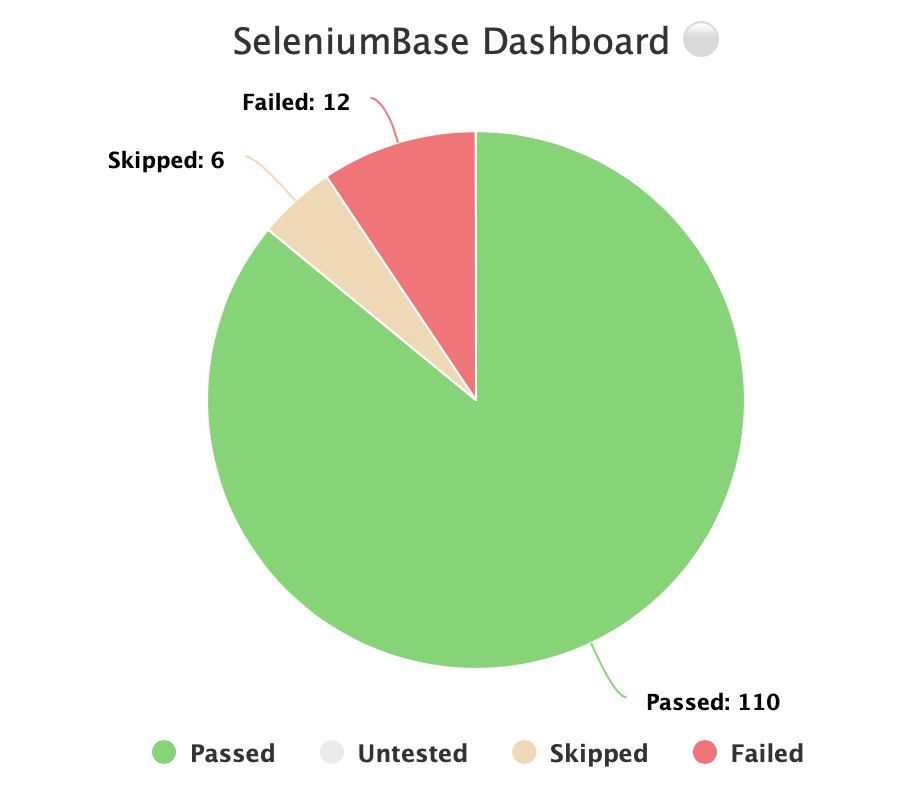
🔵 此外,你还可以在自选端口上托管自己的 SeleniumBase 仪表板服务。以下是使用 Python 的 http.server 托管的示例:
python -m http.server 1948
🔵 现在,你可以访问 http://localhost:1948/dashboard.html,以 Web 应用的形式查看仪表板。这需要打开两个不同的终端窗口:一个用于运行服务,另一个用于运行测试,且测试应从同一目录运行。(使用 Ctrl+C 停止 http 服务。)
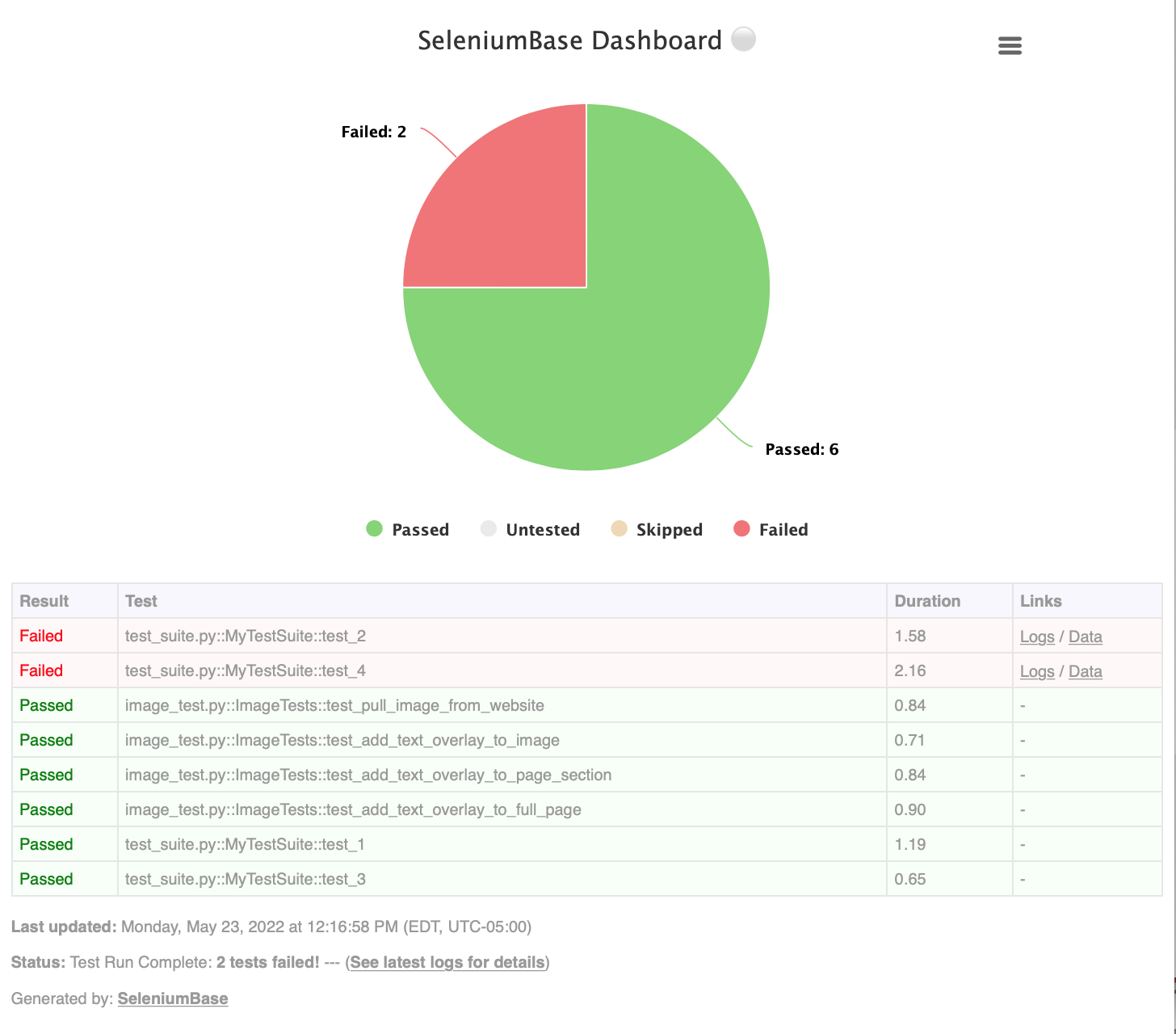
🔵 以下是 SeleniumBase 仪表板的完整示例:
pytest test_suite.py test_image_saving.py --dashboard --rs --headless
生成测试报告:
🔵 pytest HTML 报告:
✅ 使用 --html=report.html,测试套件完成后即可生成一份美观的报告,文件名由你指定。
pytest test_suite.py --html=report.html
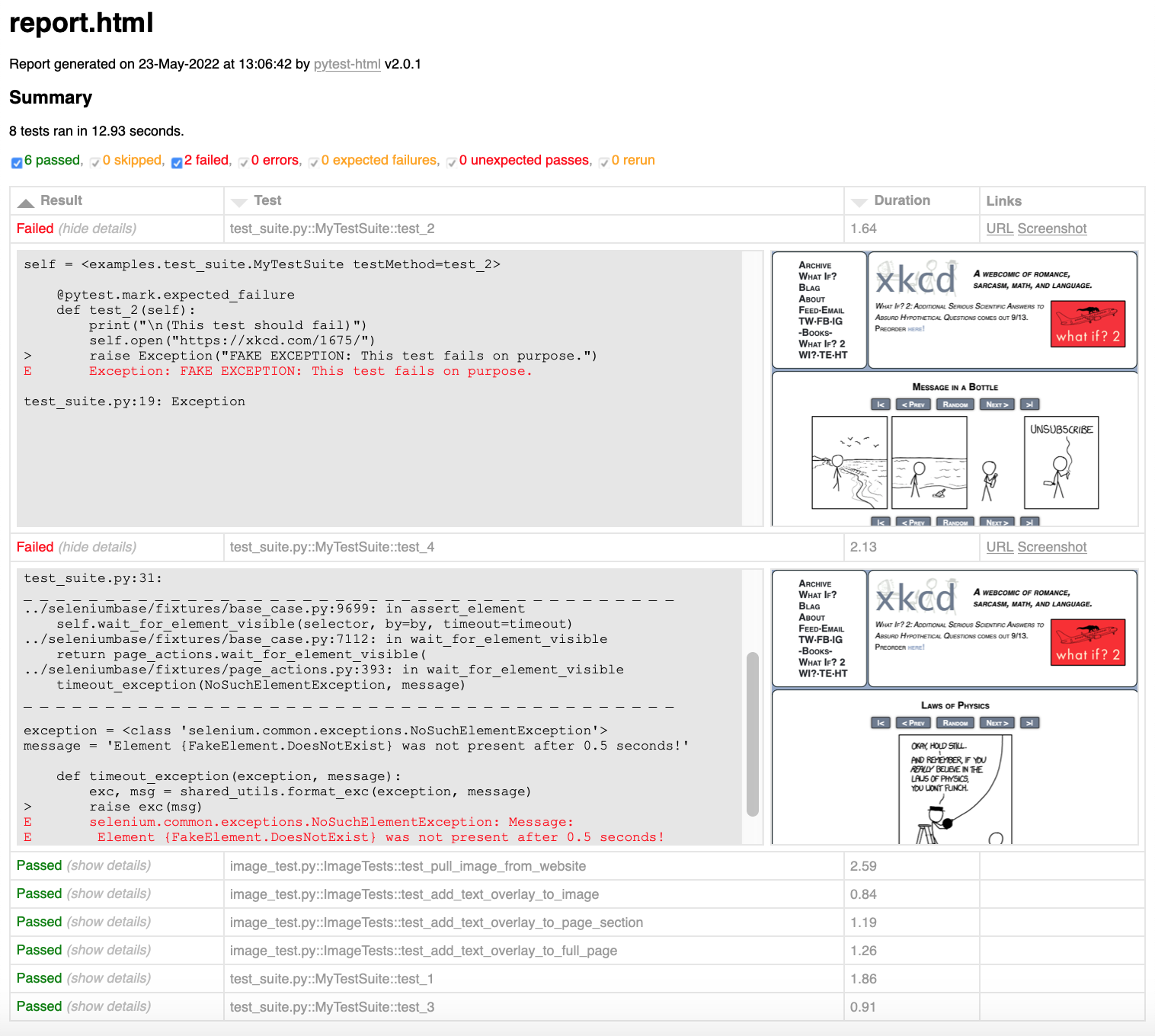
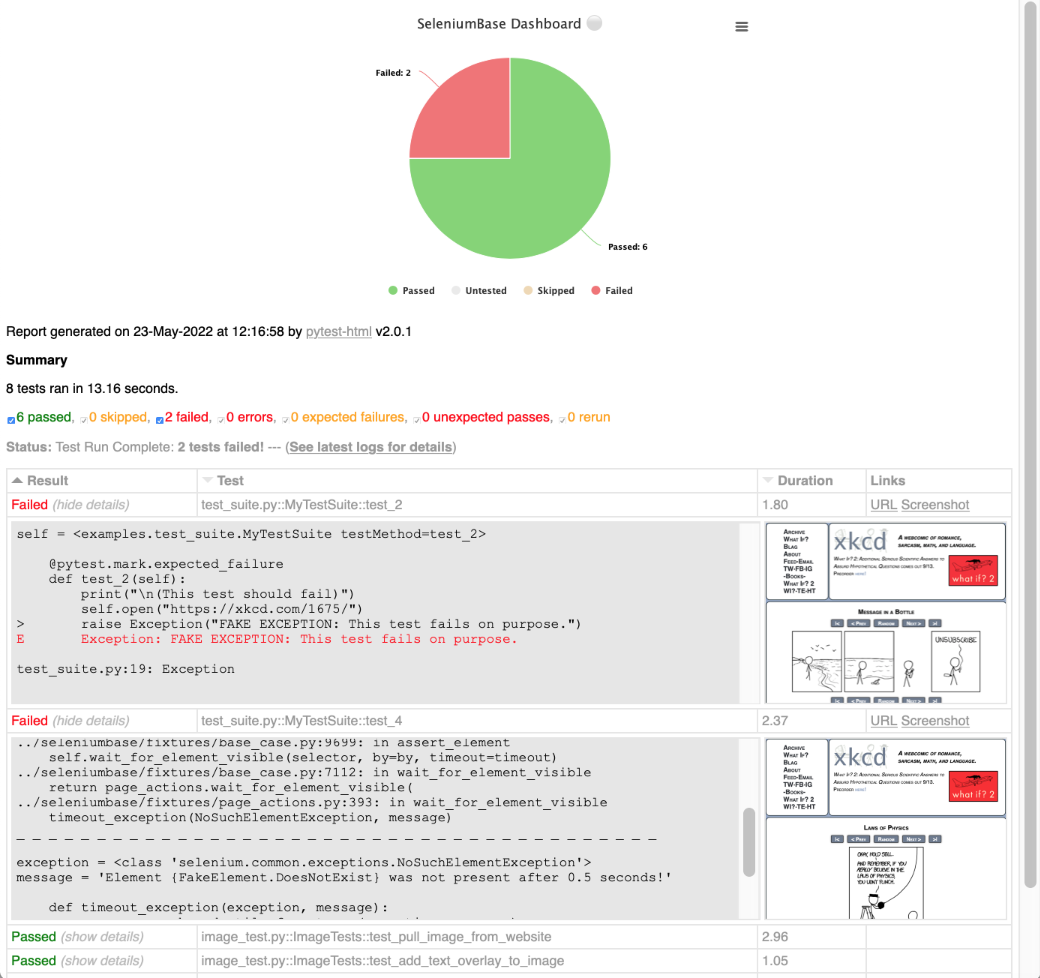
✅ 将 pytest HTML 报告与 SeleniumBase 仪表板结合使用时,仪表板中的饼图也会添加到 HTML 报告中。此外,如果在使用仪表板时将 HTML 报告 URL 设置为与仪表板 URL 相同(例如:--dashboard --html=dashboard.html),那么所有测试完成后,仪表板就会成为一份增强版 HTML 报告。
✅ 以下是增强版 HTML 报告示例:
pytest test_suite.py --dashboard --html=report.html
如果要在 Jenkins 中查看 pytest HTML 报告,你可能需要配置 Jenkins 设置,以确保 HTML 正确呈现。这是由于 Jenkins CSP 变更导致的。
你也可以使用 --junit-xml=report.xml 生成 XML 报告。Jenkins 可以使用此文件更好地展示测试报告。
pytest test_suite.py --junit-xml=report.xml
🔵 pynose 报告:
--report 选项会在测试套件完成后生成一份美观的报告。
pynose test_suite.py --report
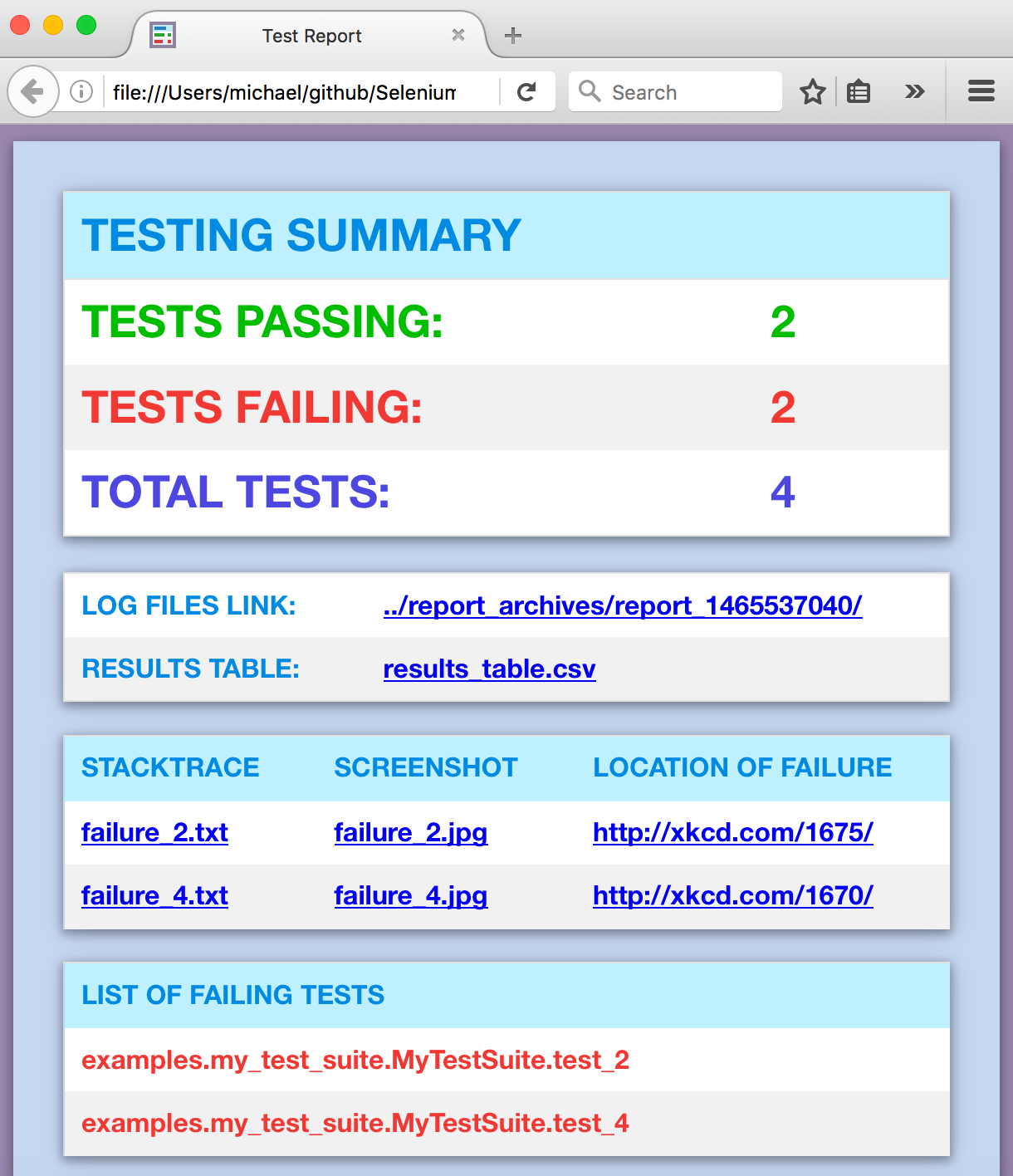
(注意:你可以添加 --show-report,以便在测试套件完成后立即显示 pynose 报告。仅在本地运行测试时使用 --show-report,因为它会暂停测试运行。)
🔵 behave 仪表板和报告:
(可在 examples/ 文件夹中找到 behave_bdd/ 文件夹。)
behave behave_bdd/features/ -D dashboard -D headless
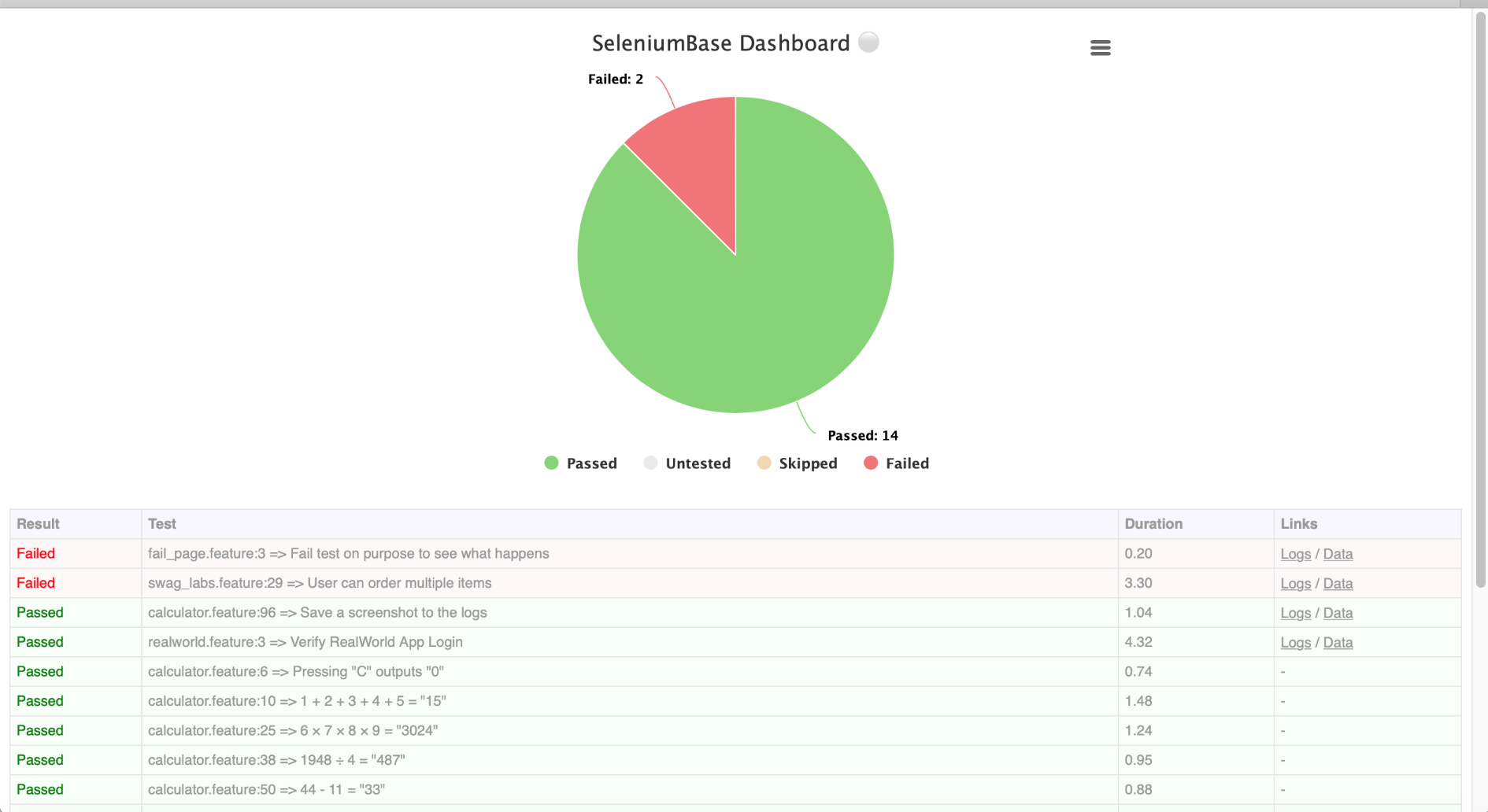
你还可以使用 --junit 为每个 behave 功能生成 .xml 报告。Jenkins 可以使用这些文件,为测试提供更完善的报告。
behave behave_bdd/features/ --junit -D rs -D headless
🔵 Allure 报告:
参见:https://allurereport.org/docs/pytest/
SeleniumBase 不再将 allure-pytest 作为已安装依赖的一部分。如果要使用它,请先安装:
pip install allure-pytest
现在,你的测试可以生成 Allure 结果文件,并由 Allure Reports 处理。
pytest test_suite.py --alluredir=allure_results
使用代理服务器:
如果希望在浏览器测试(Chromium 或 Firefox)中使用代理服务器,可以在命令行中添加 --proxy=IP_ADDRESS:PORT 参数。
pytest proxy_test.py --proxy=IP_ADDRESS:PORT
如果要使用的代理服务器需要身份验证,可以按以下方式操作(仅限 Chromium):
pytest proxy_test.py --proxy=USERNAME:PASSWORD@IP_ADDRESS:PORT
SeleniumBase 还支持 SOCKS4 和 SOCKS5 代理:
pytest proxy_test.py --proxy="socks4://IP_ADDRESS:PORT"

pytest proxy_test.py --proxy="socks5://IP_ADDRESS:PORT"
为方便使用,可以将常用代理添加到 proxy_list.py 中的 PROXY_LIST,然后使用 --proxy=KEY_FROM_PROXY_LIST 来使用该键对应的 IP_ADDRESS:PORT。
pytest proxy_test.py --proxy=proxy1
更改 User-Agent:
🔵 如果希望更改浏览器测试的 User-Agent(仅限 Chromium 和 Firefox),可以在命令行中添加 --agent="USER AGENT STRING" 参数。
pytest user_agent_test.py --agent="Mozilla/5.0 (Nintendo 3DS; U; ; en) Version/1.7412.EU"
处理弹出警告:
🔵 self.accept_alert() 会自动等待并接受弹出警告。self.dismiss_alert() 会自动等待并关闭弹出警告。有时,某些方法(例如 self.click(SELECTOR))可能会自行关闭弹出窗口,因为它们会调用 JavaScript,以确保页面的 readyState 为 complete 后再继续。如果你想接受以这种方式被关闭的弹出窗口,请使用以下变通方法:改为调用 self.find_element(SELECTOR).click()(这样弹出窗口就会保留在屏幕上),然后使用 self.accept_alert() 接受弹出窗口(点击此处了解更多)。如果弹出窗口并非每次都会出现,请将代码放入 try/except 块中。
为网站构建引导式导览:
🔵 了解 SeleniumBase 交互式引导(位于 examples/tour_examples/ 文件夹中)。它非常适合用于网站新手引导体验的原型设计。
生产环境与集成:
▶️ 以下是一些可用于为测试搭建生产环境的方法。(点击展开)
- 你可以设置 Jenkins 构建服务器,定期运行测试。如需查看无头浏览器自动化的真实 Jenkins 示例,请参阅 Azure 上的 SeleniumBase Jenkins 示例或 Google Cloud 上的 SeleniumBase Jenkins 示例。
- 你可以使用 Selenium Grid,通过在多台机器上分发测试并并行执行来扩展测试规模。为此,请查看 SeleniumBase selenium_grid 文件夹,其中应该包含你所需的一切,包括帮助你入门的 Selenium Grid ReadMe。
- 如果你使用 SeleniumBase MySQL 功能来保存服务器机器上运行的测试结果,可以安装 MySQL Workbench,以便更轻松地从数据库读取和写入数据。
- 如果你使用 AWS,可以设置 Amazon S3 账户,用于保存测试的日志文件和屏幕截图。要启用此功能,请在 settings.py 的 S3 部分填写连接详细信息,并在命令行运行测试时添加
--with-s3-logging。
下面是一个启用了某些附加功能的测试运行示例:
pytest [YOUR_TEST_FILE.py] --with-db-reporting --with-s3-logging
方法详细说明和示例:
🔵 导航到网页:(及相关命令)
self.goto("https://xkcd.com/378/")  # This method opens the specified page.

self.go_back()  # This method navigates the browser to the previous page.

self.go_forward()  # This method navigates the browser forward in history.

self.refresh_page()  # This method reloads the current page.

self.get_current_url()  # This method returns the current page URL.

self.get_page_source()  # This method returns the current page source.
ProTip™:你可以将 self.get_page_source() 方法与 Python 的 find() 命令配合使用,解析 HTML 并查找特定内容。(如需更高级的解析,请参阅 BeautifulSoup 示例。)
source = self.get_page_source()
head_open_tag = source.find('<head>')
head_close_tag = source.find('</head>', head_open_tag)
everything_inside_head = source[head_open_tag+len('<head>'):head_close_tag]
🔵 点击:
要点击页面上的元素:
self.click("div#my_id")
**ProTip™:**在大多数网页浏览器中,你可以右键点击页面并选择 Inspect Element,查看创建自定义脚本所需的 CSS 选择器详细信息。
🔵 输入文本:
self.type(selector, text) # 使用指定值更新指定元素中的文本。如果元素缺失或文本字段不可编辑,则会引发异常。示例:
self.type("input#id_value", "2012")
你也可以使用 self.add_text() 或 WebDriver 的 .send_keys() 命令,但如果文本框中已有内容,它们不会先清除文本。
🔵 获取页面上某个元素的文本:
text = self.get_text("header h2")
🔵 获取页面上某个元素的属性值:
attribute = self.get_attribute("#comic img", "title")
🔵 在指定秒数内断言页面上某个元素存在:
self.wait_for_element_present("div.my_class", timeout=10)
(注意:你也可以使用:self.assert_element_present(ELEMENT))
🔵 在指定秒数内断言页面上某个元素可见:
self.wait_for_element_visible("a.my_class", timeout=5)
(注意:简写形式为 self.find_element(ELEMENT) 和 self.assert_element(ELEMENT)。find_element() 版本会返回元素。)
由于上一行会返回元素,因此你可以像下面这样将它与 .click() 结合使用:
self.find_element("a.my_class", timeout=5).click()

# But you're better off using the following statement, which does the same thing:

self.click("a.my_class")  # DO IT THIS WAY!
实用提示™: 在 CSS 选择器中,可以用点号表示类名(例如:div.class_name),这是 div[class="class_name"] 的简写形式。
你也可以像下面这样使用 *=,在 CSS 选择器中搜索任意部分值:
self.click('a[name*="partial_name"]')
🔵 在指定秒数内断言页面上某个元素中的文本可见:
self.assert_text("Make it so!", "div#trek div.picard div.quotes")
self.assert_text("Tea. Earl Grey. Hot.", "div#trek div.picard div.quotes", timeout=3)
(注意:self.find_text(TEXT, ELEMENT) 和 self.wait_for_text(TEXT, ELEMENT) 也能实现此功能。为保持向后兼容,保留了旧的方法名称,但默认超时时间可能不同。)
🔵 断言任何内容:
self.assert_true(var1 == var2)

self.assert_false(var1 == var2)

self.assert_equal(var1, var2)
🔵 实用条件语句:(附创意示例)
❓ is_element_visible(selector):(元素在页面上可见)
if self.is_element_visible('div#warning'):
    print("Red Alert: Something bad might be happening!")
❓ is_element_present(selector):(元素存在于 HTML 中)
if self.is_element_present('div#top_secret img.tracking_cookie'):
    self.contact_cookie_monster()  # Not a real SeleniumBase method
else:
    current_url = self.get_current_url()
    self.contact_the_nsa(url=current_url, message="Dark Zone Found")  # Not a real SeleniumBase method
def is_there_a_cloaked_klingon_ship_on_this_page():
    if self.is_element_present("div.ships div.klingon"):
        return not self.is_element_visible("div.ships div.klingon")
    return False
❓ is_text_visible(text, selector):(元素上的文本可见)
if self.is_text_visible("You Shall Not Pass!", "h1"):
    self.goto("https://www.youtube.com/watch?v=3xYXUeSmb-Y")
▶️ 点击查看 is_text_visible(): 的详细示例
def get_mirror_universe_captain_picard_superbowl_ad(superbowl_year):
    selector = "div.superbowl_%s div.commercials div.transcript div.picard" % superbowl_year
    if self.is_text_visible("Yes, it was I who summoned you all here.", selector):
        return "Picard Paramount+ Superbowl Ad 2020"
    elif self.is_text_visible("Commander, signal the following: Our Network is Secure!"):
        return "Picard Mirror Universe iboss Superbowl Ad 2018"
    elif self.is_text_visible("For the Love of Marketing and Earl Grey Tea!", selector):
        return "Picard Mirror Universe HubSpot Superbowl Ad 2015"
    elif self.is_text_visible("Delivery Drones... Engage", selector):
        return "Picard Mirror Universe Amazon Superbowl Ad 2015"
    elif self.is_text_visible("Bing it on Screen!", selector):
        return "Picard Mirror Universe Microsoft Superbowl Ad 2015"
    elif self.is_text_visible("OK Glass, Make it So!", selector):
        return "Picard Mirror Universe Google Superbowl Ad 2015"
    elif self.is_text_visible("Number One, I've Never Seen Anything Like It.", selector):
        return "Picard Mirror Universe Tesla Superbowl Ad 2015"
    elif self.is_text_visible("Let us make sure history never forgets the name ... Facebook", selector):
        return "Picard Mirror Universe Facebook Superbowl Ad 2015"
    elif self.is_text_visible("""With the first link, the chain is forged.
                              The first speech censored, the first thought forbidden,
                              the first freedom denied, chains us all irrevocably.""", selector):
        return "Picard Mirror Universe Wikimedia Superbowl Ad 2015"
    else:
        raise Exception("Reports of my assimilation are greatly exaggerated.")
❓ is_link_text_visible(link_text):
if self.is_link_text_visible("Stop! Hammer time!"):
    self.click_link("Stop! Hammer time!")
🔵 切换标签页:
如果测试打开了新标签页或窗口,你可以切换到该页面。(SeleniumBase 会自动切换到网址不是 about:blank 的新标签页。)
self.switch_to_window(1) # This switches to the new tab (0 is the first one)
🔵 如何处理 iframe:
🔵 iframe 遵循与新窗口相同的原则:如果要在 iframe 中执行操作,必须先切换到该 iframe:
self.switch_to_frame("iframe")
# ... Now perform actions inside the iframe
self.switch_to_parent_frame()  # Exit the current iframe
要退出多个 iframe,请使用 self.switch_to_default_content()。(如果当前位于单个 iframe 中,则效果与 self.switch_to_parent_frame() 相同。)
self.switch_to_frame('iframe[name="frame1"]')
self.switch_to_frame('iframe[name="frame2"]')
# ... Now perform actions inside the inner iframe
self.switch_to_default_content()  # Back to the main page
🔵 你也可以使用上下文管理器在 iframe 中执行操作:
with self.frame_switch("iframe"):
    # ... Now perform actions while inside the code block
# You have left the iframe
这也适用于嵌套 iframe:
with self.frame_switch('iframe[name="frame1"]'):
    with self.frame_switch('iframe[name="frame2"]'):
        # ... Now perform actions while inside the code block
    # You are now back inside the first iframe
# You have left all the iframes
🔵 如何执行自定义 jQuery 脚本:
jQuery 是一个功能强大的 JavaScript 库,可让你在网页浏览器中执行高级操作。 如果当前网页已经加载了 jQuery,你就可以立即开始执行 jQuery 脚本。 你可以通过检查网页 HTML 中是否包含类似以下内容来确认:
<script src="https://ajax.googleapis.com/ajax/libs/jquery/3.6.3/jquery.min.js"></script>
🔵 如果网页尚未加载 jQuery,也可以在页面上使用它。首先运行以下命令即可:
self.activate_jquery()
▶️ 以下是一些在脚本中使用 jQuery 的示例。(点击展开)
self.execute_script("jQuery, window.scrollTo(0, 600)")  # Scrolling the page

self.execute_script("jQuery('#annoying-widget').hide()")  # Hiding elements on a page

self.execute_script("jQuery('#hidden-widget').show(0)")  # Showing hidden elements on a page

self.execute_script("jQuery('#annoying-button a').remove()")  # Removing elements on a page

self.execute_script("jQuery('%s').mouseover()" % (mouse_over_item))  # Mouse-over elements on a page

self.execute_script("jQuery('input#the_id').val('my_text')")  # Fast text input on a page

self.execute_script("jQuery('div#dropdown a.link').click()")  # Click elements on a page

self.execute_script("return jQuery('div#amazing')[0].text")  # Returns the css "text" of the element given

self.execute_script("return jQuery('textarea')[2].value")  # Returns the css "value" of the 3rd textarea element on the page
(上述大多数命令都可以直接通过内置的 SeleniumBase 方法完成。)
🔵 如何处理限制性 CSP:
❗ 有些网站设有严格的内容安全策略,以阻止用户向网站加载 jQuery 和其他外部库。如果你需要在这些网站上使用 jQuery 或其他 JS 库,请将 --disable-csp 添加为 pytest 命令行选项,以加载可绕过 CSP 的 Chromium 扩展。
🔵 更多 JavaScript 乐趣:
▶️ 在此示例中,JavaScript 会在页面上创建一个推荐按钮,然后点击该按钮。(点击展开)
start_page = "https://xkcd.com/465/"
destination_page = "https://github.com/seleniumbase/SeleniumBase"
self.goto(start_page)
referral_link = '''<a class='analytics test' href='%s'>Free-Referral Button!</a>''' % destination_page
self.execute_script('''document.body.innerHTML = \"%s\"''' % referral_link)
self.click("a.analytics")  # Clicks the generated button
(应广大用户要求,SeleniumBase 已加入此流量生成示例,提供 self.generate_referral(start_page, end_page) 和 self.generate_traffic(start_page, end_page, loops) 方法。)
🔵 如何使用延迟断言:
假设你想在一次测试中验证网页上的多个不同元素,但不希望在同时验证多个元素之前测试就失败,这样你就不必重新运行测试,才能找到同一页面上更多缺失的元素。这时就可以使用延迟断言。示例如下:
from seleniumbase import BaseCase
BaseCase.main(__name__, __file__)

class DeferredAssertTests(BaseCase):
    def test_deferred_asserts(self):
        self.goto("https://xkcd.com/993/")
        self.wait_for_element("#comic")
        self.deferred_assert_element('img[alt="Brand Identity"]')
        self.deferred_assert_element('img[alt="Rocket Ship"]')  # Will Fail
        self.deferred_assert_element("#comicmap")
        self.deferred_assert_text("Fake Item", "ul.comicNav")  # Will Fail
        self.deferred_assert_text("Random", "ul.comicNav")
        self.deferred_assert_element('a[name="Super Fake !!!"]')  # Will Fail
        self.deferred_assert_exact_text("Brand Identity", "#ctitle")
        self.deferred_assert_exact_text("Fake Food", "#comic")  # Will Fail
        self.process_deferred_asserts()
deferred_assert_element() 和 deferred_assert_text() 会保存所有原本会引发的异常。
若要将所有失败的延迟断言合并为一个异常,请务必在测试方法末尾调用 self.process_deferred_asserts()。如果测试涉及多个页面,可以在导航到新页面之前调用 self.process_deferred_asserts(),这样日志文件中的截图就会与执行延迟断言时的 URL 相匹配。
🔵 如何访问原始 WebDriver:
如果需要使用标准 WebDriver 提供的任何命令,可以像这样直接调用:
self.driver.delete_all_cookies()
capabilities = self.driver.capabilities
self.driver.find_elements("partial link text", "GitHub")
(通常情况下,如果有 SeleniumBase 版本的方法,建议使用它。)
🔵 如何自动重试失败的测试:
可以使用 pytest --reruns=NUM 重试失败的测试指定次数。添加 --reruns-delay=SECONDS 可设置每次重试之间的等待秒数。示例如下:
pytest --reruns=1 --reruns-delay=1
可以使用 @retry_on_exception() 装饰器重试失败的方法。(首先导入:from seleniumbase import decorators)。如需详细了解 SeleniumBase 装饰器,请点击此处。
“在将代码部署到生产环境之前,在 QA 中捕获错误!”
总结













评论
一个开放协议,规定了 AI 应用如何以统一方式连接外部工具与数据源。客户端负责与模型对话,MCP 服务负责提供工具、资源和提示模板,两者通过标准消息通信,同一个服务可以被不同客户端复用。