
关于 flutter-fastlane-one-click-beta
面向 Flutter 开发者的发布设置指南,使用 Fastlane 和 macOS Automator 自动向 App Store 与 Google Play 提交测试版和正式版。
主要功能
- 01配置 iOS 和 Android 的 Fastlane
- 02提供测试版与正式版 lane 示例
- 03可选下载元数据和截图
- 04设置 Automator 一键启动
适用场景
- 01自动上传 Flutter 应用测试版到两个商店
- 02为发布脚本创建桌面快捷方式
安装
复制下面的命令,在终端中运行。
npx skills add https:/安装后在 Claude Code 中输入/flutter-fastlane-one-click-beta确认已加载。
详细介绍
Flutter + Fastlane(一键 Beta)
1. 安装 Flutter

2. 创建新的 Flutter 项目
如果你刚开始接触 Flutter,可以查看这份实用指南,了解如何逐步创建新项目。

3. 在 iTunes Connect 中创建应用
如果你不熟悉 iTunes Connect,可以查看这篇文章,了解如何入门并为 App Store 设置你的第一个应用。
4. 在 Google Play 中创建应用
在 Google Play Console 中设置应用可能有些棘手,请务必查看官方参考资料和这份指南,以便在遇到问题时参考。

5. 前往 Project > ios 并设置 Fastlane
6. 前往 Project > android 并设置 Fastlane
7. 更新 iOS 和 Android 的 Fastlane Fastfiles,并根据各个平台进行相应修改
-
确保将 "YOUR PROJECT PATH" 改为 Finder 中项目所在的路径。
-
每个 Fastfile 仅复制对应平台的代码。例如,iOS 使用
default_platform(:ios),Android 使用 `default_platform(:android)1st。
update_fastlane

default_platform(:ios)

platform :ios do
  desc "Push a new beta build to TestFlight"
  lane :beta do
    increment_build_number(xcodeproj: "Runner.xcodeproj")
    build_app(workspace: "Runner.xcworkspace", scheme: "Runner")
    upload_to_testflight(skip_waiting_for_build_processing: true)
  end
  desc "Push a new release build to the App Store"
  lane :release do
    increment_build_number(xcodeproj: "Runner.xcodeproj")
    build_app(workspace: "Runner.xcworkspace", scheme: "Runner")
    upload_to_app_store(submit_for_review: true,
                            automatic_release: true,
                            skip_screenshots: true,
                            force: true,
                            skip_waiting_for_build_processing: true)
  end
end


//YOUR PROJECT PATH > android > fastlane > Fastfile
default_platform(:android)

platform :android do
  desc "Runs all the tests"
  lane :test do
    gradle(task: "test")
  end

  desc "Submit a new Build to Beta"
  lane :beta do
    gradle(task: 'clean')
    increment_version_code
    sh "cd YOUR PROJECT PATH && flutter build apk"
    upload_to_play_store(
      track: 'beta',
      apk: '../build/app/outputs/apk/release/app-release.apk',
      skip_upload_screenshots: true,
      skip_upload_images: true
    )
    # crashlytics
  end

  desc "Deploy a new version to the Google Play"
  lane :deploy do
    gradle(task: 'clean')
    increment_version_code
    sh "cd YOUR PROJECT PATH && flutter build apk"
    upload_to_play_store(
      track: 'production',
      apk: '../build/app/outputs/apk/release/app-release.apk',
      skip_upload_screenshots: true,
      skip_upload_images: true
    )
  end
end
- 对于 Android,
increment_version_code请在此处安装。
有时安装会失败,你需要运行:
bundle exec fastlane add_plugin increment_version_code
- 对于 iOS,
increment_build_number请通过启用 agvtool 来设置 Generic Versioning。
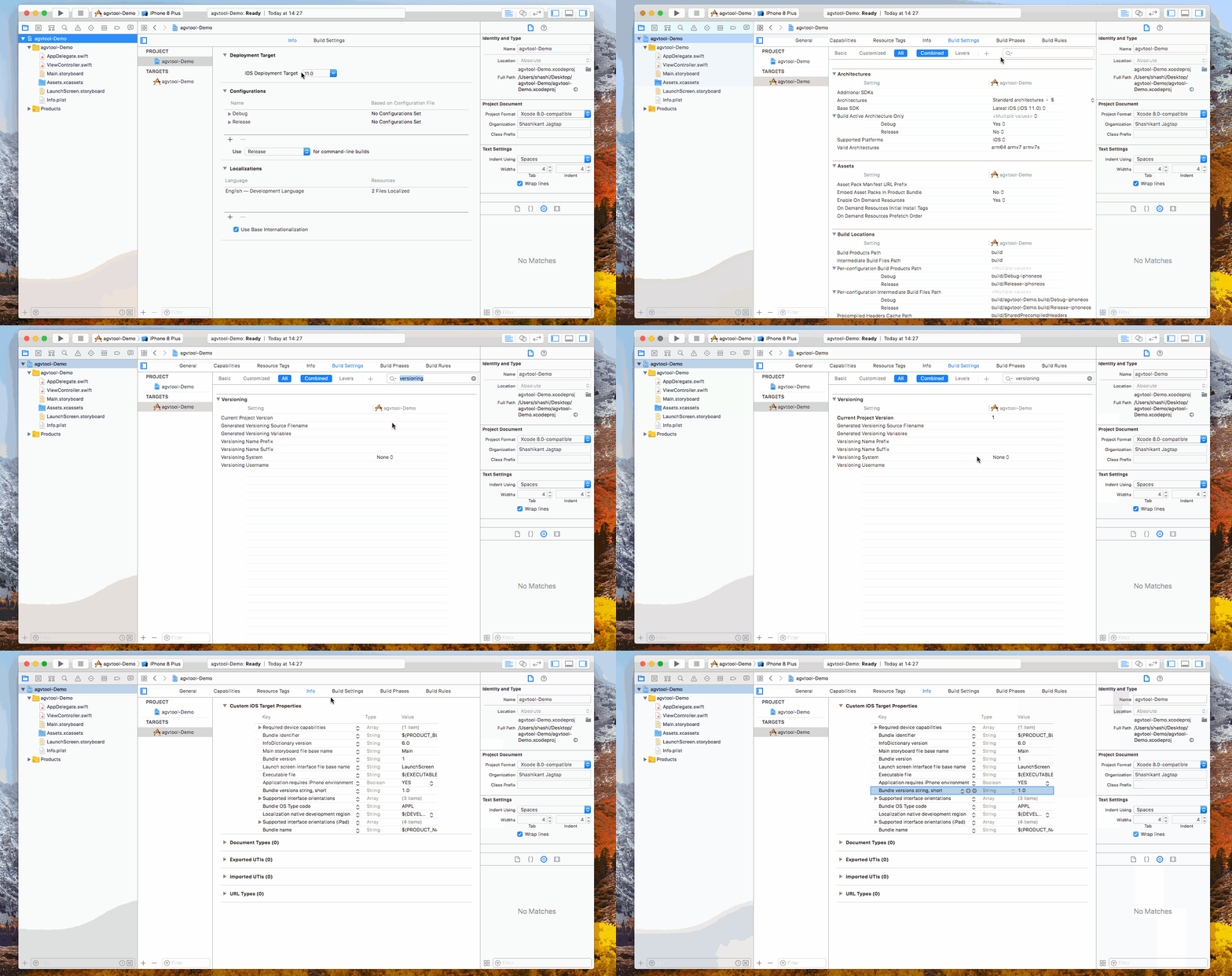
8. 元数据(可选)
- 对于 iOS,你可以让 Fastlane 从 iTunes Connect 下载应用现有的所有元数据,包括截图。在终端中前往项目目录并运行。
fastlane deliver download_metadata && fastlane deliver download_screenshots
- 对于 Android,你可以使用 Fastlane Supply。
9. 打开 Automator
目前,所有操作都可以通过命令行完成。在终端中输入 "cd ",然后将项目文件夹拖入并按 Enter,即可前往项目目录;接着输入 "cd ios && fastlane beta" 或 "cd android && fastlane beta",即可运行 Fastlane。
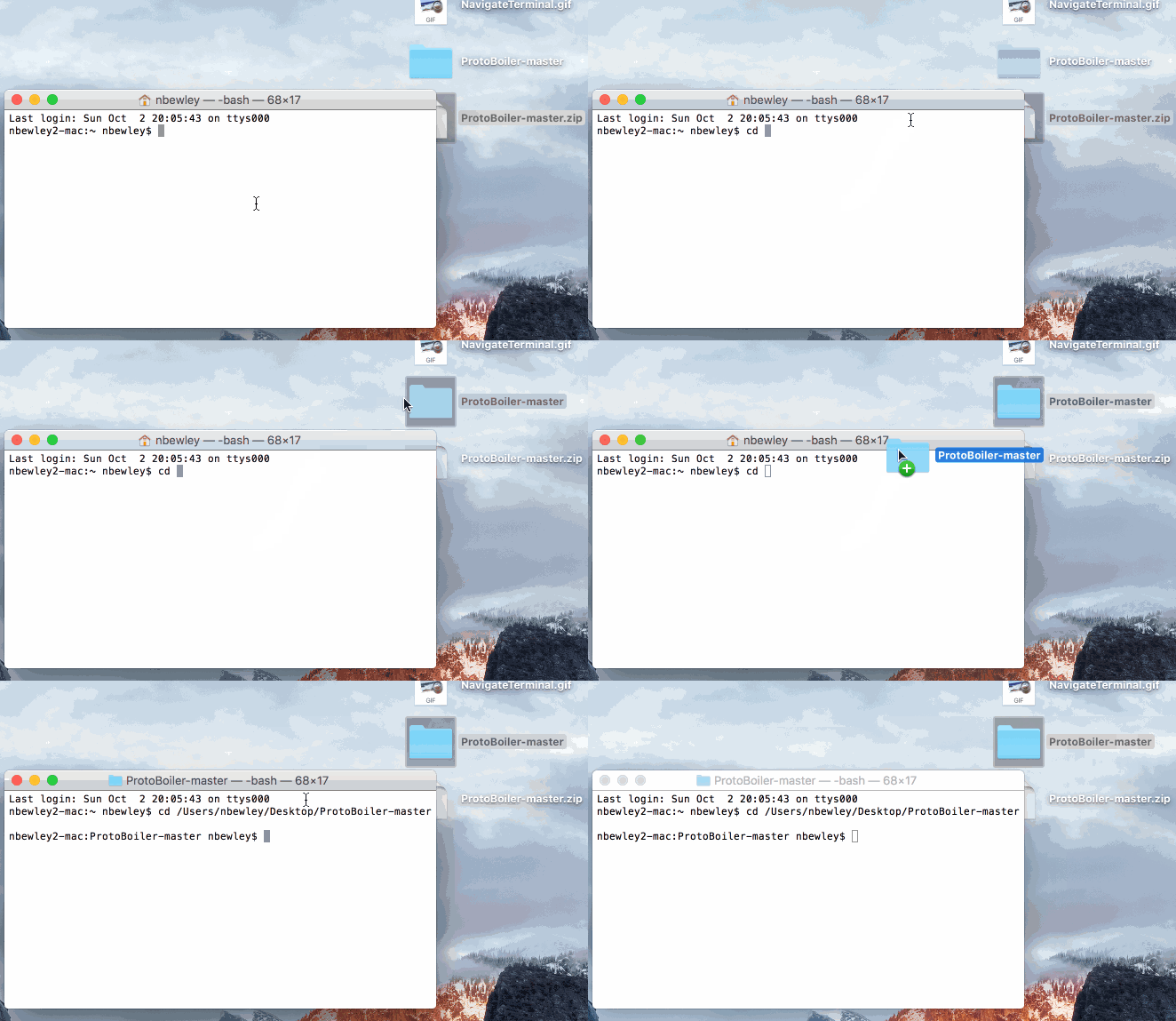
如果你想只需点击一次,就能将应用提交到 Google Play 和 App Store,我们会使用 Automator。创建一个新的 Automator 应用,然后搜索 "Ask for Confirmation" 和 "Run AppleScript",并将它们拖入。
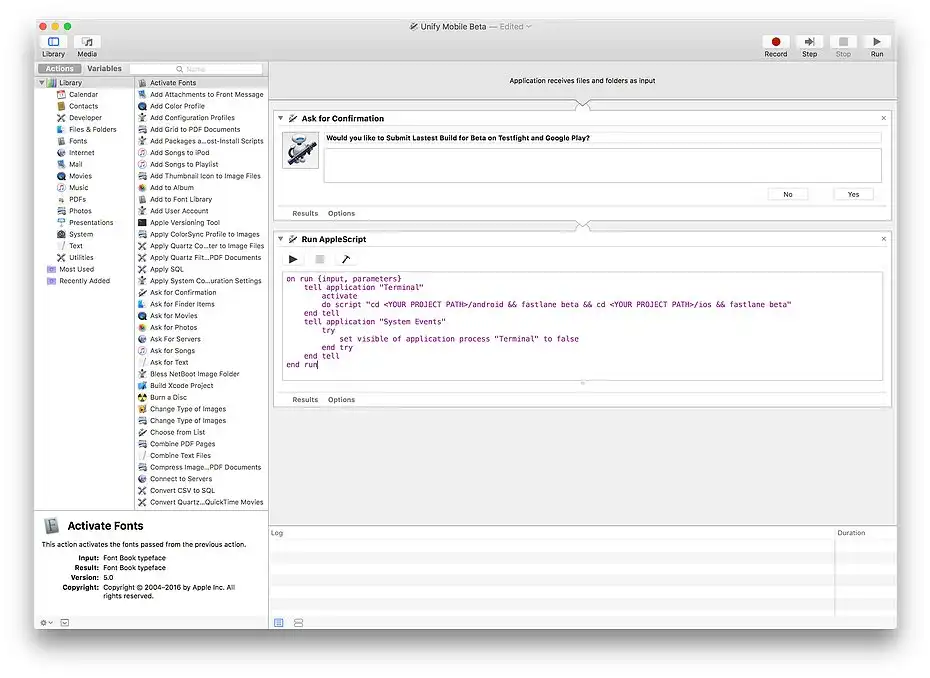
以下是用于 Beta 和 Release 的脚本。你需要为每个要自动化的应用分别创建用于 Beta 和 Release 的 Automator 应用。将它们保存在任意位置,并创建一个别名放到桌面上。
- 确保将 YOUR PROJECT PATH 改为 Finder 中项目所在的路径
提示:我会将 Automator 应用保存在项目的 Github Repo 中,方便版本管理,也便于访问不同项目。
//Beta
on run {input, parameters}
	tell application "Terminal"
		activate
		do script "cd YOUR PROJECT PATH/android && fastlane beta && cd YOUR PROJECT PATH/ios && fastlane beta"
	end tell
	tell application "System Events"
		try
			set visible of application process "Terminal" to false
		end try
	end tell
end run

//Release
on run {input, parameters}
	tell application "Terminal"
		activate
		do script "cd YOUR PROJECT PATH/android && fastlane deploy && cd YOUR PROJECT PATH/ios && fastlane release"
	end tell
	tell application "System Events"
		try
			set visible of application process "Terminal" to false
		end try
	end tell
end run
10. 试用一下!
现在应该一切正常了。双击 automator 应用后,你应该会看到一个确认弹窗,提示你释放该应用。脚本会在后台运行终端,你可以继续专注于开发出色的 Flutter 应用。如果想查看 fastlane 上传应用的进度,可以点击终端图标,终端窗口就会重新显示。感谢阅读!如有任何问题,请随时联系我们!