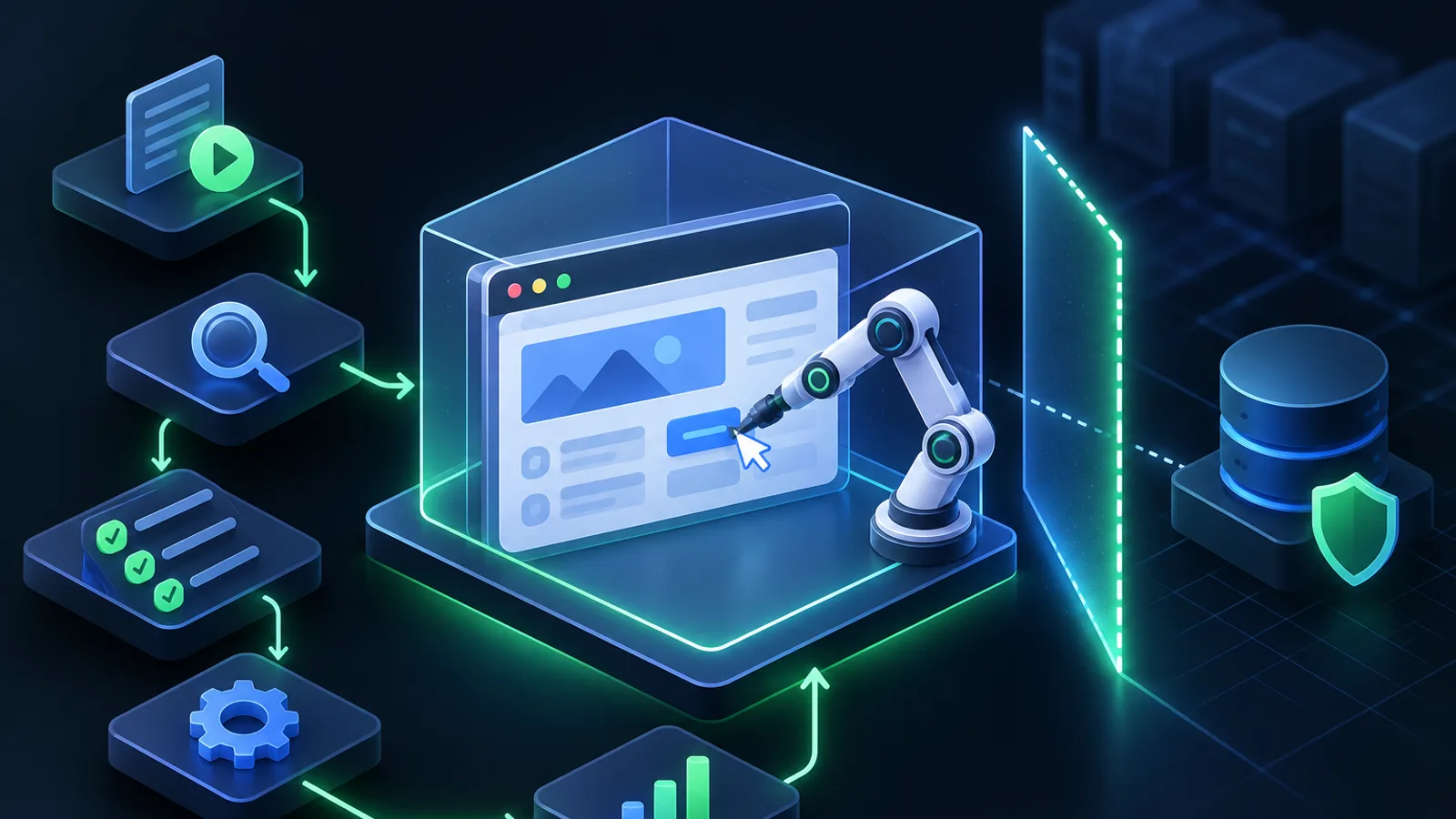
Playwright MCP connects Playwright browser automation capabilities to MCP-compatible AI clients, allowing an agent to open web pages, read page structure, click controls, and fill out forms within the authorized scope. It is useful for turning “Please check this page for me” into observable, reproducible browser actions. However, it does not automatically determine whether an action is safe, and should not be treated as a general-purpose agent to which you can freely hand over accounts and data.
What is Playwright MCP, and what can it do for an AI agent?
MCP is a protocol that lets AI clients connect to external tools. The Playwright MCP server wraps browser operations as tools, while the client makes those tools available for the model to call. Once configured, the agent can decide what to do next based on page content, rather than merely generating a block of test code.
For example, a user can ask an agent to open a test environment, check whether a page loads correctly, fill out a non-sensitive test form, or organize information visible on the page. The specific tools available depend on the server and client implementations; common interactions include navigation, viewing pages, clicking, and typing.
The difference from traditional automation scripts is that developers typically write the steps in advance for scripts, while an agent can decide how to proceed based on the current page state. This approach is especially useful for exploratory testing and assisted tasks when page structure is clear and task boundaries are well defined. For stable, repeatable production workflows, use validated automation scripts and tests instead.

Before configuring: runtime environment, browser, and MCP client
Before getting started, prepare:
- An MCP-compatible client, such as a desktop app or development tool that can be configured with an MCP server. Configuration file locations and fields may differ between clients; refer to the client documentation.
- A Node.js environment. If you use
npxto launch the server, make sure the terminal can findnodeandnpx. - A browser required by Playwright. If prompted to install a browser on first run, install the appropriate browser according to the Playwright installation instructions; for example, install Chromium.
node --version
npx --version
npx playwright install chromium
Not every project or environment requires Chromium: some configurations use an already-installed browser, depending on the launch arguments and runtime environment. We recommend testing in a test environment first. Do not hand over a browser with your everyday, real login session directly to an agent.
On MCP Field, you can view the Playwright MCP server and Playwright MCP client entry to learn about related projects in the directory. These are not the same configuration entry point as the official package configuration example below.
Install and connect Playwright MCP: from configuration to launch
Most clients that support stdio-type MCP servers can connect to the server using a launch command and arguments. Here is a common JSON configuration example; the name of the configuration entry point may vary by client, so put the mcpServers section in the location required by your client.
{
  "mcpServers": {
    "playwright": {
      "command": "npx",
      "args": ["-y", "@playwright/mcp@latest"]
    }
  }
}
After saving the configuration, restart or refresh the client's MCP server list. If the client supports adding a server manually, select the stdio type and enter npx as the command, along with the corresponding arguments. The first launch may need to download the npm package, so a working network connection is required.
If the client cannot start the server, first check in the terminal that Node.js and npx are available, then confirm that the configuration file is valid JSON and that the command and arguments are in the correct order. Some clients do not inherit environment variables from the terminal used to launch the graphical interface. If the command cannot be found, try using the absolute path to npx, or check the client's documentation on environment variables.
Tip
When connecting for the first time, use the default arguments and avoid changing the browser channel, proxy, and launch mode all at once. Confirm that the basic connection works, then adjust settings one at a time to make it easier to troubleshoot.
Verify the connection: have the AI open a web page and perform an interaction
Once the client shows that Playwright MCP is connected, start by testing with a page that requires no login and contains no sensitive data. Give the agent a clear, limited task, such as:
Please open
https://example.com, summarize the page's main content, and confirm the page title.
If the client provides web interaction tools, the agent should be able to navigate to the page and read its information. Next, verify interactions on a test page you control, such as clicking a public button or filling out a test form that does not involve personal information. Use the actual status returned by the browser to verify the result; do not rely solely on the model's verbal claim that “the operation succeeded.”
If the task fails, troubleshoot in stages: check whether the server has started, whether the browser is available, whether the client has exposed the relevant tools to the model, and whether the target page is accessible from the current network. Page content may also differ because of login requirements, pop-ups, or dynamic loading. In that case, ask the agent to report the page state it observes before deciding what to do next, rather than telling it to blindly repeat clicks.

Common applications: web testing, form operations, and data extraction
Common uses of Playwright MCP include:
- Web testing: Have the agent check from a user's perspective whether a page opens and key controls appear, and help explore abnormal cases. Important regression tests should still be captured as automated test cases.
- Form operations: Fill out simulated data in a test environment and check required fields and the feedback after submission. Require human confirmation for actions involving payments, publishing, deletion, or submission of real business data.
- Data extraction: Organize information visible on public pages for subsequent review or analysis. Before scraping, confirm the data source, website rules, and applicable privacy and compliance requirements.
If the task only requires writing and running fixed end-to-end tests, Playwright's own test framework or Playwright CLI may be more direct. If you want an agent to perform browser workflows using a Skill, you can also refer to agent-browser. It connects differently from an MCP server and should not be considered the same component.
Frequently asked questions, security boundaries, and related browser automation tools
Once a browser is logged in, actions performed by an agent may affect a real account. We recommend using a dedicated test account, an isolated browser environment, and least-privilege access; require human approval for high-risk actions such as entering passwords or verification codes, making payments, sending messages, and deleting content. Never put secrets, session files, or profile directories in prompts or commit them to a code repository.
Automation can also be affected by page redesigns, network fluctuations, pop-ups, and asynchronous loading. For critical tasks, check the results of each action, record necessary logs, and design workflows that stop on failure instead of continuing to guess. Do not attempt to bypass access controls or a website’s security restrictions.
Choose a tool based on your needs: Playwright MCP server in the directory is designed for Playwright automation; Browser Use MCP Server provides browser automation based on Puppeteer; Skyvern focuses on AI-driven web interactions. They differ in their underlying technologies and integration methods, so check client compatibility, permission models, and maintenance status before choosing one.
Start with a page that contains no sensitive data. Confirm that the connection, browser access, and interaction results meet expectations, then gradually expand the scope of tasks. This lets you benefit from Playwright MCP automation while keeping browser operations within auditable, reversible boundaries.