
MCP CLI client について
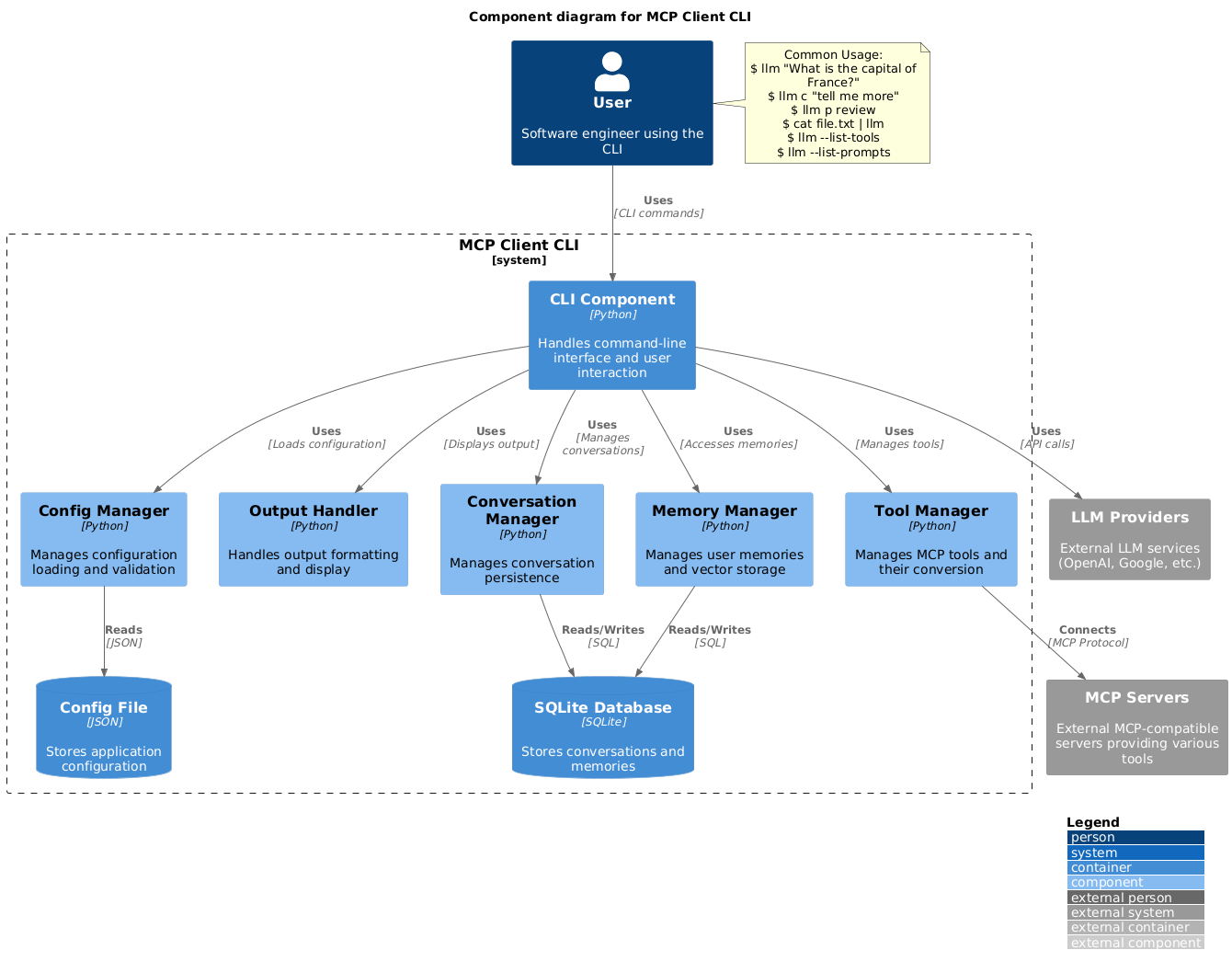
MCP CLI クライアントは、ターミナルから MCP 互換サーバーと対話するシンプルなコマンドラインツールです。複数の LLM プロバイダー、マルチモーダル入力、プロンプトテンプレートに対応しています。
主な機能
- 01複数 LLM プロバイダー対応
- 02MCP サーバーツール統合
- 03画像入力とマルチモーダル対応
- 04プロンプトテンプレート
- 05クリップボード入力とパイプ対応
活用シーン
- 01ターミナルから LLM プロンプトを実行
- 02MCP サーバー提供ツールへのアクセス
- 03画像とスクリーンショットの分析
- 04定義済みテンプレートを使用したコンテンツ生成
MCP 対応
MCP CLI クライアントは MCP サーバーに接続してツールとリソースにアクセスし、ローカルおよびリモートサーバー統合のため stdio や他のトランスポートタイプに対応しています。
詳細
MCP CLIクライアント
LLM プロンプトを実行し、Model Context Protocol (MCP) クライアントを実装するシンプルな CLI プログラムです。
ターミナルから便利にMCP互換サーバーを利用できます。
Claude Desktop の代替クライアントとして機能します。さらに OpenAI、Groq、または llama 経由のローカル LLM モデルなど、任意の LLM プロバイダーを使用できます。
セットアップ
-
pip でインストール:
pip install mcp-client-cli -
~/.llm/config.jsonファイルを作成して、LLM と MCP サーバーを設定します:{ "systemPrompt": "You are an AI assistant helping a software engineer...", "llm": { "provider": "openai", "model": "gpt-4", "api_key": "your-openai-api-key", "temperature": 0.7, "base_url": "https://api.openai.com/v1" // Optional, for OpenRouter or other providers }, "mcpServers": { "fetch": { "command": "uvx", "args": ["mcp-server-fetch"], "requires_confirmation": ["fetch"], "enabled": true, // Optional, defaults to true "exclude_tools": [] // Optional, list of tool names to exclude }, "brave-search": { "command": "npx", "args": ["-y", "@modelcontextprotocol/server-brave-search"], "env": { "BRAVE_API_KEY": "your-brave-api-key" }, "requires_confirmation": ["brave_web_search"] }, "youtube": { "command": "uvx", "args": ["--from", "git+https://github.com/adhikasp/mcp-youtube", "mcp-youtube"] } } }注記:
- 設定形式の完全なドキュメントは CONFIG.md を参照してください
requires_confirmationを使用して、実行前にユーザー確認が必要なツールを指定します- LLM API キーは環境変数
LLM_API_KEYまたはOPENAI_API_KEYでも設定できます - 設定ファイルは
~/.llm/config.jsonまたは$PWD/.llm/config.jsonのどちらかに配置できます //で JSON 設定ファイルにコメントを付けて、設定を切り替えることができます
-
CLI を実行:
llm "What is the capital city of North Sumatra?"
使用方法
基本的な使用方法
$ llm What is the capital city of North Sumatra?
The capital city of North Sumatra is Medan.
引用符を省略することもできますが、bash 特殊文字の &、|、; などがシェルで解釈される可能性があるので注意してください。
他のコマンドやファイルから入力をパイプすることもできます:
$ echo "What is the capital city of North Sumatra?" | llm
The capital city of North Sumatra is Medan.

$ echo "Given a location, tell me its capital city." > instructions.txt
$ cat instruction.txt | llm "West Java"
The capital city of West Java is Bandung.
画像入力
マルチモーダル LLM で画像を分析するために、画像ファイルをパイプできます:
$ cat image.jpg | llm "What do you see in this image?"
[LLM will analyze and describe the image]

$ cat screenshot.png | llm "Is there any error in this screenshot?"
[LLM will analyze the screenshot and point out any errors]
プロンプトテンプレートの使用
p プレフィックスの後にテンプレート名と引数を付けることで、定義済みのプロンプトテンプレートを使用できます:
# List available prompt templates
$ llm --list-prompts

# Use a template
$ llm p review  # Review git changes
$ llm p commit  # Generate commit message
$ llm p yt url=https://youtube.com/...  # Summarize YouTube video
ツールのトリガー
$ llm What is the top article on hackernews today?

================================== Ai Message ==================================
Tool Calls:
  brave_web_search (call_eXmFQizLUp8TKBgPtgFo71et)
 Call ID: call_eXmFQizLUp8TKBgPtgFo71et
  Args:
    query: site:news.ycombinator.com
    count: 1
Brave Search MCP Server running on stdio

# If the tool requires confirmation, you'll be prompted:
Confirm tool call? [y/n]: y

================================== Ai Message ==================================
Tool Calls:
  fetch (call_xH32S0QKqMfudgN1ZGV6vH1P)
 Call ID: call_xH32S0QKqMfudgN1ZGV6vH1P
  Args:
    url: https://news.ycombinator.com/
================================= Tool Message =================================
Name: fetch

[TextContent(type='text', text='Contents [REDACTED]]
================================== Ai Message ==================================

The top article on Hacker News today is:

### [Why pipes sometimes get "stuck": buffering](https://jvns.ca)
- **Points:** 31
- **Posted by:** tanelpoder
- **Posted:** 1 hour ago

You can view the full list of articles on [Hacker News](https://news.ycombinator.com/)
ツール確認要件をバイパスするには、--no-confirmations フラグを使用します:
$ llm --no-confirmations "What is the top article on hackernews today?"
bash スクリプトで使用するには、--no-intermediates を追加して、中間メッセージを出力せず、最終メッセージのみを出力します。
$ llm --no-intermediates "What is the time in Tokyo right now?"
続行
メッセージに c プレフィックスを付けて、前回の会話を続行します。
$ llm asldkfjasdfkl
It seems like your message might have been a typo or an error. Could you please clarify or provide more details about what you need help with?
$ llm c what did i say previously?
You previously typed "asldkfjasdfkl," which appears to be a random string of characters. If you meant to ask something specific or if you have a question, please let me know!
クリップボードサポート
cb コマンドを使用してクリップボードの内容を使用できます:
# After copying text to clipboard
$ llm cb
[LLM will process the clipboard text]

$ llm cb "What language is this code written in?"
[LLM will analyze the clipboard text with your question]

# After copying an image to clipboard
$ llm cb "What do you see in this image?"
[LLM will analyze the clipboard image]

# You can combine it with continuation
$ llm cb c "Tell me more about what you see"
[LLM will continue the conversation about the clipboard content]
クリップボード機能は以下で動作します:
- ネイティブ Windows/macOS/Linux 環境
- Windows: PowerShell を使用
- macOS: テキストには
pbpaste、画像にはpngpaste(オプション) を使用 - Linux:
xclipを使用 (クリップボードサポートが必要)
- Windows Subsystem for Linux (WSL)
- PowerShell を通じて Windows クリップボードにアクセス
- テキストと画像の両方に対応
- WSL から
powershell.exeにアクセスできることを確認してください
クリップボードサポートに必要なツール:
- Windows: PowerShell (組み込み)
- macOS:
pbpaste(組み込み) テキスト用pngpaste(オプション) 画像用:brew install pngpaste
- Linux:
xclip:sudo apt install xclipまたは同等のコマンド
CLI は自動的にクリップボードの内容がテキストか画像かを検出し、適切に処理します。
その他のオプション
$ llm --list-tools                # List all available tools
$ llm --list-prompts              # List available prompt templates
$ llm --no-tools                  # Run without any tools
$ llm --force-refresh             # Force refresh tool capabilities cache
$ llm --text-only                 # Output raw text without markdown formatting
$ llm --show-memories             # Show user memories
$ llm --model gpt-4               # Override the model specified in config
貢献
改善やバグ修正のために、お気軽に issue や pull request を提出してください。
コメント
AI アプリケーションが外部のツールやデータソースに統一的な方法で接続するためのオープンなプロトコルです。クライアントはモデルとの対話を担い、MCP サーバーはツール・リソース・プロンプトテンプレートを提供します。標準メッセージでやり取りするため、1 つのサーバーを複数のクライアントで再利用できます。