
关于 building-a-rich-text-editor-with-lit
Building a Rich Text Editor with Lit 是一篇介绍如何用 Lit Web 组件构建富文本编辑器的教程,面向学习该实现流程的开发者,涵盖项目配置、工具栏、命令处理和字体检测。
主要功能
- 01配置 Lit Web 组件
- 02使用控件构建工具栏
- 03处理编辑器命令回调
- 04检测浏览器字体
- 05使用 Vite 开发
适用场景
- 01学习启动 Lit 编辑器项目
- 02构建富文本工具栏操作
- 03将控件连接到文档命令
- 04检查文档可用字体
安装
复制下面的命令,在终端中运行。
npx skills add https:/安装后在 Claude Code 中输入/building-a-rich-text-editor-with-lit确认已加载。
详细介绍
使用 Lit 构建富文本编辑器
本文将介绍如何设置 Lit Web 组件,并使用它创建富文本编辑器。
前置条件
- Vscode
- Node >= 16
- Typescript
开始使用
首先,在终端中导航到项目所在位置,然后运行以下命令:
npm init @vitejs/app --template lit-ts
接着输入项目名称 lit-rich-text-editor,然后在 vscode 中打开项目并安装依赖项:
cd lit-rich-text-editor
npm i @material/mwc-icon-button
npm i -D @types/node
code .
使用以下内容更新 vite.config.ts:
import { defineConfig } from "vite";
import { resolve } from "path";

export default defineConfig({
  base: '/lit-rich-text-editor/',
  build: {
    lib: {
      entry: "src/lit-rich-text-editor.ts",
      formats: ["es"],
    },
    rollupOptions: {
      input: {
        main: resolve(__dirname, "index.html"),
      },
    },
  },
});
模板
打开 index.html 并使用以下内容更新:
<!DOCTYPE html>
<html lang="en">
  <head>
    <meta charset="UTF-8" />
    <link rel="icon" type="image/svg+xml" href="/src/favicon.svg" />
    <meta name="viewport" content="width=device-width, initial-scale=1.0" />
    <link
      href="https://fonts.googleapis.com/css?family=Material+Icons&display=block"
      rel="stylesheet"
    />
    <title>Lit Rich Text Editor</title>
    <script type="module" src="/src/lit-rich-text-editor.ts"></script>
    <style>
      body {
        padding: 0;
        margin: 0;
      }
      lit-rich-text-editor {
        --editor-width: 100%;
        --editor-height: 100vh;
      }
    </style>
  </head>
  <body>
    <lit-rich-text-editor>
     <template>
        <h1>Headline 1</h1>
        <p>This is a paragraph.</p>
        <p>
          <span style="background-color: rgb(255, 0, 0)"
            ><font color="#ffffff">Styled Text</font></span
          >
        </p>

        <p>
          Lorem ipsum dolor sit amet, consectetur adipiscing elit, sed do
          eiusmod tempor incididunt ut labore et dolore magna aliqua. Ut enim ad
          minim veniam, quis nostrud exercitation ullamco laboris nisi ut
          aliquip ex ea commodo consequat. Duis aute irure dolor in
          reprehenderit in voluptate velit esse cillum dolore eu fugiat nulla
          pariatur. Excepteur sint occaecat cupidatat non proident, sunt in
          culpa qui officia deserunt mollit anim id est laborum.
        </p>
      </template>
    </lit-rich-text-editor>
  </body>
</html>
需要注意的是,添加的样式会移除 body 的内边距,并将尺寸 CSS 自定义属性传递给编辑器,使其占据整个视口。
在 lit-rich-text-editor 标签中,有一个作为插槽传入的 template,用于提供不会被渲染但可以访问的 HTML。
此外,还导入了 Material Icons,以便稍后在编辑器中使用。
编辑器
接下来要创建编辑器本身。打开 src/lit-rich-text-editor.ts 并使用以下内容更新:
import { html, css, LitElement } from "lit";
import { customElement, property, state } from "lit/decorators.js";

import "@material/mwc-icon-button";

@customElement("lit-rich-text-editor")
export class LitRichTextEditor extends LitElement {
  @state() content: string = "";
  @state() root: Element | null = null;

  static styles = css`
    :host {
      --editor-width: 600px;
      --editor-height: 600px;
      --editor-background: #f1f1f1;
      --editor-toolbar-height: 33px;
      --editor-toolbar-background: black;
      --editor-toolbar-on-background: white;
      --editor-toolbar-on-active-background: #a4a4a4;
    }
    main {
      width: var(--editor-width);
      height: var(--editor-height);
      display: grid;
      grid-template-areas:
        "toolbar toolbar"
        "editor editor";
      grid-template-rows: var(--editor-toolbar-height) auto;
      grid-template-columns: auto auto;
    }
    #editor-actions {
      grid-area: toolbar;
      width: var(--editor-width);
      height: var(--editor-toolbar-height);
      background-color: var(--editor-toolbar-background);
      color: var(--editor-toolbar-on-background);
      overscroll-behavior: contain;
      overflow-y: auto;
      -ms-overflow-style: none;
      scrollbar-width: none;
    }
    #editor-actions::-webkit-scrollbar {
      display: none;
    }
    #editor {
      width: var(--editor-width);
      grid-area: editor;
      background-color: var(--editor-background);
    }
    #toolbar {
      width: 1090px;
      height: var(--editor-toolbar-height);
    }
    [contenteditable] {
      outline: 0px solid transparent;
    }
    #toolbar > mwc-icon-button {
      color: var(--editor-toolbar-on-background);
      --mdc-icon-size: 20px;
      --mdc-icon-button-size: 30px;
      cursor: pointer;
    }
    #toolbar > .active {
      color: var(--editor-toolbar-on-active-background);
    }
    select {
      margin-top: 5px;
      height: calc(var(--editor-toolbar-height) - 10px);
    }
    input[type="color"] {
      height: calc(var(--editor-toolbar-height) - 15px);
      -webkit-appearance: none;
      border: none;
      width: 22px;
    }
    input[type="color"]::-webkit-color-swatch-wrapper {
      padding: 0;
    }
    input[type="color"]::-webkit-color-swatch {
      border: none;
    }
  `;

  render() {
    return html`<main>
      <input id="bg" type="color" style="display:none" />
      <input id="fg" type="color" style="display:none" />
      <div id="editor-actions">
        <div id="toolbar">
        </div>
      </div>
      <div id="editor">${this.root}</div>
    </main> `;
  }

  async firstUpdated() {
    const elem = this.parentElement!.querySelector("lit-rich-text-editor template");
    this.content = elem?.innerHTML ?? "";
    this.reset();
  }

  reset() {
    const parser = new DOMParser();
    const doc = parser.parseFromString(this.content, "text/html");
    document.execCommand("defaultParagraphSeparator", false, "br");
    document.addEventListener("selectionchange", () => {
      this.requestUpdate();
    });
    const root = doc.querySelector("body");
    root!.setAttribute("contenteditable", "true");
    this.root = root;
  }

}
更新完所有内容后,运行 npm run dev,浏览器中应该会出现以下内容:
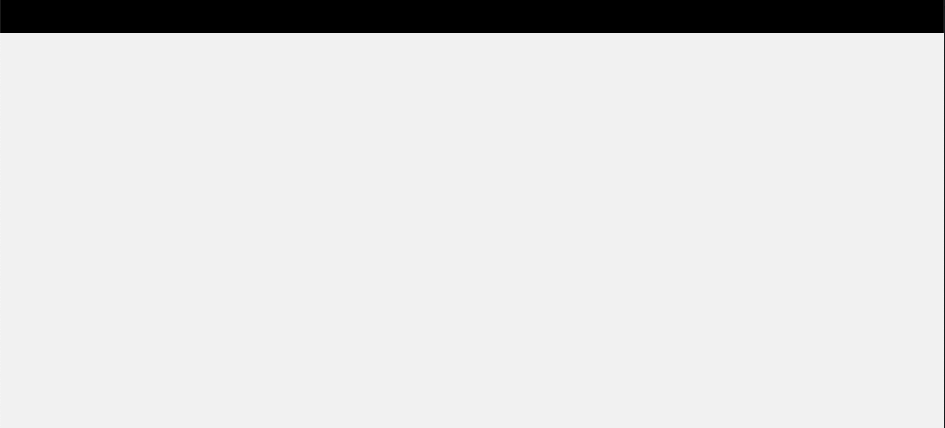
目前还没有特别的效果,但模板已被读取并传入元素、解析,并将 contenteditable 属性设为 true。
这样可以访问插槽,并使用节点存储不用于渲染的数据。通过这种方式,可以将 HTML 源代码转换为可用的格式。
工具栏
在类的底部、最后一个 } 之前添加以下内容:
renderToolbar(command: (c: string, val: string | undefined) => void) {
    // TODO: Selection does not work on Safari iOS
    const selection = this.shadowRoot?.getSelection
      ? this.shadowRoot!.getSelection()
      : null;
    const tags: string[] = [];
    if (selection?.type === "Range") {
      // @ts-ignore
      let parentNode = selection?.baseNode;
      if (parentNode) {
        const checkNode = () => {
          const parentTagName = parentNode?.tagName?.toLowerCase()?.trim();
          if (parentTagName) tags.push(parentTagName);
        };
        while (parentNode != null) {
          checkNode();
          parentNode = parentNode?.parentNode;
        }
      }
    }

    const commands: {
      icon: string;
      command: string | (() => void);
      active?: boolean;
      type?: string;
      values?: { value: string; name: string; font?: boolean }[];
      command_value?: string;
    }[] = [
      {
        icon: "format_clear",
        command: "removeFormat",
      },

      {
        icon: "format_bold",
        command: "bold",
        active: tags.includes("b"),
      },
      {
        icon: "format_italic",
        command: "italic",
        active: tags.includes("i"),
      },
      {
        icon: "format_underlined",
        command: "underline",
        active: tags.includes("u"),
      },
      {
        icon: "format_align_left",
        command: "justifyleft",
      },
      {
        icon: "format_align_center",
        command: "justifycenter",
      },
      {
        icon: "format_align_right",
        command: "justifyright",
      },
      {
        icon: "format_list_numbered",
        command: "insertorderedlist",
        active: tags.includes("ol"),
      },
      {
        icon: "format_list_bulleted",
        command: "insertunorderedlist",
        active: tags.includes("ul"),
      },
      {
        icon: "format_quote",
        command: "formatblock",
        command_value: "blockquote",
      },
      {
        icon: "format_indent_decrease",
        command: "outdent",
      },
      {
        icon: "format_indent_increase",
        command: "indent",
      },

      {
        icon: "add_link",
        command: () => {
          const newLink = prompt("Write the URL here", "http://");
          if (newLink && newLink != "" && newLink != "http://") {
            command("createlink", newLink);
          }
        },
      },
      { icon: "link_off", command: "unlink" },
      {
        icon: "format_color_text",
        command: () => {
          const input = this.shadowRoot!.querySelector(
            "#fg"
          )! as HTMLInputElement;
          input.addEventListener("input", (e: any) => {
            const val = e.target.value;
            command("forecolor", val);
          });
          input.click();
        },
        type: "color",
      },
      {
        icon: "border_color",
        command: () => {
          const input = this.shadowRoot!.querySelector(
            "#bg"
          )! as HTMLInputElement;
          input.addEventListener("input", (e: any) => {
            const val = e.target.value;
            command("backcolor", val);
          });
          input.click();
        },
        type: "color",
      },
      {
        icon: "title",
        command: "formatblock",
        values: [
          { name: "Normal Text", value: "--" },
          { name: "Heading 1", value: "h1" },
          { name: "Heading 2", value: "h2" },
          { name: "Heading 3", value: "h3" },
          { name: "Heading 4", value: "h4" },
          { name: "Heading 5", value: "h5" },
          { name: "Heading 6", value: "h6" },
          { name: "Paragraph", value: "p" },
          { name: "Pre-Formatted", value: "pre" },
        ],
      },
      {
        icon: "text_format",
        command: "fontname",
        values: [
          { name: "Font Name", value: "--" },
          ...[...checkFonts()].map((f) => ({
            name: f,
            value: f,
            font: true,
          })),
        ],
      },
      {
        icon: "format_size",
        command: "fontsize",
        values: [
          { name: "Font Size", value: "--" },
          { name: "Very Small", value: "1" },
          { name: "Small", value: "2" },
          { name: "Normal", value: "3" },
          { name: "Medium Large", value: "4" },
          { name: "Large", value: "5" },
          { name: "Very Large", value: "6" },
          { name: "Maximum", value: "7" },
        ],
      },
      {
        icon: "undo",
        command: "undo",
      },
      {
        icon: "redo",
        command: "redo",
      },
      {
        icon: "content_cut",
        command: "cut",
      },
      {
        icon: "content_copy",
        command: "copy",
      },
      {
        icon: "content_paste",
        command: "paste",
      },
    ];

    return html`
      ${commands.map((n) => {
        return html`
          ${n.values
            ? html` <select
                id="${n.icon}"
                @change=${(e: any) => {
                  const val = e.target.value;
                  if (val === "--") {
                    command("removeFormat", undefined);
                  } else if (typeof n.command === "string") {
                    command(n.command, val);
                  }
                }}
              >
                ${n.values.map(
                  (v) => html` <option value=${v.value}>${v.name}</option>`
                )}
              </select>`
            : html` <mwc-icon-button
                icon="${n.icon}"
                class="${n.active ? "active" : "inactive"}"
                @click=${() => {
                  if (n.values) {
                  } else if (typeof n.command === "string") {
                    command(n.command, n.command_value);
                  } else {
                    n.command();
                  }
                }}
              ></mwc-icon-button>`}
        `;
      })}
    `;
}
这会接收一个对象数组,并根据传入的值将其映射到 mwc-icon-button 或 select。它还会设置事件监听器,并执行相应操作的命令。
在 <div id="toolbar"> 标签中添加以下内容:
${this.renderToolbar((command, val) => {
    document.execCommand(command, false, val);
    console.log("command", command, val);
})}
这会监听回调,在文档上触发命令,并将其记录到控制台。
最后,在文件底部添加以下内容:
export function checkFonts(): string[] {
  const fontCheck = new Set(
    [
      // Windows 10
      "Arial",
      "Arial Black",
      "Bahnschrift",
      "Calibri",
      "Cambria",
      "Cambria Math",
      "Candara",
      "Comic Sans MS",
      "Consolas",
      "Constantia",
      "Corbel",
      "Courier New",
      "Ebrima",
      "Franklin Gothic Medium",
      "Gabriola",
      "Gadugi",
      "Georgia",
      "HoloLens MDL2 Assets",
      "Impact",
      "Ink Free",
      "Javanese Text",
      "Leelawadee UI",
      "Lucida Console",
      "Lucida Sans Unicode",
      "Malgun Gothic",
      "Marlett",
      "Microsoft Himalaya",
      "Microsoft JhengHei",
      "Microsoft New Tai Lue",
      "Microsoft PhagsPa",
      "Microsoft Sans Serif",
      "Microsoft Tai Le",
      "Microsoft YaHei",
      "Microsoft Yi Baiti",
      "MingLiU-ExtB",
      "Mongolian Baiti",
      "MS Gothic",
      "MV Boli",
      "Myanmar Text",
      "Nirmala UI",
      "Palatino Linotype",
      "Segoe MDL2 Assets",
      "Segoe Print",
      "Segoe Script",
      "Segoe UI",
      "Segoe UI Historic",
      "Segoe UI Emoji",
      "Segoe UI Symbol",
      "SimSun",
      "Sitka",
      "Sylfaen",
      "Symbol",
      "Tahoma",
      "Times New Roman",
      "Trebuchet MS",
      "Verdana",
      "Webdings",
      "Wingdings",
      "Yu Gothic",
      // macOS
      "American Typewriter",
      "Andale Mono",
      "Arial",
      "Arial Black",
      "Arial Narrow",
      "Arial Rounded MT Bold",
      "Arial Unicode MS",
      "Avenir",
      "Avenir Next",
      "Avenir Next Condensed",
      "Baskerville",
      "Big Caslon",
      "Bodoni 72",
      "Bodoni 72 Oldstyle",
      "Bodoni 72 Smallcaps",
      "Bradley Hand",
      "Brush Script MT",
      "Chalkboard",
      "Chalkboard SE",
      "Chalkduster",
      "Charter",
      "Cochin",
      "Comic Sans MS",
      "Copperplate",
      "Courier",
      "Courier New",
      "Didot",
      "DIN Alternate",
      "DIN Condensed",
      "Futura",
      "Geneva",
      "Georgia",
      "Gill Sans",
      "Helvetica",
      "Helvetica Neue",
      "Herculanum",
      "Hoefler Text",
      "Impact",
      "Lucida Grande",
      "Luminari",
      "Marker Felt",
      "Menlo",
      "Microsoft Sans Serif",
      "Monaco",
      "Noteworthy",
      "Optima",
      "Palatino",
      "Papyrus",
      "Phosphate",
      "Rockwell",
      "Savoye LET",
      "SignPainter",
      "Skia",
      "Snell Roundhand",
      "Tahoma",
      "Times",
      "Times New Roman",
      "Trattatello",
      "Trebuchet MS",
      "Verdana",
      "Zapfino",
    ].sort()
  );
  const fontAvailable = new Set<string>();
  // @ts-ignore
  for (const font of fontCheck.values()) {
    // @ts-ignore
    if (document.fonts.check(`12px "${font}"`)) {
      fontAvailable.add(font);
    }
  }
  // @ts-ignore
  return fontAvailable.values();
}
按照这里的建议,文档会检查浏览器和指定文档中所有可用的字体。
运行
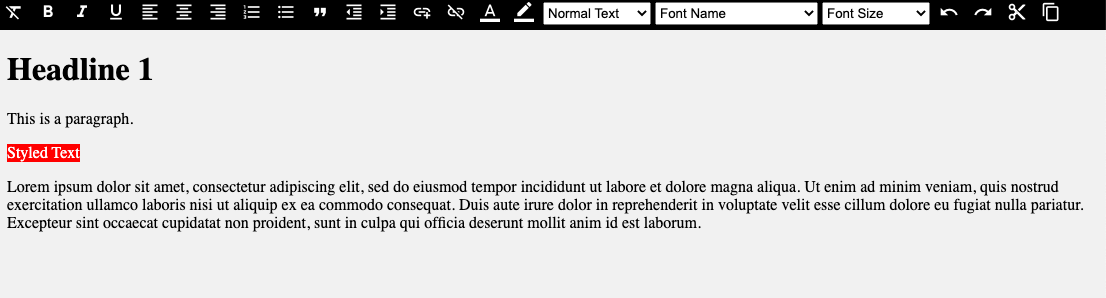
如果一切顺利,运行命令 npm run dev 后,视口中应该会出现以下内容:
结语
如需进一步了解如何使用 Lit 构建应用,可以阅读此处的文档。
此示例的源代码可在此处找到。