
关于 creating-your-first-flutter-project
creating-your-first-flutter-project 是面向初学者的指南,介绍如何创建、打开、运行和测试 Flutter 应用。它说明项目文件及命令行操作,包括运行 widget 测试和生成覆盖率数据。
主要功能
- 01使用 flutter create 创建项目
- 02定位应用逻辑与依赖配置
- 03通过命令行运行应用
- 04运行 widget 测试并生成覆盖率
适用场景
- 01搭建第一个 Flutter 应用
- 02在指定设备上运行项目
- 03通过测试检查 widget 行为
安装
复制下面的命令,在终端中运行。
npx skills add https:/安装后在 Claude Code 中输入/creating-your-first-flutter-project确认已加载。
详细介绍
创建你的第一个 Flutter 项目
Flutter 是 Google 推出的 UI 工具包,可让你打造在任何平台上都无可比拟、富有表现力且独具特色的体验。你只需编写一次 UI,即可在所有平台上运行。没错,所有平台!Web、iOS、Android、Windows、Linux、MacOS、Raspberry PI 等等……

如果你更喜欢视频,可以观看我正在制作的 YouTube 系列“Flutter Take 5”,我会在其中探索构建 Flutter 应用时会遇到的各种主题。在整个系列中,我还会分享一些技巧和窍门。
或者看看这个短视频:
什么是 Flutter
Flutter 最近在 GitHub 上的使用人数超过了 React Native,如今已有超过 200 万名开发者使用 Flutter 创建应用。仅 Google Play 上,就有超过 50,000 款使用 Flutter 发布的应用。
开始使用
安装好 SDK 后,开始使用就很简单了。安装完成后,创建新应用、插件和包的速度非常快。请按照本指南安装 Flutter:
Flutter 的一大优点是,它作为开源项目以开放方式开发,任何人都可以参与贡献。如果缺少某些功能,你可以轻松地 fork 该仓库,并为缺失的功能提交 PR。

创建项目
现在你已经安装了 Flutter,是时候创建你的第一个(也是众多项目中的第一个 😉)Flutter 项目了!打开终端,前往你想要创建应用文件夹的位置。进入该目录后,你可以输入以下命令:
flutter create my_awesome_project
你可以将“my_awesome_project”替换为任意项目名称。请务必使用 snake_case,因为这是 dart 中项目名称的有效语法。

恭喜你,刚刚创建了自己的第一个项目!
打开项目
你可能想知道刚刚创建了什么,下面让我们深入了解一下。如果已安装 VSCode,可以在终端中输入以下命令来打开项目:
cd my_awesome_project && code .
如果愿意,也可以用自己喜欢的 IDE 打开该文件夹。需要留意的两个重要文件是 pubspec.yaml 和 lib/main.dart。
UI 和逻辑位于“lib/main.dart”中,你应该会看到以下内容:
import 'package:flutter/material.dart';

void main() {
  runApp(MyApp());
}

class MyApp extends StatelessWidget {
  // This widget is the root of your application.
  @override
  Widget build(BuildContext context) {
    return MaterialApp(
      title: 'Flutter Demo',
      theme: ThemeData(
        // This is the theme of your application.
        //
        // Try running your application with "flutter run". You'll see the
        // application has a blue toolbar. Then, without quitting the app, try
        // changing the primarySwatch below to Colors.green and then invoke
        // "hot reload" (press "r" in the console where you ran "flutter run",
        // or simply save your changes to "hot reload" in a Flutter IDE).
        // Notice that the counter didn't reset back to zero; the application
        // is not restarted.
        primarySwatch: Colors.blue,
        // This makes the visual density adapt to the platform that you run
        // the app on. For desktop platforms, the controls will be smaller and
        // closer together (more dense) than on mobile platforms.
        visualDensity: VisualDensity.adaptivePlatformDensity,
      ),
      home: MyHomePage(title: 'Flutter Demo Home Page'),
    );
  }
}

class MyHomePage extends StatefulWidget {
  MyHomePage({Key key, this.title}) : super(key: key);

  // This widget is the home page of your application. It is stateful, meaning
  // that it has a State object (defined below) that contains fields that affect
  // how it looks.

  // This class is the configuration for the state. It holds the values (in this
  // case the title) provided by the parent (in this case the App widget) and
  // used by the build method of the State. Fields in a Widget subclass are
  // always marked "final".

  final String title;

  @override
  _MyHomePageState createState() => _MyHomePageState();
}

class _MyHomePageState extends State<MyHomePage> {
  int _counter = 0;

  void _incrementCounter() {
    setState(() {
      // This call to setState tells the Flutter framework that something has
      // changed in this State, which causes it to rerun the build method below
      // so that the display can reflect the updated values. If we changed
      // _counter without calling setState(), then the build method would not be
      // called again, and so nothing would appear to happen.
      _counter++;
    });
  }

  @override
  Widget build(BuildContext context) {
    // This method is rerun every time setState is called, for instance as done
    // by the _incrementCounter method above.
    //
    // The Flutter framework has been optimized to make rerunning build methods
    // fast, so that you can just rebuild anything that needs updating rather
    // than having to individually change instances of widgets.
    return Scaffold(
      appBar: AppBar(
        // Here we take the value from the MyHomePage object that was created by
        // the App.build method, and use it to set our appbar title.
        title: Text(widget.title),
      ),
      body: Center(
        // Center is a layout widget. It takes a single child and positions it
        // in the middle of the parent.
        child: Column(
          // Column is also a layout widget. It takes a list of children and
          // arranges them vertically. By default, it sizes itself to fit its
          // children horizontally, and tries to be as tall as its parent.
          //
          // Invoke "debug painting" (press "p" in the console, choose the
          // "Toggle Debug Paint" action from the Flutter Inspector in Android
          // Studio, or the "Toggle Debug Paint" command in Visual Studio Code)
          // to see the wireframe for each widget.
          //
          // Column has various properties to control how it sizes itself and
          // how it positions its children. Here we use mainAxisAlignment to
          // center the children vertically; the main axis here is the vertical
          // axis because Columns are vertical (the cross axis would be
          // horizontal).
          mainAxisAlignment: MainAxisAlignment.center,
          children: <Widget>[
            Text(
              'You have pushed the button this many times:',
            ),
            Text(
              '$_counter',
              style: Theme.of(context).textTheme.headline4,
            ),
          ],
        ),
      ),
      floatingActionButton: FloatingActionButton(
        onPressed: _incrementCounter,
        tooltip: 'Increment',
        child: Icon(Icons.add),
      ), // This trailing comma makes auto-formatting nicer for build methods.
    );
  }
}
你可以在“pubspec.yaml”中定义应用所需的依赖项和插件,你应该会看到以下内容:
name: example
description: A new Flutter project.

# The following line prevents the package from being accidentally published to
# pub.dev using `pub publish`. This is preferred for private packages.
publish_to: 'none' # Remove this line if you wish to publish to pub.dev

# The following defines the version and build number for your application.
# A version number is three numbers separated by dots, like 1.2.43
# followed by an optional build number separated by a +.
# Both the version and the builder number may be overridden in flutter
# build by specifying --build-name and --build-number, respectively.
# In Android, build-name is used as versionName while build-number used as versionCode.
# Read more about Android versioning at https://developer.android.com/studio/publish/versioning
# In iOS, build-name is used as CFBundleShortVersionString while build-number used as CFBundleVersion.
# Read more about iOS versioning at
# https://developer.apple.com/library/archive/documentation/General/Reference/InfoPlistKeyReference/Articles/CoreFoundationKeys.html
version: 1.0.0+1

environment:
  sdk: ">=2.7.0 <3.0.0"

dependencies:
  flutter:
    sdk: flutter


  # The following adds the Cupertino Icons font to your application.
  # Use with the CupertinoIcons class for iOS style icons.
  cupertino_icons: ^0.1.3

dev_dependencies:
  flutter_test:
    sdk: flutter

# For information on the generic Dart part of this file, see the
# following page: https://dart.dev/tools/pub/pubspec

# The following section is specific to Flutter.
flutter:

  # The following line ensures that the Material Icons font is
  # included with your application, so that you can use the icons in
  # the material Icons class.
  uses-material-design: true

  # To add assets to your application, add an assets section, like this:
  # assets:
  #   - images/a_dot_burr.webp
  #   - images/a_dot_ham.webp

  # An image asset can refer to one or more resolution-specific "variants", see
  # https://flutter.dev/assets-and-images/#resolution-aware.

  # For details regarding adding assets from package dependencies, see
  # https://flutter.dev/assets-and-images/#from-packages

  # To add custom fonts to your application, add a fonts section here,
  # in this "flutter" section. Each entry in this list should have a
  # "family" key with the font family name, and a "fonts" key with a
  # list giving the asset and other descriptors for the font. For
  # example:
  # fonts:
  #   - family: Schyler
  #     fonts:
  #       - asset: fonts/Schyler-Regular.ttf
  #       - asset: fonts/Schyler-Italic.ttf
  #         style: italic
  #   - family: Trajan Pro
  #     fonts:
  #       - asset: fonts/TrajanPro.ttf
  #       - asset: fonts/TrajanPro_Bold.ttf
  #         weight: 700
  #
  # For details regarding fonts from package dependencies,
  # see https://flutter.dev/custom-fonts/#from-packages
运行项目
运行应用也很简单。虽然所有 IDE 中都有按钮,但你也可以从命令行运行项目,以便快速测试。你还可以配置 Flutter for Desktop,这样就不必等待模拟器启动。打开项目,并在终端中输入以下命令:
flutter run -d macos
注意“-d macos”,你可以自定义要在哪个设备上运行。你应该会在终端中看到以下内容:
Building macOS application...
Syncing files to device macOS...                                   141ms

Flutter run key commands.
r Hot reload. 🔥🔥🔥
R Hot restart.
h Repeat this help message.
d Detach (terminate "flutter run" but leave application running).
c Clear the screen
q Quit (terminate the application on the device).
An Observatory debugger and profiler on macOS is available at: [http://127.0.0.1:58932/f1Mspofty_k=/](http://127.0.0.1:58932/f1Mspofty_k=/)
Application finished.
你还可以同时在多个设备上运行。更多信息请参阅这里的 Flutter Octopus。如果一切顺利,你应该会看到以下应用启动:
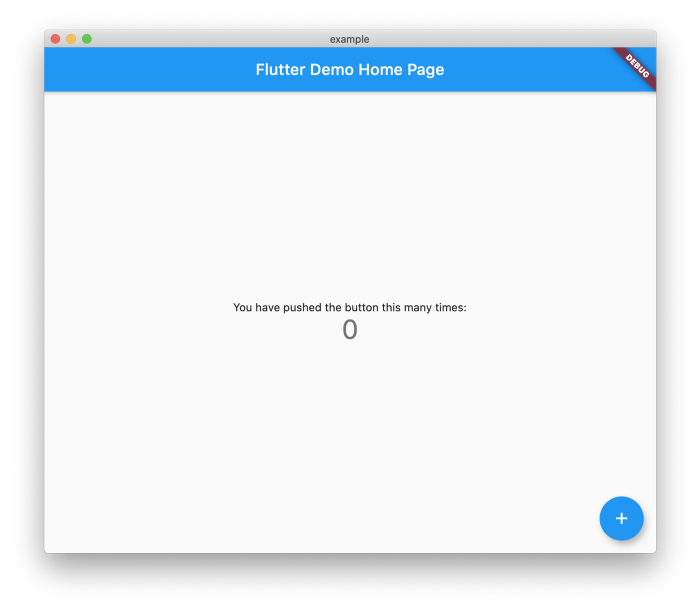
目前这是一个相当基础的应用,不过它展示了更改应用状态有多么简单,这一点很重要。只需调用“setState()”,就可以重建 UI。
测试项目
测试是我如此喜爱 Flutter 的原因之一,而且编写和运行项目测试非常简单。如果你查看文件“test/widget_test.dart”,应该会看到以下内容:
// This is a basic Flutter widget test.
//
// To perform an interaction with a widget in your test, use the WidgetTester
// utility that Flutter provides. For example, you can send tap and scroll
// gestures. You can also use WidgetTester to find child widgets in the widget
// tree, read text, and verify that the values of widget properties are correct.

import 'package:flutter/material.dart';
import 'package:flutter_test/flutter_test.dart';

import 'package:example/main.dart';

void main() {
  testWidgets('Counter increments smoke test', (WidgetTester tester) async {
    // Build our app and trigger a frame.
    await tester.pumpWidget(MyApp());

    // Verify that our counter starts at 0.
    expect(find.text('0'), findsOneWidget);
    expect(find.text('1'), findsNothing);

    // Tap the '+' icon and trigger a frame.
    await tester.tap(find.byIcon(Icons.add));
    await tester.pump();

    // Verify that our counter has incremented.
    expect(find.text('0'), findsNothing);
    expect(find.text('1'), findsOneWidget);
  });
}
运行这些测试非常容易。打开项目,并在终端中输入以下内容:
flutter test
00:07 +1: All tests passed!
就这样,所有测试都会运行,你可以捕获之前遗漏的错误。

你也可以轻松地为应用生成代码覆盖率,只需输入以下内容:
flutter test --coverage
这会在“coverage/lcov.info”生成一个新文件,其中会包含以下内容:
SF:lib/main.dart
DA:3,0
DA:4,0
DA:9,1
DA:11,1
DA:13,1
DA:27,1
DA:29,1
DA:35,2
DA:48,1
DA:49,1
DA:55,1
DA:56,2
DA:62,2
DA:66,1
DA:74,1
DA:75,1
DA:78,3
DA:80,1
DA:83,1
DA:99,1
DA:100,1
DA:103,1
DA:104,2
DA:105,3
DA:110,1
DA:111,1
DA:113,1
LF:27
LH:25
end_of_record
现在,你可以轻松地使用 LCOV 数据创建徽章和图表。下面这个软件包可以让这项工作更简单:
结论
Flutter 让你能够非常快速地构建不依赖 Web 或移动技术的应用。由于你必须自行设计所有 UI,因此它也很适合用来编写游戏。你可以在这里找到最终源代码:
你也可以在这里找到 Flutter 源代码: