
关于 dynamic-themes-with-codemirror
Dynamic Themes with CodeMirror 是一篇教程,介绍如何构建嵌入 CodeMirror 并使用 Material Design 色彩工具动态换肤的 Lit Web 组件,面向使用 TypeScript 和 Vite 的开发者。
主要功能
- 01基于 Lit 的代码编辑器组件
- 02集成 CodeMirror
- 03从源颜色生成主题
- 04使用 CSS 自定义属性设置编辑器颜色
适用场景
- 01在 Web 组件中添加带主题的代码窗口
- 02根据所选源颜色更改编辑器配色
安装
复制下面的命令,在终端中运行。
npx skills add https:/安装后在 Claude Code 中输入/dynamic-themes-with-codemirror确认已加载。
详细介绍
使用 CodeMirror 创建动态主题
本文将介绍如何设置一个 Lit Web 组件,并使用它创建一个基于 CodeMirror 的代码窗口,再应用 Material Design 动态主题。
前置条件
- Vscode
- Node >= 16
- Typescript
开始
首先,在终端中导航到项目所在位置,然后运行以下命令:
npm init @vitejs/app --template lit-ts
接着输入项目名称 codemirror-dynamic-theme,然后在 vscode 中打开项目并安装依赖:
cd codemirror-dynamic-theme
npm i lit codemirror @material/material-color-utilities
npm i -D @types/node @types/codemirror
code .
使用以下内容更新 vite.config.ts:
import { defineConfig } from "vite";
import { resolve } from "path";

export default defineConfig({
  base: "/codemirror-dynamic-theme/",
  build: {
    rollupOptions: {
      input: {
        main: resolve(__dirname, "index.html"),
      },
    },
  },
});
模板
打开 index.html,并使用以下内容更新:
<!DOCTYPE html>
<html lang="en">
  <head>
    <meta charset="UTF-8" />
    <link rel="icon" type="image/svg+xml" href="/src/favicon.svg" />
    <meta name="viewport" content="width=device-width, initial-scale=1.0" />
    <title>CodeMirror Dynamic Theme</title>
    <script type="module" src="/src/code-window.ts"></script>
    <style>
      body {
        margin: 0;
        padding: 0;
      }
    </style>
  </head>
  <body>
    <code-window> </code-window>
  </body>
</html>
Web 组件
更新组件之前,我们需要将 my-element.ts 重命名为 code-window.ts。
打开 code-window.ts,并使用以下内容更新:
import { html, css, LitElement, unsafeCSS } from "lit";
import { customElement, property } from "lit/decorators.js";
import {
  applyTheme,
  argbFromHex,
  hexFromArgb,
  themeFromSourceColor,
} from "@material/material-color-utilities";
import CodeMirror from "codemirror";
import codemirrorStyles from "codemirror/lib/codemirror.css";

@customElement("code-window")
export class CodeWindow extends LitElement {
  static styles = css`
    ${unsafeCSS(codemirrorStyles)}

    main {
      width: 100vw;
      height: 100vh;
      background-color: var(--md-sys-color-background);
      color: var(--md-sys-color-on-background);
      --header-height: 48px;
      --input-size: 32px;
    }

    .toolbar {
      height: var(--header-height);
      background-color: var(--md-sys-color-primary-container);
      color: var(--md-sys-color-on-primary-container);
      display: flex;
      align-items: center;
    }

    .actions > * {
      margin-left: 4px;
      margin-right: 4px;
    }

    .toolbar .title {
      font-family: sans-serif;
      font-size: 18px;
      padding-left: 4px;
    }

    .toolbar .actions {
      display: flex;
      align-items: center;
    }

    .toolbar a {
      padding: 0;
      margin: 0;
      padding-left: 8px;
      padding-right: 8px;
      display: flex;
      align-items: center;
      cursor: pointer;
    }

    input[type="color"] {
      width: calc(var(--input-size) * 2);
      height: var(--input-size);
      outline: none;
      border: none;
      border-radius: 50%;
      background-color: var(--md-sys-color-primary-container);
    }
    input[type="color"]::-webkit-color-swatch-wrapper {
      padding: 0;
    }
    input[type="color"]::-webkit-color-swatch {
      border: none;
      border-radius: var(--input-size);
      border: var(--md-sys-color-outline) solid 1px;
    }

    button {
      border: none;
      border-radius: 4px;
      padding: 8px;
    }

    .tertiary {
      background-color: var(--md-sys-color-tertiary);
      color: var(--md-sys-color-on-tertiary);
    }

    .secondary {
      background-color: var(--md-sys-color-secondary);
      color: var(--md-sys-color-on-secondary);
    }

    .spacer {
      flex: 1;
    }

    .editor {
      height: calc(100% - var(--header-height));
      width: 100%;
    }
  `;

  @property() value = [
    `import {html, css, LitElement} from 'lit';`,
    `import {customElement, property} from 'lit/decorators.js';`,
    ``,
    `@customElement('simple-greeting')`,
    `export class SimpleGreeting extends LitElement {`,
    `  static styles = css\`p { color: blue }\`;`,
    ``,
    `  @property()`,
    `  name = 'Somebody';`,
    ``,
    `  render() {`,
    `    return html\`<p>Hello, \${this.name}!</p>\`;`,
    `  }`,
    `}`,
  ].join("\n");

  @property() color = "#6750A4";
  @property({ type: Boolean }) dark = window.matchMedia(
    "(prefers-color-scheme: dark)"
  ).matches;

  render() {
    return html`<main>
      <header class="toolbar">
        <div class="title">${document.title}</div>
        <div class="spacer"></div>
        <div class="actions">
          <button class="secondary" @click=${this.toggleDark.bind(this)}>
            ${this.dark ? "Light" : "Dark"}
          </button>
          <button class="tertiary" @click=${this.randomColor.bind(this)}>
            Random
          </button>
          <input
            type="color"
            .value=${this.color}
            @input=${this.onColor.bind(this)}
          />
        </div>
      </header>
      <div class="editor"></div>
    </main>`;
  }

  firstUpdated() {
    const root = this.shadowRoot!.querySelector(".editor") as HTMLElement;
    const editor = CodeMirror(root, {
      value: this.value,
      mode: "javascript",
      lineNumbers: true,
      lineWrapping: true,
      indentUnit: 4,
      tabSize: 4,
      indentWithTabs: true,
      autofocus: true,
    });
    console.debug(editor);
    editor.setSize("100%", `100%`);
    this.updateTheme();
    window
      .matchMedia("(prefers-color-scheme: dark)")
      .addEventListener("change", (e) => {
        this.dark = e.matches;
        this.updateTheme();
      });
  }

  private updateTheme() {
   // TODO: Generate Theme
  }

  private setColor(val: string) {
    this.color = val;
    this.updateTheme();
  }

  private onColor(e: Event) {
    const target = e.target as HTMLInputElement;
    this.setColor(target.value);
  }

  private randomColor() {
    const letters = "0123456789ABCDEF";
    let color = "#";
    for (let i = 0; i < 6; i++) {
      color += letters[Math.floor(Math.random() * 16)];
    }
    this.setColor(color);
  }

  private toggleDark() {
    this.dark = !this.dark;
    this.updateTheme();
  }

}

declare global {
  interface HTMLElementTagNameMap {
    "code-window": CodeWindow;
  }
}
这里我们设置了一些编辑器的基本配置,以加载基础布局所需的样式。
此外,还有几个方法用于更新元素的属性,例如 toggleDark 和 setColor。运行应用程序后,你应该会看到以下内容:
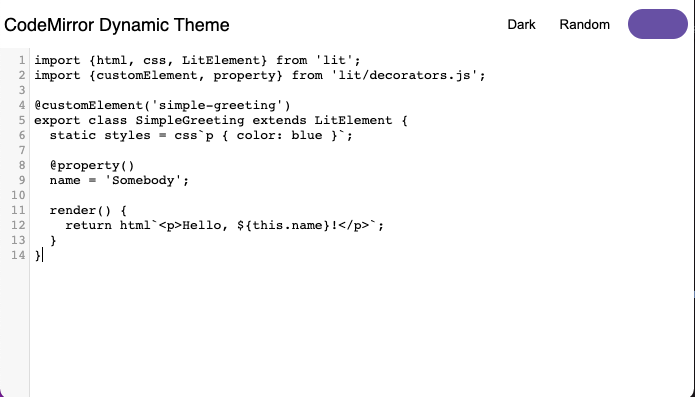
目前效果还不太理想,但现在我们可以添加一个 CodeMirror 主题来导入。创建文件 src/theme.ts,并使用以下内容更新:
import { css } from "lit";

export const codeMirrorTheme = css`
  .CodeMirror {
    background-color: var(--md-sys-color-background);
    color: var(--md-sys-color-on-background);
  }

  .CodeMirror-gutters {
    background: var(--md-sys-color-surface-variant);
    color: var(--md-sys-color-on-surface-variant);
    border: none;
  }

  .CodeMirror-guttermarker,
  .CodeMirror-guttermarker-subtle,
  .CodeMirror-linenumber {
    color: var(--md-sys-color-on-background);
  }

  .CodeMirror-cursor {
    border-left: 1px solid var(--md-sys-color-primary);
  }
  .cm-fat-cursor .CodeMirror-cursor {
    background-color: var(--md-sys-color-background);
  }
  .cm-animate-fat-cursor {
    background-color: var(--md-sys-color-background);
  }

  div.CodeMirror-selected {
    background: var(--md-sys-color-surface-variant);
  }

  .CodeMirror-focused div.CodeMirror-selected {
    background: var(--md-sys-color-surface-variant);
  }

  .CodeMirror-line::selection,
  .CodeMirror-line > span::selection,
  .CodeMirror-line > span > span::selection {
    background: var(--md-sys-color-surface-variant);
  }

  .CodeMirror-line::-moz-selection,
  .CodeMirror-line > span::-moz-selection,
  .CodeMirror-line > span > span::-moz-selection {
    background: var(--md-sys-color-surface-variant);
  }

  .CodeMirror-activeline-background {
    background: var(--md-sys-color-surface);
  }

  .cm-keyword {
    color: var(--md-custom-color-keyword) !important;
  }

  .cm-operator {
    color: var(--md-custom-color-operator) !important;
  }

  .cm-variable-2 {
    color: var(--md-custom-color-variable-2) !important;
  }

  .cm-variable-3,
  .cm-type {
    color: var(--md-custom-color-variable-3) !important;
  }

  .cm-builtin {
    color: var(--md-custom-color-builtin) !important;
  }

  .cm-atom {
    color: var(--md-custom-color-atom) !important;
  }

  .cm-number {
    color: var(--md-custom-color-number) !important;
  }

  .cm-def {
    color: var(--md-custom-color-def) !important;
  }

  .cm-string {
    color: var(--md-custom-color-string) !important;
  }

  .cm-string-2 {
    color: var(--md-custom-color-string-2) !important;
  }

  .cm-comment {
    color: var(--md-custom-color-comment) !important;
  }

  .cm-variable {
    color: var(--md-custom-color-variable) !important;
  }

  .cm-tag {
    color: var(--md-custom-color-tag) !important;
  }

  .cm-meta {
    color: var(--md-custom-color-meta) !important;
  }

  .cm-attribute {
    color: var(--md-custom-color-attribute) !important;
  }

  .cm-property {
    color: var(--md-custom-color-property) !important;
  }

  .cm-qualifier {
    color: var(--md-custom-color-qualifier) !important;
  }

  .cm-variable-3,
  .cm-type {
    color: var(--md-custom-color-variable-3) !important;
  }

  .cm-error {
    color: var(--md-sys-color-on-error);
    background-color: var(--md-sys-color-error);
  }

  .CodeMirror-matchingbracket {
    text-decoration: underline;
    color: var(--md-sys-color-on-surface);
  }
`;
这里我们将所有样式定义为 CSS 自定义属性,这样就能轻松更新它们。
现在导入主题,并在组件中应用样式:
import { codeMirrorTheme } from "./theme";

@customElement("code-window")
export class CodeWindow extends LitElement {
  static styles = css`
    ${unsafeCSS(codemirrorStyles)}
    ${codeMirrorTheme}
    ...
接下来,我们需要在元素中实现 updateTheme 方法:
updateTheme() {
    const source = this.color;
    const dark = this.dark;
    const target = this.shadowRoot!.querySelector("main") as HTMLElement;
    const properties = [
        `--md-custom-color-keyword: #c75779;`,
        `--md-custom-color-operator: #008800;`,
        `--md-custom-color-variable: #90ccff;`,
        `--md-custom-color-variable-2: #dd7700;`,
        `--md-custom-color-variable-3: #3333bb;`,
        `--md-custom-color-variable-3: #decb6b;`,
        `--md-custom-color-builtin: #003388;`,
        `--md-custom-color-atom: #bb4646;`,
        `--md-custom-color-number: #b4c5ff;`,
        `--md-custom-color-def: #82aaff;`,
        `--md-custom-color-string: #ffb4a9;`,
        `--md-custom-color-string-2: #ffb4a9;`,
        `--md-custom-color-comment: #888888;`,
        `--md-custom-color-tag: #000080;`,
        `--md-custom-color-meta: #a9c7ff;`,
        `--md-custom-color-attribute: #008080;`,
        `--md-custom-color-property: #336699;`,
        `--md-custom-color-qualifier: #690;`,
    ];
    const customColors = properties.map((property) => {
        const [key, value] = property.split(":");
        const name = key.trim().replace(/^--md-custom-color-/, "");
        const color = argbFromHex(value.trim().replace(";", ""));
        return {
        name,
        value: color,
        blend: true,
        };
    });
    const theme = themeFromSourceColor(argbFromHex(source), customColors);
    applyTheme(theme, { target, dark });
    for (const custom of theme.customColors) {
        const name = custom.color.name;
        const section = dark ? custom.dark : custom.light;
        target.style.setProperty(
        `--md-custom-color-${name}`,
        hexFromArgb(section.color)
        );
    }
}
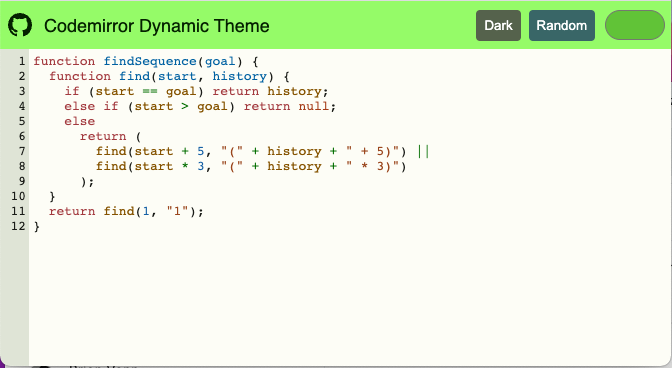
这里我们使用 Material Color Utilities 包,根据源颜色生成主题。我们可以利用自定义颜色,将各项值融合到主题中。
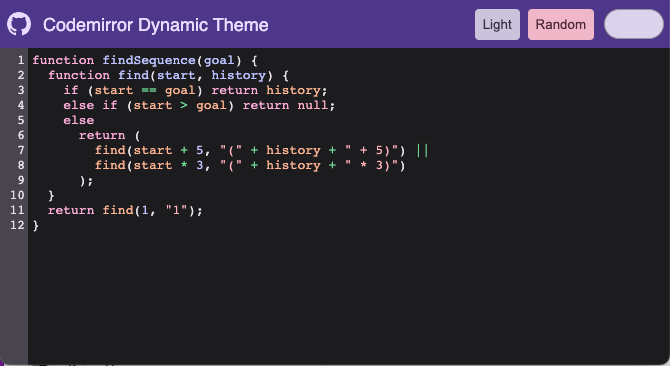
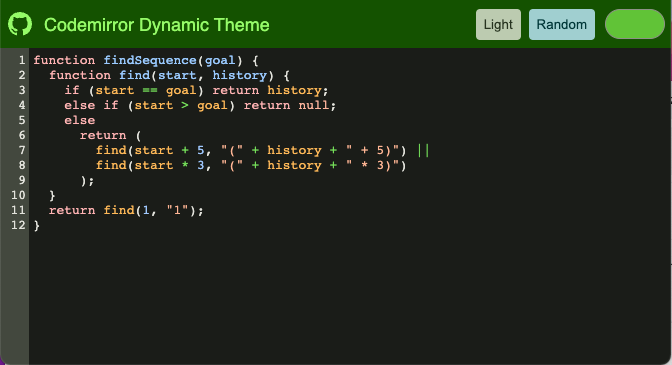
生成主题后,我们可以将其应用到根元素,并通过自定义属性更新编辑器。

更改源颜色即可更新主题:
更改亮度也可以设置颜色:
总结
如果你想进一步了解如何使用 Lit 构建应用,可以阅读此处的文档。
此示例的源码见此处。
如果你想体验 VSCode 的动态主题,可以查看我创建的扩展。