
关于 lit-and-figma
这篇技能指南演示如何用 Lit 和 TypeScript 构建 Figma 插件,面向熟悉 Web 开发的插件制作者。内容还包括将 AssemblyScript 编译为 WASM 并内联到插件界面。
主要功能
- 01用 Lit 创建 Web 组件
- 02配置 TypeScript 与 Webpack
- 03构建并加载本地 Figma 插件
- 04将 AssemblyScript 编译为 WASM
- 05把 WASM 内联到界面代码
适用场景
- 01创建可生成画布矩形的插件
- 02在 Figma 插件界面运行 WASM 计算
安装
复制下面的命令,在终端中运行。
npx skills add https:/安装后在 Claude Code 中输入/lit-and-figma确认已加载。
详细介绍
Lit 和 Figma
本文将介绍如何设置 Lit Web 组件,并用它创建 Figma 插件。
TLDR 你可以在这里找到最终源码。
前提条件
- Vscode
- Figma Desktop
- Node
- Typescript
入门
首先,我们可以创建一个空目录,并用自己喜欢的名称以 snake_case 命名。
mkdir figma_lit_example
cd figma_lit_example
Web 设置
现在我们进入了 figma_lit_example 目录,可以设置 Figma 和 Lit。先从 Node 开始。
npm init -y
这将为 Node 项目设置基础结构,并安装所需的软件包。接下来添加一些配置文件。打开 package.json,并将其替换为以下内容:
{
  "name": "figma_lit_example",
  "version": "1.0.0",
  "description": "Lit Figma Plugin",
  "dependencies": {
    "lit": "^2.0.0-rc.1"
  },
  "devDependencies": {
    "@figma/plugin-typings": "^1.23.0",
    "html-webpack-inline-source-plugin": "^1.0.0-beta.2",
    "html-webpack-plugin": "^4.3.0",
    "css-loader": "^5.2.4",
    "ts-loader": "^8.0.0",
    "typescript": "^4.2.4",
    "url-loader": "^4.1.1",
    "webpack": "^4.44.1",
    "webpack-cli": "^4.6.0"
  },
  "scripts": {
    "dev": "npx webpack --mode=development --watch",
    "copy": "mkdir -p lit-plugin && cp ./manifest.json ./lit-plugin/manifest.json && cp ./dist/ui.html ./lit-plugin/ui.html && cp ./dist/code.js ./lit-plugin/code.js",
    "build": "npx webpack --mode=production && npm run copy",
    "zip": "npm run build && zip -r lit-plugin.zip lit-plugin"
  },
  "browserslist": [
    "last 1 Chrome versions"
  ],
  "keywords": [],
  "author": "",
  "license": "ISC"
}
这将添加所需的全部内容,以及开发和生产所需的脚本。然后运行以下命令:
npm i
这将安装开始使用所需的全部内容。现在需要设置一些配置文件。
touch tsconfig.json
touch webpack.config.ts
这将创建 2 个文件。打开 tsconfig.json 并粘贴以下内容:
{
  "compilerOptions": {
    "target": "es2017",
    "module": "esNext",
    "moduleResolution": "node",
    "lib": ["es2017", "dom", "dom.iterable"],
    "typeRoots": ["./node_modules/@types", "./node_modules/@figma"],
    "declaration": true,
    "sourceMap": true,
    "inlineSources": true,
    "noUnusedLocals": true,
    "noImplicitReturns": true,
    "noFallthroughCasesInSwitch": true,
    "experimentalDecorators": true,
    "skipLibCheck": true,
    "strict": true,
    "noImplicitAny": false,
    "outDir": "./lib",
    "baseUrl": "./packages",
    "importHelpers": true,
    "plugins": [
      {
        "name": "ts-lit-plugin",
        "rules": {
          "no-unknown-tag-name": "error",
          "no-unclosed-tag": "error",
          "no-unknown-property": "error",
          "no-unintended-mixed-binding": "error",
          "no-invalid-boolean-binding": "error",
          "no-expressionless-property-binding": "error",
          "no-noncallable-event-binding": "error",
          "no-boolean-in-attribute-binding": "error",
          "no-complex-attribute-binding": "error",
          "no-nullable-attribute-binding": "error",
          "no-incompatible-type-binding": "error",
          "no-invalid-directive-binding": "error",
          "no-incompatible-property-type": "error",
          "no-unknown-property-converter": "error",
          "no-invalid-attribute-name": "error",
          "no-invalid-tag-name": "error",
          "no-unknown-attribute": "off",
          "no-unknown-event": "off",
          "no-unknown-slot": "off",
          "no-invalid-css": "off"
        }
      }
    ]
  },
  "include": ["src/**/*.ts"],
  "references": []
}
这是一个基本的 TypeScript 配置。打开 webpack.config.ts 并粘贴以下内容:
const HtmlWebpackInlineSourcePlugin = require("html-webpack-inline-source-plugin");
const HtmlWebpackPlugin = require("html-webpack-plugin");
const path = require("path");

module.exports = (env, argv) => ({
  mode: argv.mode === "production" ? "production" : "development",
  devtool: argv.mode === "production" ? false : "inline-source-map",
  entry: {
    ui: "./src/ui.ts",
    code: "./src/code.ts",
    app: "./src/my-app.ts",
  },
  module: {
    rules: [
      { test: /\.tsx?$/, use: "ts-loader", exclude: /node_modules/ },
      { test: /\.css$/, use: ["style-loader", { loader: "css-loader" }] },
      { test: /\.(png|jpg|gif|webp|svg)$/, loader: "url-loader" },
    ],
  },
  resolve: { extensions: [".ts", ".js"] },
  output: {
    filename: "[name].js",
    path: path.resolve(__dirname, "dist"),
  },
  plugins: [
    new HtmlWebpackPlugin({
      template: path.resolve(__dirname, "ui.html"),
      filename: "ui.html",
      inject: true,
      inlineSource: ".(js|css)$",
      chunks: ["ui"],
    }),
    new HtmlWebpackInlineSourcePlugin(HtmlWebpackPlugin),
  ],
});
现在需要为插件创建 UI:
touch ui.html
打开 /src/ui.html 并添加以下内容:
<my-app></my-app>
现在需要为 Figma 插件创建一个清单文件:
touch manifest.json
打开 manifest.json 并添加以下内容:
{
  "name": "figma_lit_example",
  "id": "973668777853442323",
  "api": "1.0.0",
  "main": "code.js",
  "ui": "ui.html"
}
现在需要创建 Web 组件:
mkdir src
cd src
touch my-app.ts
touch code.ts
touch ui.ts
cd ..
打开 /src/ui.ts 并粘贴以下内容:
import "./my-app";
打开 /src/my-app.ts 并粘贴以下内容:
import { html, LitElement } from "lit";
import { customElement, query } from "lit/decorators.js";

@customElement("my-app")
export class MyApp extends LitElement {
  @property() amount = "5";
  @query("#count") countInput!: HTMLInputElement;

  render() {
    return html`
      <div>
        <h2>Rectangle Creator</h2>
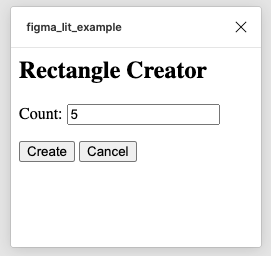
        <p>Count: <input id="count" value="${this.amount}" /></p>
        <button id="create" @click=${this.create}>Create</button>
        <button id="cancel" @click=${this.cancel}>Cancel</button>
      </div>
    `;
  }

  create() {
    const count = parseInt(this.countInput.value, 10);
    this.sendMessage("create-rectangles", { count });
  }

  cancel() {
    this.sendMessage("cancel");
  }

  private sendMessage(type: string, content: Object = {}) {
    const message = { pluginMessage: { type: type, ...content } };
    parent.postMessage(message, "*");
  }
}
打开 code.ts 并粘贴以下内容:
const options: ShowUIOptions = {
  width: 250,
  height: 200,
};

figma.showUI(__html__, options);

figma.ui.onmessage = msg => {
  switch (msg.type) {
    case 'create-rectangles':
      const nodes: SceneNode[] = [];
      for (let i = 0; i < msg.count; i++) {
        const rect = figma.createRectangle();
        rect.x = i * 150;
        rect.fills = [{ type: 'SOLID', color: { r: 1, g: 0.5, b: 0 } }];
        figma.currentPage.appendChild(rect);
        nodes.push(rect);
      }
      figma.currentPage.selection = nodes;
      figma.viewport.scrollAndZoomIntoView(nodes);
      break;
    default:
      break;
  }

  figma.closePlugin();
};
构建插件
现在代码已经准备就绪,我们可以构建插件并在 Figma 中测试。
npm run build
步骤 1
下载并打开 Figma 桌面版。
https://www.figma.com/downloads/
步骤 2
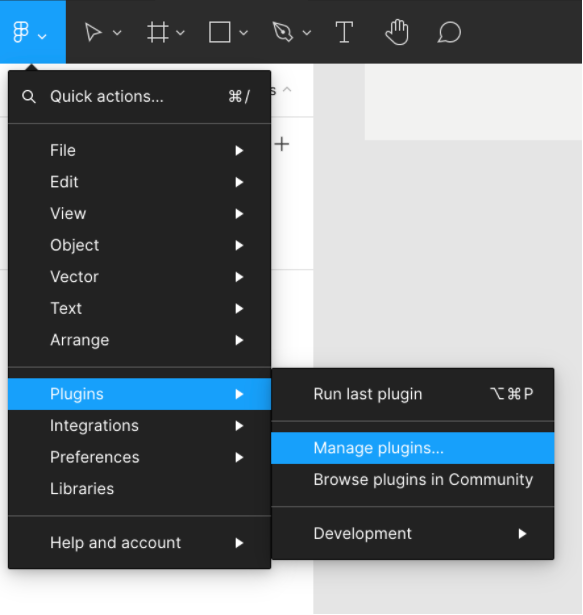
打开菜单并导航至“Plugins > Manage plugins”。
步骤 3
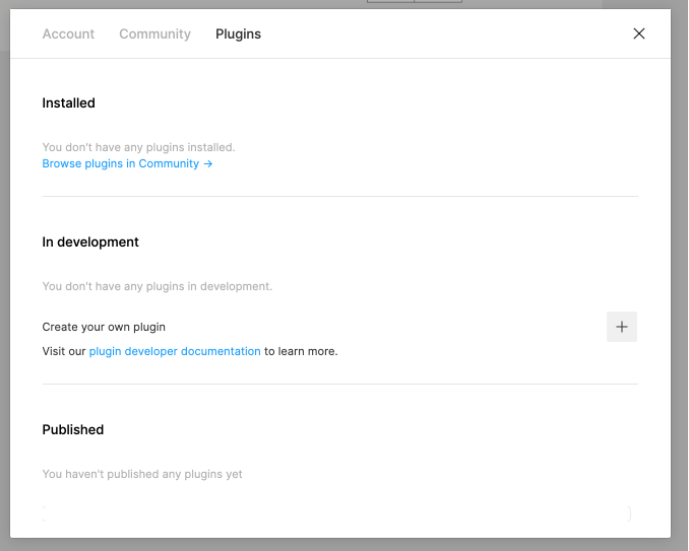
点击加号图标以添加本地插件。
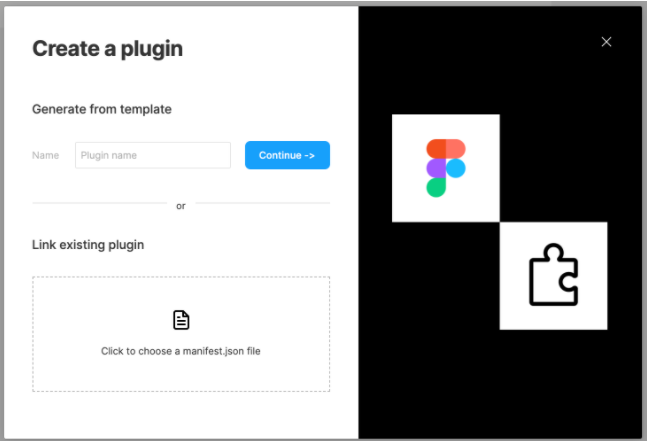
点击方框以关联现有插件,然后导航到源码中构建后生成的 lit-plugin 文件夹,并选择 manifest.json。
步骤 4
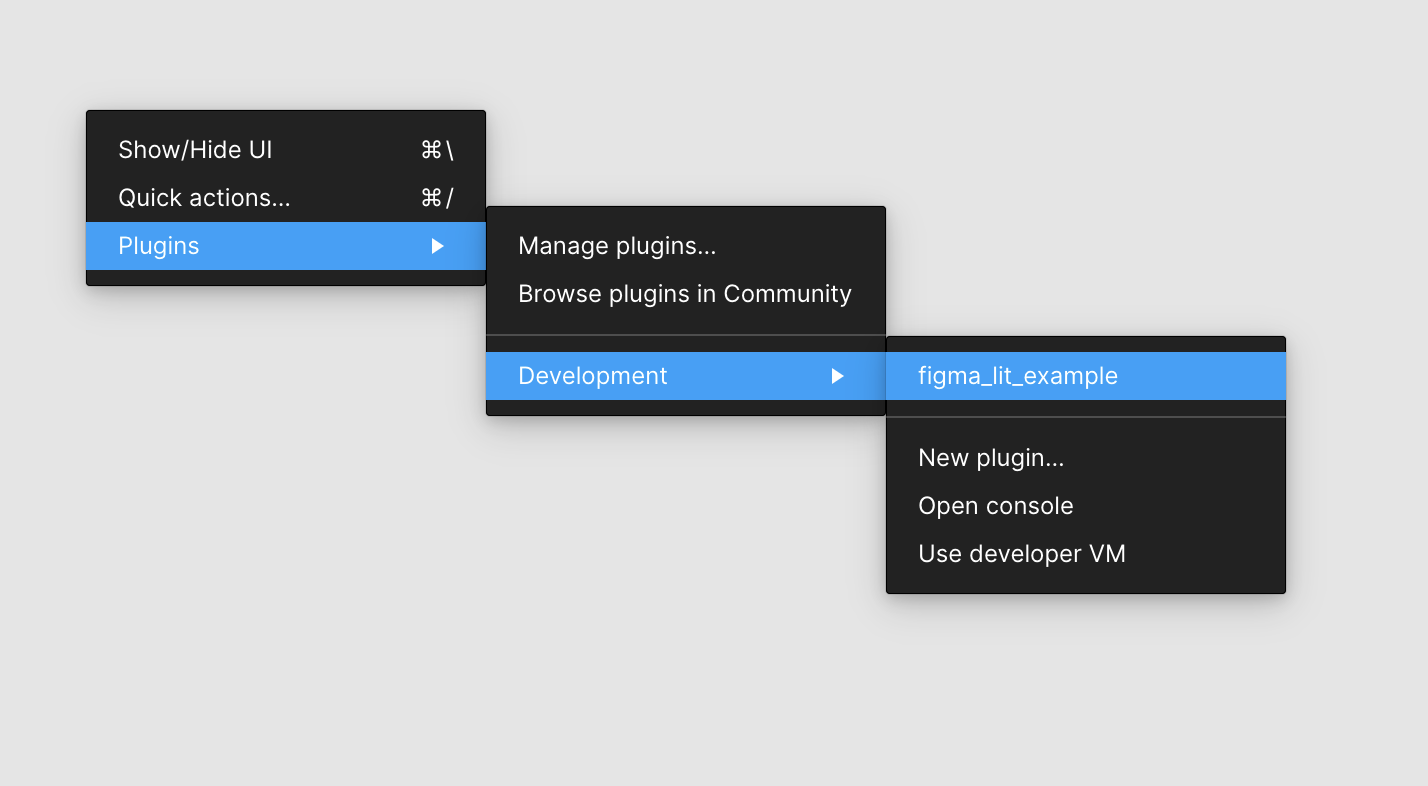
要运行插件,请导航至“Plugins > Development > figma_lit_example”以启动插件。
步骤 5
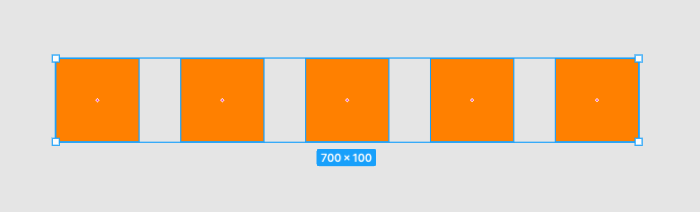
现在插件应该已启动,你可以在画布上创建 5 个矩形。
如果一切正常,画布上将新增 5 个矩形,并由 Figma 聚焦显示。
WASM 支持
如果有一项繁重的计算可以从在 WebAssembly 中运行获益,以下步骤将确保在可能的情况下启用硬件加速。
让我们添加 AssemblyScript 和一些用于将 WASM 加载到 Figma UI 中的依赖项。
npm i @assemblyscript/loader
npm i --D assemblyscript js-inline-wasm
npx asinit .
在提示中确认 yes,让它生成项目文件,并将以下内容添加到 package.json 中的 scripts:
"asbuild:untouched": "asc assembly/index.ts --target debug",
"asbuild:optimized": "asc assembly/index.ts --target release",
"asbuild": "npm run asbuild:untouched && npm run asbuild:optimized",
"inlinewasm": "inlinewasm build/optimized.wasm --output src/wasm.ts",
WASM 所用的代码位于 /assembly/index.ts,内容应如下所示:
// The entry file of your WebAssembly module.

export function add(a: i32, b: i32): i32 {
  return a + b;
}
现在来构建 wasm 模块:
npm run asbuild
为了让 git 忽略 wasm 构建文件,请将以下内容添加到 .gitignore:
build
这将在 build 目录中生成 wasm 和 wat 文件,但 Figma 要将它们加载到 UI 中,需要将其内联,因此运行以下命令,从 wasm 文件生成 js 文件:
npm run inlinewasm
这应该会生成 src/wasm.ts,内容如下:
const encoded = 'AGFzbQEAAAABBwFgAn9/AX8DAgEABQMBAAAHEAIDYWRkAAAGbWVtb3J5AgAKCQEHACAAIAFqCwAmEHNvdXJjZU1hcHBpbmdVUkwULi9vcHRpbWl6ZWQud2FzbS5tYXA=';
export default new Promise(resolve => {
    const decoded = atob(encoded);
    const len = decoded.length;
    const bytes = new Uint8Array(len);
    for (var i = 0; i < len; i++) {
        bytes[i] = decoded.charCodeAt(i);
    }
    resolve(new Response(bytes, { status: 200, headers: { "Content-Type": "application/wasm" } }));
});
现在打开 /src/my-app.ts 并按如下内容更新:
import { html, LitElement } from "lit";
import { customElement, property, query } from "lit/decorators.js";

@customElement("my-app")
export class MyApp extends LitElement {
  @property() amount = "5"; // <-- Pass in a value for the number of rectangles to create
  @query("#count") countInput!: HTMLInputElement;

  render() {
    return html`
      <div>
        <h2>Rectangle Creator</h2>

        <p>Count: <input id="count" value="${this.amount}" /></p>
        ...
      </div>
    `;
  }
  ...
}
这样我们就可以从外部传入要创建的方框数量。
现在打开 /src/ui.ts 并按如下内容更新:
import "./my-app";

import wasm from "./wasm"; // <-- Our WASM file to load

WebAssembly.instantiateStreaming(wasm as Promise<Response>).then((obj) => {
  // @ts-ignore
  const value: number = obj.instance.exports.add(2, 4);
  console.log("return from wasm", value);
  const elem = document.querySelector('my-app')! as HTMLElement;
  elem.setAttribute('amount', `${value}`);
});
现在,构建插件并在 Figma 中运行时,方框数量将由调用 wasm 的结果决定!